

AI CLI
nihilanthmf · Coding · Other
AI CLI is a free, open-source terminal assistant that brings an OpenAI or Claude copilot into your command line, letting you ask questions and get coding help without switching apps.
About AI CLI
What Is AI CLI
AI CLI is an open-source command-line tool that puts an AI copilot inside your terminal. Instead of switching to a browser or a separate editor, you type a command and get an answer right where you're already working.
It solves a specific annoyance: breaking focus every time you want a quick explanation, a code snippet, or a sanity check on a command. For people who live in the shell, that context switch adds up over a day.
The biggest limit is scope. AI CLI is a thin wrapper around the OpenAI and Anthropic APIs, so you bring your own API keys and pay those providers directly. It doesn't host models, store your history in a cloud account, or offer a chat interface.
Getting Started
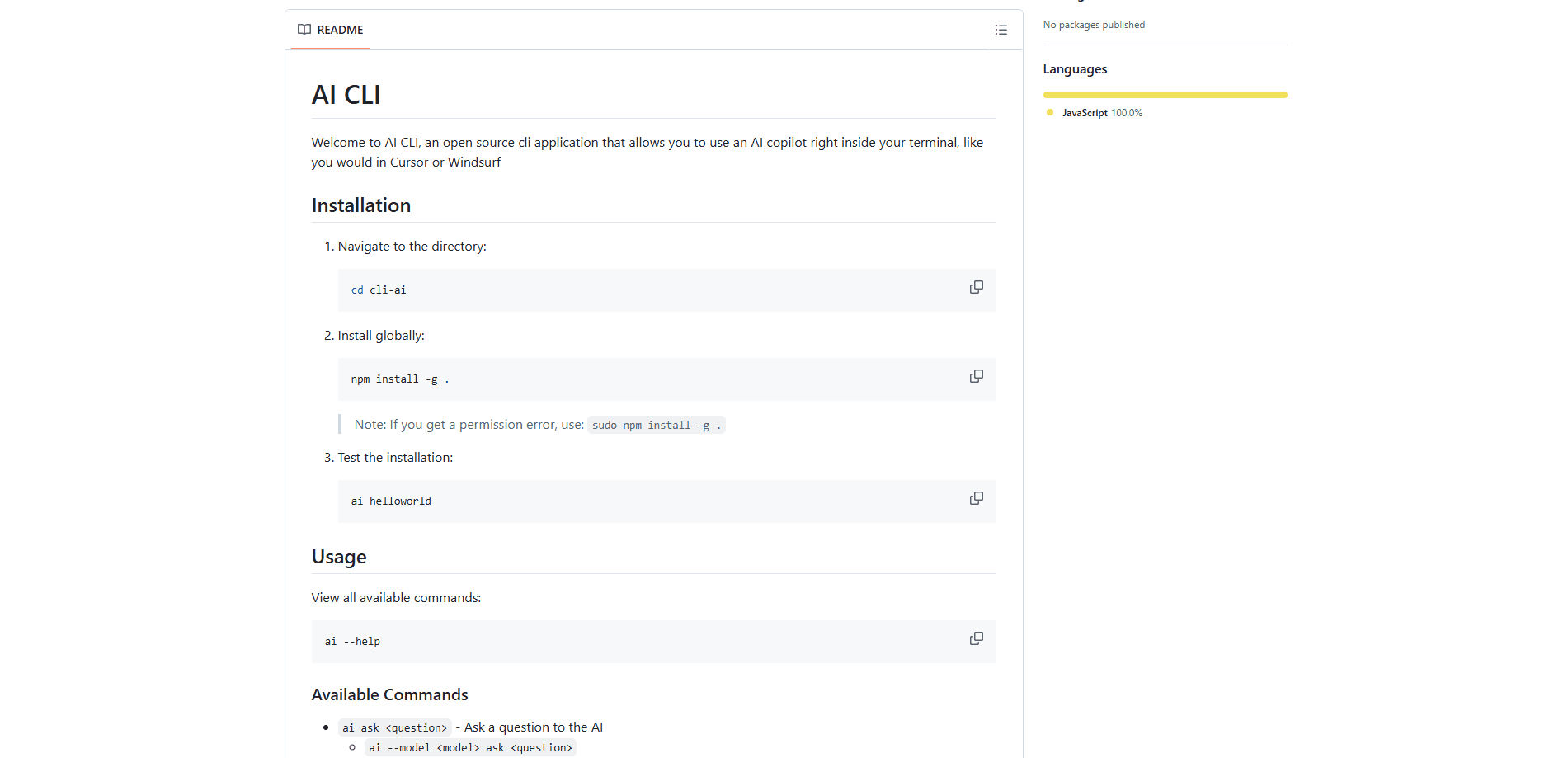
- Clone the cli-ai repository and move into the folder, then run
npm install -g .to install theaicommand globally. - Run
ai helloworldto confirm everything works. - Get API keys from OpenAI, Anthropic, or both, then run
ai setupto store your keys and preferences. - Ask a question with
ai askfollowed by your question in quotes, or pick a model on the fly withai --modelbeforeask.
Product Information
A quick look at AI CLI's pricing, supported platforms, and performance.
Best for
The users, tasks, and scenarios where this tool fits best.
Users
- Developers who work mainly in the terminal
- Students learning to code on a budget
- Open-source contributors
Tasks
- Explaining an unfamiliar command or error message
- Drafting a quick code snippet
- Comparing OpenAI and Anthropic models on the same prompt
Scenarios
- Debugging on a remote server over SSH
- Working through a repetitive scripting session
- Checking a model's answer before committing to a purchase
Key features
Terminal-Native AI Copilot
AI CLI lives entirely in the command line, so there's no window to switch to and no tab to hunt for. You run a command, get an answer, and stay in flow. For anyone who already spends the day in a shell, that alone is the point.
Multi-Provider Model Support
The tool ships with a default model list covering OpenAI's GPT 4.1 family, GPT 4o, and o4 models, plus Anthropic's Claude 3.7 Sonnet, 3.5 Sonnet, 3.5 Haiku, and 3 Haiku. You pick a provider by setting the matching API key, so you're not locked into a single vendor.
Simple Setup Wizard
Running ai setup walks you through pasting your API keys and choosing preferences, and it stores them locally. There's no account to create and no web dashboard to log into, which keeps the whole thing lightweight.
Configurable Model List
Models are defined in a plain models.json file you can edit. If a new model comes out or you want to add a custom endpoint, you change the file instead of waiting for an update.
Lightweight and Open Source
AI CLI is a small Node.js program released under the MIT license. The source is short enough to read in one sitting, and there's no telemetry or hosted backend sitting between you and your chosen provider.
Pros and cons
Pros
- Free to use, with only your own provider API costs to pay.
- Runs on macOS, Linux, and Windows anywhere Node.js is installed.
- Supports both OpenAI and Anthropic models from one command.
- MIT-licensed and easy to read, fork, or extend.
Cons
- Requires your own OpenAI or Anthropic API keys, which adds a setup step and ongoing costs that a bundled chat app wouldn't.
- Small project with limited activity, so polished features and quick fixes are not guaranteed.
- No chat history, session memory, or file editing: each `ai ask` call stands alone.
Frequently asked questions
It's a command-line tool for asking AI questions and getting coding help without leaving your terminal. You use it to explain errors, draft snippets, or compare model answers while you work.
Related content
Explore related tools, skills, and articles for AI CLI.
AI CLI Alternatives

Base Code
Base44 (Wix) · Coding · ProductivityBase Code is a shared cloud development environment from Base44. Teammates describe changes to an existing GitHub codebase in chat, preview them live and send them back as pull requests.

Google EmbeddingGemma 2
Google DeepMind · Writing · Image · CodingGoogle EmbeddingGemma 2 is a 740M-parameter open model that turns text, code, images, audio, and video frames into vectors in one 768-dimension space, running on phones and laptops.

GitGlow
GitGlow · Coding · ProductivityGitGlow is a local-first desktop Git client that lets independent developers review their own code and their AI agents' changes in one place before shipping.