
Assistive24 - Web Assistive Technology
Rade / Assistive24 · Other
Assistive24 is a free Chrome extension that turns the browser into an assistive tool. It ships 24 accessibility profiles and controls like a screen reader, voice navigation, and dyslexia fonts.
About Assistive24 - Web Assistive Technology
What Is Assistive24
Assistive24 is a piece of web assistive technology that runs as an extension for Google Chrome. The name points to the number of impairments and disabilities it's built around: 24 profiles that cover physical, vision, cognitive, and neurological needs. You install it once, and a side panel gives you a set of switches for how pages look and behave.
The idea is that one extension should adapt to many conditions instead of forcing you to stack separate tools. A person with low vision can raise contrast and text size. Someone with dyslexia can switch to a legible or dyslexia-friendly font. A user with a motor impairment can move around by voice. Each group gets its own control set, and every setting changes only your view, not the site itself.
The catch is that the extension works inside the browser, so it can't repair a site that's built badly. It also leans on the page's own structure, which means results vary from one website to the next. And since it's a single developer's project, the feature list moves at his pace, not a large company's.
Getting Started
- Open the Chrome Web Store, find Assistive24, and add it to Chrome.
- Pin the extension so its icon stays on the toolbar.
- Open the side panel and pick the profile that matches your main need.
- Adjust individual tools, such as contrast, cursor size, or line height, until the page reads comfortably.
- Use Reset All Features when you want to clear every change in one click.
Product Information
A quick look at Assistive24 - Web Assistive Technology's pricing, supported platforms, and performance.
Best for
The users, tasks, and scenarios where this tool fits best.
Users
- People with low vision or blindness
- Users with dyslexia or ADHD
- People with motor impairments
- Users with neurological conditions
Tasks
- Reading long articles
- Making a page comfortable
- Reducing clutter
- Hands-free browsing
Scenarios
- A student with dyslexia working through a course reading list late at night.
- Someone with low vision who needs consistent contrast across unrelated news sites.
- A person with Parkinson's who wants to browse without precise mouse control.
- Anyone sensitive to flashing banners who needs animations off by default.
Key features
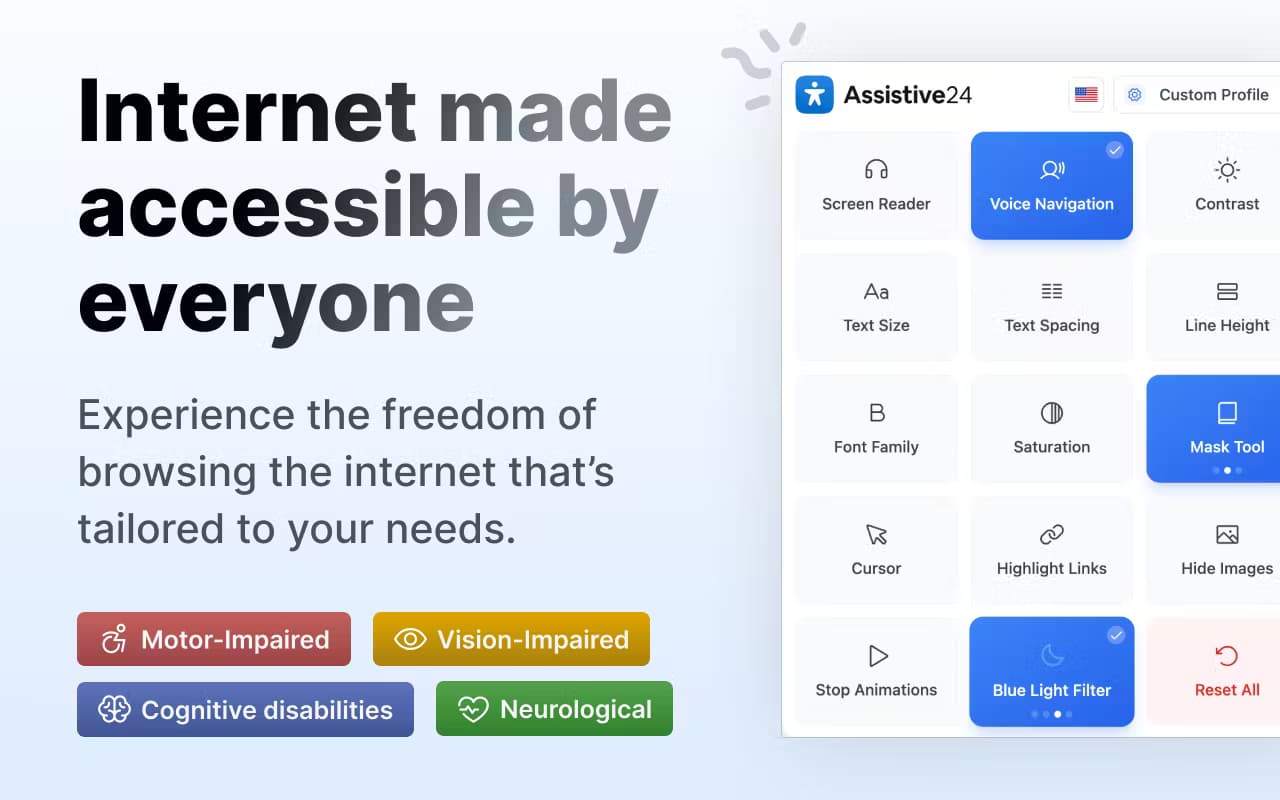
Screen reader with word highlighting
As you hover over content, the extension reads it aloud and highlights words in real time, so you can follow along by ear or eye. It's aimed at users who want audio feedback without leaving the page.
Voice navigation
As a voice navigation browser tool, it lets the whole browsing flow run on voice commands, built for people with motor impairments or conditions like Parkinson's who find a mouse or trackpad hard to control.
Contrast and saturation controls
You can raise or lower contrast and switch saturation between normal, low, high, and desaturated. Both settings carry across pages, which helps when sites ship with poor color choices.
Reading tools
A reading mask dims everything except the line you're on, and a guiding line marks where to read. These are the tools for anyone who loses their place in long text.
Dyslexia and ADHD fonts
With its dyslexia font Chrome support, you can switch between normal, dyslexic, legible, and enhanced reading fonts, then adjust line height and letter spacing to match how you read best. For a reader who wants an ADHD reading tool, the same controls keep text steady and easy to track instead of jumping around.
Screen modes and animation control
Dimmed screen, blue light filter, sepia, and normal modes shift the overall tone of a page. A separate switch stops animations, which reduces distraction and helps users who are sensitive to motion.
Cursor, graphics, and link tools
Cursor size goes from normal up to largest for visibility. You can hide all graphics to cut distraction, or toggle link highlighting so links stand out as you scan.
Reset All Features
One click returns every setting to default, so you can undo a pile of changes without hunting through each control.
Pros and cons
Pros
- Free to install, with no paid tier and no account required.
- Groups tools by disability type, so each user starts from a relevant profile.
- Covers vision, physical, cognitive, and neurological needs in one extension.
- Settings apply per view and don't change the underlying website.
Cons
- It's a browser extension, so it can't fix a site with broken structure or missing labels.
- Results shift from site to site, since it leans on how each page is built.
- No public API, so it can't slot into a custom or enterprise toolchain.
- A one-person project, which can mean slower updates and thinner support than a large vendor.
Frequently asked questions
It's a Chrome extension that adds accessibility controls to your browser. It bundles 24 profiles and tools like a screen reader, voice navigation, contrast and saturation settings, and dyslexia-friendly fonts.
Related content
Explore related tools, skills, and articles for Assistive24 - Web Assistive Technology.
Assistive24 - Web Assistive Technology Alternatives

Odyssey 3
Odyssey · OtherOdyssey-3 is Odyssey's foundation world model. It simulates physics in real time, turns a prompt into an interactive environment, and adapts to robots, cars and games.

JarvisCore
Prescott Data · Coding · Productivity · OtherJarvisCore is an open source Python runtime where AI agents work as equal peers on an agent mesh, claim tasks from a shared ledger, and reach external services through a zero-trust broker.
Clef
Cloudflare · Business · OtherClef is Cloudflare's open-source decision model for Workers AI. It returns calibrated probabilities for typed questions, not generated text, so agents can classify, route, and act fast.