

Browser AI Kit
Browser AI Kit · Coding · Other
Browser AI Kit is a set of free AI tools that run in your browser. It handles audio to text, background removal, text to speech, and music generation, all on your device.
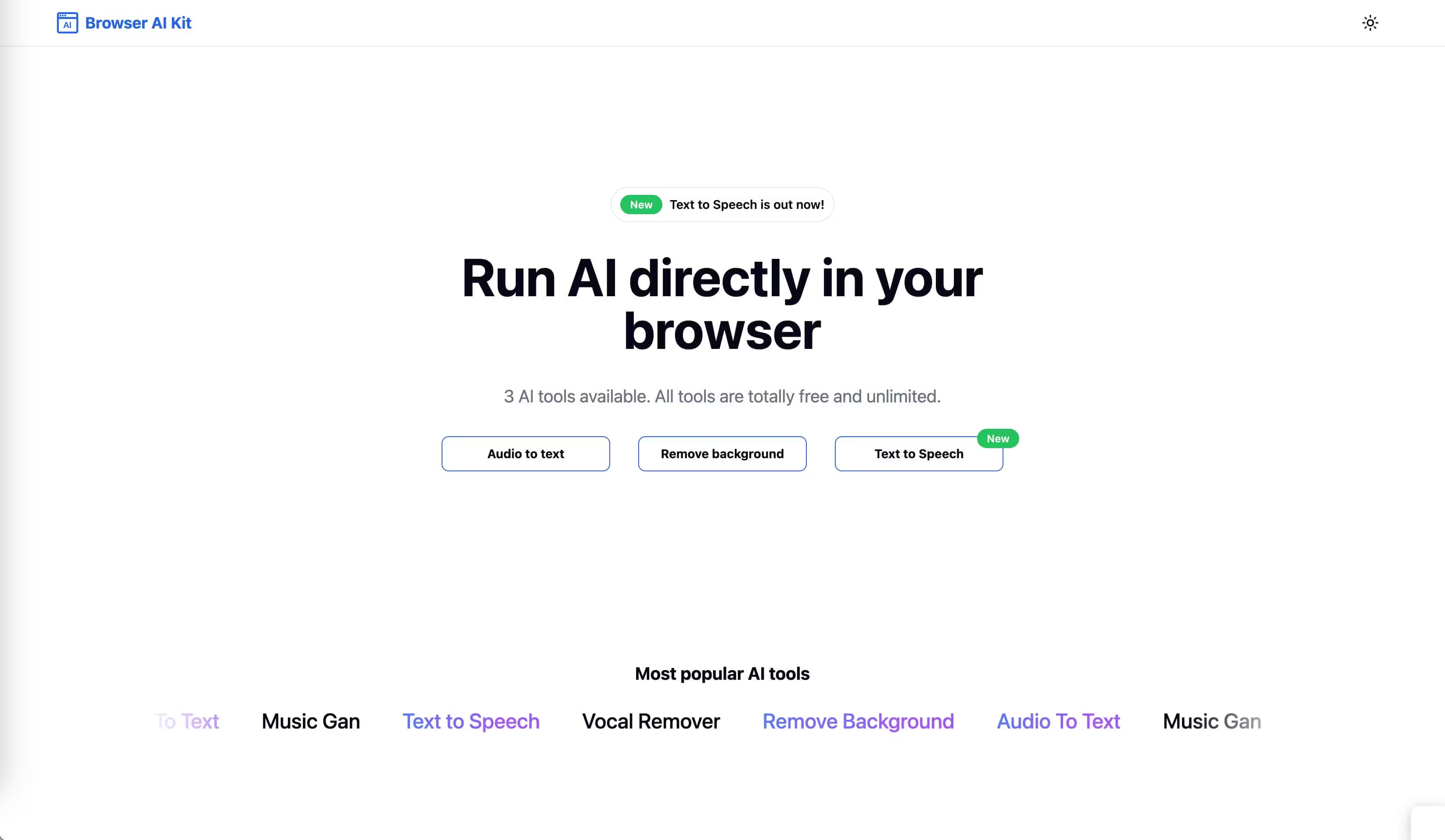
About Browser AI Kit
What Is Browser AI Kit
Browser AI Kit is a website that runs AI tools directly in your browser instead of on a company server. The tools are built on Transformers.js and lean on Chrome's WebGPU and Web AI support, so speech recognition, image editing, and voice synthesis all happen on your own machine. It lives at browseraikit.com and needs no account to start.
The pitch is simple: no sign-up, no upload, no per-use fee. Audio to text uses the Whisper model, the same family of open speech models that powers a lot of transcription software, and background removal handles the cutout work that usually pushes you toward a paid editor. Because processing stays local, files never leave your computer.
Two limits matter more than anything else here. The first run of each tool downloads a model to your device, which can take a while on a slow connection. And the tools depend on WebGPU, so an older browser or a low-spec machine may run them slowly, or not at all.
Getting Started
- Open browseraikit.com in Chrome or another Chromium browser with WebGPU support.
- Pick a tool from the list, such as Audio to Text or Remove Background.
- Upload the file you want to process and let the model download and load the first time you use it.
- Run the tool and save the result, which comes back without leaving your device.
- Come back later and the model stays cached, so repeat runs skip the download.
Product Information
A quick look at Browser AI Kit's pricing, supported platforms, and performance.
Best for
The users, tasks, and scenarios where this tool fits best.
Users
- Students transcribing lecture recordings
- Freelancers who need a quick cutout
- Privacy-minded people
- Casual creators testing ideas
Tasks
- Turning interviews or voice notes into text
- Making a clean image cutout
- Reading out written copy
- Pulling text out of a picture
Scenarios
- Working on a laptop with spotty Wi-Fi
- Handling sensitive recordings
- Budgeting a small project
- Trying AI before paying for it
Key features
Audio to text with Whisper
The transcription tool runs OpenAI's Whisper model inside the browser tab. You upload an audio file, the model transcribes it, and the text lands back on your screen without touching a server. It's the same open model that sits under many paid captioning services, which makes the free local run here the closest thing to a shortcut. The catch is speed: a long recording on a modest laptop can take a while to process.
Background removal
The cutout tool strips the background from a photo and returns a transparent image you can drop into a store listing, a slide, or a thumbnail. It covers the everyday case that usually sends people to a paid editor, and it works on a single image at a time. Because it runs locally, a photo of a document or a person never leaves your device.
Text to speech
Type or paste text and the tool reads it back as audio. It suits anyone who wants to listen to an article on a commute or turn a script into a scratch voice track. The output quality depends on the model and your machine, so it's better for previews and personal use than for polished production voiceover.
Music generation
The music generator composes a short track from a prompt, handy for sketching an intro, a background bed, or a quick idea before you bring in paid tools. It arrived as an addition after launch, which shows the suite is still growing rather than fixed. Treat the results as drafts, not finished masters.
Image to text
The image to text tool reads words out of a screenshot or a photo and hands them back as copyable text. It's the practical fix for digitizing a printed receipt, a whiteboard shot, or text trapped inside an image. Like the other tools, it runs on the device and skips the upload step entirely.
Runs locally and works offline
Every tool processes data on your machine, and the models cache after the first load. That combination is the real difference from cloud AI tools: a private photo or recording stays private, and a cached model keeps working when the Wi-Fi drops. The tradeoff is the upfront download and the need for a capable browser and device.
Pros and cons
Pros
- Free and unlimited, with no per-use fee, credit system, or signup wall.
- Local processing keeps audio, images, and text on your device instead of a server.
- Works offline for repeated tasks once the models are cached.
- One page gathers transcription, cutout, speech, and music tools that would otherwise mean four separate apps.
- No account and no install, so trying it costs nothing but a browser tab.
Cons
- The first run of each tool downloads a model, which is slow on a weak connection and eats disk space.
- It leans on WebGPU, so older browsers and low-end machines may run tools slowly or fail outright.
- The tool list is short, and features like vocal removal and noise reduction are still marked as coming.
- There's no API, so you can't wire the tools into a script or an automated pipeline.
Frequently asked questions
Browser AI Kit is a website that runs a set of AI tools inside your browser at browseraikit.com. It covers audio to text, background removal, text to speech, music generation, and image to text, and every tool processes data on your own device.
Related content
Explore related tools, skills, and articles for Browser AI Kit.
Browser AI Kit Alternatives

Base Code
Base44 (Wix) · Coding · ProductivityBase Code is a shared cloud development environment from Base44. Teammates describe changes to an existing GitHub codebase in chat, preview them live and send them back as pull requests.

Google EmbeddingGemma 2
Google DeepMind · Writing · Image · CodingGoogle EmbeddingGemma 2 is a 740M-parameter open model that turns text, code, images, audio, and video frames into vectors in one 768-dimension space, running on phones and laptops.

GitGlow
GitGlow · Coding · ProductivityGitGlow is a local-first desktop Git client that lets independent developers review their own code and their AI agents' changes in one place before shipping.