

Clipchamp
Microsoft · Voice & Language · Video
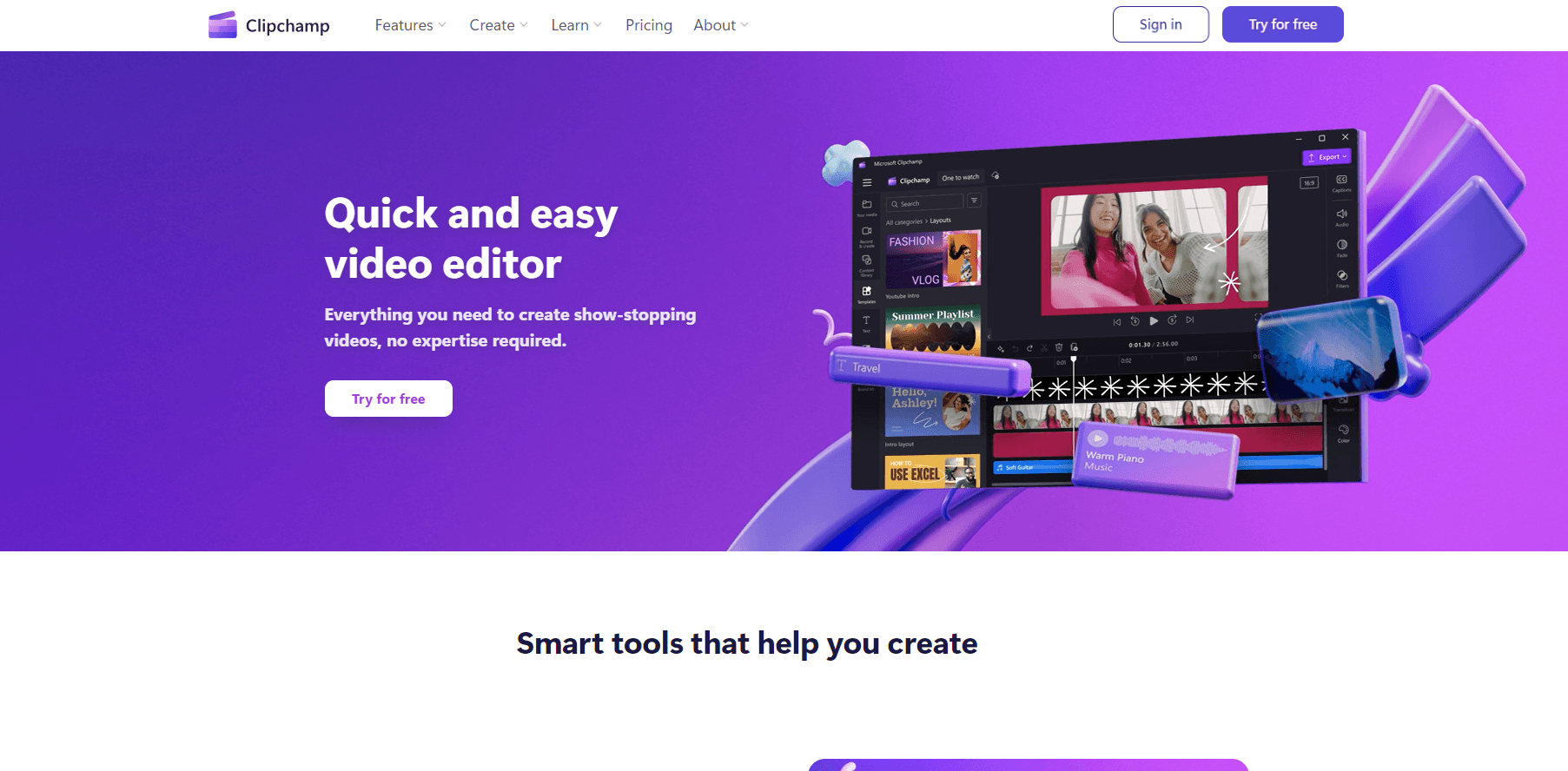
Clipchamp is Microsoft's online video editor for social clips, screen recordings, and AI-assisted edits. Exports are free in 1080p with no watermark, and 4K opens up with Microsoft 365.
About Clipchamp
What Is Clipchamp
Clipchamp is a browser-based video editing tool that Microsoft bought in 2021 and now ships as part of Windows and Microsoft 365. You open a tab, drag footage in, and cut a clip without installing anything. The Windows app carries the same editor if you prefer a desktop window.
The product is built for the gap between a phone editor and Premiere. Social teams use the online video editor to turn a webinar into vertical clips, teachers record a lesson and add captions, and small businesses cut a promo without hiring an editor. Every AI feature is free, including auto captions and voiceovers, which is unusual at this price.
The tradeoffs are real. There's no multicam, no keyframe animation curve editor, and no offline mode, so a weak connection hurts. Premium features such as 4K export and the brand kit sit behind a Microsoft 365 subscription, and you can't buy them on their own.
Getting Started
- Go to app.clipchamp.com and sign in with a personal Microsoft account, a work account, or a Google login.
- Start a blank project or pick a template sized for TikTok, Reels, YouTube, or a 16:9 presentation.
- Import footage from your computer, phone, OneDrive, Google Drive, or Dropbox, then drag clips to the timeline.
- Add captions, a voiceover, or music, then export at 1080p or send the file straight to YouTube, TikTok, or LinkedIn.
Product Information
A quick look at Clipchamp's pricing, supported platforms, and performance.
Best for
The users, tasks, and scenarios where this tool fits best.
Users
- Social media managers
- Teachers and trainers
- Small business owners
Tasks
- Turning a webinar into Reels
- Adding subtitles in a second language
- Recording a software demo
- Repurposing one video for five platforms
Scenarios
- A weekly content calendar
- A course module that needs narration
- A pitch video due tomorrow
Key features
AI Auto Compose
Drop in photos and clips, choose a style, and Clipchamp builds a finished short video with music and transitions. It's the fastest route from a folder of raw files to something postable, and you can swap individual scenes afterward. Batch creation handles several videos from one setup, which suits promo series.
Auto Captions in 80+ Languages
The AI video editor listens to the audio track and writes subtitles with speaker detection, covering more than 80 languages. You can restyle the font and reposition the captions, then download the transcript as a text file. Accuracy holds up on clean speech and drops on heavy accents or background noise, so plan a proofread pass.
AI Voiceover with 400 Voices
Type a script and the text to speech engine reads it in a voice you pick from roughly 400 options across global languages. Pace and pitch are adjustable, so a training video doesn't sound like a GPS. Recorded narration isn't required, which helps anyone who dislikes their own voice on camera.
Auto Cut Removes Silences
Clipchamp transcribes the recording, flags pauses longer than three seconds, and cuts them on your approval. A 40-minute interview usually loses several minutes of dead air in one pass. You still review each suggestion, so nothing gets chopped without consent.
Screen, Camera, and Voice Recorder
The built-in screen recorder captures a window, a tab, or the full desktop, with webcam and microphone layered in. It's the practical reason teachers and support teams stay in the browser instead of juggling a second app. Recordings land on the timeline ready to edit.
Templates and Brand Kit
Thousands of editable video templates cover YouTube intros, Reels, and slideshows. Paid plans add a brand kit that locks logos, colors, and fonts so a team stops drifting off-brand. The free tier gets templates but no brand kit, and the premium version supports a single brand.
Background Remover and Noise Suppression
AI pulls a subject out of a PNG or JPEG in seconds, and noise suppression strips wind, street, and room hum from a voice track. Both run without extra credits. For anyone filming at a kitchen table, that's the difference between usable and unusable audio.
Pros and cons
Pros
- The free plan exports unlimited videos at 1080p with no watermark, which most free video editors don't allow.
- Every AI tool, from auto captions to the voiceover generator, is included at no cost.
- It runs in Chrome and Edge on Mac, Linux, and ChromeOS, so there's nothing to install.
- A Microsoft 365 subscription adds 4K export, premium stock assets, and the brand kit without a separate bill.
Cons
- Premium features can't be bought standalone, so 4K means paying for a full Microsoft 365 plan.
- Editing needs a live connection, and long 4K timelines stutter on slow upload speeds.
- The toolset stops short of multicam editing and advanced color grading, so complex projects move to desktop software.
- The Windows app is Windows only, and the browser version is the only option elsewhere.
Frequently asked questions
Yes. The free plan covers unlimited videos, all AI tools, and 1080p exports with no watermark. Paid features come through Microsoft 365 Personal or Family, and some work and school licenses include the work version.
Related content
Explore related tools, skills, and articles for Clipchamp.
Clipchamp Alternatives

Foley
Hanamori Labs, LLC · Voice & Language · Productivity · AI AssistantFoley is a voice to-do list that turns a spoken sentence into a filed task, complete with project, date and time, then helps you plan the day around what is already there.

HireKey
HireKey · Voice & Language · Productivity · LeaningHireKey is an AI job search copilot built by a former tech recruiter. It checks role fit, tailors resumes, runs interview practice and tracks every application.

Fluence
Yay Software (Yannick Huchard) · Writing · Voice & Language · ProductivityFluence is an Android app that reads PDFs, EPUBs, Word files and web articles aloud, follows each sentence as it speaks, and answers questions about the text on the phone itself.