

Copilot for Mac
Microsoft · Coding
Copilot for Mac is Microsoft's AI assistant app for macOS. It chats, answers questions, drafts text and images, and pulls up from any app with a keyboard shortcut.
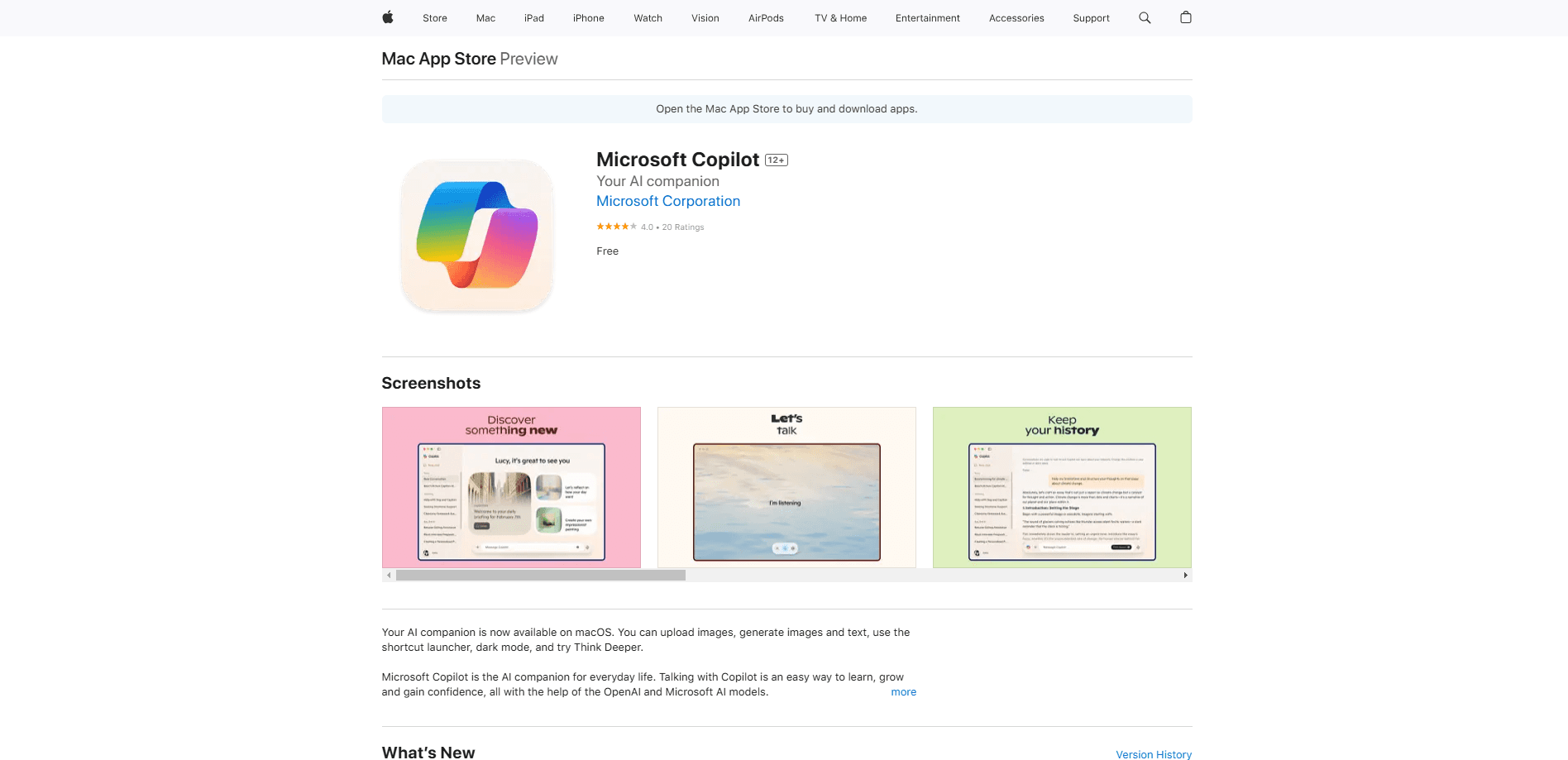
About Copilot for Mac
What Is Copilot for Mac
Copilot for Mac is an AI chat app for Mac that puts Microsoft's assistant on your desktop instead of in a browser tab. You type a question or a prompt, and it responds in a chat window. The same engine answers you on the web and on your phone, so a conversation you start on one device shows up on the others. If you already use Copilot online, the Mac app should feel familiar from the first launch.
What sets the desktop build apart from the website is small but useful. A keyboard shortcut can summon Copilot on top of whatever you're doing, so you don't have to hunt for a window. The app follows your system's light or dark setting. And device context means it can answer questions about macOS itself, like which keys take a screenshot, using your current version rather than a generic answer.
The main limit is what the Mac app leaves out. Copilot Pages and Deep Research, both available on the web, are missing here. The app also needs macOS 14.0 or later and an Apple silicon Mac with an M1 chip or newer, so older Intel machines can't run it.
Getting Started
- Open the App Store on your Mac, search for Microsoft Copilot, and install it. The app is free.
- Launch Copilot and sign in with a personal Microsoft account, or a work or school account if your organization provides one.
- Press Option + Spacebar anywhere to bring up a smaller Copilot window and type a prompt without leaving your current app.
- Ask a question, drop in a file, or request an image. Copilot replies in the chat pane.
- Adjust the look under Account > App Appearance if you want to pin the theme to Day or Night instead of following macOS.
Product Information
A quick look at Copilot for Mac's pricing, supported platforms, and performance.
Best for
The users, tasks, and scenarios where this tool fits best.
Users
- Mac owners who want an AI assistant at hand
- People already deep in Microsoft 365
- Anyone juggling multiple AI tools
Tasks
- Quick answers and research while you work
- Drafting and rewriting text
- Making images from a prompt
- Learning macOS itself
Scenarios
- A writer stuck on a headline
- A student summarizing reading material on a MacBook
- A cross-platform user switching between an iPhone, a Windows PC and a Mac
Key features
Keyboard shortcut from anywhere
Press Option + Spacebar and a compact Copilot window opens over your current app, ready for a prompt. You can rebind the combination or remove it entirely under Account > Keyboard Shortcut. It's the feature that makes the desktop app worth having over a browser tab, since you never lose your place.
Device context for macOS questions
Copilot knows which version of macOS you're running, so questions about the operating system get a tailored answer. Ask how to take a screenshot or where a setting lives, and the reply matches your actual machine instead of a general one. That saves the guesswork of translating help articles written for a different release.
Cross-device chat continuity
Sign in with the same Microsoft account and your conversations travel between the Mac app, the web and mobile. Start a thread on your laptop and finish it on your phone. There's no export step and no separate syncing tool.
Text drafting and rewriting
Copilot handles everyday writing tasks in the chat: summaries, rewrites, tone changes and first drafts. You can paste source material and ask for a shorter version, or start from a blank prompt and shape the result. It's the same set of chat skills you'd get online, now one shortcut away.
Image generation in the chat
Describe a picture and Copilot generates it without leaving the conversation. You can go back and forth on the result, asking for edits or a new attempt. The Mac app supports the same image features as the web version, so the workflow carries over.
Light and dark mode plus account controls
The app matches your macOS appearance by default and can be pinned to Day or Night under Account > App Appearance. The same account page holds your keyboard shortcut and theme choices, so personalization stays in one place.
Pros and cons
Pros
- The Option + Spacebar shortcut puts Copilot over any app, which a browser tab can't do.
- Device context gives macOS-specific answers instead of recycled generic ones.
- Free to download and use, with cross-device chat continuity on one Microsoft account.
- Same assistant across web, desktop and mobile, so there's nothing new to learn.
Cons
- Copilot Pages and Deep Research don't work in the macOS app, so those tasks push you back to the browser.
- It needs macOS 14.0 or later and an Apple M1 chip or newer, which rules out older Intel Macs.
- Copilot Pro is no longer sold, so the familiar $20 a month plan now sends new buyers toward a Microsoft 365 subscription.
Frequently asked questions
It's Microsoft's AI assistant as a native macOS app. You chat with it to get answers, draft text and generate images, and you can bring it up over any app with a keyboard shortcut.
Related content
Explore related tools, skills, and articles for Copilot for Mac.
Copilot for Mac Alternatives

Base Code
Base44 (Wix) · Coding · ProductivityBase Code is a shared cloud development environment from Base44. Teammates describe changes to an existing GitHub codebase in chat, preview them live and send them back as pull requests.

Google EmbeddingGemma 2
Google DeepMind · Writing · Image · CodingGoogle EmbeddingGemma 2 is a 740M-parameter open model that turns text, code, images, audio, and video frames into vectors in one 768-dimension space, running on phones and laptops.

GitGlow
GitGlow · Coding · ProductivityGitGlow is a local-first desktop Git client that lets independent developers review their own code and their AI agents' changes in one place before shipping.