

ECPaste
Ajnas N B · Coding · Productivity
ECPaste is a Chrome and Edge extension that saves code snippets, text templates and AI prompts, then pastes them into any text field with a shortcut.
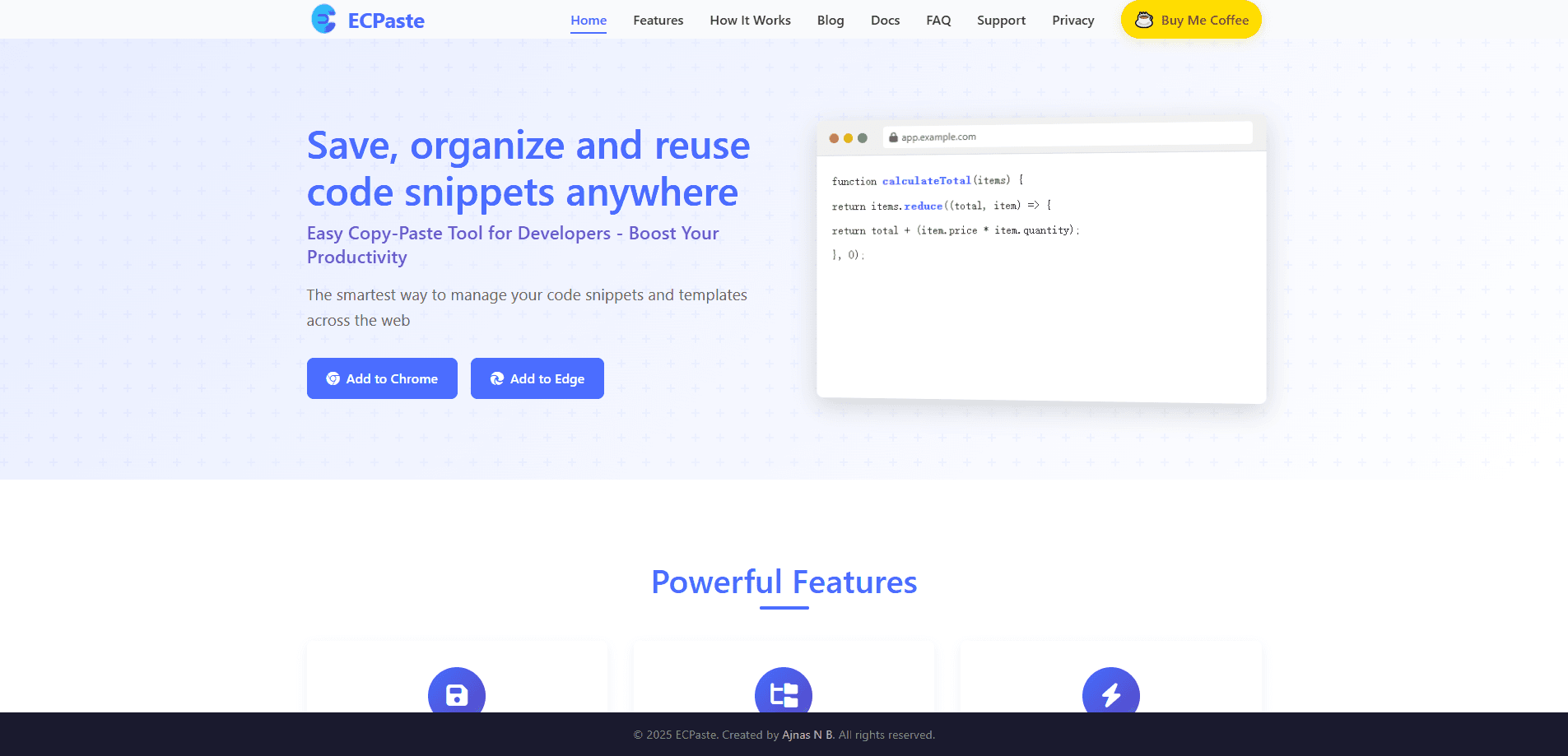
About ECPaste
What Is ECPaste
ECPaste is a browser extension that stores the bits of text you retype over and over and puts them back within a keystroke. You highlight something on a page, hit Alt+S or use the right-click menu, and it lands in your snippet library with a title, a category and tags. Press Alt+P later and the saved content drops straight into whatever field or editor is in front of you.
The problem it targets is narrow and real. Programmers rewrite the same boilerplate, support staff answer with the same wording, and people juggling AI tools keep a dozen prompt phrasings they paste from a notes app. ECPaste keeps all of that in one searchable place that follows you through the browser, so you stop switching tabs just to copy a block you already wrote.
The limits are worth knowing up front. It's a browser extension, so it works only inside Chrome and Edge on the web, not in a desktop code editor like VS Code or a native mobile app. Saving snippets and cloud sync go through an account, which means signing up first, and the store listing notes the extension collects some personal data covered by the developer's privacy policy.
Getting Started
- Install ECPaste from the Chrome Web Store or Microsoft Edge Add-ons, then pin the extension.
- Create an account so your snippet library can sync across devices.
- Select any text on a page and press Alt+S, or right-click to choose Save to ECPaste, then add a title, category and tags.
- Press Alt+P to open the quick access popup and insert a snippet, or type ### followed by its name in a text field.
- Sort, favorite and search snippets from the ECPaste dashboard as your library grows.
Product Information
A quick look at ECPaste's pricing, supported platforms, and performance.
Best for
The users, tasks, and scenarios where this tool fits best.
Users
- Developers who retype the same functions and boilerplate
- AI prompt engineers building a prompt library
- Customer support agents answering from templates
- Writers who reuse set phrases and citations
- Anyone who types the same short text daily, like addresses or signoffs
Tasks
- Saving a code block from a tutorial
- Reusing a proven AI prompt
- Filling in a repetitive reply
- Keeping a personal library of shortcuts and commands
Scenarios
- Working across several coding sites in one session
- Answering a queue of similar support messages
- Switching between AI tools
- Moving between a work laptop and a home machine
Key features
Save snippets with a shortcut or right-click
Alt+S or the right-click menu turns any highlighted text into a saved snippet in a couple of seconds. You add a title, a category and tags on the way in, so it's organized the moment it lands. That low friction is the point: the tool only works if saving is faster than retyping.
Categories for code, text, templates, prompts and messages
Snippets sort into categories such as Code, Text, Templates, AI Prompts and Messages. Keeping work code separate from marketing copy or chat replies means search stays clean even after the library grows large. Each snippet also carries its own tags for finer sorting.
Instant insert with Alt+P or the ### trigger
A quick access popup on Alt+P lets you find and paste a snippet anywhere, and the site documents a ### trigger that inserts a snippet by name as you type. Both routes avoid breaking your flow to open a separate window. That keyboard-first design is what separates a snippet manager from a plain clipboard history.
Search and favorites
A search box finds a snippet by its content or name, and favorites keep the ones you use most at the top. Together they handle the moment when a library gets too big to browse by eye. It's the difference between a tool you keep using and one you abandon after a few dozen saves.
Cloud sync across devices
Signing into an account syncs your snippets across the devices where you're logged in, so the library you build on one machine is waiting on the next. This matters for anyone who splits work between a laptop, a desktop and a browser on the move. Sync runs through the account, so it does need a login.
Secure, account-based storage
Snippets are stored against a secure account rather than left loose in the browser. For teams that keep internal wording or client code in snippets, knowing the library is tied to a login adds a layer of control. The extension collects some personal data, so it's worth reading the developer's privacy policy before you store anything sensitive.
Pros and cons
Pros
- Alt+S and Alt+P keep saving and pasting to a couple of keystrokes, so it's faster than retyping for anything you repeat.
- Category and tag support keeps a large snippet library searchable instead of a single junk drawer.
- Cloud sync carries your library across signed-in devices, useful for people who work from more than one machine.
- The ### insert trigger works inside any web text field, so it fits coding sites, email clients and chat apps without separate integrations.
- The extension is free to install, with an optional donation to the developer rather than a paywall.
Cons
- It's a Chrome and Edge extension only, so desktop editors like VS Code and native mobile apps stay out of reach.
- Syncing needs an account, which adds a signup step before the tool is fully useful.
- The store listing says it collects personal data, so storing client code or confidential text means trusting the developer's policy.
- Inserting snippets depends on the browser, so it won't help when you're working in a native app or from the command line.
Frequently asked questions
ECPaste saves code snippets, text templates and AI prompts so you can paste them into any text field without retyping. It's a snippet manager and text expander aimed at people who repeat the same blocks of text across the web.
Related content
Explore related tools, skills, and articles for ECPaste.
ECPaste Alternatives

Base Code
Base44 (Wix) · Coding · ProductivityBase Code is a shared cloud development environment from Base44. Teammates describe changes to an existing GitHub codebase in chat, preview them live and send them back as pull requests.

Google EmbeddingGemma 2
Google DeepMind · Writing · Image · CodingGoogle EmbeddingGemma 2 is a 740M-parameter open model that turns text, code, images, audio, and video frames into vectors in one 768-dimension space, running on phones and laptops.

GitGlow
GitGlow · Coding · ProductivityGitGlow is a local-first desktop Git client that lets independent developers review their own code and their AI agents' changes in one place before shipping.