

Edge Copilot Mode
Microsoft · Voice & Language · Coding
Edge Copilot Mode is an experimental AI mode in Microsoft Edge. It gathers chat, search and open tabs into one input box, then helps you compare, decide and finish web tasks.
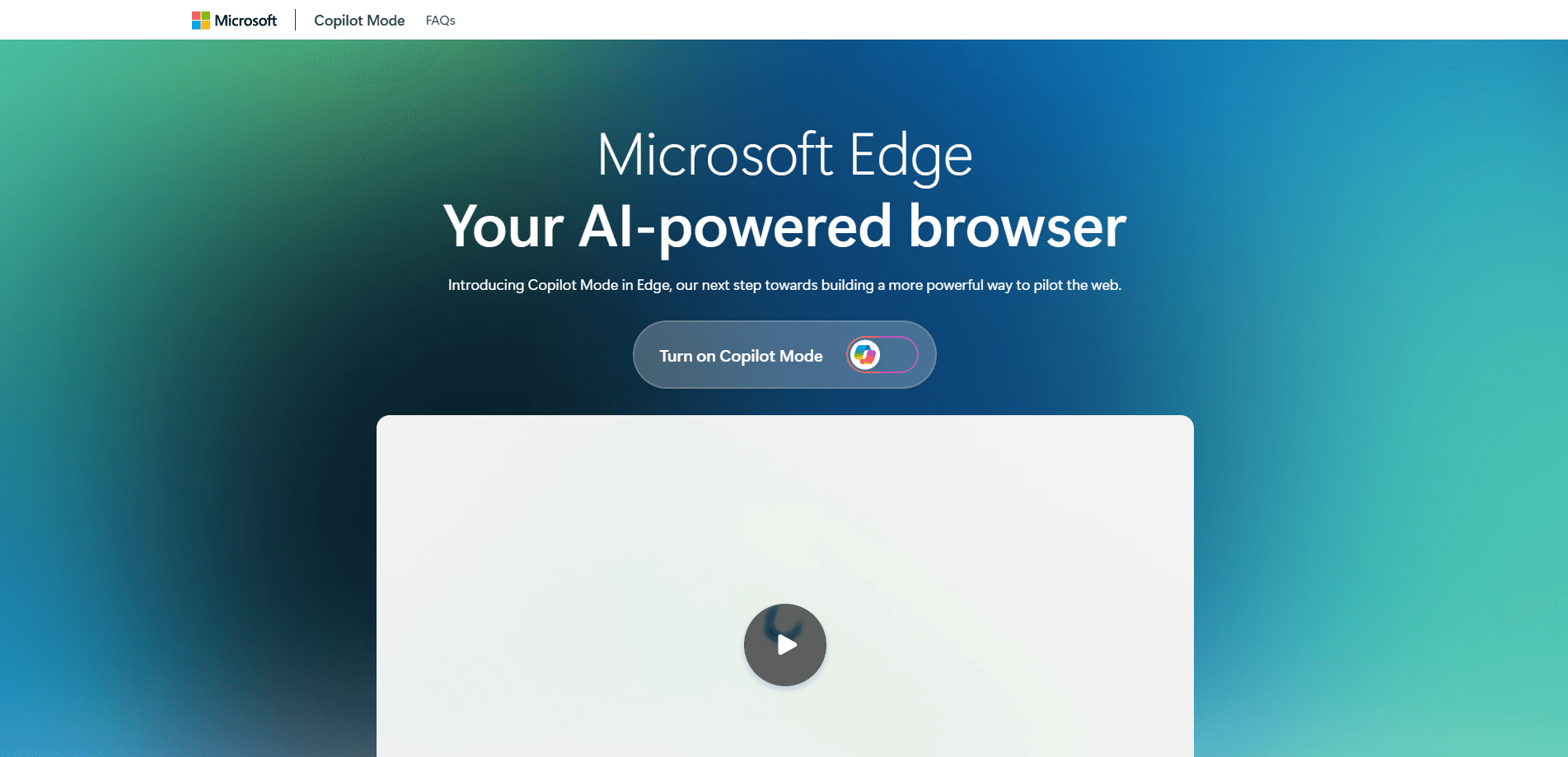
About Edge Copilot Mode
What Is Edge Copilot Mode
Edge Copilot Mode is a browsing mode Microsoft builds into its Edge browser, and it changes how the browser behaves once you switch it on. Instead of a search box and a stack of tabs, you get one input field for questions, searches and site addresses. Turn it on and Edge starts acting more like a collaborator than a page loader.
The mode targets a common problem. Browsing has stayed linear for years: open tabs, search, read, repeat. When you are booking a trip, comparing laptops or planning a project, that loop gets slow because the browser never sees the whole picture. Copilot Mode reads across the tabs you already have open, so you can ask it to compare two products, summarize several pages at once or pull the details you care about into one answer.
There are limits worth knowing before you try it. It launched as an experimental feature, so the exact tools and availability move as Microsoft ships updates. It stays opt-in, and you can switch back to the classic Edge experience at any time from the browser settings. It also arrived first on Windows and Mac, with the mobile rollout following later.
Getting Started
- Update Microsoft Edge to a recent version, then open a new tab
- Turn on Copilot Mode from the new tab page and sign in with your personal Microsoft account
- Type a question, a search or a web address into the single input box, or ask Copilot to work with the tabs you have open
- Review the answer or the action Copilot proposes, approve it, and go back to classic mode from settings if you prefer the old layout
Product Information
A quick look at Edge Copilot Mode's pricing, supported platforms, and performance.
Best for
The users, tasks, and scenarios where this tool fits best.
Users
- Everyday Edge users
- Shoppers comparing products
- Students and researchers
- People with crowded tab bars
Tasks
- Comparing options
- Summarizing several pages
- Starting a search with context
- Handling small web tasks
- Organizing research
Scenarios
- Planning a trip
- Choosing a big purchase
- Catching up on reading
- Returning to a project
- Quick fact checks in the middle of work
Key features
One Input Box for Chat, Search and Navigation
Copilot Mode replaces the usual search box with a single field that takes questions, searches and web addresses. You type what you want in plain language, and Copilot works out whether that means answering a question, running a search or opening a site. The point is to cut the guesswork out of picking the right keywords or deciding between the address bar and a search bar.
Reads Across Your Open Tabs
The mode sees the tabs you have open rather than just the page in front of you. That lets you ask for a comparison across several products or a summary that pulls from multiple pages at once. It is what separates the mode from a plain browser AI assistant, because the browser itself becomes the source of context.
Copilot Journeys
Journeys group your browsing into topic cards built from related pages, searches and chats. Each card shows a short summary and suggests a next step, so you can resume an interest without starting from scratch. Journeys stay off by default, refresh as your browsing changes, and older cards and their data are removed after 14 days.
Web Tasks and Actions
Copilot can carry out some tasks on the web rather than just answer questions. It can search, compare and help fill in steps across sites, and it asks for your approval before anything is finalized. The capability is framed as assistance rather than a fully agentic browser, and it cannot reach beyond the browser into your local system or past a site's login. It is one of the Edge AI features that Microsoft keeps adding as the mode matures.
Vision and Page Understanding
Copilot Vision lets the assistant look at what is on your screen and respond to it, so you can ask about an image, a chart or a page layout directly. It pairs with the page-reading features to make the mode useful on content that is not plain text, such as visuals and complex layouts.
Redesigned New Tab and Opt-In Control
Turning the mode on gives you a cleaner new tab built around the single input box. The whole mode is opt-in, and you can switch back to the classic Edge layout from settings whenever you want. That control matters if you only want the AI features for certain tasks and prefer the familiar browser the rest of the time.
Pros and cons
Pros
- Bundles chat, search and browsing into one box, so you stop switching between a search bar, a sidebar and your tabs
- Works with the tabs you already have open, which turns a messy session into something you can actually compare and summarize
- Free to try during the launch period and fully opt-in, so you can test it without committing to a new browser
- Journeys and page summaries help you pick up a research thread days later without re-reading everything
- Built on Microsoft's browser security and privacy standards, with the mode off unless you turn it on
Cons
- It began as an experimental feature, so tools and availability can shift between updates
- Started on Windows and Mac only, which left mobile users waiting for the rollout
- Hands-off web actions still need your approval and cannot pass a site's login, so the automation stops short of fully finishing a task
- Answers and comparisons come from your open pages, so you still have to check the sources before trusting a result
Frequently asked questions
Edge Copilot Mode is an experimental AI mode inside Microsoft Edge. When you turn it on, Edge replaces its usual new tab with one input box for chat, search and web addresses, and it can read across your open tabs to compare options, summarize pages and help with small web tasks.
Related content
Explore related tools, skills, and articles for Edge Copilot Mode.
Edge Copilot Mode Alternatives

Foley
Hanamori Labs, LLC · Voice & Language · Productivity · AI AssistantFoley is a voice to-do list that turns a spoken sentence into a filed task, complete with project, date and time, then helps you plan the day around what is already there.

HireKey
HireKey · Voice & Language · Productivity · LeaningHireKey is an AI job search copilot built by a former tech recruiter. It checks role fit, tailors resumes, runs interview practice and tracks every application.

Fluence
Yay Software (Yannick Huchard) · Writing · Voice & Language · ProductivityFluence is an Android app that reads PDFs, EPUBs, Word files and web articles aloud, follows each sentence as it speaks, and answers questions about the text on the phone itself.