

Fide Island
Fide Island · Voice & Language · Productivity
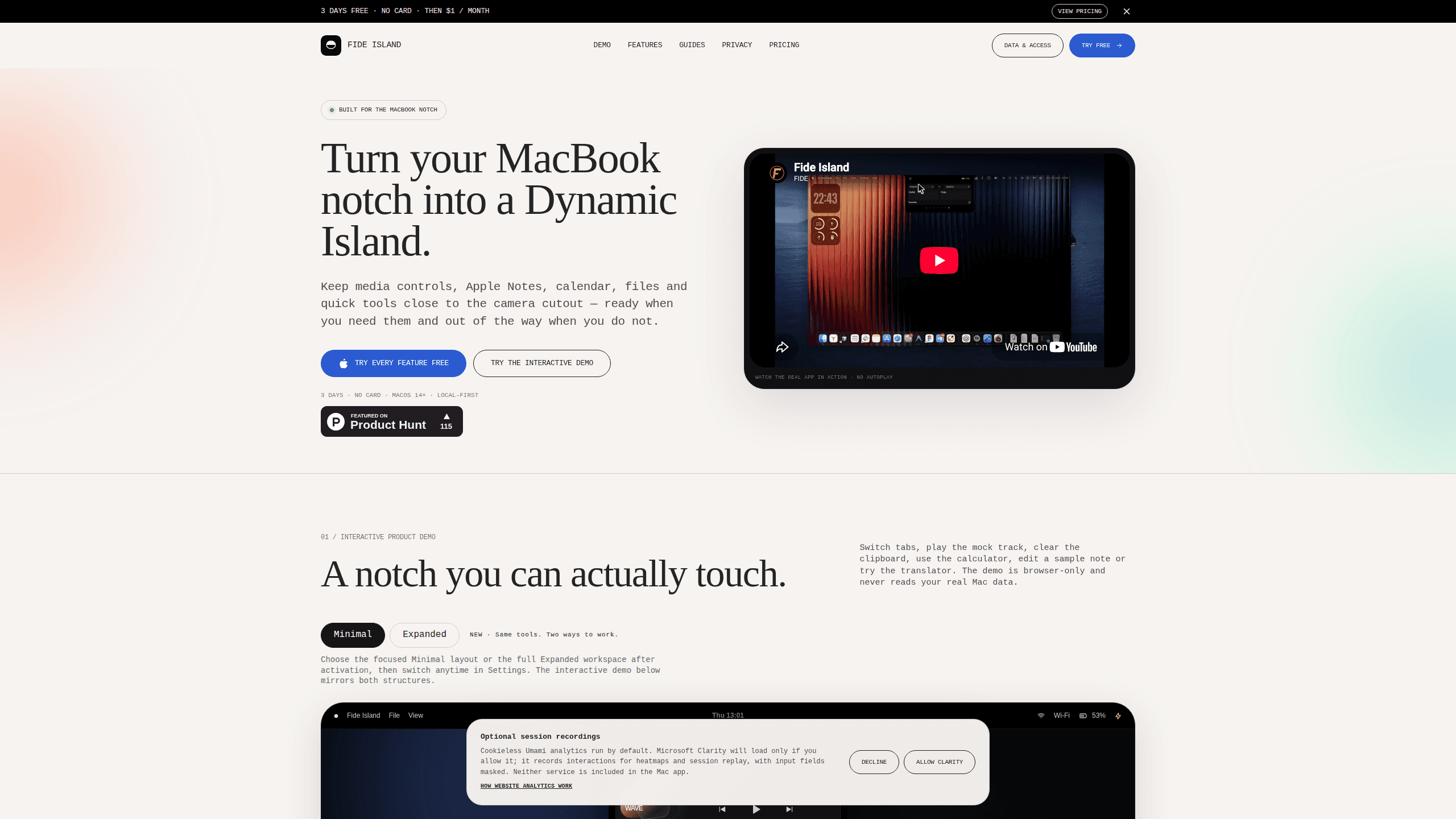
Fide Island is a macOS utility app that puts everyday tools right into the MacBook notch. It shows media controls, a calendar, a temporary file shelf, clipboard history, Apple Notes, a calculator with currency conversion and on-device translation in the small strip beside the camera cutout. The idea is simple. Keep the things you check constantly at eye level, and let them disappear when you're done.
About Fide Island
What Is Fide Island
Fide Island is a notch-first utility app for MacBooks that works a lot like a Dynamic Island for Mac. Instead of stacking another window on your desktop, it uses the space around the camera cutout to surface short-lived, on-device information: what's playing, what's next on your calendar, files you're passing around, text you just copied and notes you want to check fast.
The product leans hard into a local-first promise. The file shelf and clipboard are built around temporary, short-lived data, and the Apple-powered translator processes text on device. The developer is clear that Fide Island isn't a second database for your notes or files. It talks to Apple Notes for the actions you request and leaves Apple's apps as the source of truth.
The main limitation is scope by design, not by accident. Long-form writing, deep note organization and heavy file management still belong in the full apps. So is Fide Island a replacement for your notes app or your file manager? Not really, and it doesn't pretend to be. It shortens the path to the small, frequent actions around them, which is a narrow but genuinely useful lane.
Getting Started
- Download the Mac app from the official site and start the three-day free trial. No email address or card is needed to begin.
- Choose a layout on first run: the compact Minimal view for one focused tool, or the full Expanded workspace. You can switch anytime in Settings.
- Hover or click the island to open a tool, then use swipe, arrow keys or the dot navigation to move between tabs.
- Grant permissions only for the features you want. Calendar, Apple Notes and translation each ask for access separately, and you can revoke them later in System Settings.
- Continue after the trial with a $1 per month early-access plan, or let access end automatically. The trial doesn't renew on its own.
Product Information
A quick look at Fide Island's pricing, supported platforms, and performance.
Best for
The users, tasks, and scenarios where this tool fits best.
Users
- MacBook owners with a notch
- People who switch windows all day
- Privacy-conscious users
Tasks
- Quick note capture
- Short-lived file passing
- Currency and quick math
- Media control across apps
Scenarios
- Working through back-to-back video calls
- Jammed on a deadline
- Reading in a foreign language
Key features
Minimal and Expanded layouts
Fide Island ships with two ways to work. Minimal keeps a single focused tool in a compact island and lets you move around with swipe, arrow keys or dot navigation. Expanded spreads the full workspace side by side. You pick one after activation and switch whenever your mood or task changes.
Media controls anywhere
The island reads system Now Playing data, so artwork, progress and transport controls show up for supported media sessions across your Mac. That means you don't have to find the right window to pause a track or skip one. What shows up depends on what the playing app exposes to the system, so a player that hands over rich metadata gives you a fuller island than one that barely talks to Now Playing at all.
File shelf and clipboard history
Drop files into a temporary shelf to hold them for a while, or use the AirDrop area to send them on. The clipboard keeps a compact local history that auto-clears after 24 hours. Both features are designed around short-lived, on-device data, so they won't quietly turn into a long-term archive you have to manage.
Calendar at eye level
Upcoming events sit beside your media instead of hiding behind another window. Calendar access is requested only when you choose to switch it on, and you can turn it back off whenever you like. For anyone who lives in a calendar, seeing the next event without alt-tabbing is the quiet win here.
Calculator and currency conversion
You get quick arithmetic in the notch, plus currency conversion with a cached exchange-rate fallback when the app can't reach a live rate. It's the kind of tool you reach for dozens of times a day without thinking, and having it one click away removes a surprising number of small interruptions.
Apple Notes in the island
Browse recent notes, search them, create and edit supported content, then open the result in the Apple Notes app. Fide Island uses macOS Automation permission, which the system controls, and it can be revoked later. Note that it isn't a second notes database. It reads and writes through Apple Notes on your Mac, so iCloud syncing still follows your Apple account settings.
Apple-powered translator
Translation runs through Apple's Translation framework and processes text on device. It's available on macOS 15 or newer, so people on macOS 14 won't get this feature. If you're on a supported version, you can translate in the notch without pasting content into a web service.
Optional Gemini access with your own key
If you want an AI assistant nearby, you can wire up Gemini using your own API key. Requests only happen when you configure the assistant and submit a prompt yourself. Your note titles and previews aren't attached to the trial service, the website analytics or the Gemini assistant by default.
Pros and cons
Pros
- Fits naturally into the notch, so it doesn't take up usable screen real estate the way a floating widget would.
- Local-first handling means clipboard history, notes and translation stay on device unless you opt into the Gemini assistant.
- The three-day trial needs no email or card, which is a low-friction way to test whether the workflow sticks.
- At $1 per month early access, the price is easy to justify if even one feature saves you daily window switching.
- Two layouts let you keep it minimal or turn it into a fuller workspace, and switching is a one-time settings change.
Cons
- MacBook-only with a notch requirement, and macOS 14+ at that. Desktop Macs and notchless laptops can't run it.
- Translation needs macOS 15+, so anyone still on macOS 14 loses a headline feature.
- The app intentionally stops short of replacing your notes or file manager, so heavy users will still bounce to the full apps.
- Calendar, Notes and translation each need separate permissions, and granting several of them is more setup than some people want.
Frequently asked questions
It puts a set of small Mac tools into the MacBook notch: media controls, calendar, a file shelf, clipboard history, Apple Notes, a calculator with currency conversion and on-device translation. You hover or click the island to use them.
Related content
Explore related tools, skills, and articles for Fide Island.
Fide Island Alternatives

Foley
Hanamori Labs, LLC · Voice & Language · Productivity · AI AssistantFoley is a voice to-do list that turns a spoken sentence into a filed task, complete with project, date and time, then helps you plan the day around what is already there.

HireKey
HireKey · Voice & Language · Productivity · LeaningHireKey is an AI job search copilot built by a former tech recruiter. It checks role fit, tailors resumes, runs interview practice and tracks every application.

Fluence
Yay Software (Yannick Huchard) · Writing · Voice & Language · ProductivityFluence is an Android app that reads PDFs, EPUBs, Word files and web articles aloud, follows each sentence as it speaks, and answers questions about the text on the phone itself.