

FilterIn
SmartTabs · Other
FilterIn is a free LinkedIn keyword filter for Chrome that hides posts containing words you choose, acting as a quiet LinkedIn feed cleaner so you see less noise.
About FilterIn
What Is FilterIn
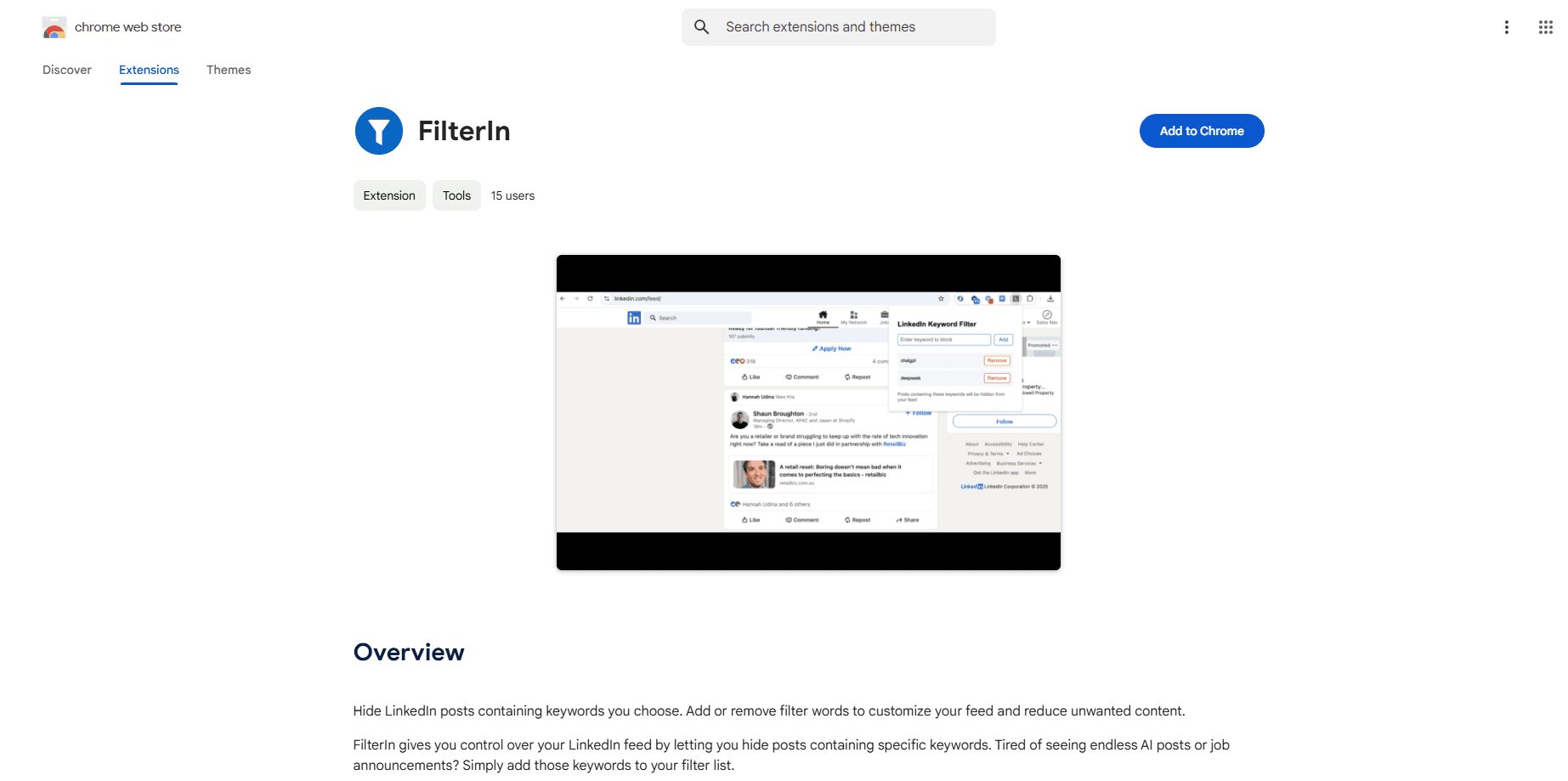
FilterIn is a browser extension that lets you hide LinkedIn posts by keyword. You type in a word, and every post that mentions it disappears as you scroll. There's no dashboard to learn and no account to create. The whole thing is a single text field with an add button.
People reach for it to filter LinkedIn content without unfollowing anyone. Think of it as a lightweight LinkedIn feed cleaner you control by hand.
The job it does is narrow on purpose. LinkedIn doesn't let you mute a topic by keyword, only people and companies. FilterIn fills that gap. If AI posts annoy you or you're tired of seeing the same job announcement ten times, you list those words once and the clutter stops showing up.
The biggest limit is scope. FilterIn only runs on linkedin.com and only hides posts. It won't touch comments, messages, or search results, and it won't stop the algorithm from ranking posts. It's a filter layer over the feed, nothing more. Everything stays local too, which is a privacy win but also means your keyword list lives only in that one browser.
Getting Started
- Open the FilterIn page on the Chrome Web Store and click Add to Chrome.
- Pin the FilterIn icon to your toolbar so you can reach it while browsing.
- Sign in to LinkedIn and open your feed.
- Click the FilterIn icon, type a keyword, then press Enter or click Add.
- Reload the feed and watch posts with that keyword vanish. Remove a word the same way to bring them back.
Product Information
A quick look at FilterIn's pricing, supported platforms, and performance.
Best for
The users, tasks, and scenarios where this tool fits best.
Users
- Professionals with a noisy feed
- Job seekers and recruiters
- Privacy-conscious users
Tasks
- Muting a topic by keyword
- Clearing engagement bait
- Cutting recurring announcements
Scenarios
- Daily scrolling before work
- Staying focused on a work project
- Trying LinkedIn again after getting fed up
Key features
Keyword Blocklist for LinkedIn
The core tool is a simple list of words and phrases. Add any term and FilterIn scans the feed for it, hiding every post where it appears. It matches text inside posts, so common words work the same way as specific hashtags. There's no limit built into the interface, so you can grow the list as new annoyances show up.
Live Filtering as You Scroll
Filtering runs while you browse rather than in a batch job. New posts load filtered, and pulling a keyword out of the list brings those posts back on the next load. You don't restart the browser or reinstall anything to change your rules.
Local, Account-Free Design
FilterIn has no sign-in, no server, and no analytics. Your keyword list is saved in the browser's local storage, so nothing leaves your machine. That makes it a genuinely private LinkedIn filter: the footprint is tiny (the package is about 10 KB), and the extension can't build a profile of what you hide.
Built Only for LinkedIn
The extension watches linkedin.com and nothing else. It leaves the rest of your browsing alone, which reduces the odds of it breaking other sites. The trade-off is that it does nothing on the mobile app, where the same feed noise still shows up.
No Effect on LinkedIn Itself
FilterIn hides content in your view without changing how LinkedIn works. It doesn't unfollow people, block accounts, or alter your profile, so you can turn it off and see the full feed at any time. Nothing about your account or connections changes.
Pros and cons
Pros
- Free and lightweight, with a 10 KB package and no account required.
- Fully local storage means no data collection, no tracking, and no external connections.
- Keyword-level control goes beyond LinkedIn's built-in mute, which only covers people and companies.
- Changes apply instantly as you scroll, with no reload or restart needed.
Cons
- Chrome desktop only, so it can't clean the LinkedIn mobile app.
- Hides matching posts everywhere, not per-author, which can remove posts you'd actually want.
- No syncing across browsers or devices, so you rebuild the keyword list on each one.
- Keyword matching is literal, so a single word can hide too much if you pick a common term.
Frequently asked questions
It hides LinkedIn posts that contain keywords you've added to its filter list. You type a word, and posts mentioning it disappear from your feed as you scroll.
Related content
Explore related tools, skills, and articles for FilterIn.
FilterIn Alternatives

Odyssey 3
Odyssey · OtherOdyssey-3 is Odyssey's foundation world model. It simulates physics in real time, turns a prompt into an interactive environment, and adapts to robots, cars and games.

JarvisCore
Prescott Data · Coding · Productivity · OtherJarvisCore is an open source Python runtime where AI agents work as equal peers on an agent mesh, claim tasks from a shared ledger, and reach external services through a zero-trust broker.
Clef
Cloudflare · Business · OtherClef is Cloudflare's open-source decision model for Workers AI. It returns calibrated probabilities for typed questions, not generated text, so agents can classify, route, and act fast.