

Google Search AI Mode
Google · Coding · Other
Google Search AI Mode is a conversational search experience inside Google Search that uses Gemini to answer complex questions, hold follow-up chats, and back every answer with links you can check.
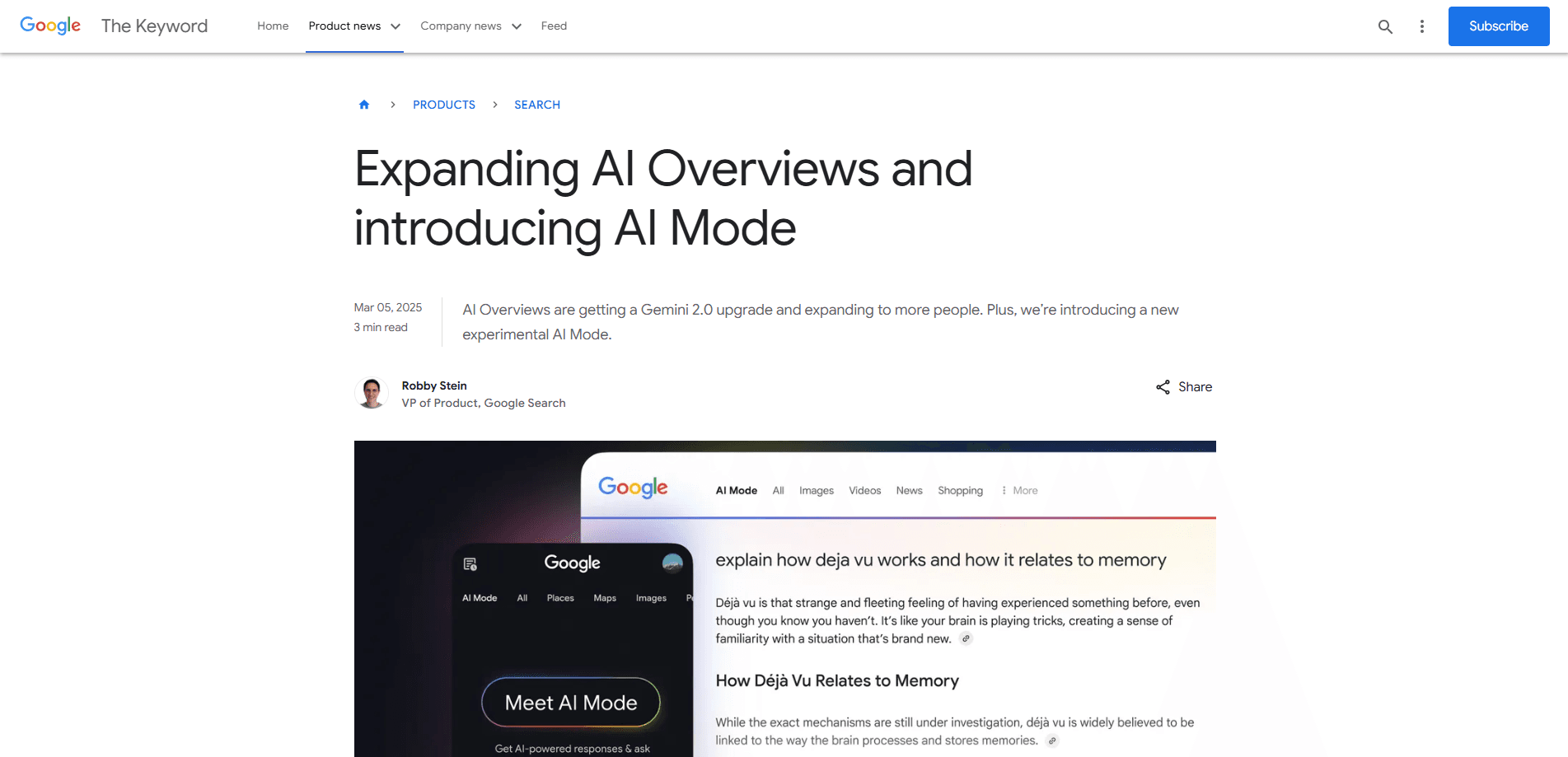
About Google Search AI Mode
What Is Google Search AI Mode
Google Search AI Mode is the chat-style layer that sits on top of the search box you already use. Instead of a page of blue links, it opens a full-screen answer that breaks a hard question into parts, pulls from many sources at once, and lets you keep asking until you get what you need. Google built it for the kind of question that used to take five searches: comparing two phones, planning a trip, or figuring out which plant survives a shady corner of the yard.
The engine underneath is Gemini, and the default model handles most queries. Paying Google AI Pro or Ultra subscribers can switch to Gemini 2.5 Pro for heavier reasoning, math, and code work. You can type, talk, or point your camera at something, and AI Mode reads the whole scene, not just the words you typed.
The catches are worth knowing. Answers can still be wrong, and Google says so, so you should check the cited links on anything that matters. A model like this runs on a lot of compute, so the more demanding modes come with subscription gates and usage limits. And the AI Mode tab doesn't appear on every query. It shows up where Google thinks a chat-style answer helps.
Getting Started
- Open Google Search or the Google app on your phone, tablet, or computer.
- Tap the AI Mode tab next to Images, News, and Shopping, or pick it from the search box.
- Type a question, speak it, or snap a photo to start the conversation.
- Read the answer and the source cards, then add a follow-up to narrow things down.
- Open the links you care about, and switch models from the dropdown if you hold a Google AI plan.
Product Information
A quick look at Google Search AI Mode's pricing, supported platforms, and performance.
Best for
The users, tasks, and scenarios where this tool fits best.
Users
- Everyday searchers
- Students and researchers
- Shoppers comparing options
- Professionals on the move
Tasks
- Comparing two products
- Planning a trip
- Identifying something you can see
- Digging into a hard topic
- Getting unstuck on code or math
Scenarios
- You're buying a laptop for a specific job
- You photograph a shelf of books
- You're cooking with what's in the fridge
- You want a plain-language take on a news story
Key features
Conversational Answers With Follow-Ups
The Google AI Mode features start with the chat itself. It behaves like a conversation, not a one-shot search: you ask a question, read the answer, and keep narrowing it down in the same thread. The model remembers what you already said, so a follow-up like "which of those is cheapest?" lands without you repeating the setup. That back-and-forth is the whole point, and it's what separates AI Mode from a page of links.
Multimodal Search With Camera and Voice
You don't have to type to use it. AI Mode takes voice input and, on phones, camera photos. Point your lens at a room, a product, or a page of text and ask about it. Under the hood, Google Lens reads the whole scene, including how objects relate to each other, then fans the image out into several questions so the answer covers more than the surface.
Query Fan-Out for Complex Questions
When you ask something tangled, AI Mode doesn't run one search. It splits your question into subtopics and runs many searches at once, then stitches the results into a single answer. This is the mechanism behind its deeper research mode, which can run hundreds of searches and return a longer, fully cited report in minutes.
Cited Answers and Source Cards
Every answer carries links. Google shows source cards beside the response and embeds more links inside the text, with short explanations of why each one matters. That gives you a way to verify the claims, which matters because the model can still get things wrong.
Model Choice for Harder Work
The default model keeps answers quick, and subscribers on Google AI Pro or Ultra can switch to Gemini 2.5 Pro for tougher tasks. That model is the one built for advanced reasoning, math, and coding, so it's the setting to reach for when a quick answer isn't enough.
Visual Cards for Places and Products
Results can include visual cards for restaurants, shops, and products, with ratings, reviews, hours, and stock. You tap a card for the details instead of opening a separate site, which keeps a shopping or planning session in one place.
Pros and cons
Pros
- Free to use for anyone with access to Google Search, with no signup required to try it.
- Handles messy, multi-part questions that would otherwise take several searches to answer.
- Text, voice, and camera input cover more situations than a keyboard alone.
- Cited links on most answers give you a way to check the claim before you trust it.
- Works across web, Android, and iOS, so the same thread-style search follows you between devices.
Cons
- Answers can be confidently wrong, so anything important still needs a manual check of the sources.
- The AI Mode tab doesn't show on every query, and results vary by region and language.
- The strongest reasoning model, Gemini 2.5 Pro, sits behind a paid Google AI plan, so free users don't get the top tier.
- The conversational layout pushes traditional blue links further down, which frustrates people who want a plain list of sites.
Frequently asked questions
It's a conversational mode inside Google Search. You ask a question, get an AI-generated answer built from many sources, and keep asking follow-ups in the same thread. It uses Gemini and shows links so you can read the original pages.
Related content
Explore related tools, skills, and articles for Google Search AI Mode.
Google Search AI Mode Alternatives

Base Code
Base44 (Wix) · Coding · ProductivityBase Code is a shared cloud development environment from Base44. Teammates describe changes to an existing GitHub codebase in chat, preview them live and send them back as pull requests.

Google EmbeddingGemma 2
Google DeepMind · Writing · Image · CodingGoogle EmbeddingGemma 2 is a 740M-parameter open model that turns text, code, images, audio, and video frames into vectors in one 768-dimension space, running on phones and laptops.

GitGlow
GitGlow · Coding · ProductivityGitGlow is a local-first desktop Git client that lets independent developers review their own code and their AI agents' changes in one place before shipping.