

Hearica
Evermove Ltd · Writing
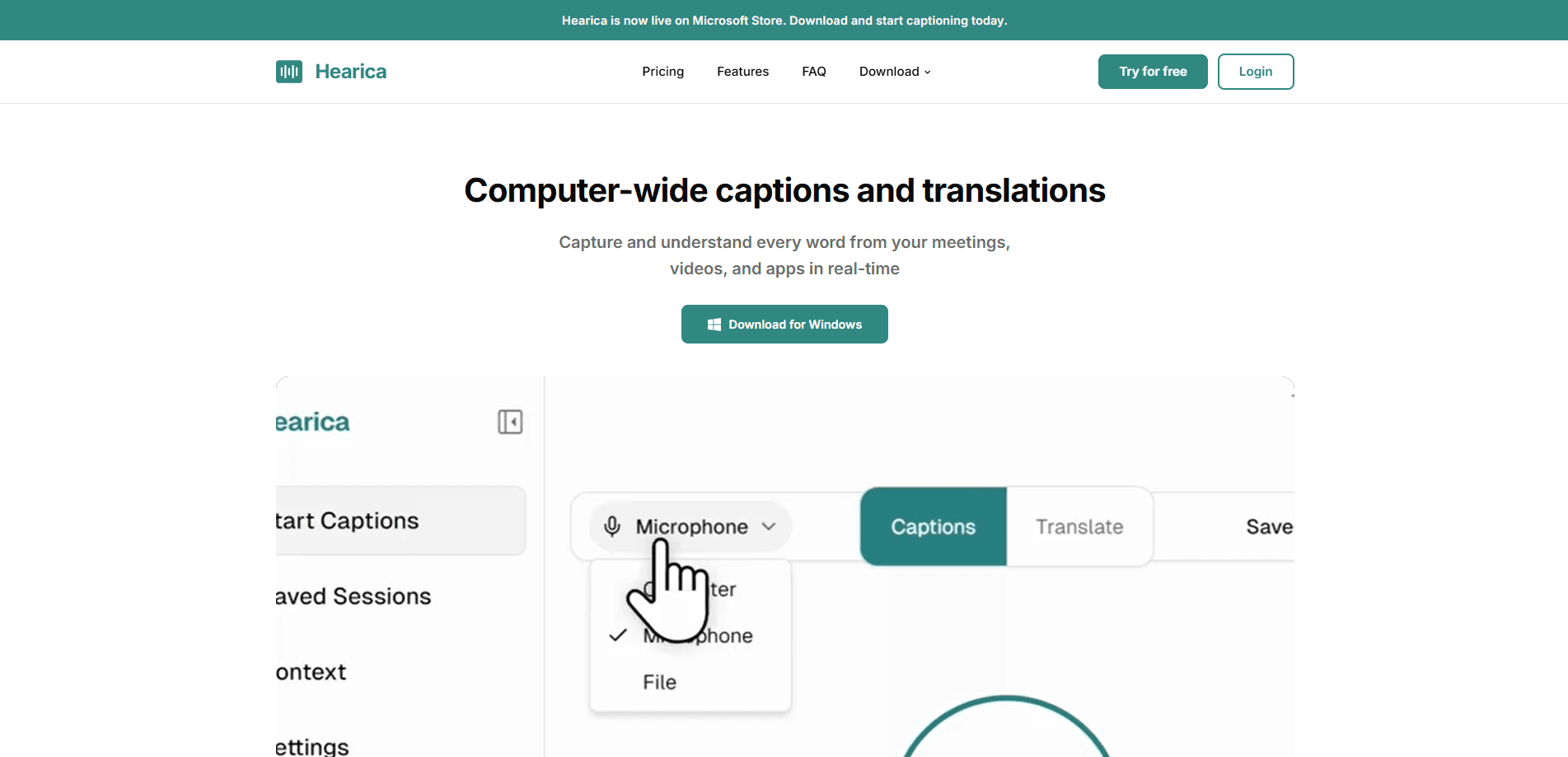
Hearica is a live caption app for Windows that listens to whatever audio plays on your computer and turns it into real-time captions on a floating overlay. It works as speech to text for system sound from apps like Zoom, Teams, or YouTube, for your microphone, or for audio and video files you drop in. The app handles 60+ languages and supports one-way and two-way translation. It's built as an accessibility tool for deaf and hard-of-hearing users first.
About Hearica
What Is Hearica
Hearica is a desktop caption software for Windows made by Evermove Ltd, a UK-based studio. Instead of asking you to install a browser extension or join a special meeting room, it captures audio directly from your PC's sound output. That means anything you can hear, Hearica can caption.
The core idea is simple. Live captions should work everywhere on your computer, not just in one browser tab. So why does that matter? Most caption tools live inside a single browser tab or a single app. Hearica doesn't. Once you set an audio source, a small always-on-top window shows the transcript while you keep working, typing, or watching the call.
It's also honest about its limits. Hearica runs on Windows only. The free tier caps captions at 60 minutes per month. The accuracy is strong but not perfect. Thick accents, heavy background noise, and overlapping speakers can still trip it up.
Getting Started
- Download Hearica from the Microsoft Store and install it on a Windows 10 or Windows 11 PC.
- Create a free account, or open the app and pick your audio source: system output, microphone, or a file.
- Choose your spoken language. Add more than one if you want two-way translation between speakers.
- Optional: build a context profile with names, acronyms, or jargon so Hearica spells the hard words right.
- Start the session, drag the floating caption window where you want it, and read along as the text appears.
Product Information
A quick look at Hearica's pricing, supported platforms, and performance.
Best for
The users, tasks, and scenarios where this tool fits best.
Users
- Deaf and hard-of-hearing people
- Students in online classes
- Remote workers in bilingual teams
Tasks
- Captioning video calls
- Transcribing meetings
- Translating a livestream
Scenarios
- Following a lecture or podcast that has no subtitles
- Watching a foreign film with no captioned version
- Working through a noisy office
Key features
Live Captions From Any Audio Source
Hearica captures your computer's sound output, your default microphone, or an uploaded file. Because it listens at the system level, this real-time transcription works with Zoom, Google Meet, Teams, Discord, YouTube, and just about any other app. No browser extension is involved. Nothing to configure per website.
Always-On-Top Floating Caption Window
The caption overlay stays above every other window, so you can read it while taking notes or working in another app. You can drag it anywhere on screen, resize it, and adjust font size, weight, and background opacity from transparent to solid. Your settings stick between sessions. Not ideal for a tiny screen, but fine on most laptops and desktops. A recent update also added finer size controls and a fix for the window resizing itself when moved between monitors with different scaling.
60+ Language Translation
Hearica handles more than 60 languages and supports one-way or two-way translation. In a two-way setup, each speaker talks in their own language while the other person reads a live translation of every sentence as it lands, which keeps an international call moving without anyone pausing for an interpreter.
Custom Vocabulary and Context Profiles
You can teach Hearica the words it tends to get wrong. Create a context profile for, say, a medical conference or a gaming stream, and load it with product names, acronyms, proper nouns, and jargon. You can also paste in background text, like a meeting agenda, to give the transcription more to go on. For translation users, you can define how specific terms should be translated.
Speaker Labels and Speaker Colors
When more than one person talks, Hearica tries to identify who's speaking and color-codes the labels. A newer version lets you pick the speaker label color yourself. It's not perfect with people talking over each other, but for a two- or three-person call it helps a lot when you read back a transcript.
Save, Export, and Playback
Each session can be saved automatically with timestamps and speaker labels. You can export as PDF, Word, plain text, or SRT subtitles, and attach the original audio recording with a click. Inside the app, saved recordings play back with synchronized highlighting, so you can click a line and jump straight to that moment.
File Transcription for Recordings
Hearica isn't limited to live audio. You can drag and drop MP3, WAV, M4A, MP4, or MKV files and transcribe a lecture, interview, or podcast after the fact. It's a practical fallback for anyone who records first and wants the text later.
Pros and cons
Pros
- Captions any audio on the PC, so it works across apps and browsers without per-site setup.
- Strong accessibility focus, built for deaf and hard-of-hearing users rather than bolted on later.
- Two-way translation across 60+ languages covers most international calls.
- Custom context profiles noticeably cut down spelling errors on names and jargon.
- Transcripts export to PDF, Word, text, and SRT, and you can attach the source audio.
Cons
- Windows only, so Mac and Linux users can't use it.
- The free plan stops at 60 minutes of captioning a month, which is short if you use it daily.
- Speaker labels struggle when people talk over each other, so busy group calls may need manual cleanup.
- Latency is low but not instant, so fast dialogue can still lag behind the speaker.
Frequently asked questions
Hearica adds live captions and translation to audio playing on your Windows PC. People use it to follow video calls, caption lectures and podcasts, and translate speech between languages in real time.
Related content
Explore related tools, skills, and articles for Hearica.
Hearica Alternatives

Google EmbeddingGemma 2
Google DeepMind · Writing · Image · CodingGoogle EmbeddingGemma 2 is a 740M-parameter open model that turns text, code, images, audio, and video frames into vectors in one 768-dimension space, running on phones and laptops.
MePersona
MePersona, Inc. · Writing · Productivity · MarketingMePersona is an AI unified inbox for creators. It learns your voice, drafts replies to fan messages from 12 platforms, and sends only what you approve.

Fluence
Yay Software (Yannick Huchard) · Writing · Voice & Language · ProductivityFluence is an Android app that reads PDFs, EPUBs, Word files and web articles aloud, follows each sentence as it speaks, and answers questions about the text on the phone itself.