

Hey, Copilot!
Microsoft · Voice & Language · Chatbot
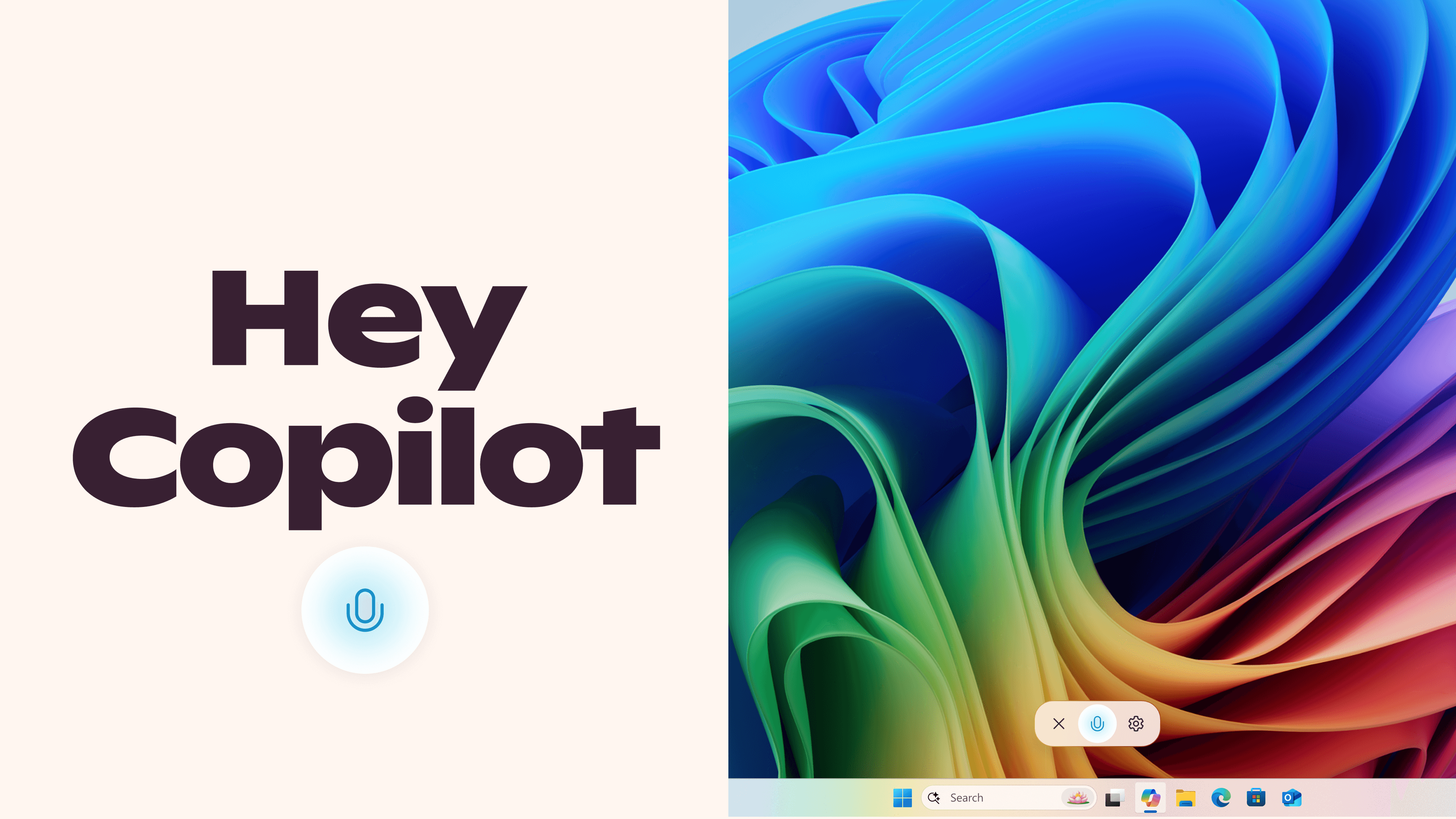
Hey, Copilot! is the voice wake word for Microsoft Copilot on Windows 11. Say the phrase to open a hands-free voice chat, ask a question and get a spoken answer.
About Hey, Copilot!
What Is Hey, Copilot!
Hey, Copilot! is not a standalone product. It is a voice activation feature inside the Microsoft Copilot desktop app on Windows 11, and its whole job is to save you clicks. You say the phrase, Copilot opens a voice chat, and you talk your question out loud instead of typing it. Microsoft describes voice as a third way to use a PC next to the keyboard and the mouse, and this wake word is how that third path starts.
The pitch is narrow but real. When your hands are busy, or when an idea hits mid-task, typing means breaking your flow. Saying two words does not. Microsoft's own data says people who talk to Copilot do it roughly twice as often as people who type. What you get back is a spoken answer plus a text transcript, so a session works whether you are listening or reading.
There are limits worth knowing before you enable it. The wake word only responds to the English phrase, it only runs in the Copilot app on Windows desktop, and it needs an internet connection to answer anything. New chats will not fire while the screen is locked or when another app is playing audio.
Getting Started
- Open the Microsoft Copilot app on your Windows desktop and sign in with a Microsoft account, work or personal
- Go to Settings and switch on the Listen for "Hey Copilot" toggle, which is off by default
- Say "Hey Copilot" followed by your question, and allow microphone access the first time you are prompted
- End the chat by saying "Goodbye," clicking the dismiss button, or just going quiet for a minute
Product Information
A quick look at Hey, Copilot!'s pricing, supported platforms, and performance.
Best for
The users, tasks, and scenarios where this tool fits best.
Users
- People who type slowly or find keyboards a barrier
- Multitaskers
- Accessibility users
- Copilot regulars already signed in
Tasks
- Quick lookups
- Calendar and inbox triage
- Brainstorming out loud
- Hands-busy moments
Scenarios
- Editing a photo or video
- Reading a long PDF
- Cooking or tidying with your PC nearby
- Late-night note capture
Key features
A True Wake Word, Not a Button
You do not press anything to start. Say "Hey Copilot" and the voice chat opens on its own, then you continue with your question. That differs from an app where voice is one mode among many. Until now, starting Copilot by voice meant a click or a keyboard shortcut. The wake word removes that first step entirely.
On-Device Wake Word Detection
Your PC listens for the phrase locally, not in the cloud. A small on-device service keeps a 10-second audio buffer in memory and checks it for "Hey Copilot," and that buffer is never recorded or saved. Only after the phrase is detected does Copilot send your question audio to the cloud for an answer. It is a real privacy feature, and a sensible one for an always-listening wake word.
Voice Chat With a Text Transcript
Every session gives you two outputs. Copilot speaks its answer aloud and shows the conversation as text you can keep. That matters for anyone who wants to reread an answer or copy a detail later. It also makes voice chat usable in an open office, where reading beats listening.
Interruptible, Natural Conversation
You can cut Copilot off, change direction or end the session mid-sentence. It is built to behave like a conversation rather than a form to fill in. This conversational handling is what makes a voice assistant feel useful for back and forth work instead of one-off commands.
Works Across the Desktop
Copilot keeps listening whether the app is open, minimized or in the background. That means you can wake it while looking at something else, without hunting for the window first. Windows shows a microphone indicator in the system tray while this is active, so you always know it is on.
Multi-Language Talking, English Only Waking
The wake word itself only recognizes English, but the conversation that follows can continue in any language Copilot supports, and the wider app covers 40-plus languages. So you can start in English and carry on in another language if that is easier.
Chat, Search and Everyday Backup
Once awake, Copilot does the same work as the typed app. It searches the web, explains concepts, translates, drafts text and answers questions. The value here is not a new capability but a faster way into the ones you already use. As a voice assistant for Windows 11, it also folds wake word activation into the same app you already have open, so there is no second tool to learn.
Pros and cons
Pros
- Starting Copilot by voice takes two words, with no click or shortcut first
- Wake word detection runs locally and the audio buffer is not stored, so privacy holds up
- Spoken answers come with a text transcript, useful for rereading or copying
- No extra cost on top of the Copilot app, and no setup beyond one settings toggle
- Fits hands-busy and accessibility use cases where typing gets in the way
Cons
- Only the Copilot desktop app on Windows 11 supports the wake word, so Mac, mobile and web users are left out
- It needs an internet connection to answer, and an offline wake just fails
- The wake phrase is English-only, and accented speech or background noise can trigger it by accident
- It will not start a new chat while the screen is locked or another app is playing audio
Frequently asked questions
Hey, Copilot! is the voice wake word for Microsoft Copilot on Windows 11. You say the phrase and a hands-free voice chat opens, so you can ask a question out loud and get a spoken answer with a text transcript. It lives inside the Microsoft Copilot desktop app rather than as a separate product.
Related content
Explore related tools, skills, and articles for Hey, Copilot!.
Hey, Copilot! Alternatives

Foley
Hanamori Labs, LLC · Voice & Language · Productivity · AI AssistantFoley is a voice to-do list that turns a spoken sentence into a filed task, complete with project, date and time, then helps you plan the day around what is already there.

HireKey
HireKey · Voice & Language · Productivity · LeaningHireKey is an AI job search copilot built by a former tech recruiter. It checks role fit, tailors resumes, runs interview practice and tracks every application.

Fluence
Yay Software (Yannick Huchard) · Writing · Voice & Language · ProductivityFluence is an Android app that reads PDFs, EPUBs, Word files and web articles aloud, follows each sentence as it speaks, and answers questions about the text on the phone itself.