

Highlight Studio
Highlight Studio · Writing · Video
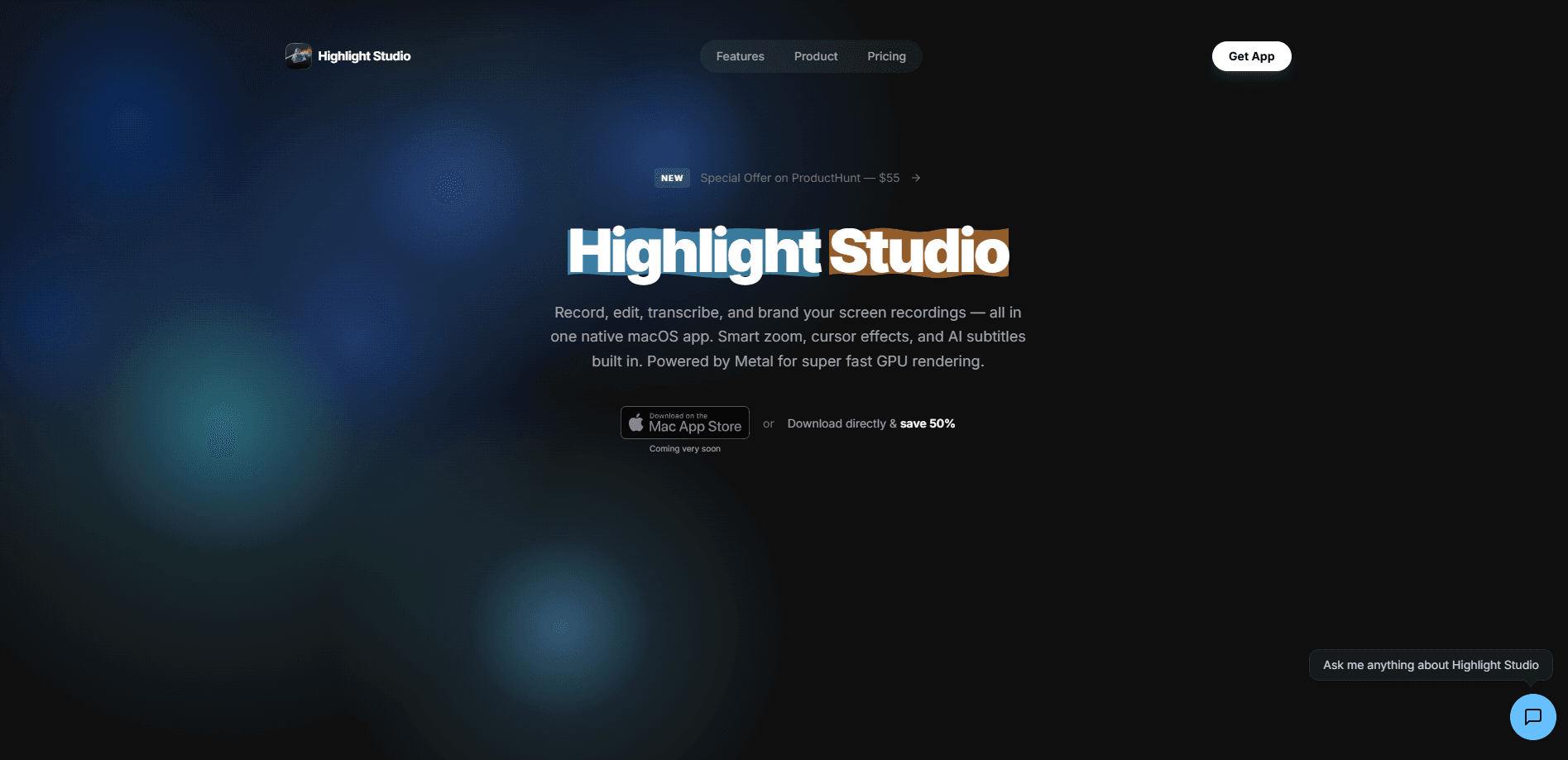
Highlight Studio is a native Mac screen recorder that records your screen, then edits the footage in the same app. It adds AI smart zoom, auto subtitles, cursor effects, device frames, and brand kits without sending you to a separate video editor. The pitch is simple: record raw, export polished. That single-app workflow saves a lot of back and forth. If you make tutorials, product demos, or app walkthroughs on an Apple Silicon or Intel Mac, it's worth a look.
About Highlight Studio
What Is Highlight Studio
Highlight Studio is a screen recording app for Mac that combines capture and editing in one place. You record your screen, camera, microphone, and system audio, then work on a multi-track timeline with trim, split, speed ramps, zoom effects, and subtitles. Everything runs as a native SwiftUI app built on Apple's Metal framework, so the video never leaves your machine for a cloud render.
The main problem it solves is the gap between a raw capture and a video worth sharing. Most recorders stop at the file. You still need to cut dead air, add zoom so viewers can see what you clicked, subtitle it, and frame it for the place you're posting. Those steps usually mean a second app and a second learning curve. So what does Highlight Studio do differently? The AI watches your clicks and cursor movement and builds zoom keyframes for you, so much of the rough editing is already done when you stop recording.
The biggest limitation is platform lock-in. This is macOS only, and it leans on Apple hardware features like the Metal GPU pipeline and the VideoToolbox encoder. Windows and Linux users are out of luck. Not ideal if your team is split across platforms. AI features also run on a credit system: transcription uses credits, while recording, editing, and exporting stay unlimited. The free tier caps exports at 720p and adds a watermark, so anyone making client work or 4K tutorials will need a paid plan.
Getting Started
- Download Highlight Studio from the Mac App Store or the developer's site, then open it and grant screen recording permission in System Settings.
- Pick a source from the recorder panel, which lists available screens, windows, and connected iOS devices.
- Choose whether to capture the camera, microphone, and system audio alongside the screen.
- Record your session, then stop. The clip lands straight on the multi-track timeline for editing.
- Add zoom regions, subtitles, cursor effects, or a device frame, then export to MP4 or GIF.
Product Information
A quick look at Highlight Studio's pricing, supported platforms, and performance.
Best for
The users, tasks, and scenarios where this tool fits best.
Users
- Solo creators and indie developers who record demos on a Mac and want a finished clip without opening a second editor
- Course instructors and tutorial makers who need subtitles, zoom, and chapter-style structure in one pass
- Product and support teams that record bug reports or walkthroughs and want to share them as lightweight GIFs
Tasks
- Recording app demos with automatic zoom that follows each click, so viewers can see the exact spot you're pointing at
- Turning a screen recording into a vertical clip for Reels, Shorts, or TikTok by reframing to 9
- Wrapping an iPhone or iPad demo in a pixel-perfect device frame and exporting with transparent alpha for store previews
- Capturing a bug, annotating the broken part, and exporting a GIF that drops straight into GitHub, Linear, or Jira
Scenarios
- Shipping a 30-second product demo for a landing page or sales deck without a video editor on call
- Recording a multi-lesson course that needs branded intros, voice-over, and 4K output for platforms like Udemy or Teachable
- Writing documentation where a short inline GIF explains a workflow faster than a paragraph
- Onboarding and internal training, where a screen capture tool for Mac keeps the whole workflow in one app
Key features
AI Smart Zoom
During recording, Highlight Studio tracks cursor position and click events. After you stop, it analyzes click clusters and mouse movement to place zoom keyframes at the moments that matter. Each zoom becomes a draggable clip on the timeline, so you can resize, move, or delete it. The selling point is zero manual keyframing when you don't want it, and full control when you do.
Auto Subtitles in 50+ Languages
The app transcribes your audio with word-level timestamps and builds a subtitle track automatically. It handles more than 50 languages, which covers most tutorial and demo use cases. Subtitles sit on their own track, so you can edit or restyle them without touching the video. Transcription is the one feature that spends credits.
Real Multi-Track Timeline
This is a full timeline editor, not a trimmed-down capturer. You get separate tracks for video, camera, audio, voice-overs, subtitles, and annotations. That means speed ramps from 0.25x to 2x, frame holds while audio keeps playing, and per-track control over volume, visibility, and timing. Everything stays editable. Annotations and subtitles live on their own layers instead of being baked into the picture.
Cursor Effects and Click Highlights
Mouse movement gets smoothed in post with three levels of intensity, so the cursor glides instead of jumping around. You can also scale the cursor after recording, since it's tracked separately from the video. Click sounds and visual ripples pair with each mouse action, with adjustable color, radius, and intensity, which makes step-by-step tutorials easier to follow.
Device Frames for 27+ Apple Devices
Connect an iPhone or iPad over USB and Highlight Studio records the screen directly. You can then wrap that recording in an accurate device frame covering more than 27 Apple models, with the correct screen radius, notch, and home button for each one. Color finishes match the real hardware, and exports can carry transparent alpha at App Store Connect's preview resolution.
Brand Kits and Style Presets
Set your logo, colors, fonts, and watermark position once, and they apply to every export. There are six animated intro and outro templates that auto-fill your logo, name, and tagline, plus 13 built-in style presets for backgrounds, camera layouts, and export settings. Set it once. The brand kit keeps a whole series visually consistent without repeated setup.
Backgrounds, Music, and Cursor Packs
The background panel includes thousands of royalty-free images you can search or filter, and royalty-free audio tracks you can preview and drop onto the timeline. Cursor packs swap the pointer for a minimal, bold, or branded style. There's also a built-in teleprompter that scrolls word by word while you record, so your eyes stay on camera.
CLI and Skill System for AI Agents
A command-line tool and skill system expose 40+ commands over a local TCP socket using newline-delimited JSON. Any AI agent framework can record screens, edit timelines, add effects, and export videos programmatically. That's the whole point. A natural-language prompt like "record for 30 seconds, zoom on clicks, add subtitles, export MP4" can drive the whole flow.
Pros and cons
Pros
- Recording and editing live in one native app, so you skip exporting to a separate video editor
- AI smart zoom handles the tedious part of screen recording by placing zoom keyframes on clicks automatically
- Full multi-track timeline supports separate video, camera, audio, subtitle, and annotation tracks
- Device frames with transparent alpha export save time for App Store preview assets
- The CLI and skill system let AI agents automate recording and export end to end
Cons
- macOS only. There's no Windows, Linux, iOS, or Android version, so teams on mixed platforms need another tool
- The free tier caps export at 720p and adds a watermark, which rules out client work or 4K tutorials without paying
- AI transcription runs on credits, so heavy subtitle use eventually costs extra on top of the subscription
- Facial-expression detection and some layouts add a learning curve, and its suggestions are markers you still have to review
Frequently asked questions
It's a Mac screen recorder and editor for making polished screen recordings. Typical uses include app demos, software tutorials, bug reports, product walkthroughs, and course lessons. You record, then edit zoom, subtitles, and framing in the same app.
Related content
Explore related tools, skills, and articles for Highlight Studio.
Highlight Studio Alternatives

Google EmbeddingGemma 2
Google DeepMind · Writing · Image · CodingGoogle EmbeddingGemma 2 is a 740M-parameter open model that turns text, code, images, audio, and video frames into vectors in one 768-dimension space, running on phones and laptops.
MePersona
MePersona, Inc. · Writing · Productivity · MarketingMePersona is an AI unified inbox for creators. It learns your voice, drafts replies to fan messages from 12 platforms, and sends only what you approve.
Fluence
Yay Software (Yannick Huchard) · Writing · Voice & Language · ProductivityFluence is an Android app that reads PDFs, EPUBs, Word files and web articles aloud, follows each sentence as it speaks, and answers questions about the text on the phone itself.