

Jev State
Priyank Karkare · Coding · Productivity
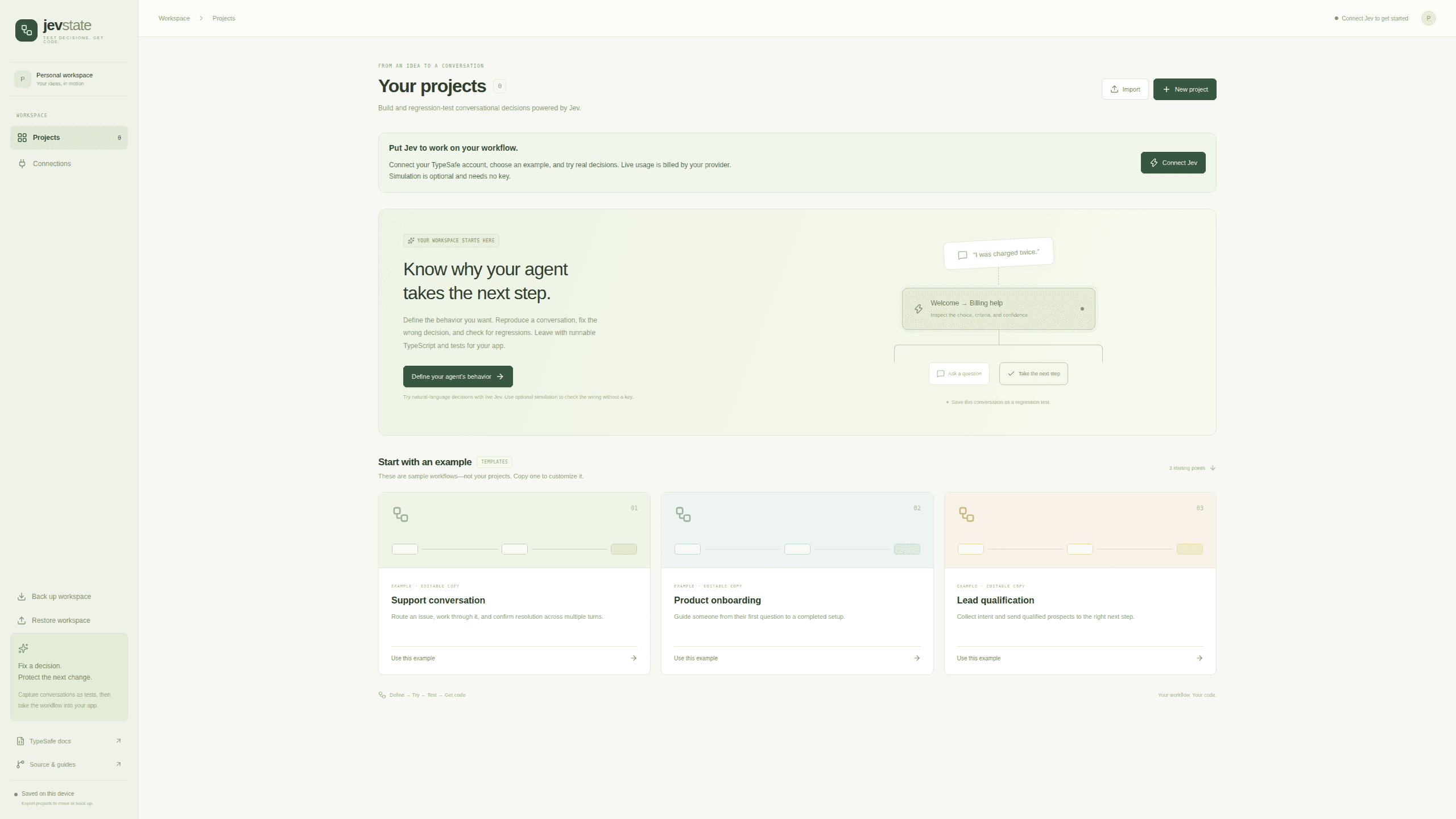
Jev State is a browser studio for building and regression-testing conversational state machines powered by Jev, with a downloadable TypeScript project for your app.
About Jev State
What Is Jev State
Jev State is a studio for developers who need an AI conversation to land in a specific place. You draw the states a conversation can occupy, write the criteria for entering each one, connect the paths you allow, and let Jev pick the next state after every user message.
The problem it goes after is narrow. A support bot answers politely and still sends a refund request to the wrong queue. A prompt edit fixes one conversation and quietly breaks another, and nobody finds out until a customer does. The studio gives you a place to replay that conversation, read the criteria behind the decision, correct the state description, and turn the expected outcome into a test.
The Jev Choice model is TypeSafe's decision layer, and it does not write prose. It answers a typed question with one option from a fixed set, plus a probability for each option, which is why the interface can show the input, the question, the distribution, and the threshold check for every turn. Replies are a separate layer: text you write per state, or an OpenAI Responses call when you connect a key.
A few boundaries are worth knowing before you start. The editor handles flat machines with 2 to 12 states, and nested states, parallel regions, and XState file imports are not supported yet. Projects live in your browser's local storage, with no account and no sync across devices. Live decisions run on your TypeSafe credits, and generated replies run on your OpenAI credits.
Getting Started
- Open jev-state.vercel.app and copy one of the sample workflows, or start from a blank canvas. The samples are examples, not projects of yours, so pick "Use this example" to get an editable copy.
- In Define, select a state and write its entry criteria, the reply it should send, and the states it may transition to. Drag from the right handle of one box to the left handle of another to connect them.
- Choose Connect Jev and paste a TypeSafe API key from console.typesafe.ai/keys. Connecting verifies account access and does not run inference. Pick Simulation instead if you want to explore without a key.
- Send a message in Try and inspect the result: the chosen state, the probabilities, how confidence compared to your threshold, the resolved model, latency, and token usage.
- Save the conversation as a regression test with the outcome you wanted, then run the suite in Test. Open Get code when you want the workflow, the execution engine, and an integration example as a ZIP.
Product Information
A quick look at Jev State's pricing, supported platforms, and performance.
Best for
The users, tasks, and scenarios where this tool fits best.
Users
- TypeScript developers building a chat or voice agent with explicit states
- Support and onboarding teams whose flows already have a shape
- Solo builders evaluating Jev before committing
Tasks
- Turning a bad conversation into a test
- Rewriting routing criteria after a model update
- Handing a tested workflow to a production app
Scenarios
- A billing question keeps reaching the technical support branch
- A prompt tweak improves one case and damages four others
- A coding agent is doing the integration
Key features
Visual Workflow Editor
States are boxes on a canvas, transitions are lines between them, and the whole graph is editable by dragging. Each state carries its label, entry criteria, reply text, keywords for simulation, and the list of destinations it may reach. You can auto-layout a crowded graph, undo a bad move, or work from the state list when the canvas gets messy.
Typed Decisions with Probabilities
Every outgoing destination becomes a criterion in a single Choice question, which is the unit AI conversation testing works on here., and Jev returns one answer plus a distribution over the options. The inspection panel records the exact input, the question text, the probabilities, the threshold comparison, the resolved model, latency, and token usage. When a turn surprises you, that record explains the routing instead of asking you to trust it.
Confidence Threshold and Stay Option
The runtime validates the model's answer before acting on it, then applies the transition only when confidence clears your threshold. Below the threshold, the conversation stays where it is and replies from the current state, which is the behavior you want for short follow-ups or ambiguous messages. A malformed provider response fails the turn rather than advancing the machine.
Save a Conversation as a Test
A finished conversation becomes a regression case with one click. You choose the state you wanted to reach, even when the run went somewhere else, and optionally mark the expected state after each earlier turn. Cases hold up to five user messages, and the runtime inserts each assistant reply into the history before the next message, so a case behaves like the conversation it came from.
Evaluations with Coverage and Rerun Diffs
The test view reports pass rate, latency, usage, readable user and assistant traces, and which states and transitions the suite exercised. Rerunning a suite compares unchanged cases against the previous run in the same mode and flags regressions and fixes. Editing behavior or expectations marks earlier reports as stale, so old evidence cannot be mistaken for current results.
Export to a Runnable TypeScript Project
Get code produces a ZIP with workflow.json, a TypeScript workflow runner in workflow.ts, a shared engine under lib/, a multi-turn example, a regression runner with CI exit codes, a GitHub Actions workflow that runs simulation without secrets, and an agent skill file. The code calls TypeSafe and OpenAI from your own server and makes no requests to Jev State, so there is nothing to keep paying for on this side.
Pros and cons
Pros
- Free and MIT licensed, with no account, subscription, or hosted database in the path.
- The decision record is unusually complete: input, question, probabilities, threshold result, model, latency, and usage sit in one panel.
- Simulation runs without provider keys, so the exported suite can run on every push in CI.
- The downloaded project contains the same engine the studio used, which keeps test behavior and production behavior aligned.
- Keys stay in the tab's memory during a session and are left out of exports, cookies, and browser storage.
Cons
- Only flat machines are supported. Nested states, parallel regions, executable guards, and XState imports are missing, so complex charts have to be flattened or modeled in code.
- Simulation confidence values are fixtures rather than measurements, and a passing suite describes your dataset, not the model's accuracy.
- Live evaluation costs real credits at TypeSafe and OpenAI. A thorough suite across several models adds up quickly.
- Browser storage keeps the latest 60 conversations and 40 evaluation reports with no cross-device sync, so long-running work needs manual exports.
Frequently asked questions
Jev State is a studio for designing and testing conversational AI workflows that route between explicit states. You define the states and their entry criteria, and Jev chooses the next state after each user message. The studio records those decisions, turns conversations into regression tests, and exports the workflow as TypeScript.
Related content
Explore related tools, skills, and articles for Jev State.
Jev State Alternatives

Base Code
Base44 (Wix) · Coding · ProductivityBase Code is a shared cloud development environment from Base44. Teammates describe changes to an existing GitHub codebase in chat, preview them live and send them back as pull requests.

Google EmbeddingGemma 2
Google DeepMind · Writing · Image · CodingGoogle EmbeddingGemma 2 is a 740M-parameter open model that turns text, code, images, audio, and video frames into vectors in one 768-dimension space, running on phones and laptops.

GitGlow
GitGlow · Coding · ProductivityGitGlow is a local-first desktop Git client that lets independent developers review their own code and their AI agents' changes in one place before shipping.