

Kortex
Kortex · Coding
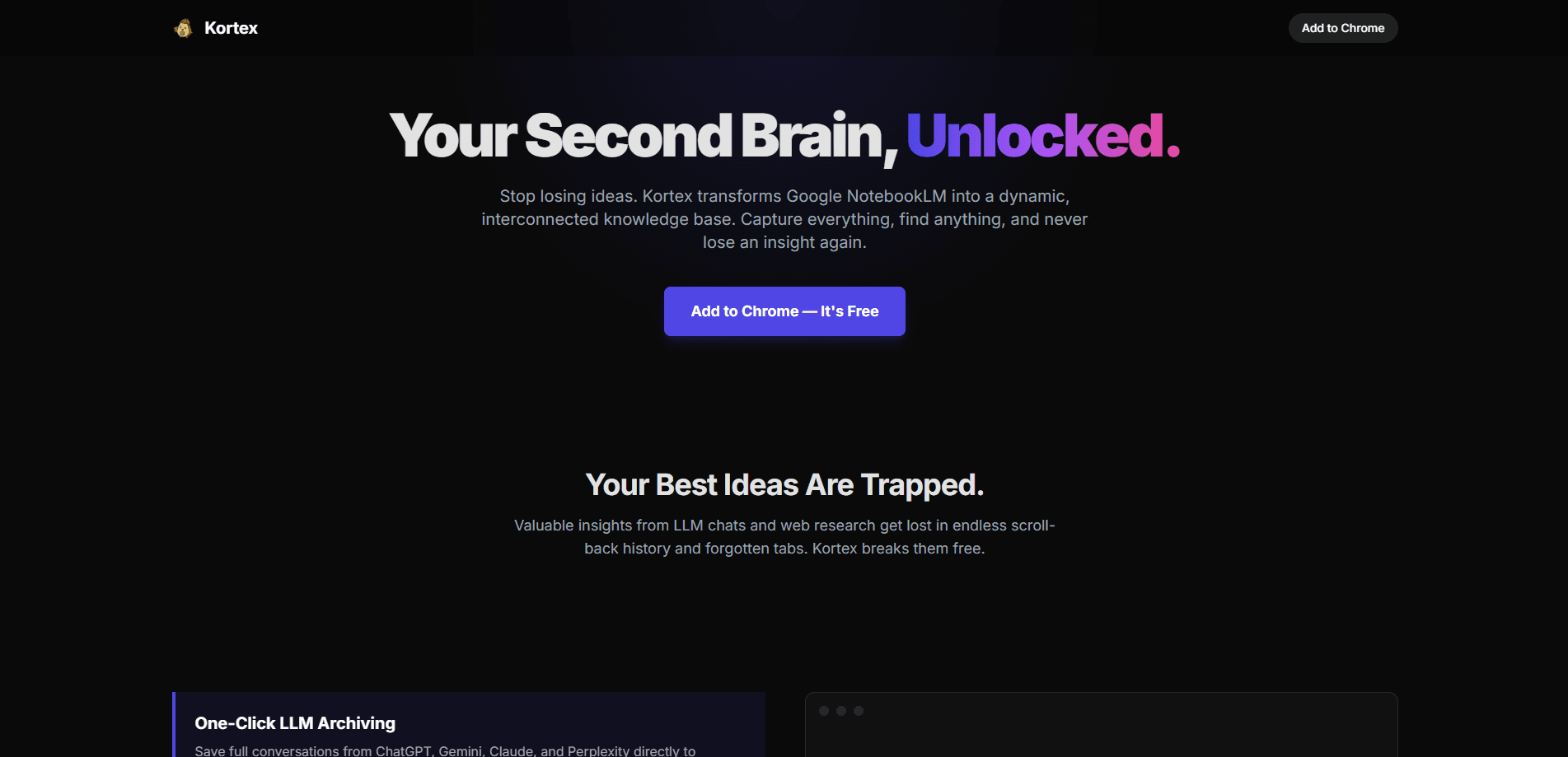
Kortex is a free Chrome extension that connects the AI tools you already use to Google NotebookLM. It archives full conversations from ChatGPT, Gemini, Claude, and Perplexity, clips any web page into a cited source, and exports your notebooks as Markdown, JSON, or a zip file. If your best ideas keep disappearing into scroll-back history and forgotten tabs, Kortex is built to stop that. Think of it as AI note taking with a safety net.
About Kortex
What Is Kortex
Kortex is a browser extension for people who live inside NotebookLM and other AI chat tools. The problem it targets is simple: useful findings from LLM conversations and web research get scattered across apps, and pulling them back together by hand is a chore. Kortex adds a layer on top of NotebookLM that captures those pieces the moment you find them.
The extension focuses on capture and cleanup rather than on answering questions itself. It doesn't replace NotebookLM, and it doesn't run its own language model. Everything it saves lands in your existing Google account, so the sources stay under your control.
The main limit is scope. Kortex only works in Chromium-based browsers, and it assumes you already use NotebookLM as your knowledge base. If you don't, there's nothing for it to feed. No NotebookLM, no point.
Getting Started
- Open the Chrome Web Store listing and click Add to Chrome to install the extension.
- Pin Kortex to your toolbar so the capture buttons stay within reach.
- Open NotebookLM and sign in with the Google account you want your sources saved to.
- While reading a chat or a web page, use Kortex to save the conversation or clip the text into NotebookLM.
- Review the saved sources inside NotebookLM, then export any notebook as Markdown, JSON, or a zip when you're ready to move it elsewhere.
Product Information
A quick look at Kortex's pricing, supported platforms, and performance.
Best for
The users, tasks, and scenarios where this tool fits best.
Users
- Researchers and students who read across many tabs
- Writers and analysts who draft with ChatGPT or Claude
Tasks
- Saving a long LLM conversation
- Clipping a passage from an article
- Exporting research
Scenarios
- Cleaning up an overflowing notebook list
- Moving between Google Docs and NotebookLM
Key features
One-Click LLM Archiving
Kortex saves complete conversations from ChatGPT, Gemini, Claude, and Perplexity straight into NotebookLM. Instead of scrolling back through a chat to find the paragraph that mattered, you send the whole thread and let NotebookLM index it. One click and it's saved. That's the whole point: save ChatGPT to NotebookLM without copying by hand.
Highlight & Snipe
Right-click any text on the web and Kortex turns it into a properly cited source in your notebook. The citation travels with the snippet, so you keep track of where an idea came from. No more guessing.
Effortless Exporting
You can export sources, chats, or curated notes as Markdown, JSON, or a single zip file. That matters when you want a portable backup, and it matters even more when you need to hand your research to a colleague or client who has never opened NotebookLM and has no intention of starting now.
Google Docs Integration
A single click sends a Google Doc to NotebookLM from inside the Docs website. No download, no re-upload, no copy-paste round trip.
Bulk Delete Notebooks
Select several notebooks on the NotebookLM homepage and clear them in one action. It's a small thing until your library has grown past a few dozen entries and manual cleanup starts eating time. Then it stops being small.
Pros and cons
Pros
- Free to install, with no paid tier gating the core capture features
- Works with four major AI chat tools, so you aren't locked to one model
- Captures sources with citations intact, which keeps NotebookLM answers traceable
- Export formats cover both structured data (JSON) and plain text (Markdown)
Cons
- Chrome only, so Firefox and Safari users can't run it
- It depends entirely on NotebookLM, meaning it's useless if you don't already use Google's tool
- There's no public API, so automation and custom integrations aren't an option
Frequently asked questions
Yes. Kortex installs as a free Chrome extension, and the capture, clipping, and export features described on its site don't sit behind a paywall. There's no premium tier.
Related content
Explore related tools, skills, and articles for Kortex.
Kortex Alternatives
Forefront
Forefront · CodingForefront is a web platform for building with open-source AI. It lets you fine-tune leading open-source language models on your own data, evaluate how they perform, and run them through an API or export them to host yourself. Developers who want the convenience of a closed-source platform but insist on owning their models and data are the target audience here.

Startkit
StartKit.AI · CodingStartkit is a boilerplate for building AI SaaS and AI wrapper products. Think of it as an AI startup boilerplate with the boring parts already wired up: authentication, Stripe and Lemon Squeezy payments, usage limits, transactional email, and an AI API starter that talks to OpenAI, Anthropic, Groq, or Llama. You clone the repo, set your price, and start on the part of your product that people actually pay for. It's Next.js under React and Tailwind, so most of the boilerplate code already feels familiar.
Testim
Tricentis · CodingTestim is an AI-powered test automation platform for building and running end-to-end tests across web, mobile, and Salesforce applications. It leans on machine learning to keep tests stable when an interface changes, so teams spend less time fixing broken selectors. Not bad for an automated testing tool you can start using today. You create tests by recording actions in a browser, then optionally add JavaScript when you need more control. It's a solid pick for busy QA teams.