

LocalClicky
Dikshant Rajput · Voice & Language
LocalClicky is a free, open-source voice assistant for macOS that runs entirely on your own hardware. You talk, it acts: open apps, move the cursor, click on what it sees, edit video, read your screen, and fire off shell commands. Nothing goes to the cloud, there's no API key to sign up for, and no subscription to cancel. Sound appealing? It's the kind of tool you set up once and then forget about until you need it.
About LocalClicky
What Is LocalClicky
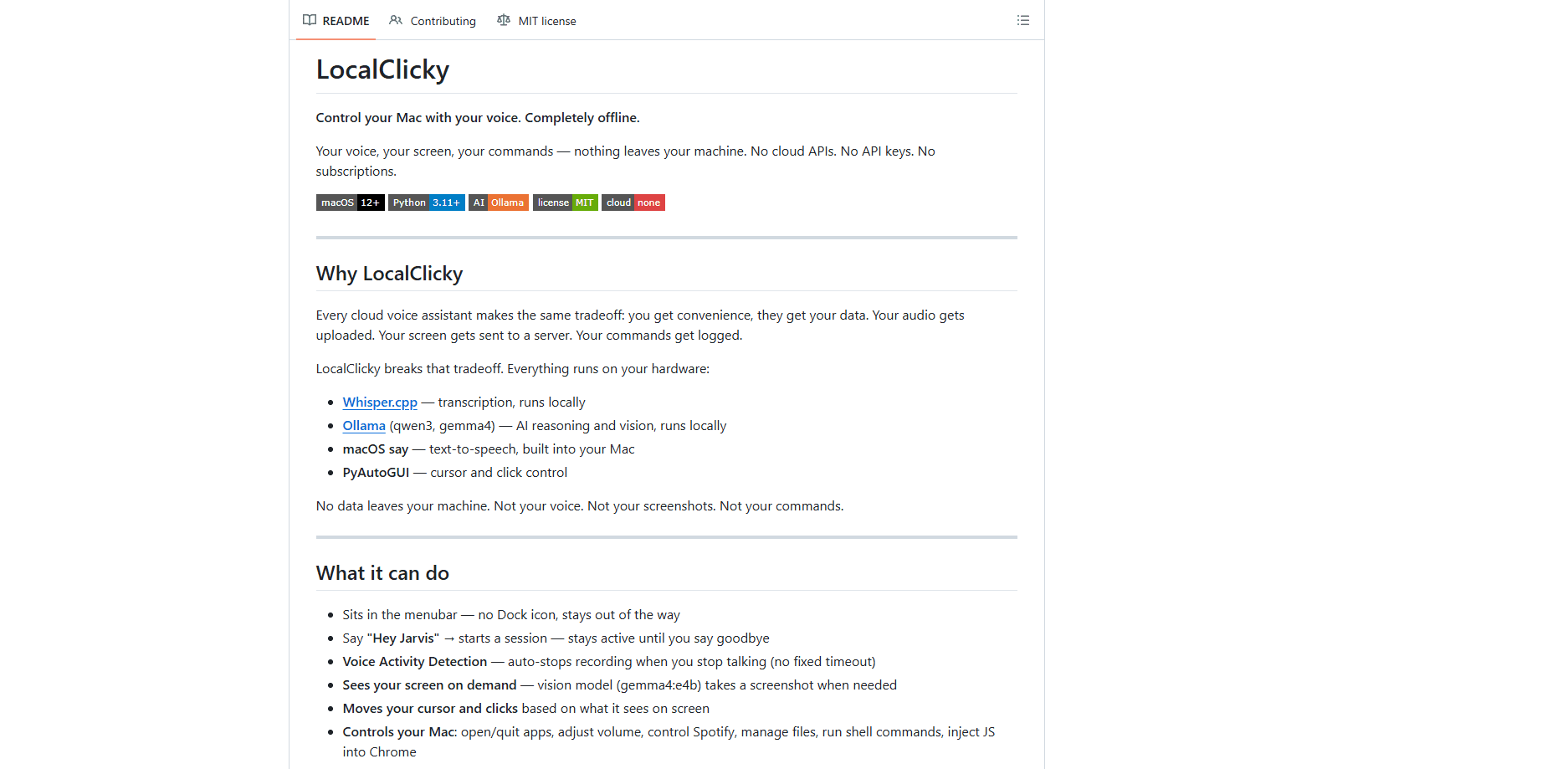
LocalClicky is an offline voice assistant built specifically for macOS 12 and later. Most voice assistants trade your privacy for convenience: they upload your audio, ship screenshots to a server, and log your commands. LocalClicky flips that deal. Transcription runs through Whisper.cpp. Reasoning and vision run through Ollama models on your machine. Text to speech uses the macOS say command by default.
The pitch is simple. Your voice, your screen, your commands, and none of it leaves the machine. That matters if you handle sensitive work on your Mac. It also matters if you're tired of cloud services, or if you just don't want another monthly bill for basic voice control. There's no account, no login, and no data policy to read because there's no data going anywhere.
It isn't a finished consumer app. You install it from a GitHub repo, set up Python and a few Homebrew packages, and grant three macOS permissions before it works. That setup is the price of admission. Once it's running, the assistant lives in your menubar with no Dock icon and stays out of the way until you say the wake word.
Getting Started
- Install the prerequisites: Whisper.cpp and Ollama through Homebrew, plus ffmpeg if you want video editing.
- Pull the local models with
ollama pull qwen3:8bfor commands andollama pull gemma4:e4bfor vision. - Clone the repo, create a Python virtual environment, and run
pip install -r requirements.txtto grab the remaining dependencies. - Grant Microphone, Screen Recording, and Accessibility permissions to the Python binary in your virtual environment.
- Launch it with
python main.pyand say "Hey Jarvis" to start a session.
Product Information
A quick look at LocalClicky's pricing, supported platforms, and performance.
Best for
The users, tasks, and scenarios where this tool fits best.
Users
- Privacy-conscious Mac users
- People who want a local AI assistant without the cloud
- Developers and tinkerers
- Accessibility users who want hands-free control
Tasks
- Opening and quitting apps
- Editing video clips
- Reading your screen
- Running quick shell commands
Scenarios
- Working on a laptop in a shared space
- Handling private documents
- Chaining a burst of actions
- Watching a video you can't be bothered to sit through
Key features
Fully offline processing
LocalClicky runs Whisper.cpp for transcription and Ollama for reasoning and vision, all on your own machine. No audio, screenshots, or commands get uploaded. The one exception is opt-in: if you swap the default voice for Fish Audio's TTS model, your spoken responses get sent to their API. Leave it alone and the assistant stays entirely local.
Voice control of your Mac
Say "Hey Jarvis" and the assistant wakes up. From there it can open and quit apps, adjust the volume, control Spotify, manage files, and run shell commands. Multi-round tool calling means it runs a command, checks the result, and retries or confirms. No one-shot guesses.
Screen vision and clicking
The gemma4 vision model takes a screenshot when a task needs it, then describes what's on screen or moves the cursor and clicks based on what it sees. Ask it to look at your screen and click a button, and it'll try. Spatial accuracy is its weak spot. Don't expect pixel-perfect precision on tiny UI elements.
Video editing by voice
Using ffmpeg under the hood, LocalClicky can trim, mute, merge, speed up, resize, and add text to video clips. Nothing gets uploaded. That sets it apart from cloud editors that want your footage on their servers.
Video clip description
Point it at a video file and it samples frames to summarize what's in the clip. Handy when you want the gist of something without watching it in full. The file never leaves your machine.
Wake word and session mode
Wake word detection runs offline through openWakeWord, triggered by the phrase "Hey Jarvis". Session mode keeps the assistant active so you can chain commands back to back without saying the wake word again. Voice Activity Detection stops recording when you stop talking, rather than relying on a fixed timeout.
Conversation memory
The assistant remembers the last 10 exchanges within a session, so follow-up commands make sense in context. Ask it to open a folder, then say "now delete the oldest file in there", and it keeps track of what you were just doing.
Pros and cons
Pros
- Completely free and open source under the MIT license, with no subscription or API key required.
- Genuinely private by default, since transcription, reasoning, vision, and speech all run on your own hardware.
- Handles a broad mix of commands, from opening apps and adjusting volume to editing video and running shell commands.
- Menubar design keeps it out of the way, with no Dock icon cluttering your screen.
Cons
- Setup is terminal-only right now, so you'll need Homebrew, Python 3.11+, and comfort with command-line instructions before it runs.
- No packaged `.app` yet, which means casual users may find the installation a hurdle rather than a download-and-go experience.
- The vision model has limited spatial precision, so clicking small interface elements by voice can be hit or miss.
- macOS only, so Windows and Linux users are out of luck for now.
Frequently asked questions
LocalClicky is a free, open-source voice assistant for macOS that runs entirely on your own hardware. It turns spoken commands into real control over your Mac, from opening apps and moving the cursor to editing video and reading what's on screen.
Related content
Explore related tools, skills, and articles for LocalClicky.
LocalClicky Alternatives

Foley
Hanamori Labs, LLC · Voice & Language · Productivity · AI AssistantFoley is a voice to-do list that turns a spoken sentence into a filed task, complete with project, date and time, then helps you plan the day around what is already there.

HireKey
HireKey · Voice & Language · Productivity · LeaningHireKey is an AI job search copilot built by a former tech recruiter. It checks role fit, tailors resumes, runs interview practice and tracks every application.

Fluence
Yay Software (Yannick Huchard) · Writing · Voice & Language · ProductivityFluence is an Android app that reads PDFs, EPUBs, Word files and web articles aloud, follows each sentence as it speaks, and answers questions about the text on the phone itself.