

Maestro Studio Desktop Beta
mobile.dev · Coding
Maestro Studio is a free desktop IDE that lets you write, run and debug mobile UI tests visually in YAML, with a live connection to a running phone or emulator.
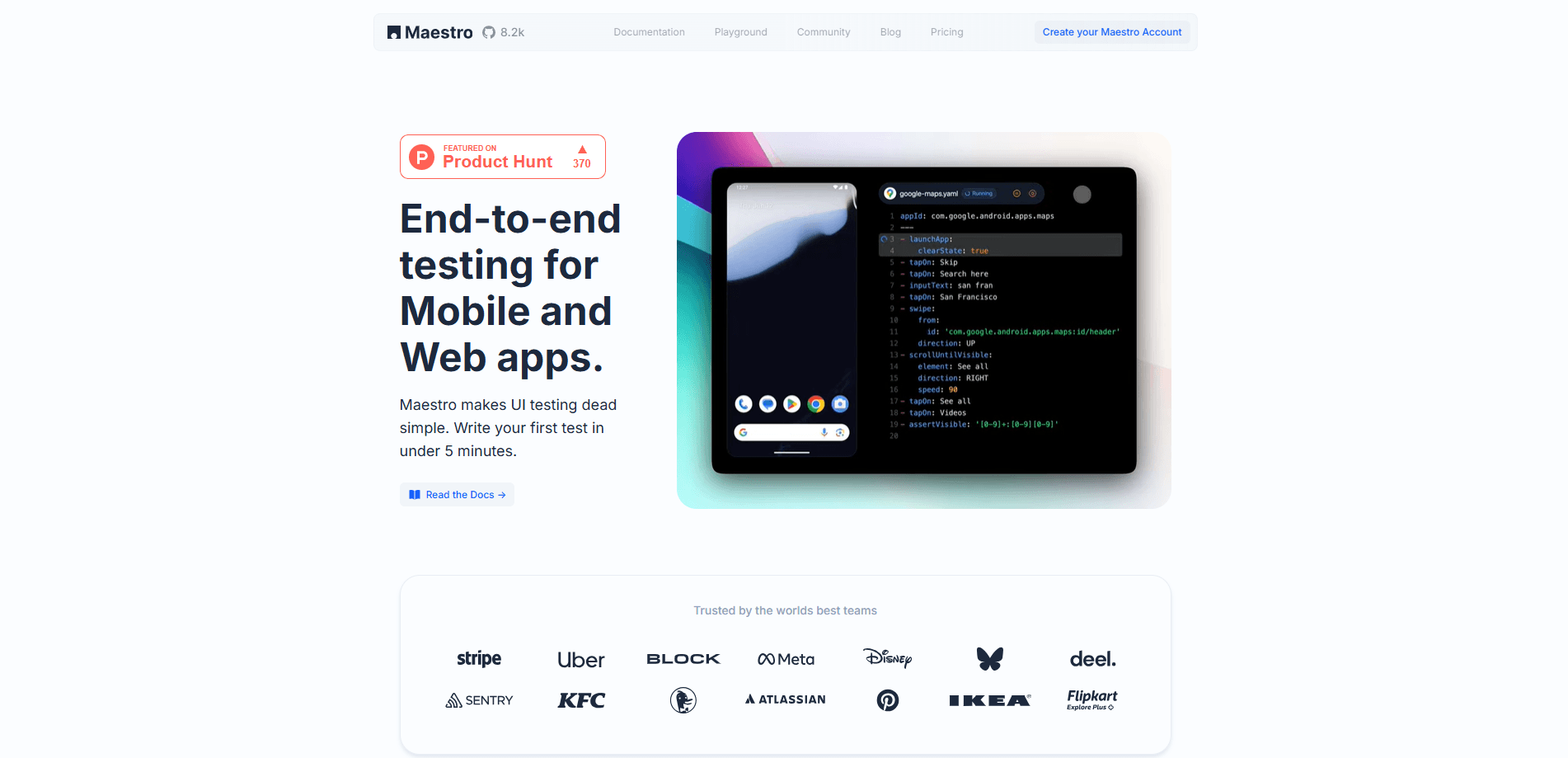
About Maestro Studio Desktop Beta
What Is Maestro Studio
Maestro Studio is the desktop app in the Maestro suite. Maestro itself is an open-source UI automation framework for mobile and web, and the Studio wraps its command-line engine in a visual interface so you can build tests by clicking on a mirrored copy of your device screen instead of guessing at selectors. It is a mobile test IDE first, not a full test-management platform.
The problem it solves is slow test authoring. Traditional automation tools like Appium and Selenium want access to app internals, so a simple flow turns into code, instrumentation and near-constant upkeep. Mobile UI testing otherwise stays a chore most teams skip. Maestro works at arm's length, piloting the device rather than the app and tapping through the same accessibility layer real users rely on. That means any app works, whether it was built with React Native, Flutter or native code, and a test is a short, readable YAML file rather than a program.
Studio adds a layer on top: right-click any element to insert a command, get autocomplete from real selectors on the current screen, and step through a run while every execution is recorded. You still need a real target to test against. Studio needs a running Android emulator or iOS simulator, which means the Android SDK and, on a Mac, Xcode. Studio is meant for authoring and debugging; the CLI runs the same flows in CI, and Maestro Cloud runs them in parallel on hosted devices for a monthly fee.
Getting Started
- Set up a target device: install the Android SDK and start an emulator, or install Xcode and launch an iOS simulator on macOS.
- Install Maestro Studio from the platform-specific download for Windows, macOS or Linux, then open the app.
- Create a workspace folder to hold your test files and pick your running device from the device list.
- Start a new file, name it, choose the app under test and click Create Test to scaffold the flow.
- Build the test by right-clicking elements on the mirrored screen to insert commands, run it step by step, and push the same file to the CLI or Cloud when you need scale.
Product Information
A quick look at Maestro Studio Desktop Beta's pricing, supported platforms, and performance.
Best for
The users, tasks, and scenarios where this tool fits best.
Users
- Test automation engineers
- Mobile developers without a test background
- QA teams on a budget
Tasks
- Building a first test flow
- Debugging a flaky test
- Inspecting what Maestro sees
- Reviewing a test before it ships
Scenarios
- A first-time automation setup
- Onboarding a new teammate
- Local regression checks before a release
Key features
Visual test authoring
Studio mirrors your connected device and lets you right-click any element to insert the matching YAML command, so building a test looks like using the app. Autocomplete pulls real selectors from the current screen, which cuts down on errors that normally only surface at run time.
Live device connection
Pick a running Android emulator or iOS simulator from the device list and Studio stays connected to it, and it shows the same screen Maestro pilots. The watchful link means you see the app state your test acts on instead of working blind against a mock.
Step-by-step run and replay
Run a flow interactively and watch each step land on screen, then replay any past run to find the moment a test failed. Every run is recorded, which turns a vague "it broke" into a specific step you can inspect and fix.
YAML flows, shared with the CLI
Tests are plain YAML files stored in your workspace folder, and the Studio is a layer on top of the same open-source engine the CLI uses. A flow you write visually runs unchanged in local CI or in the cloud, so work done in the editor carries forward.
Environments and variables
Studio handles dynamic values and secrets inline, so a flow can run against different accounts, locales or build variants without hand-editing the file. Tags let you choose which parts of a suite run, which keeps a growing set of flows manageable.
Point-and-click inspection
The inspection view shows the element tree Maestro reads from the accessibility layer, so you can confirm that a button, label or list is present and correctly named before wiring a command to it. It replaces the terminal-only maestro hierarchy output the CLI provides.
Cloud handoff
When local runs no longer keep up, Studio connects to Maestro Cloud, where the same flows run in parallel on hosted Android, iOS and web devices. The editor stays the place you author; the cloud becomes the place heavy suites execute.
Pros and cons
Pros
- Free and open source for local authoring and debugging, with no seat cost to start.
- Visual editor and live device mirror remove most of the selector guesswork from building a test.
- Flows are readable YAML, so they stay portable to the CLI and Cloud without a rewrite.
- Step-by-step runs and replay make flaky failures concrete instead of mysterious.
- Recorded runs and point-and-click inspection give you the evidence to fix a broken step fast.
Cons
- You still need a running emulator or simulator, which means installing the Android SDK and, for iOS on a Mac, Xcode.
- Studio targets authoring and debugging, so scaling to parallel runs means paying for Maestro Cloud at $250 per device per month.
- It runs on your desktop only, so testing a device farm or a wide matrix of real hardware is not part of the free tool.
- Younger than the established frameworks, so some teams may find fewer third-party integrations and community recipes.
Frequently asked questions
Maestro Studio is a desktop IDE for building and debugging mobile UI tests. You connect a running device, write flows as YAML by clicking elements on a mirrored screen, and run them step by step without leaving the app.
Related content
Explore related tools, skills, and articles for Maestro Studio Desktop Beta.
Maestro Studio Desktop Beta Alternatives

Base Code
Base44 (Wix) · Coding · ProductivityBase Code is a shared cloud development environment from Base44. Teammates describe changes to an existing GitHub codebase in chat, preview them live and send them back as pull requests.

Google EmbeddingGemma 2
Google DeepMind · Writing · Image · CodingGoogle EmbeddingGemma 2 is a 740M-parameter open model that turns text, code, images, audio, and video frames into vectors in one 768-dimension space, running on phones and laptops.

GitGlow
GitGlow · Coding · ProductivityGitGlow is a local-first desktop Git client that lets independent developers review their own code and their AI agents' changes in one place before shipping.