

Marv
Cameron (independent developer) · Coding · Productivity · Leaning
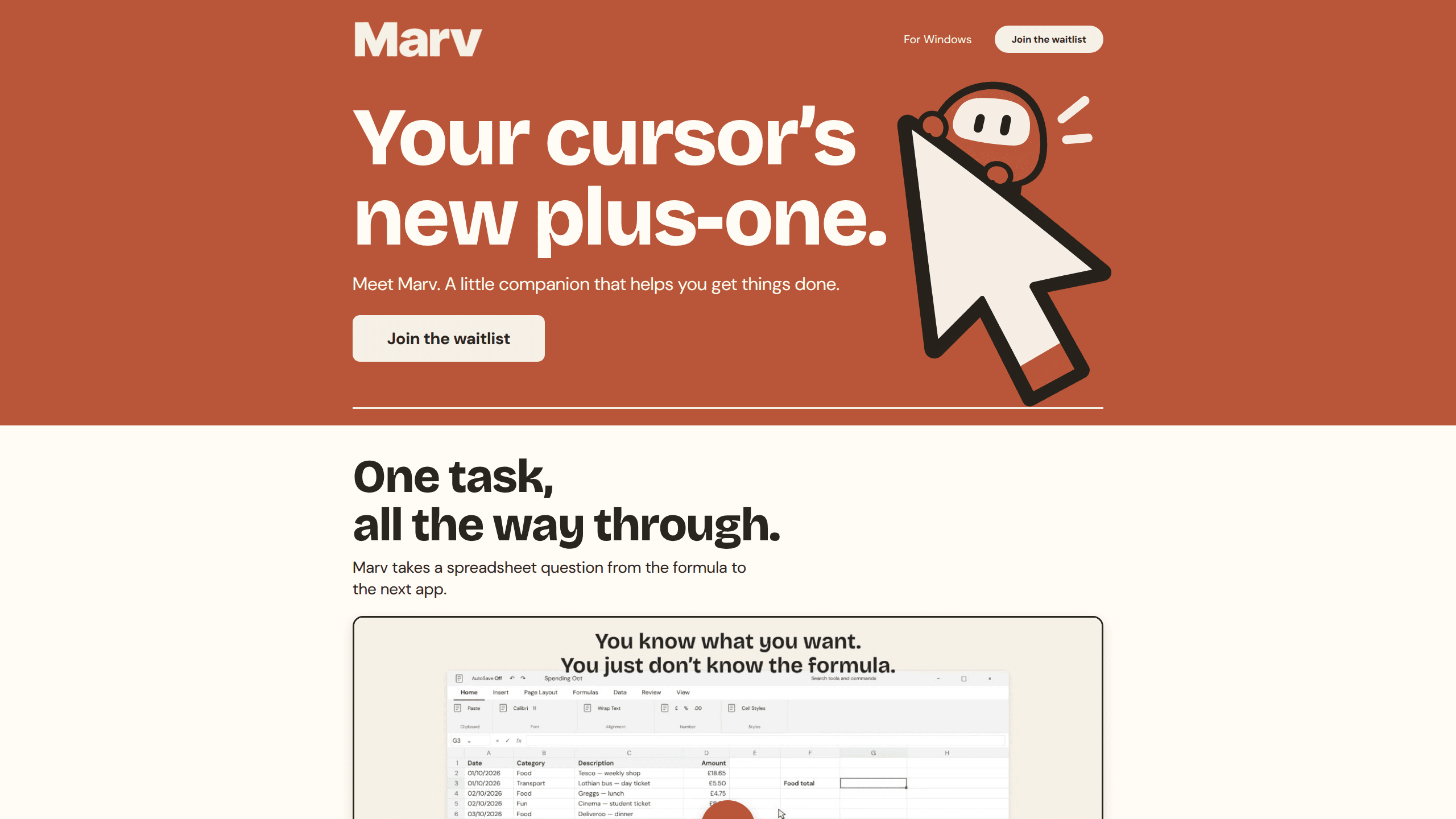
Marv is an AI cursor companion for Windows and Mac. It sees your screen, answers out loud, and draws arrows and highlights that show you the next click.
About Marv
What Is Marv
Marv is a desktop AI assistant that sits beside your cursor and helps you finish tasks on the computer you're already using. Hold a keyboard shortcut, ask a question about whatever is on screen, and Marv replies in speech while drawing on top of the window you're looking at. The drawing is the point. A circle around a menu, an arrow to a button, a highlight on the line that needs changing.
Most AI tools live in a browser tab or a side panel. You describe the problem, copy the answer, then find your way back to the window where the work happens. Marv skips that trip. He reads the current screen, so "where do I add a second page number" is a question he answers about the document in front of you. It is a screen assistant in the literal sense.
The app runs on Windows and macOS 12 or later. On a Mac it lives in the menu bar, on Windows in the tray, and both versions update themselves. The voice assistant side is just as direct: you speak, Marv talks back, and you keep your hands where they were.
One person built it. Cameron says so on the site and asks for email when something breaks. That shows in the product. The app is small, the pricing is simple, and the changelog moves in weeks. It also means rough edges. The Windows installer triggers a SmartScreen warning because code signing costs hundreds of pounds a year, and support runs through one inbox.
Getting Started
- Download the installer from meetmarv.org and run it. On Windows, click More info, then Run anyway to get past SmartScreen.
- Grant permissions. Windows needs the microphone. A Mac also needs Screen Recording and Accessibility, so Marv can see the screen and draw on it.
- Hold Ctrl + Alt on Windows or Option + Command on a Mac, then ask your question out loud. Release the keys to send it.
- Follow the arrows and highlights, or listen to the answer. Say "stop" at any point to end a walkthrough.
Product Information
A quick look at Marv's pricing, supported platforms, and performance.
Best for
The users, tasks, and scenarios where this tool fits best.
Users
- People stuck in unfamiliar software
- Students and solo workers without an IT desk
- People who would rather talk than type
Tasks
- Learning where things live in a new app
- Fixing a small code or config error
- Drafting emails and notes by voice
- Research and file sorting
Scenarios
- Following a tutorial with the steps on screen
- Setting up a new app or account for the first time
- Clearing a backlog while doing something else
Key features
Guidance drawn on your screen
Marv draws circles, arrows and highlights over the live interface, so the answer lands on the control you need. It works in browsers, editors, settings panels and ordinary desktop apps. The marks fade before Marv moves, which keeps the screen readable.
Hold-to-talk questions
One shortcut starts a question about whatever is in front of you. There's no chat window to open first and no need to describe the interface in words. Windows uses Ctrl + Alt, a Mac uses Option + Command, and you can pick another shortcut if an app has taken that one.
Spoken answers
Marv talks through the reply, so your eyes stay on the screen and your hand stays on the mouse. Short answers such as a number or a city name are read once, not twice. The answer is written on a server that uses Anthropic for the text and ElevenLabs for speech.
Step-by-step walkthroughs
For a multi-step job, Marv splits the sequence and watches whether you finished each step. A walkthrough ends by itself if you click into other windows or miss the same step three times. Saying "stop", "pause" or "never mind" ends it straight away.
Background jobs
Longer work runs in a corner of the screen while you carry on. Research, comparisons and file sorting fit here, and Marv pings you when the job is done. File jobs never delete anything, and every move can be undone. Free includes five jobs a month, Pro includes 25.
Dictation and drafting anywhere
Hold Ctrl + Alt + Shift on Windows or Option + Command + Shift on a Mac, then talk into any text field. Marv can also draft an email with no mail app connected, and you copy it or open it in your own client. Nothing gets sent without your confirmation.
GitHub connection
Connect an account and ask about repos, commits, pull requests or issues. Marv lists what changed and sums it up. Commenting or opening a pull request waits for your approval, and he never merges, closes or deletes anything.
Pros and cons
Pros
- Answers appear on the actual screen, which removes the copy and paste step between a chat window and the app you're working in.
- Voice input and spoken replies suit tasks where your hands are busy, such as following a tutorial or reading a long settings page.
- The free plan works without a card: 75 questions and five background jobs a month.
- File jobs are reversible by design, and capture blocking covers password managers and banking windows.
- Windows and Mac builds ship from the same changelog, and both update on their own.
Cons
- You need a microphone, plus Screen Recording and Accessibility on a Mac, and some people won't hand those permissions to a new app.
- The free tier runs out fast if you ask several questions a day, since 75 questions works out to about two a day.
- No public API means you can't wire Marv into your own scripts or internal tools.
- Screen capture can still miss a sensitive window that isn't on the denylist, so you have to pause Marv yourself when something private is open.
Frequently asked questions
Marv answers questions about what's on your screen and shows you where to click. It pairs a spoken answer with arrows, circles and highlights drawn over the interface you're looking at.
Related content
Explore related tools, skills, and articles for Marv.
Marv Alternatives

Base Code
Base44 (Wix) · Coding · ProductivityBase Code is a shared cloud development environment from Base44. Teammates describe changes to an existing GitHub codebase in chat, preview them live and send them back as pull requests.

Google EmbeddingGemma 2
Google DeepMind · Writing · Image · CodingGoogle EmbeddingGemma 2 is a 740M-parameter open model that turns text, code, images, audio, and video frames into vectors in one 768-dimension space, running on phones and laptops.

GitGlow
GitGlow · Coding · ProductivityGitGlow is a local-first desktop Git client that lets independent developers review their own code and their AI agents' changes in one place before shipping.