

Omnipilot
Ethi Technologies, Inc. (now part of Highlight) · Coding
Omnipilot is a macOS AI copilot that suggests text wherever your cursor sits, using what's on your screen for context. Press Tab to accept. The product has since moved over to Highlight.
About Omnipilot
What Is Omnipilot
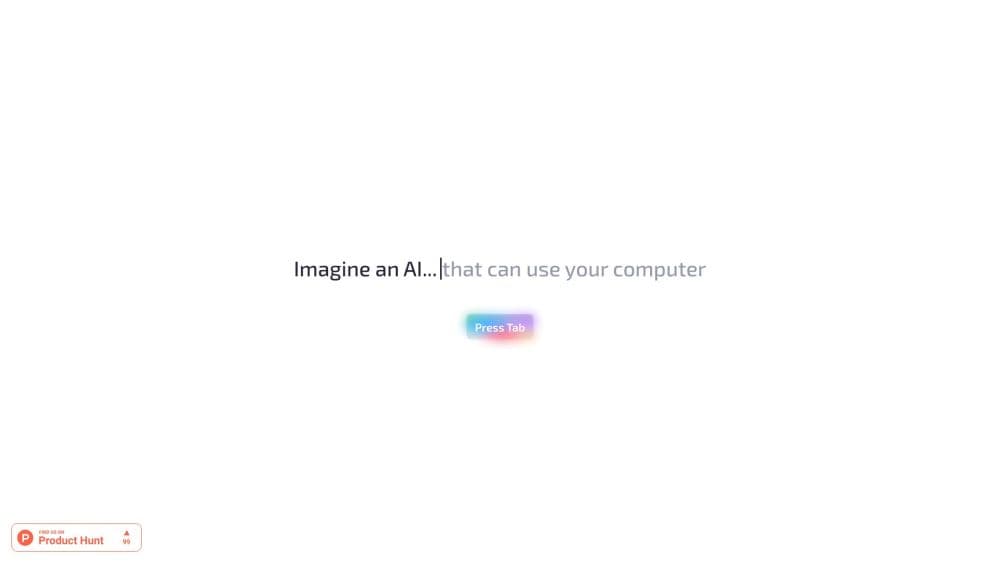
Omnipilot adds typing assistance to every app on a Mac. You type a few words, the app reads the window you're in, and it proposes the rest of the sentence in gray text. Press Tab and the suggestion lands in the field. The pitch on its own homepage is short: an AI that can type anywhere you can, with full context on what's on your screen.
That approach separates it from chat assistants. You don't copy text into a chat box and paste the reply back. The writing happens in Gmail, in Terminal, in Slack, in a doc. The homepage names those three scenes directly: email that writes itself, a terminal fluent in Bash, team updates that don't eat an afternoon.
The project now sits inside Highlight, the desktop assistant run by the company behind Omnipilot. Visit omnipilot.ai today and you get a goodbye note plus an automatic redirect: the team announced it had joined Highlight and moved users there. The site is a record of what the tool was, not a live product page.
Two limits matter before anyone goes looking. Omnipilot is macOS only, and it isn't a free-standing download anymore. The original installer requests are gone, so whatever it offered now arrives through Highlight, which has its own features and its own terms.
Getting Started
- Open highlightai.com and download the desktop app for Mac, which is the route Omnipilot now points to.
- Run the installer and grant the permissions the app asks for, usually screen access and accessibility control, since it needs to read the active window and type into apps.
- Sign in with an account so the app can sync your settings and usage.
- Work as usual. When a suggestion appears in gray beside your cursor, press Tab to accept it or keep typing to dismiss it.
- Check the privacy settings and exclude any app, site, or window you'd rather the assistant never read.
Product Information
A quick look at Omnipilot's pricing, supported platforms, and performance.
Best for
The users, tasks, and scenarios where this tool fits best.
Users
- People who write the same email or update eight times a week
- Beginners learning a new tool
- Anyone who lives inside apps that don't offer AI writing help
Tasks
- Drafting routine email replies
- Writing shell commands
- Filling in team status updates
Scenarios
- Clearing a stack of routine messages in the morning
- Working through a code editor and terminal side by side
- On-device work that shouldn't be retyped
Key features
In-Place Text Suggestions
The core interaction is a gray continuation that appears as you type. Accept it with Tab, reject it by continuing to type, or press Shift-Tab to step back. It works in the active text field of whatever app has focus, so there's no separate window to manage. That pace suits short, familiar writing more than long essays, where the suggestions start to feel like a template.
Screen-Aware Context
The assistant reads the visible window to decide what to suggest. An open email thread, a terminal error, a half-written reply: all of it feeds the prediction, which is why the output often matches the conversation you're already in. The catch is that this only works when the app is allowed to see your screen, and a locked-down work laptop may block that permission entirely.
Works Across Native Apps
Because the assist lives at the system level, it reaches apps that have no AI features of their own: Apple Mail, Slack, Terminal, Notion, and the browser field you're typing in right now. Nothing needs an integration or an extension. Login screens and password prompts are the usual exception, since most automation tools are blocked there on purpose.
Lightweight Tab-to-Accept Flow
There's no prompt box to learn and no model to pick. The whole loop is type, glance, Tab. Contrast that with chat tools that ask you to phrase a request, and the difference in habit is real: this one fits into how you already write. Some users will want more control over the model or the tone, and that control didn't exist here.
Agent-Ready Extensions
Past text completion, the app advertised actions that leaned into automation: compose an update, fill a form, run a command it proposes. Highlight, the successor, takes the same idea further with meeting notes, briefings, and multi-app workflows. Buying intent here is really a bet on that direction rather than on the original app.
Pros and cons
Pros
- Suggestions appear inside the app you're already using, which removes the copy, switch, and paste ritual that chat assistants force.
- Screen context makes completions fit the email or terminal output in front of you, not a generic style.
- Tab to accept is learnable in a minute, and nothing about the flow requires prompting skills.
- Platform-level reach covers apps with no AI features of their own, from Apple Mail to internal tools.
- The team's move to Highlight means the underlying approach continues under active development.
Cons
- Omnipilot itself is no longer downloadable, so anyone arriving now lands with Highlight instead and has to start from scratch there.
- It never worked outside macOS, which leaves Windows and Linux users without the option.
- Reading the screen requires wide permissions, and organizations that block accessibility access can't run it at all.
- Suggestions can veer into generic phrasing on longer passages, so you end up rewriting parts of your own text.
Frequently asked questions
Omnipilot was a macOS app that suggested text in any field as you typed and drew on the visible screen for context. Tab accepted a suggestion. The team has since joined Highlight and now directs visitors there, so the original app is no longer available for download.
Related content
Explore related tools, skills, and articles for Omnipilot.
Omnipilot Alternatives

Base Code
Base44 (Wix) · Coding · ProductivityBase Code is a shared cloud development environment from Base44. Teammates describe changes to an existing GitHub codebase in chat, preview them live and send them back as pull requests.

Google EmbeddingGemma 2
Google DeepMind · Writing · Image · CodingGoogle EmbeddingGemma 2 is a 740M-parameter open model that turns text, code, images, audio, and video frames into vectors in one 768-dimension space, running on phones and laptops.

GitGlow
GitGlow · Coding · ProductivityGitGlow is a local-first desktop Git client that lets independent developers review their own code and their AI agents' changes in one place before shipping.