

Selectable: OCR & Text Capture
Frmwrk Software Private Limited · Voice & Language
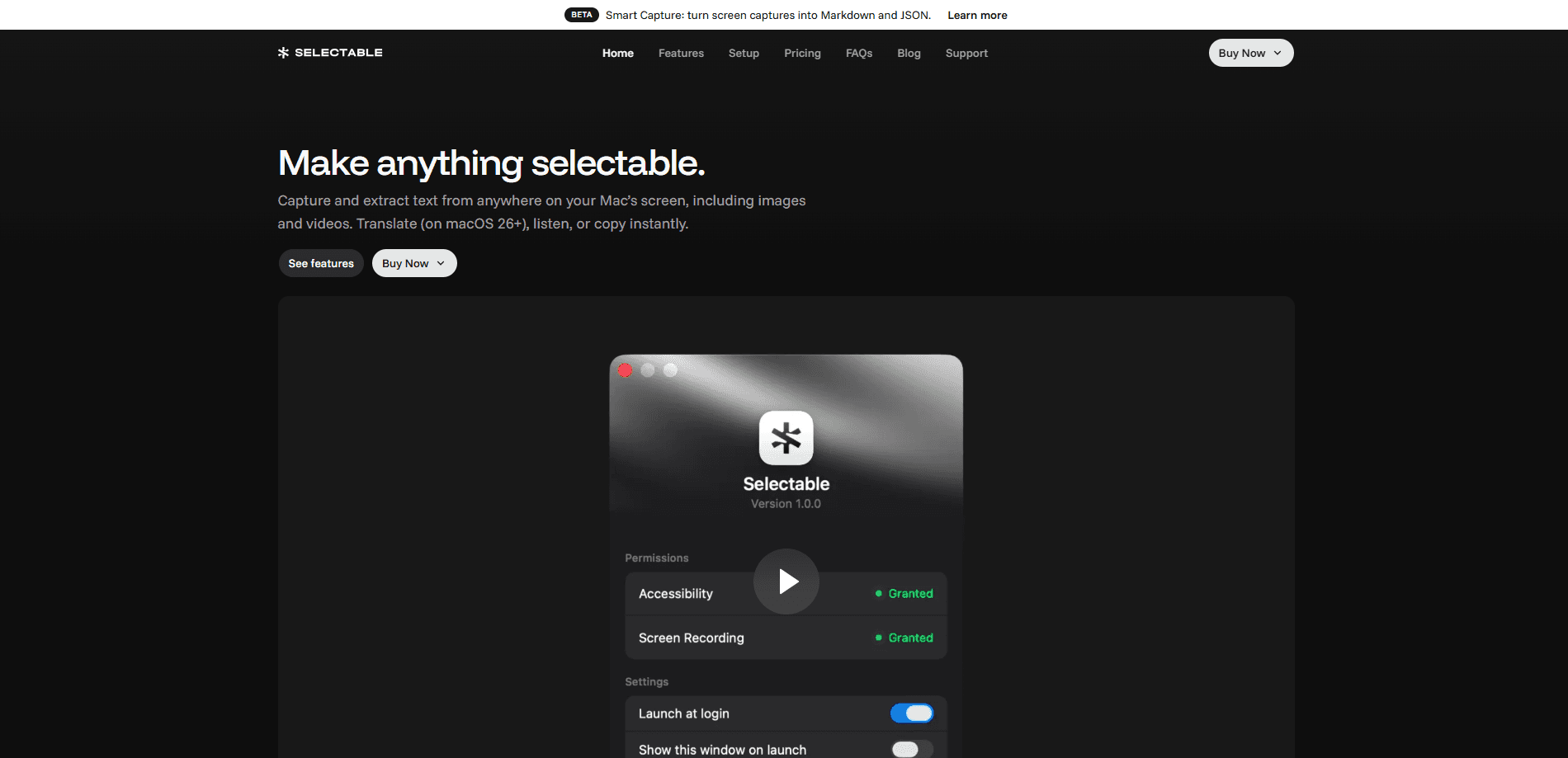
Selectable: OCR & Text Capture is a native macOS menu bar app that makes any text on your screen selectable, even when it's locked inside an image, a video, a PDF or a slide. Think of it as an OCR app for Mac that skips the menu bar clutter until you actually need it. Press a global shortcut. Drag over the words you want. The app recognizes and copies them in a second. From there you can paste into any app, translate on the fly, listen through text-to-speech or mask sensitive details before sharing. It runs entirely on your Mac, so your screenshots never leave the machine.
About Selectable: OCR & Text Capture
What Is Selectable: OCR & Text Capture
Selectable is a text extraction tool for Mac built by Frmwrk Software Private Limited. It doubles as an image to text converter, and it targets one daily annoyance: text you can see but can't grab. Subtitles in a YouTube video. A quote inside a PDF. A line in a presentation, a recipe in a photo. Instead of retyping it all by hand, you draw a box around it and the text lands on your clipboard.
The app leans on Apple's Vision framework for optical character recognition. No third-party OCR engines are bundled in. Everything happens on-device, offline, and quietly. Is that a big deal? For anyone handling contracts, medical notes or client records, yes. You'd rather not upload that to a random web converter.
The catch is the platform. Selectable is Mac only, needs macOS 11 or later, and depends on you granting Accessibility and Screen Recording permissions. If you're on Windows, Android or a locked-down work laptop without admin rights, this one won't help you, no matter how well it handles text capture on the machine it was built for.
Getting Started
- Buy Selectable from the official website (single Mac, up to three Macs) or download it from the Mac App Store.
- Open the app, then grant Accessibility and Screen Recording permissions in System Settings so it can read your screen.
- Press ⌘+⇧+2, or pick Capture from the menu bar, to start a capture.
- Drag over the text on screen. Selectable recognizes it instantly and copies it to your clipboard.
- Paste anywhere you like, or use the Listen and Mask options before you share the text.
Product Information
A quick look at Selectable: OCR & Text Capture's pricing, supported platforms, and performance.
Best for
The users, tasks, and scenarios where this tool fits best.
Users
- Students
- Researchers and analysts
- Translators and language learners
- Privacy-conscious professionals
Tasks
- Copy text from image or video frames
- Screenshot to text
- Read text aloud
- Mask sensitive data
Scenarios
- Working through a video tutorial and needing the exact command or code shown on screen.
- Building a quote bank from research papers where copy protection blocks normal selection.
- Translating a menu, form or sign captured from a photo while traveling.
- Sketching notes from a presentation deck you can only view, not download.
Key features
Screen Text Capture
The core job is simple to describe and hard to do well. Press ⌘+⇧+2, drag a box over any text on screen, and Selectable recognizes it and drops it on your clipboard. It works across apps, so you don't need the source program to support selection. Web pages, YouTube videos, PDFs, images, presentations, screencasts and video tutorials are all fair game. If you can see the words, the app can read them.
On-Device OCR with Apple Vision
Selectable runs its optical character recognition through Apple's Vision framework. There's no third-party OCR dependency and no upload step. That keeps the whole pipeline offline, which is why it still works on a plane or in a meeting room with flaky Wi-Fi. Translation is the one exception: that needs an internet connection, and only on macOS 26 or later.
Automatic Translation on Copy
On macOS 26 and newer, Selectable translates captured text into your language the moment you copy it. You grab a line from a foreign-language article or a menu photo, and the translated version appears without you switching apps. It's the kind of thing that quietly removes a step you didn't realize was slowing you down.
Text-to-Speech Playback
Any captured text can be read aloud in natural voices across multiple languages, which is handy for proofreading, for listening to a dense paragraph while your eyes are busy, or for checking how a word in another language actually sounds. The Listen option sits right next to the capture action, so you don't have to route the text through a separate reader.
Output Controls and Sensitive Data Masking
Selectable lets you tidy the captured text before it lands. You can preserve line breaks, strip empty lines, or mask sensitive data so account numbers and names don't travel with the rest of the paste. For anyone who screenshots dashboards or invoices, the masking option is a small feature with a very big practical payoff.
Global Shortcuts Across Every App
Capture is triggered from any app through global keyboard shortcuts, or from the menu bar. There's no need to switch to Selectable first or keep a window open. It's a menu bar app in the truest sense: invisible until you need it, then gone again.
One-Time Purchase with Lifetime Updates
There's no subscription, which is rarer than it should be in this category. Pay once, keep the updates. The App Store tier adds iCloud sync and works across all your Macs, while the website tiers are tied to a fixed number of machines.
Pros and cons
Pros
- OCR runs fully on-device through Apple Vision, so text from sensitive documents stays on your Mac.
- Works offline for capture, which means no Wi-Fi and no waiting on a server round trip.
- One-time pricing ($6.99 - $11.99) with lifetime updates instead of a recurring subscription.
- Global shortcut works inside any app, and doesn't require the source to allow text selection.
- Handy extras like translation, text-to-speech and data masking are built in, not bolted on.
Cons
- macOS only, so Windows, Linux and Android users are out of luck.
- Needs macOS 11 or later and both Accessibility and Screen Recording permissions, which some corporate machines block.
- Translation requires macOS 26 or later and an internet connection, so it won't work on older Macs.
- No API, which rules out automating captures inside an existing script or workflow.
Frequently asked questions
Anything you can see on your Mac's screen: YouTube videos, PDFs, images, presentations, online courses, screencasts and video tutorials. It uses on-device OCR to read non-selectable text, so copy protection isn't a barrier.
Related content
Explore related tools, skills, and articles for Selectable: OCR & Text Capture.
Selectable: OCR & Text Capture Alternatives

Foley
Hanamori Labs, LLC · Voice & Language · Productivity · AI AssistantFoley is a voice to-do list that turns a spoken sentence into a filed task, complete with project, date and time, then helps you plan the day around what is already there.

HireKey
HireKey · Voice & Language · Productivity · LeaningHireKey is an AI job search copilot built by a former tech recruiter. It checks role fit, tailors resumes, runs interview practice and tracks every application.

Fluence
Yay Software (Yannick Huchard) · Writing · Voice & Language · ProductivityFluence is an Android app that reads PDFs, EPUBs, Word files and web articles aloud, follows each sentence as it speaks, and answers questions about the text on the phone itself.