
Ssemble
Ssemble Inc. · Writing · Video · Marketing
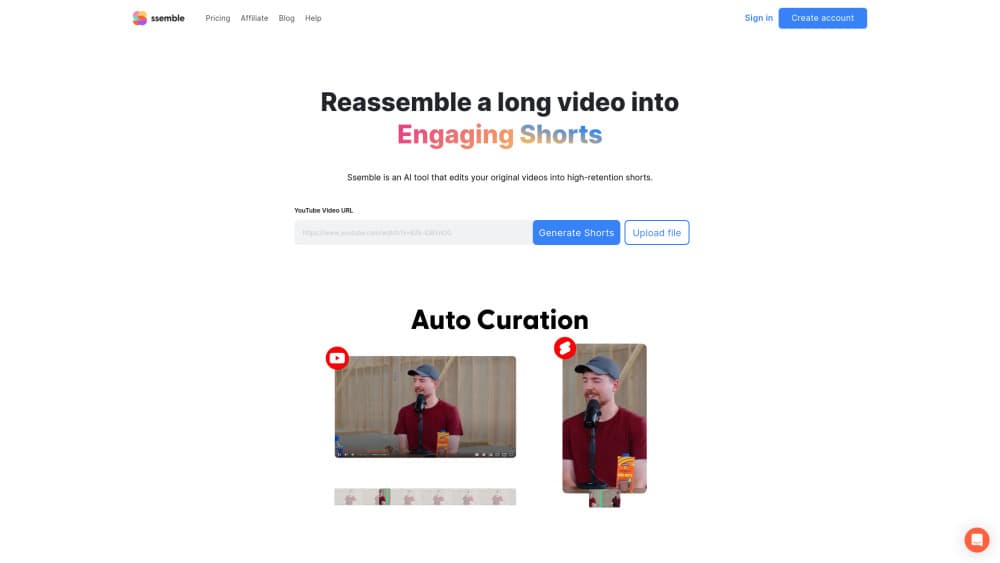
Ssemble is an AI YouTube Shorts maker that turns long videos into captioned vertical clips and schedules them to TikTok, Shorts, and Reels. It runs in a browser.
About Ssemble
What Is Ssemble
Ssemble is a browser-based AI video clipper built around one job: take a long video, find the moments that could stand alone, cut them into vertical clips, caption them, and push them out to social platforms. You paste a link or upload a file. The tool does the hunting and the framing.
That matters most for people with hours of footage and no editing time. A 90-minute podcast holds maybe a dozen usable shorts. Finding them by hand means watching the whole thing twice. Ssemble scores likely highlights and hands you a first cut, so the work becomes review and small adjustments instead of scrubbing a timeline.
Limits are worth knowing before you pay. Clip selection is automated, so it gets you close, not perfect. Billing runs on video credits, with one credit covering 20 minutes of source footage. The pricing page lists paid plans only, starting at $6/mo on yearly billing. You need a public video link or a file you own.
Getting Started
- Create an account at app.ssemble.com and pick a plan. Yearly billing cuts the monthly rate by about 60%.
- Paste a YouTube, Vimeo, Kick, or Twitch link, or drag in an MP4, MOV, or WEBM file.
- Let AI clipping score the likely highlights, then trim the start and end, pick the caption style, and edit the generated hook title.
- Connect your TikTok, YouTube, and Instagram accounts, then schedule posts or publish right away.
- Optional: connect a YouTube channel under Channel Automation and let new uploads get clipped and posted without you.
Product Information
A quick look at Ssemble's pricing, supported platforms, and performance.
Best for
The users, tasks, and scenarios where this tool fits best.
Users
- Podcast and interview hosts
- Streamers with a VOD backlog
- Clip channel operators
Tasks
- Turning a weekly podcast into 10 to 20 vertical clips
- Repurposing a webinar into short teasers
- Adding auto captions to footage you already cut
- Setting up a hands-off publishing loop
Scenarios
- Publishing daily when you have no editing software and no editor
- Testing several hooks for the same moment
- Sports footage where the subject is not a face
Key features
Viral moment detection
The clip generator reads the whole video and scores segments on how likely they are to hold a stranger's attention. You get a batch of candidates with suggested start and end points. Most of the value sits here, because the review step is fast and the alternative is watching 90 minutes twice.
Face tracking and vertical reframing
Horizontal footage has to become 9:16 without cutting off the person speaking. Face tracking keeps the subject centered as they move, and it handles two-person interviews by shifting between speakers. Sports Mode swaps faces for ball tracking when the action matters more than the faces.
Auto captions and caption translation
Captions get generated from the audio track and burned into the clip. You can translate them into another language while keeping the original audio, which is how a Spanish interview reaches an English feed without a dub. Styling options cover the usual bold word-by-word look that performs on TikTok.
Hook titles and calls to action
Ssemble writes an opening hook title and a closing call to action for each clip. They follow the patterns that keep people watching past the first two seconds, and you can rewrite them in a click. Treat the suggestion as a draft, not a final line.
Scheduling and multi-platform posting
One calendar covers TikTok, YouTube Shorts, and Instagram Reels. You set post times, and Ssemble publishes on its own, with generated titles, descriptions, and hashtags. This is the part that turns clipping from a hobby into a routine.
YouTube Channel Automation
Point it at a public YouTube channel and it watches for new uploads around the clock. Each new video gets scored, cut, and posted to your connected accounts. Creators can also join Clip Rewards, which pays $1 per 1,000 verified views on clips made from participating channels.
Pros and cons
Pros
- One credit covers 20 minutes of source video, which makes long podcasts cheaper here than on tools that bill per minute of output.
- Captions, face tracking, hook titles, and scheduling sit in one place, so you skip three separate subscriptions.
- Every plan lists API access, and there is an MCP server for wiring clipping into an agent workflow.
- Channel Automation runs without you, which suits anyone running clip accounts as a side income.
- The browser editor needs no install and no GPU, so a Chromebook is enough.
Cons
- There is no free tier on the pricing page. You have to pay before you can judge clip quality on your own footage.
- Automated selection misses context. Sarcasm, running jokes, and payoffs that need setup often get cut in the wrong place.
- Credits are consumed per source video, so a two-hour stream eats six credits whether or not you keep the results.
- Caption styling is solid but not a full design tool. Custom fonts and branded layouts are limited compared with a dedicated short form video editor.
Frequently asked questions
It converts long videos into vertical clips with captions and posts them to TikTok, YouTube Shorts, and Instagram Reels. You supply a link or a file, and it handles detection, framing, captions, and publishing.
Related content
Explore related tools, skills, and articles for Ssemble.
Ssemble Alternatives

Google EmbeddingGemma 2
Google DeepMind · Writing · Image · CodingGoogle EmbeddingGemma 2 is a 740M-parameter open model that turns text, code, images, audio, and video frames into vectors in one 768-dimension space, running on phones and laptops.

MePersona
MePersona, Inc. · Writing · Productivity · MarketingMePersona is an AI unified inbox for creators. It learns your voice, drafts replies to fan messages from 12 platforms, and sends only what you approve.

Fluence
Yay Software (Yannick Huchard) · Writing · Voice & Language · ProductivityFluence is an Android app that reads PDFs, EPUBs, Word files and web articles aloud, follows each sentence as it speaks, and answers questions about the text on the phone itself.