

Stenox
Stenox · Writing · Voice & Language
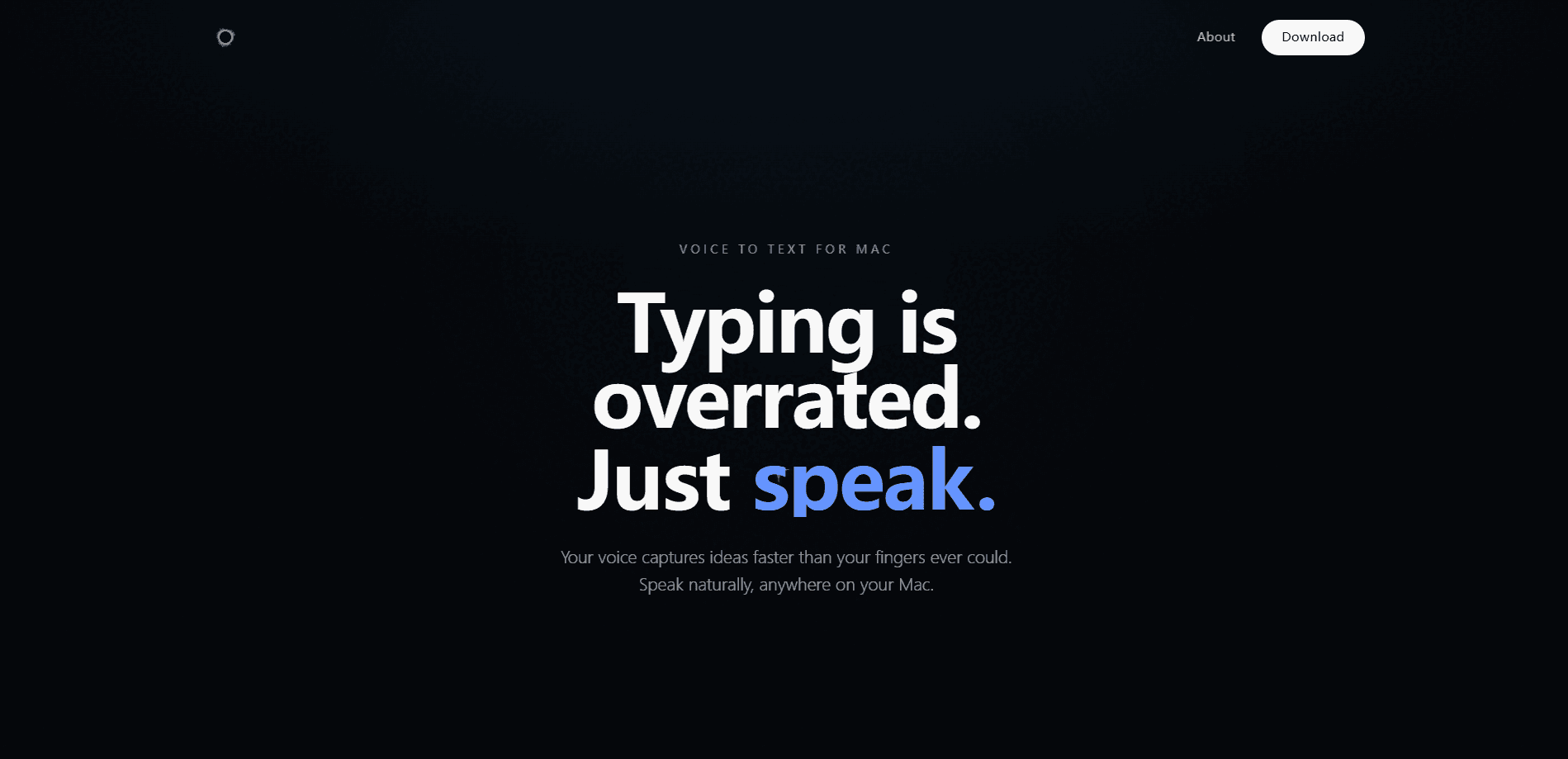
Stenox is a voice dictation app for macOS that converts natural speech into clean, ready-to-send text. It works in any app you already use, including Slack, Google Docs, and Visual Studio Code. It listens for the false starts, fillers, and corrections that come with talking out loud, then writes the version you actually meant. Run recognition locally on your Mac, or route it through a cloud service. Privacy versus accuracy is the call you make.
About Stenox
What Is Stenox
Stenox is a Mac-only dictation tool built around a simple idea: talking is faster than typing, but raw speech is messy. Instead of dumping every "um" and half-finished sentence into your text field, it cleans the transcript as it goes, removing filler words and tightening phrasing so the result reads like something you typed deliberately.
The app works across nearly every text field on the system rather than trapping you inside its own window. You speak, and the words land at your cursor in the app you were already using. That matters for people who write in many places during the day, like a developer jumping between an editor and a chat app, or a student moving between notes and a browser.
The biggest tradeoff is where your audio goes. Stenox lets you pick a setup that keeps transcription on your machine, or one that leans on cloud models for better accuracy on tricky audio. Local processing protects your privacy and works offline, but it demands more from your Mac. Cloud processing tends to handle accents, jargon, and noisy rooms better, at the cost of sending your voice off the device. There's no iOS or Windows version, so this is strictly a Mac story.
Getting Started
- Download Stenox from the official site and move it to your Applications folder.
- Open the app and grant microphone access when macOS asks, along with any permissions it needs to type into other apps.
- Pick your transcription mode in settings: local on-device processing, or a cloud service if you want higher accuracy.
- Set a global hotkey so you can start and stop dictation without leaving whatever app you're working in.
- Click into any text field, hit the hotkey, and speak. Stenox cleans the transcript and inserts it at your cursor.
Product Information
A quick look at Stenox's pricing, supported platforms, and performance.
Best for
The users, tasks, and scenarios where this tool fits best.
Users
- Writers and bloggers who draft long text and want to speak first drafts instead of typing them
- Developers who dictate comments, commit messages, and documentation between coding sessions, provided they set a hotkey that doesn't clash with their editor.
- Students and researchers taking notes from lectures or meetings where typing can't keep up with speech.
Tasks
- Turning rough spoken ideas into clean paragraphs without a second editing pass to remove filler words.
- Sending messages in Slack or email by voice is faster when your hands are busy or you simply think faster than you type, and that gap shows up most on days packed with replies.
- Drafting in a code editor or docs tool while keeping your eyes on the screen instead of the keyboard.
Scenarios
- Long writing sessions where typing fatigue sets in and you'd rather talk through a section.
- Working in a quiet room where multi-tasking between a call and notes makes typing impractical.
- Handling sensitive text, such as legal or internal documents, where you'd prefer transcription to stay on your Mac.
Key features
Filler Word Cleanup
Most dictation tools transcribe what you said, word for word, which means every stumble and every "um" ends up in your document. Stenox treats those as noise. It detects filler words, repeated starts, and mid-sentence corrections, then outputs the cleaner version of what you meant. For anyone who edits their own transcripts before sending, this removes the most tedious part of the job. Clean input means less cleanup later, and that gap adds up over a working day when you're dictating notes, replies, and drafts in quick bursts between other tasks.
Dictate Into Any App
Stenox isn't a notepad that you copy from. It types into the field your cursor is already sitting in. That means it works inside Slack, Google Docs, Visual Studio Code, and other apps on the system. Your workflow stays intact. You don't switch windows to dictate and then paste the result back, which is where a lot of voice tools lose their advantage. Does it reach a random niche app? Usually, yes. If that app has a text field, dictation reaches it.
Local or Cloud Transcription
You choose where recognition happens. Run everything on your Mac and your audio never leaves the device. That suits people working with confidential material or without a reliable connection. This is the speech to text for Mac users who won't send clips to a server. Switch to a cloud service when you need stronger accuracy on accents, technical vocabulary, or poor audio. The choice is yours, not locked in by the app.
Smart Formatting
Cleaned speech still needs to look like writing. Stenox handles the formatting details that make a transcript readable. Punctuation and sentence structure don't fall entirely on you afterward. The result is text you can send or paste without a round of manual fixes. That's the real time saver for people who dictate text anywhere, from quick messages to long drafts.
Global Hotkey Control
A single hotkey starts and stops dictation from anywhere on the system, so you never break focus to open a window. This sounds minor until you dictate dozens of times a day. Fast in, fast out. That keeps the tool out of your way and lets you treat speaking as just another way to type.
Pros and cons
Pros
- Cleans up filler words and false starts automatically, cutting the editing that usually follows dictation.
- Works across apps instead of locking you into its own editor, so it fits an existing workflow.
- Local transcription option keeps audio on your Mac, which matters for private or sensitive text.
- Cloud option raises accuracy when local models struggle with accents or jargon.
- Mac-native design means it behaves like part of the system rather than a bolted-on tool.
Cons
- macOS only, so Windows, Linux, and mobile users can't use it at all.
- Local mode asks more of your hardware and can lag on older Macs, which makes long dictation sessions frustrating once you've been talking for a while.
- No public API means you can't wire Stenox into your own scripts or internal tools.
- Accuracy still depends on mic quality and a quiet room. Loud cafés are rough.
- It's a young product, so expect rough edges now and then.
Frequently asked questions
Stenox turns your speech into clean written text on a Mac and inserts it wherever your cursor is. It removes filler words and tidies formatting as you go, so the output reads like something you typed rather than a raw transcript.
Related content
Explore related tools, skills, and articles for Stenox.
Stenox Alternatives

Google EmbeddingGemma 2
Google DeepMind · Writing · Image · CodingGoogle EmbeddingGemma 2 is a 740M-parameter open model that turns text, code, images, audio, and video frames into vectors in one 768-dimension space, running on phones and laptops.

MePersona
MePersona, Inc. · Writing · Productivity · MarketingMePersona is an AI unified inbox for creators. It learns your voice, drafts replies to fan messages from 12 platforms, and sends only what you approve.

Fluence
Yay Software (Yannick Huchard) · Writing · Voice & Language · ProductivityFluence is an Android app that reads PDFs, EPUBs, Word files and web articles aloud, follows each sentence as it speaks, and answers questions about the text on the phone itself.