

Substage
Selkie Design · Coding
Substage is a Mac app that turns plain English into Finder and terminal file actions, with a preview of what will change before anything runs.
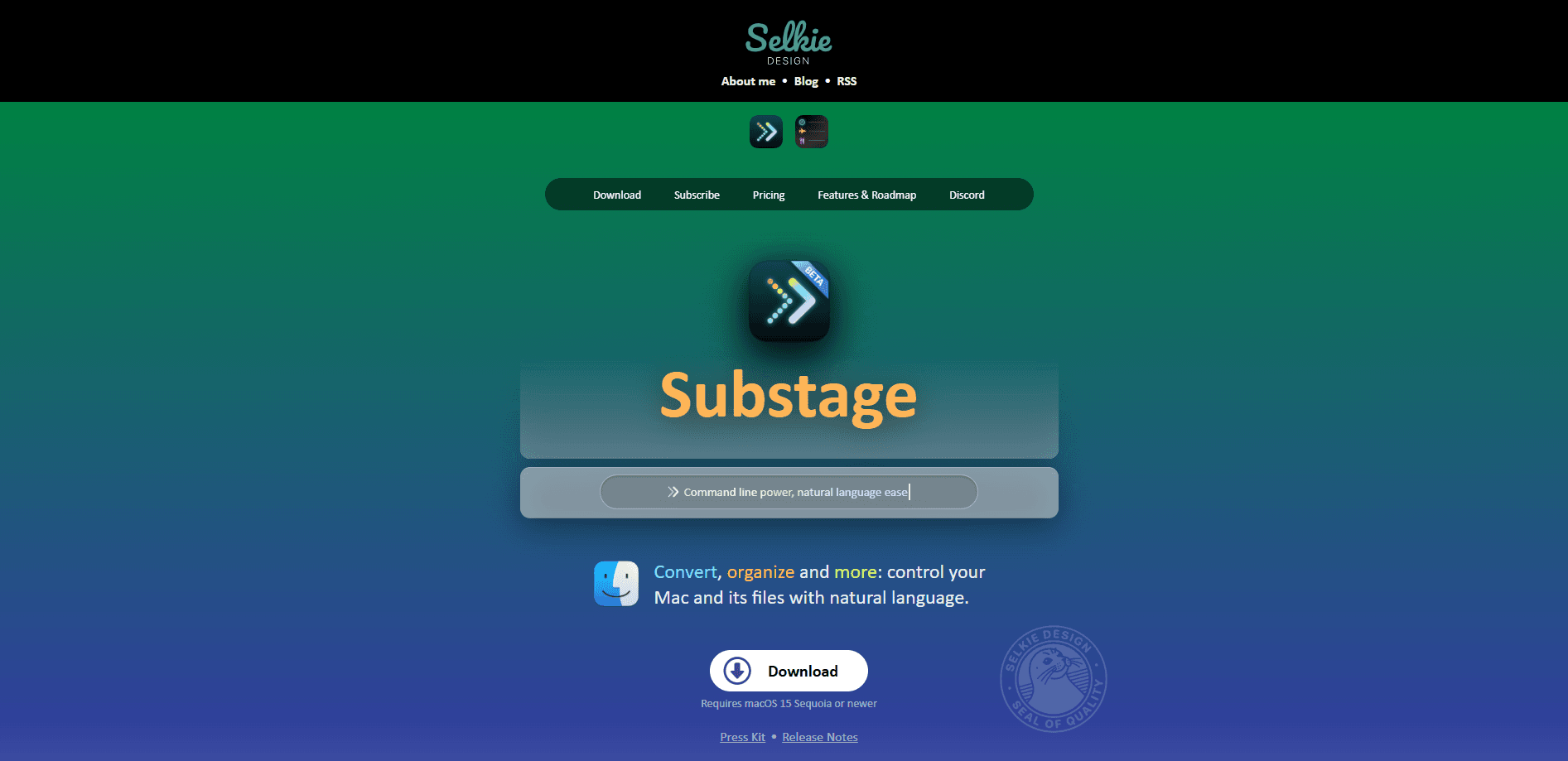
About Substage
What Is Substage
Substage is a Mac app that puts a natural language command bar inside Finder. You type what you want done, like "compress these photos into a zip" or "convert every file in this folder to JPG," and it works out the terminal commands and file operations to carry that out.
The problem it targets is familiar to anyone who has stared at a man page or copied a risky shell command from a forum. Substage lets you describe the outcome in words, checks what the command would actually do, then asks for confirmation when the result looks unusual. The pitch is a lower floor for command-line power without losing the safety net.
Two limits shape daily use. It is macOS only and needs macOS 15.0 or later, so Windows and older Macs are out. And the AI that reads your request is either a built-in cloud model or a local one you connect, which means results depend on the model you pick and, for cloud runs, on an internet connection.
Getting Started
- Download Substage from selkie.design and drag it to your Applications folder
- Launch it, grant the Finder and automation permissions it asks for, and choose a model: the built-in cloud option or a local one via Ollama or LM Studio
- Open Finder, select some files, and type a request in plain English into the Substage bar
- Read the preview of what will be created, changed, moved or deleted, then approve or cancel the run
- Save the requests you repeat as rules or Instant Actions so common jobs skip the AI step entirely
Product Information
A quick look at Substage's pricing, supported platforms, and performance.
Best for
The users, tasks, and scenarios where this tool fits best.
Users
- Terminal newcomers
- Mac power users
- Privacy-conscious users
- Developers and designers
Tasks
- Batch file conversion
- Archiving and unpacking
- Bulk renaming
- System tweaks
- One-off questions
Scenarios
- A screenshot folder needs to become JPGs
- You need to send a batch of files as one archive
- A recurring export needs identical settings every time
- You're unsure what a command touches
- You forget how you did something last week
Key features
Natural Language Command Bar
Substage adds a bar to Finder where you type plain English instead of shell syntax. Ask it to merge PDFs, convert a video, or rename a folder of files, and it builds the command for you. The point is to keep your hands on the files you're working with, not to send you off to a separate terminal app.
Finder Context Awareness
The app knows which files and folders you have selected and uses that selection as the target of your request. You don't have to type paths or drag anything into a window. Select the right files, describe the job, and the operation applies to exactly what you picked.
Execution Preview and Safety Check
Before anything runs, Substage simulates the command and shows what it would create, change, move or delete. If the result looks off, the app asks for confirmation instead of proceeding. A risk slider and command rating give you a quick read on how much damage a misstep could do, so a risky request is visible before it's real.
Flexible AI Backends
You can rely on the built-in cloud models, which the app lists as fast options tuned for command generation, or connect your own key for OpenAI, Anthropic, Google or Mistral. For stricter privacy, point it at a local model through Ollama or LM Studio. That choice is per user rather than fixed, so you can trade speed for locality as you like.
Instant Actions
For the chores you run constantly, like converting to JPG or archiving as ZIP, Instant Actions bind a request to a shortcut. Those shortcuts run immediately and skip the AI step, so a common conversion costs no tokens and no waiting. It's the fast lane for the handful of jobs you repeat every week.
Custom Rules
You can teach Substage a repeatable workflow as a rule. Save something like a YouTube export with your preferred video settings once, then trigger it later by typing a short phrase. Rules capture the exact steps and options, which keeps output consistent across runs and teams.
Command History
Substage keeps a history of what you've run, so repeating a previous operation is a keypress away rather than a retyped request. The up-arrow shortcut brings back your last action, which turns a fiddly command you figured out once into a habit you can reuse.
Pros and cons
Pros
- Turns plain English into Finder and terminal file operations, so you skip memorizing flags and syntax
- Shows a preview and risk rating before running, which makes risky operations visible up front
- Supports built-in cloud models, your own OpenAI, Anthropic, Google or Mistral keys, and local models via Ollama or LM Studio
- Instant Actions and rules let common jobs run with no AI step, saving time and tokens
- Works Mac-only but integrates with the Finder you already use, with a global shortcut for quick access
- A two-week free trial lets you test it on your own files before paying
Cons
- Requires macOS 15.0 or later and runs only on Macs, so Windows and older macOS users can't use it
- Cloud model results depend on an internet connection and on the model, so quality varies with your setup
- A bring-your-own-key license costs $39.99 up front and still depends on a model provider you configure yourself
- The most powerful requests still touch real files, so approving a wrong preview can still change or delete data
Frequently asked questions
Substage is a Mac app that adds a natural language command bar to Finder. You describe a file or folder operation in plain English, and it turns that into the terminal commands needed to carry it out, showing a preview before it runs.
Related content
Explore related tools, skills, and articles for Substage.
Substage Alternatives

Base Code
Base44 (Wix) · Coding · ProductivityBase Code is a shared cloud development environment from Base44. Teammates describe changes to an existing GitHub codebase in chat, preview them live and send them back as pull requests.

Google EmbeddingGemma 2
Google DeepMind · Writing · Image · CodingGoogle EmbeddingGemma 2 is a 740M-parameter open model that turns text, code, images, audio, and video frames into vectors in one 768-dimension space, running on phones and laptops.

GitGlow
GitGlow · Coding · ProductivityGitGlow is a local-first desktop Git client that lets independent developers review their own code and their AI agents' changes in one place before shipping.