

Surgeflow
Surgeflow · Coding
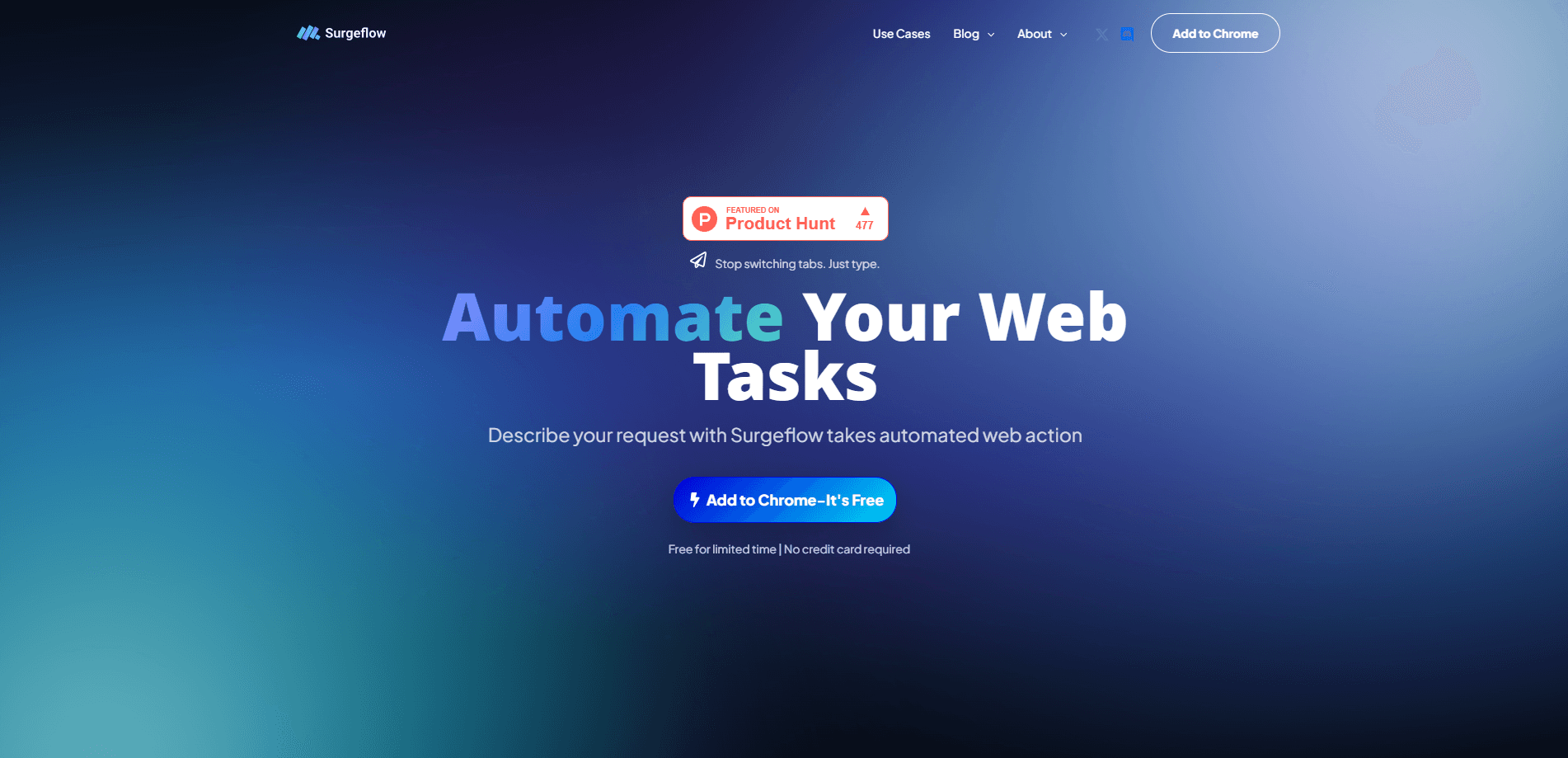
Surgeflow is a free Chrome extension that runs repetitive browser tasks from a single sentence. You describe what you want, like comparing prices across ten shops or pulling data out of a stack of open tabs, and Surgeflow writes the steps, then carries them out across your tabs. It sits inside the browser you already use. Nothing to migrate. No separate platform to learn.
About Surgeflow
What Is Surgeflow
Surgeflow is an AI browser automation extension for Chrome and Edge, and a Chrome automation tool at heart. The pitch is simple: instead of clicking through the same sequence of pages every morning, you type a request in plain English and let the tool do the clicking. It opens tabs, follows links, pulls data off a page, and pastes it into Google Sheets or Docs. Think of it as a natural language browser agent that sits in your browser, not a separate app.
What sets it apart is how it handles trust. Surgeflow splits each job between three roles it calls the Planner, the Navigator, and the Validator. The Planner turns your request into a numbered plan, the Navigator performs the actions across tabs, and the Validator checks whether each step actually finished. You see that plan before it runs, and you can pause, edit, or re-run it. For anything sensitive, like sending onboarding emails or filling a job application, that visibility matters more than raw speed. So who is it really built for? People who'd rather verify than gamble.
The limits are worth knowing up front. Surgeflow only works inside Chrome or Edge, so Safari and Firefox users are out. It automates the browser, not your desktop. It can't touch local files or native apps. And it leans on websites behaving the way it expects. If a page changes layout mid-task, a step can fail and you'll need to retry. I'd treat it as a fast assistant, not an unattended robot.
Getting Started
- Install the Surgeflow extension from the Chrome Web Store. The site says no registration and no credit card are required to start.
- Pin the extension to your toolbar so it's one click away while you browse.
- Open the tabs you need, or just let Surgeflow open them, then describe your task in the prompt box in plain language.
- Review the step-by-step plan it shows you, tweak anything that looks off, and hit run.
- Watch the progress as it works across tabs, then check the output, whether that's a filled spreadsheet, a summary doc, or a sent email.
Product Information
A quick look at Surgeflow's pricing, supported platforms, and performance.
Best for
The users, tasks, and scenarios where this tool fits best.
Users
- Researchers and students
- Knowledge workers buried in busywork
- Shoppers and deal hunters
- Small teams without an RPA budget
Tasks
- Price and feature comparison
- Data collection between apps
- Repetitive multi-tab research
- Light form filling
Scenarios
- Onboarding batches
- Weekly reporting
- Early project research
Key features
Natural Language Task Prompting
No scripts. No recorded macros. Surgeflow takes an ordinary sentence, something like "compare pricing of the top ten AI tools and organize them in a sheet," and turns it into an executable sequence. That lowers the barrier for people who've never touched an automation tool. One catch: vague prompts produce vague plans. Name the sites and the output format, and you get a sharper result.
Planner, Navigator, Validator Workflow
The three-stage design is the part that builds the most confidence. The Planner breaks your request into discrete steps, the Navigator carries them out across your tabs, and the Validator confirms each one completed. This is deliberately different from tools that just start clicking and hope for the best. When a step fails, you can see where it broke instead of guessing. A silently skipped page would quietly skew a price summary. That's the risk this stage removes.
Visible Plan Before Execution
Before anything happens, Surgeflow shows you the steps it intends to take. You review them, adjust what looks wrong, and only then run the task. You can also pause mid-run or re-run a job after a fix. Pause it. Edit it. Run it again. This front-loaded review is what makes it usable for tasks you actually care about, like job applications or client emails, where a rogue click would be genuinely costly.
Cross-Tab Execution
Most people's real automation pain is spread across open tabs, not inside one page. Surgeflow handles multi-tab workflow automation in a single flow, opening pages, following links, and collecting results. That's the difference between automating a single action and automating a whole routine. It's also why the tool suits research and comparison work, where the value only appears once you've touched several sites.
Runs in Your Existing Browser
There's no browser switch and no separate RPA install. You add the extension and keep browsing the way you always have. Nothing changes about how you work. That zero-migration approach is a real advantage over platforms that ask you to move your whole workflow into their environment, relearn shortcuts, and rebuild the habits you spent years forming. As the site puts it, the extension works on the sites and tools you already use.
Prebuilt Templates for Common Jobs
Surgeflow ships with starting points for repeating use cases like research and shopping, plus example prompts for literature reviews and price comparison. Templates cut the blank-page problem and show you the shape of a good prompt, which is genuinely useful when you have no idea how to phrase a multi-step request. They won't cover every niche workflow. Expect to adapt them rather than use them untouched.
Pros and cons
Pros
- Works from plain-language prompts, so there's no coding or macro recording to learn.
- The visible plan and Validator stage make it easier to trust on higher-stakes tasks.
- Cross-tab automation handles the messy multi-page routines that trip up single-page tools.
- Runs inside Chrome and Edge with no browser switch and no account setup to start.
- Free to try for now, which makes it cheap to test against your own workload.
Cons
- Chrome and Edge only, so Safari and Firefox users can't use it at all.
- It's limited to the browser; it can't touch local files, desktop apps, or anything outside a webpage.
- Sites that change layout or block automation mid-task can break a step, forcing a retry.
- Details like long-term pricing and API access aren't published yet, so planning around the free window is guesswork.
Frequently asked questions
It's a Chrome extension built to automate web tasks from natural language. You describe a job, it drafts a plan, and it carries out the steps across your open tabs, from collecting data to filling forms.
Related content
Explore related tools, skills, and articles for Surgeflow.
Surgeflow Alternatives
Forefront
Forefront · CodingForefront is a web platform for building with open-source AI. It lets you fine-tune leading open-source language models on your own data, evaluate how they perform, and run them through an API or export them to host yourself. Developers who want the convenience of a closed-source platform but insist on owning their models and data are the target audience here.

Startkit
StartKit.AI · CodingStartkit is a boilerplate for building AI SaaS and AI wrapper products. Think of it as an AI startup boilerplate with the boring parts already wired up: authentication, Stripe and Lemon Squeezy payments, usage limits, transactional email, and an AI API starter that talks to OpenAI, Anthropic, Groq, or Llama. You clone the repo, set your price, and start on the part of your product that people actually pay for. It's Next.js under React and Tailwind, so most of the boilerplate code already feels familiar.
Testim
Tricentis · CodingTestim is an AI-powered test automation platform for building and running end-to-end tests across web, mobile, and Salesforce applications. It leans on machine learning to keep tests stable when an interface changes, so teams spend less time fixing broken selectors. Not bad for an automated testing tool you can start using today. You create tests by recording actions in a browser, then optionally add JavaScript when you need more control. It's a solid pick for busy QA teams.