

Termdock
Termdock · Coding
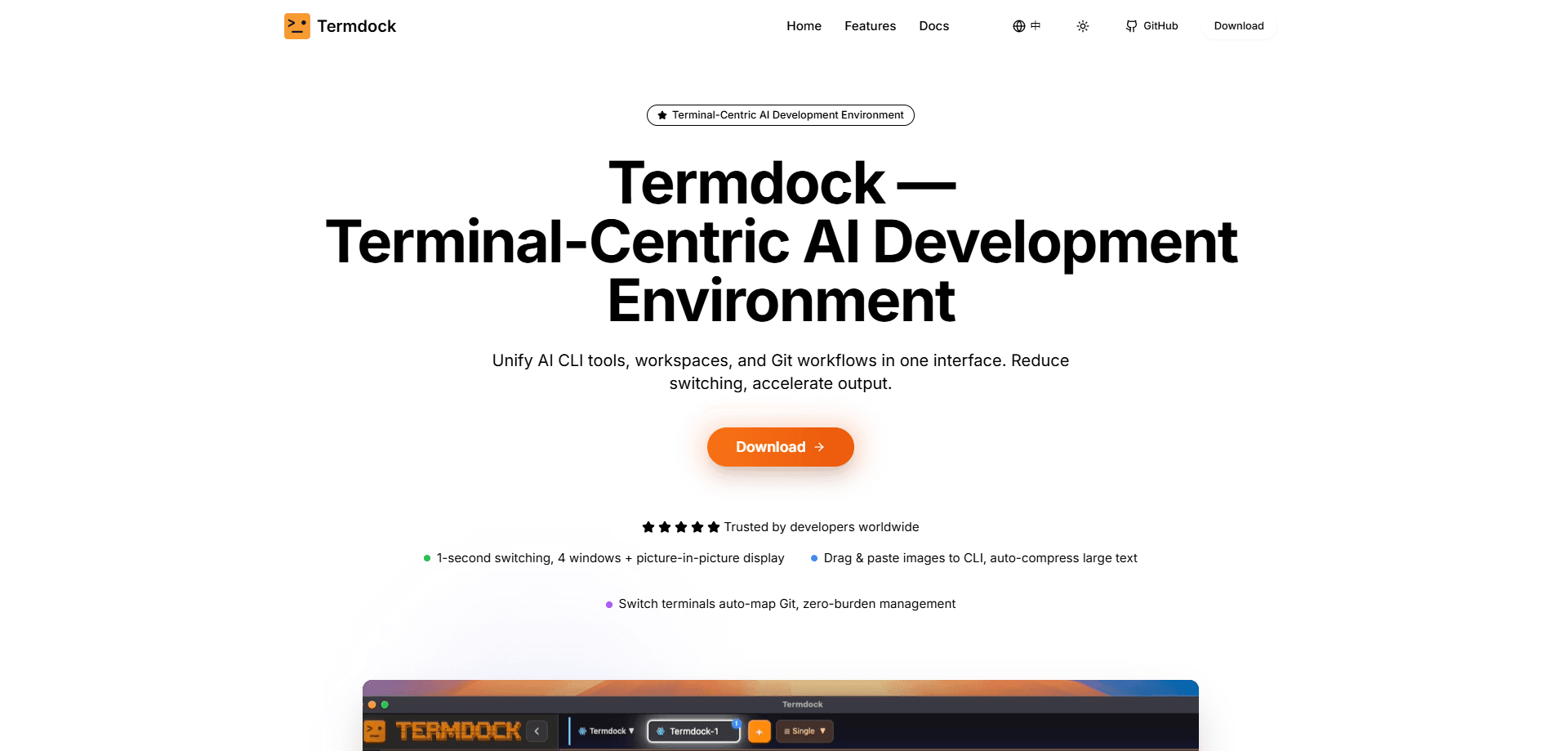
Termdock is a terminal-centric AI development environment that pulls your AI CLI tools, project workspaces, and Git workflows into a single window. Instead of juggling five separate terminal tabs and a Git app, you run everything side by side and switch projects without losing your place. It's aimed at developers who already live in the command line and want one AI terminal that keeps every tool and repo within reach. Sound like you? That's the whole point.
About Termdock
What Is Termdock
Termdock is a desktop environment built around the terminal rather than around a text editor. The developers describe it as a way to unify AI CLI tools, workspaces, and Git into one interface, so the friction of hopping between windows disappears. Sound familiar? If you've ever run an AI coding agent in one tab, watched logs in another, and opened a Git client just to commit, that setup is exactly what Termdock is trying to replace.
The core idea is context. A terminal-centric development environment keeps your AI coding tools, your file trees, and your version control in the same place, which matters more as AI agents start running multi-step tasks that you need to monitor. Termdock leans into that by letting several terminal panes sit next to each other instead of stacking them behind tabs. That's the whole pitch.
The biggest limitation to know up front is that Termdock isn't a full IDE and isn't a cloud service. It's a local workspace manager for people comfortable with the command line. If you expect a visual debugger, a built-in browser preview, or drag-and-drop app building, this isn't that. It also skews toward technical macOS and Linux-style workflows, so casual or Windows-first users should check the current platform support before committing.
Getting Started
- Download Termdock for your operating system from the official site and install it like any desktop app.
- Launch it and open your first project folder to create a workspace, then add any other repos you want to reach from the same window.
- Split the layout into multiple terminal panes and drop your AI CLI tool into one, your dev server or log tail into another.
- Connect your Git workflow so you can stage, commit, and review changes without leaving the app.
- Save the workspace as a profile so you can reopen the exact same layout the next time you work on that project.
Product Information
A quick look at Termdock's pricing, supported platforms, and performance.
Best for
The users, tasks, and scenarios where this tool fits best.
Users
- Backend and DevOps engineers who run several services and log streams at once and want them visible side by side instead of buried in tabs.
- Developers who already use AI coding agents in the terminal and need to watch multiple agents or sessions without losing track of any of them.
- Full-stack developers juggling several repositories who want fast workspace switching so a side project doesn't get lost behind work code.
Tasks
- Running an AI CLI tool in one pane while tests, logs, and a file tree stay open in others, so you can react to what the agent does without alt-tabbing.
- Searching a codebase by structure rather than plain text, which helps when you need to find config or function definitions by shape, not by a guessed string. It saves real time.
- Handling routine Git actions like staging, committing, and reviewing diffs while a terminal session keeps running.
Scenarios
- Debugging a failing CI job across several services, where you want the Docker output, the Redis log, and the agent's suggestions on screen together.
- Onboarding into an unfamiliar codebase, where structural code search and a quick file tree save you from grepping blindly for hours.
- Switching between a day job repo and a weekend project without reconfiguring your tools every time.
Key features
Multi-terminal layout
Termdock lets you arrange several terminal sessions in one window, which is the feature most users notice first. You can keep an AI agent in one panel, a dev server in another, and a log tail in a third, all visible at once. For anyone who has tried to debug a chain of services through stacked tabs, seeing them together cuts a surprising amount of back-and-forth. Everything's right there.
AST-driven code search
The app searches your code through syntax structure rather than raw text. It uses tree-sitter parsing, which understands the grammar of a file, and the developers say it covers 13 or more programming languages. That means you can look for a function, class, or config block by its shape, not just by matching a string. It's a real upgrade over grep when you're chasing something like a misplaced Kubernetes setting. It pays off fast.
Unified Git workflow
Git actions live inside the same environment instead of in a separate client. You stage changes, write commits, and review diffs without breaking your terminal flow. No app switching. For developers who resent switching to a GUI app just to commit a one-line fix, keeping it in the workspace keeps the momentum going.
Workspace switching
Termdock groups your projects into workspaces you can flip between. Each workspace remembers its own layout, so returning to a project restores the panes you had open. If you move between a work repo and a side project often, that memory is the difference between resuming work and rebuilding your setup from scratch. It just works.
AI CLI tool integration
The environment is built to host AI command-line tools rather than compete with them. Bring your own agent. Termdock gives it a pane and context so it sits alongside your real workflow. That keeps you in control of which tools you use, and it means the AI side of your setup can change without you switching apps.
Theme customization
You can adjust the look of the environment to suit how you work. It's a small thing on paper. But for people who stare at a terminal all day, being able to tune the appearance matters for readability and comfort during long sessions. Worth it.
Pros and cons
Pros
- Keeps AI CLI tools, terminals, and Git in one window, which cuts constant window switching.
- Multiple panes make it easy to watch several processes or agents at once.
- AST-based search finds code by structure, which is more precise than plain text matching for many tasks.
- Workspace profiles save your layout per project, so returning to a repo is instant.
- Lets you keep using your own AI tools instead of locking you into one vendor.
Cons
- No built-in visual debugger or browser preview, so it won't replace a full IDE for everyone.
- Platform support should be checked before you commit, since desktop-first workflows vary by OS.
- Pricing and plan details aren't clearly published, which makes budgeting harder for teams.
Frequently asked questions
Termdock is a terminal-centric AI development environment that puts your AI CLI tools, workspaces, and Git workflows into a single window. It's meant for developers who work primarily in the command line and want fewer separate apps open at once.
Related content
Explore related tools, skills, and articles for Termdock.
Termdock Alternatives
Forefront
Forefront · CodingForefront is a web platform for building with open-source AI. It lets you fine-tune leading open-source language models on your own data, evaluate how they perform, and run them through an API or export them to host yourself. Developers who want the convenience of a closed-source platform but insist on owning their models and data are the target audience here.

Startkit
StartKit.AI · CodingStartkit is a boilerplate for building AI SaaS and AI wrapper products. Think of it as an AI startup boilerplate with the boring parts already wired up: authentication, Stripe and Lemon Squeezy payments, usage limits, transactional email, and an AI API starter that talks to OpenAI, Anthropic, Groq, or Llama. You clone the repo, set your price, and start on the part of your product that people actually pay for. It's Next.js under React and Tailwind, so most of the boilerplate code already feels familiar.
Testim
Tricentis · CodingTestim is an AI-powered test automation platform for building and running end-to-end tests across web, mobile, and Salesforce applications. It leans on machine learning to keep tests stable when an interface changes, so teams spend less time fixing broken selectors. Not bad for an automated testing tool you can start using today. You create tests by recording actions in a browser, then optionally add JavaScript when you need more control. It's a solid pick for busy QA teams.