

TextGenieAI
TextGenieAI · Writing · Productivity
TextGenieAI is an AI writing assistant for macOS, Chrome, and Firefox that pops up when you highlight text, then fixes, rewrites, or translates it in place.
About TextGenieAI
What Is TextGenieAI
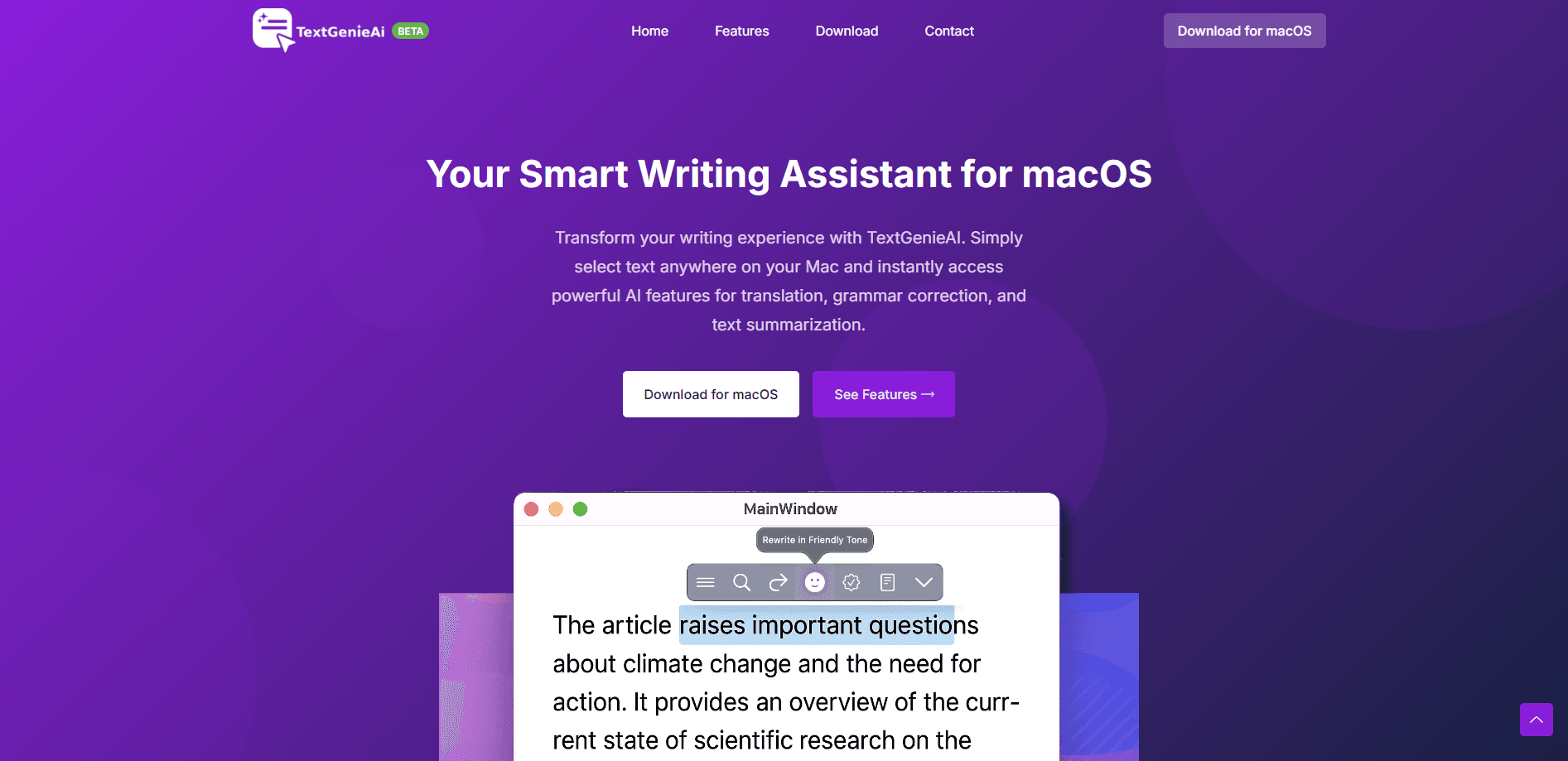
TextGenieAI is a writing assistant that lives inside the apps and browsers you already use. Highlight a sentence in Mail, Xcode, Safari, Word, or any webpage, and a small bar floats above your selection with a menu of actions. Pick one, and the result drops straight into where the text was. This is inline AI editing at the cursor, with no copy-paste loop and no browser tab.
The product targets a specific complaint: switching to ChatGPT breaks your focus. You copy text out, paste it, wait, copy it back, and repeat for every paragraph. TextGenieAI skips that trip by putting the assistant at your cursor. The macOS writing tool works on macOS 12 and up, and the Chrome and Firefox extension covers the browser side, so the same bar shows up in native desktop apps and on the web.
The tradeoff is scope. TextGenieAI handles short, targeted edits well, and it leans on a subscription once you pass the free limits. It won't write a whole report from scratch or manage long documents. Think of it as a fixing and reshaping tool, not a drafting one.
Getting Started
- Download the macOS app from textgenieai.com, or add the Chrome or Firefox extension. No account is needed to start.
- Open any writing app or webpage and highlight the text you want to change.
- Wait for the popup bar to appear above your selection, then pick an action such as Fix Grammar, Translate, or Rewrite.
- For anything custom, choose Smart Edit and type a prompt like "make this sound more confident."
- The new text replaces your selection right away. Upgrade to Pro for higher usage limits and the full action list.
Product Information
A quick look at TextGenieAI's pricing, supported platforms, and performance.
Best for
The users, tasks, and scenarios where this tool fits best.
Users
- Developers
- Professionals
- Multilingual users
Tasks
- Fixing grammar and punctuation
- Shifting tone
- Translating inline
- Smart Edit prompts
Scenarios
- Chasing a deadline email
- Reading a foreign doc
- Cleaning up code comments
Key features
Select-and-Act Popup Bar
The core interaction is a bar that appears above highlighted text, reported to show in under 200ms. It works in native macOS apps and in Chrome and Firefox, so the same move covers Mail, Xcode, Safari, Word, and the web. The point is speed and staying put.
Smart Translation
Translation covers more than 50 languages and runs on the selected text. You highlight a line, click translate, and the output replaces the original, which suits reading foreign pages or replying in a second language without a separate tab. It's a built-in text translator with no detour to another site.
Grammar and Tone Fixing
This action cleans up grammar, spelling, and punctuation, or shifts a passage from casual to professional. It's the everyday move for email and chat, where a rough draft needs a light polish rather than a full rewrite.
Smart Edit with Custom Prompts
Instead of a fixed menu, Smart Edit lets you type your own instruction, like make this shorter or sound more confident. As a rewrite tool that follows plain requests, it shapes the result to whatever you ask, which covers cases the preset actions miss.
The Broader Action Set
Beyond translation, grammar, and Smart Edit, the bar carries more than 30 actions in total. Summarize, paraphrase, expand, simplify, and bullet points are among them, giving one popup broad coverage of common editing jobs.
Cross-App and Cross-Browser Reach
The same assistant spans desktop apps and browsers. If you work half in Mail and half in Chrome, you don't learn two tools or switch contexts, and the Chrome and Firefox extension means one setup covers both. Coverage is macOS 12+ plus those two browsers, which is the main thing that separates it from web-only editors.
Pros and cons
Pros
- Works inside apps like Mail, Xcode, and Word, where browser-based assistants can't reach.
- The popup replaces text in place, so there's no copy-paste loop to break your focus.
- Covers translation, grammar, tone, summarize, and more than 30 other actions from one bar.
- Starts free with no signup, so you can test it before paying.
- The same tool runs on macOS, Chrome, and Firefox, which keeps the workflow consistent.
Cons
- It handles short edits, not long documents, so it won't draft a full report for you.
- The free plan caps usage; heavier use pushes you toward the $5/month Pro plan.
- There's no Linux or Windows desktop version, so non-Mac users are limited to the browser extensions.
- No API is documented, which rules out wiring it into your own scripts or tools.
Frequently asked questions
TextGenieAI is an AI writing assistant that shows up when you highlight text, then fixes, rewrites, or translates it in place. It runs as a macOS app and as Chrome and Firefox extensions.
Related content
Explore related tools, skills, and articles for TextGenieAI.
TextGenieAI Alternatives

Google EmbeddingGemma 2
Google DeepMind · Writing · Image · CodingGoogle EmbeddingGemma 2 is a 740M-parameter open model that turns text, code, images, audio, and video frames into vectors in one 768-dimension space, running on phones and laptops.

MePersona
MePersona, Inc. · Writing · Productivity · MarketingMePersona is an AI unified inbox for creators. It learns your voice, drafts replies to fan messages from 12 platforms, and sends only what you approve.

Fluence
Yay Software (Yannick Huchard) · Writing · Voice & Language · ProductivityFluence is an Android app that reads PDFs, EPUBs, Word files and web articles aloud, follows each sentence as it speaks, and answers questions about the text on the phone itself.