

Tomat
Tomat · Coding · Productivity
Tomat is a desktop app for exploring, cleaning, and automating large CSV and Excel files with AI-driven steps, no formulas or code required. It runs locally, so your data stays on your computer.
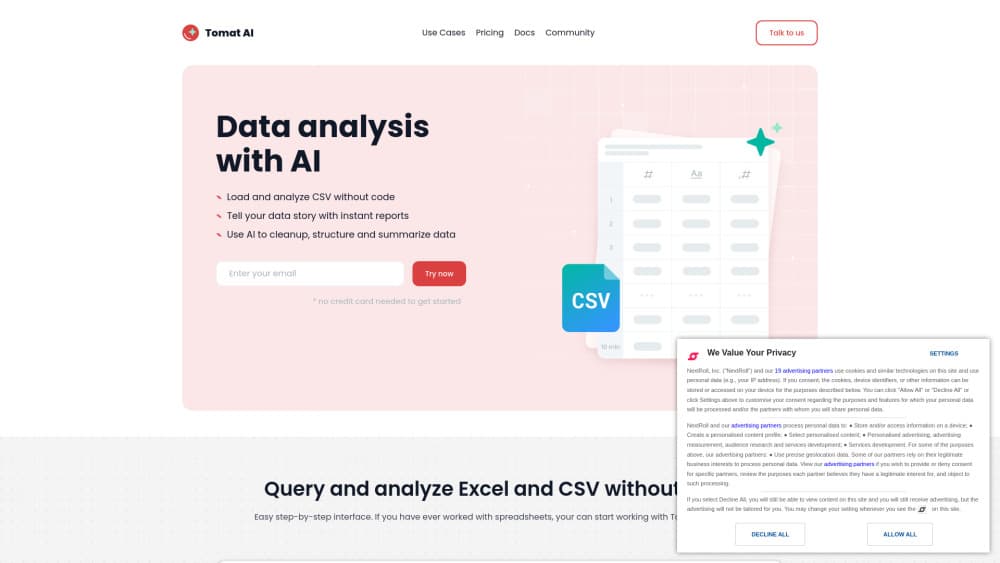
About Tomat
What Is Tomat
Tomat is a desktop data analysis software for people who work with data in spreadsheets but do not want to write SQL, Python, or complex Excel formulas. You load a local CSV or Excel file, or connect to PostgreSQL and Snowflake, then build a visual pipeline from drag-and-drop steps the app calls nodes. Think of it as a CSV analysis tool that also handles Excel and live databases.
The core idea is a reusable flow. Each flow starts with a source and ends with an output, and every step in between filters, joins, pivots, or enriches the data. Once the flow runs, Tomat saves the result as a job you can revisit and export.
Two things set Tomat apart from cloud-based data tools. First, processing happens on your own machine, and the company states that files never leave your computer. Second, the AI runs per row. You add an AI column, describe what you want in plain language, and Tomat applies that prompt to every row in the table. The no-code data analysis approach means the same file that slows down Excel can be cleaned and reshaped without a single formula.
The main limitation is scale tied to your hardware. Local execution depends on your computer staying awake and the app staying open, and the AI column only sees the columns you name in the prompt, so it cannot reason across multiple rows on its own.
Getting Started
- Download the Tomat desktop app for Windows or macOS and install it. On Windows you may need the Microsoft Visual C++ Redistributable before the app runs.
- Sign in with email and password or a Google account, then click "Open Tomat" in the browser popup to return to the app.
- Add a Source node and load a local CSV or Excel file, or connect a PostgreSQL or Snowflake database.
- Add transformation nodes such as Filter, Group By, Pivot, or the AI Column, and preview each result instantly.
- Add an Output node, choose a destination folder or data warehouse, and click Run to save the result under Jobs.
Product Information
A quick look at Tomat's pricing, supported platforms, and performance.
Best for
The users, tasks, and scenarios where this tool fits best.
Users
- Data analysts who spend hours cleaning messy exports from multiple systems and want to automate the cleanup
- Operations and marketing teams managing large lists of leads, orders, or survey responses
- Founders and small teams with no dedicated engineer
Tasks
- Cleaning and deduplicating large CSV files
- Enriching rows with AI at scale
- Web research across long lists
- Reshaping data for reporting
Scenarios
- Recurring monthly data prep
- Data merging across CRM, billing, and ad platforms
- Early-stage data quality checks
Key features
Local Processing by Default
Tomat runs on your desktop and keeps files on your machine. The company says it only checks your credentials at launch and does not push your data to a server, which matters if you handle customer records or anything sensitive. If you connect Snowflake or PostgreSQL, the flow runs using that warehouse's resources instead.
AI Column and AI Table
The AI Column node runs a prompt on every row, and the AI Table node builds a new table from a single prompt. You can try a prompt on a few sample rows before applying it to the full dataset, chain prompts for multi-step tasks, and pick which model handles the job. The AI only reads the columns you mention in the prompt.
Visual Flow Builder
Every transformation is a node you drag onto a canvas, from Source and Filter to Join, Group By, and Pivot. Results preview instantly, so you see the effect of each step before running the whole pipeline. Flows can be renamed, duplicated, exported, and shared on team plans.
150+ Transforms and SQL-Level Logic
Tomat covers standard SQL features and adds extras such as auto-flattening JSON. You get formulas for math, text, dates, and aggregation, plus window functions and custom functions for cases the built-in nodes do not handle. Advanced users can write expressions while beginners stick with point-and-click steps.
Connectors for Local and Cloud Data
You can load CSV and Excel files directly, or connect to PostgreSQL and Snowflake as sources and targets. Tomat handles up to 1024 source nodes in one flow, and the company says access to more than 450 additional data sources is available on request.
Charts, Reports, and Exports
You can attach charts to a flow or build standalone reports and export them as PDF. Finished runs land in the Jobs section with the transformed table and supporting visuals, giving you a shareable result without a separate BI tool.
Pros and cons
Pros
- Runs locally, so sensitive spreadsheets and customer lists stay on your own computer.
- Handles large CSV and Excel files that choke spreadsheets, with previews that update as you build.
- AI column applies one prompt across thousands of rows, useful for enrichment and cleaning at scale.
- Visual steps cover joins, pivots, and window functions, so you rarely need to write SQL or code.
Cons
- Local execution requires the app to stay open and your computer to avoid sleep mode, which rules out unattended runs.
- The AI column sees only the columns named in the prompt, so it cannot apply multi-row logic or cross-reference other fields.
- Only PostgreSQL and Snowflake connectors ship today, so other databases mean exporting to CSV first.
- Pricing stacks a base plan with AI credits, and the credit model takes some trial and error to budget correctly.
Frequently asked questions
Tomat is a desktop app that lets you explore, clean, and automate CSV and Excel files through visual steps, with AI columns for row-by-row enrichment. It replaces manual spreadsheet work and scripting for people who are not comfortable writing code.
Related content
Explore related tools, skills, and articles for Tomat.
Tomat Alternatives

Base Code
Base44 (Wix) · Coding · ProductivityBase Code is a shared cloud development environment from Base44. Teammates describe changes to an existing GitHub codebase in chat, preview them live and send them back as pull requests.

Google EmbeddingGemma 2
Google DeepMind · Writing · Image · CodingGoogle EmbeddingGemma 2 is a 740M-parameter open model that turns text, code, images, audio, and video frames into vectors in one 768-dimension space, running on phones and laptops.

GitGlow
GitGlow · Coding · ProductivityGitGlow is a local-first desktop Git client that lets independent developers review their own code and their AI agents' changes in one place before shipping.