

Translate.Video
Vitra.ai (Apex Future Labs) · Writing · Video
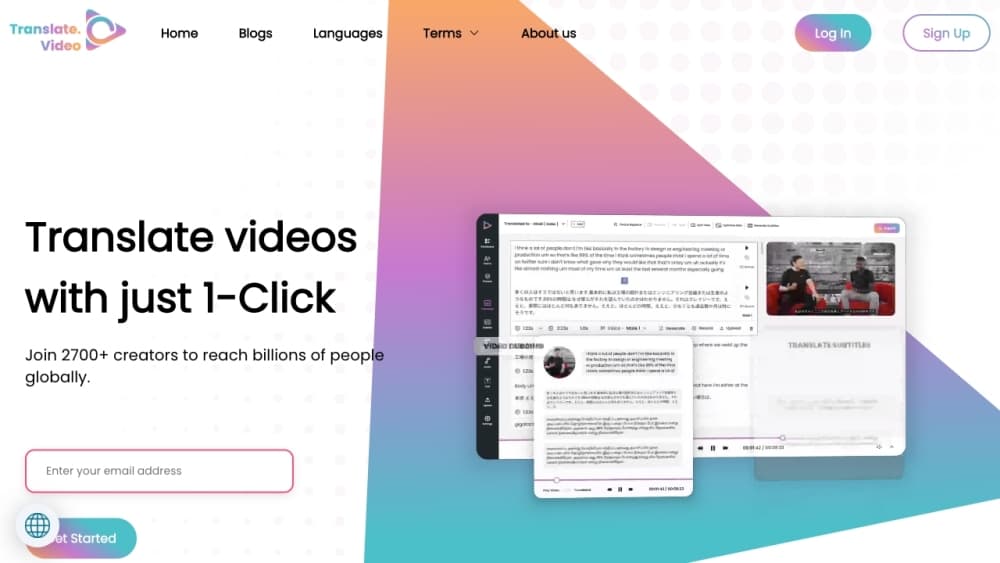
Translate.Video is an AI dubbing and subtitling tool from Vitra.ai. It translates video into 120+ languages with voice cloning, lip sync and captions in one pass.
About Translate.Video
What Is Translate.Video
Translate.Video is an AI video translation tool from Vitra.ai, a company also known as Apex Future Labs. You feed it a clip, pick a target language, and it handles the rest: transcribing the speech, translating it, and either captioning it or voicing it back in a cloned version of the original speaker. The pitch is simple. One video becomes many language versions without a studio or a voice actor.
The product covers a lot of ground for one app. It generates closed captions and instant subtitles, produces human-like dubbing, and clones a voice from about 50 seconds of audio. It also lip-syncs the translated speech so the mouth movements line up with the new words, and it separates speakers in a recording so each voice stays consistent across a project.
The most important thing to know is where the product sits now. Translate.Video has become one module inside Vitra.ai Universe, the wider platform launched in September 2026. Existing accounts and plans keep working, but new sign-ups with a work email land on Universe, where the same dubbing and subtitle tools sit alongside image, document, website and app translation. Teams get every plugin free on Universe, while single users are fine staying on Translate.Video. The other limit is language depth. The platform advertises 120+ languages for subtitles and dubbing, and around 12,000 voices, but quality still depends on how clean the source audio is.
Getting Started
- Sign up on translate.video with a personal email to stay on the classic app, or a work email to start on Vitra.ai Universe.
- Upload a video, or paste a link to one, and let the tool detect and transcribe the speech.
- Choose the target languages and pick a voice, either a built-in one or a clone made from a short audio sample.
- Turn on lip sync and speaker diarization if you want the dubbed track to match the original speaker.
- Review the subtitles and dubbed audio, then export the files or the finished video.
Product Information
A quick look at Translate.Video's pricing, supported platforms, and performance.
Best for
The users, tasks, and scenarios where this tool fits best.
Users
- Content creators
- Marketing teams
- Social media managers
Tasks
- Translating a talking-head video into multiple languages
- Adding subtitles to a clip
- Cloning a voice for consistent dubbing
- Keeping speakers straight in an interview
Scenarios
- Expanding a YouTube channel into new markets
- Localizing a product launch
- Repurposing a long recording into short clips
Key features
AI Video Dubbing
Translate.Video turns the spoken audio into a translated voice track that sounds close to the original. You pick from built-in voices or clone the speaker, and the tool fits the new speech to the timing of the clip. It's the feature most people come for, and it's what removes the need for a separate recording session.
Voice Cloning
With roughly 50 seconds of clean audio, the platform builds a voice that sounds like the person on screen. That clone then speaks the target language, which keeps a channel's voice recognizable across markets. If the original audio is noisy, the clone gets weaker, so good recordings matter here.
Subtitles and Closed Captions
The tool generates AI subtitles and closed captions automatically and translates them into more than 120 languages. You can style the text, place it where you want, and adjust the timing before export. Files come out in the formats that players and social platforms expect, so the subtitles drop in without extra work.
Lip Sync
Lip sync re-times the mouth movements in the video so they match the translated words. Without it, a dubbed clip looks like a film from the old days where the audio never lines up. With it, the speaker looks like they actually said the new lines, which matters most for close-up talking heads.
Speaker Diarization
In a recording with several people, speaker diarization works out who is talking and keeps each voice separate through the dub. Interviews, panels and group videos come out with each person in their own voice instead of a single flattened narrator. It saves a manual pass of splitting the audio by hand.
One App for Captions, Dubbing and Export
The same workspace handles captions, subtitles, dubbing, transcripts and voice recording. You generate what you need and export SRT, VTT or MP4 from one place, so you don't stitch together three separate tools. The plugin line, including Translate.photo for Photoshop, Illustrator and Figma, extends the same idea to images and documents.
Pros and cons
Pros
- Dubbing, subtitles, voice cloning, lip sync and speaker diarization sit in one workspace, which cuts a lot of back-and-forth between tools.
- The 120+ language range and roughly 12,000 voices cover most markets a creator or team would target.
- A voice clone from about 50 seconds of audio keeps a channel's sound recognizable across languages.
- Plugins for Photoshop, Illustrator and Figma carry the same translation workflow into image and design files.
Cons
- The product has folded into Vitra.ai Universe, so anyone planning to adopt it should check which platform they'll actually land on.
- Dub quality drops when the source audio has background noise, so rough recordings still need cleanup first.
- There's no clearly documented public API, which blocks teams that want to automate translation in their own pipeline.
- Per-plugin licences and licence pooling apply on the classic Translate.Video app, a limit that goes away only after moving to Universe.
Frequently asked questions
It's an AI tool for translating video. You upload a clip, and it transcribes the speech, translates it, and produces subtitles, captions or a dubbed voice track in the language you choose. Creators and teams use it to publish the same video for audiences in other languages.
Related content
Explore related tools, skills, and articles for Translate.Video.
Translate.Video Alternatives

Google EmbeddingGemma 2
Google DeepMind · Writing · Image · CodingGoogle EmbeddingGemma 2 is a 740M-parameter open model that turns text, code, images, audio, and video frames into vectors in one 768-dimension space, running on phones and laptops.
MePersona
MePersona, Inc. · Writing · Productivity · MarketingMePersona is an AI unified inbox for creators. It learns your voice, drafts replies to fan messages from 12 platforms, and sends only what you approve.

Fluence
Yay Software (Yannick Huchard) · Writing · Voice & Language · ProductivityFluence is an Android app that reads PDFs, EPUBs, Word files and web articles aloud, follows each sentence as it speaks, and answers questions about the text on the phone itself.