

UIsnapper
UIsnapper · Coding
UIsnapper turns UI screenshots into detailed prompts for coding tools like Cursor, Lovable, and v0. It reads the colors, type, and layout in an image, then writes a prompt you paste in to rebuild it.
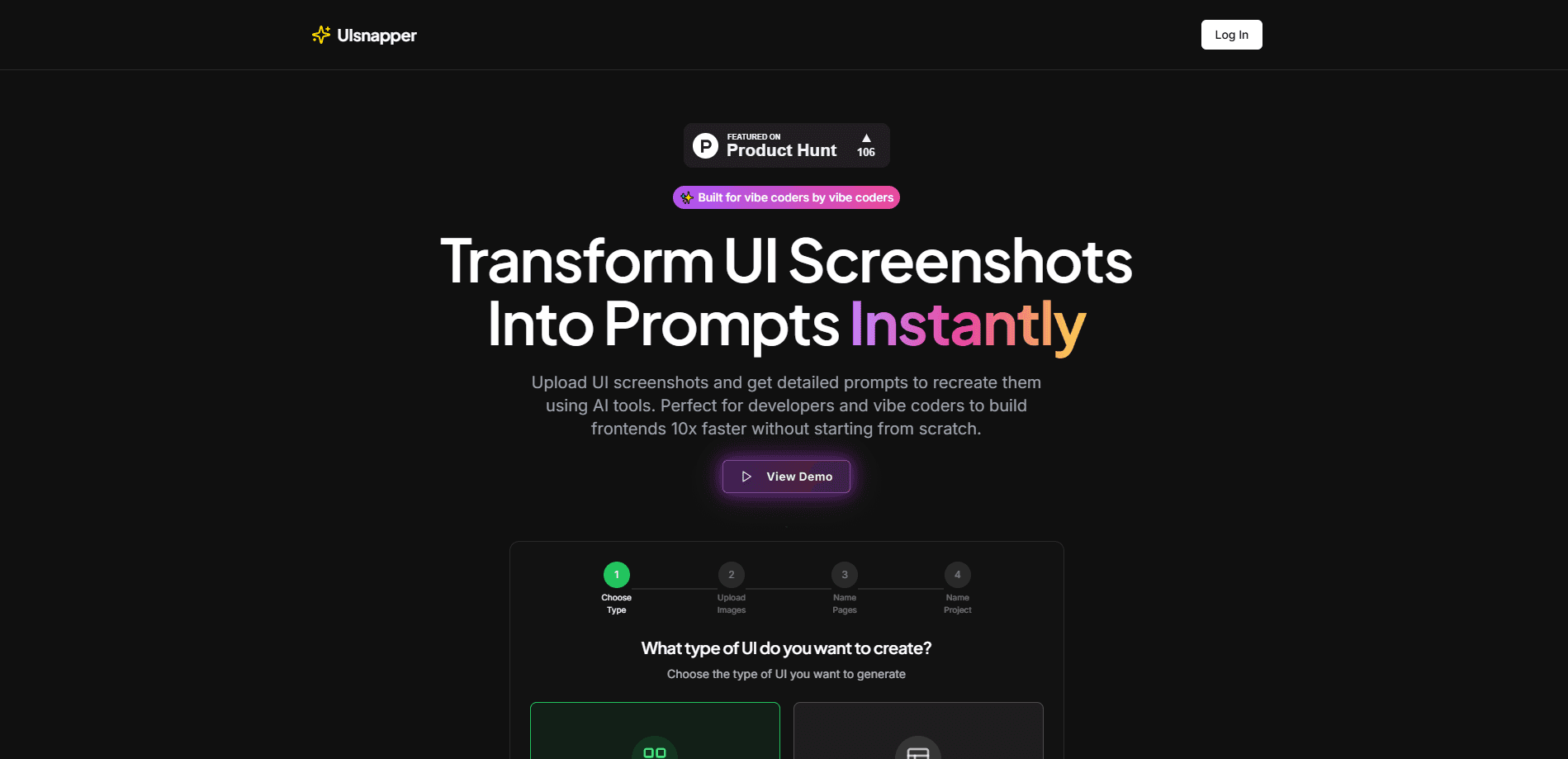
About UIsnapper
What Is UIsnapper
UIsnapper is a web tool built for people who find a screen they want to copy. You upload a screenshot of a website or an app, and the tool breaks down what it sees: colors, fonts, spacing, and the parts that make up the layout. From that read, it writes a long prompt you can drop into an AI coding tool.
The problem it solves is the gap between "I like this design" and "rebuild it." Writing a full spec by hand takes time, and most people skip details like padding or heading sizes. UIsnapper fills those gaps so the AI builder has enough to work with.
Its limits are worth knowing up front. Output is only as good as the screenshot you give it. It writes prompts, not finished code, so the final result still depends on the tool you paste into. Complex, animated, or interactive screens may come back thinner than a static layout would.
Getting Started
- Open uisnapper.xyz in a browser and sign in.
- Upload a UI screenshot, either a full page or a single component.
- Wait while the tool reads the image and drafts the prompt.
- Check the prompt and use the follow-up chat to ask for changes or more detail.
- Copy the prompt into Cursor, Lovable, v0, or another AI builder to start building.
Product Information
A quick look at UIsnapper's pricing, supported platforms, and performance.
Best for
The users, tasks, and scenarios where this tool fits best.
Users
- Frontend developers
- Designers who hand off work
- Solo builders and indie hackers
Tasks
- Writing a build spec from a screenshot
- Rebuilding a layout you saw elsewhere
- Prototyping a new screen fast
Scenarios
- Early stage work where speed matters more than polish
- Studying how a well made interface is put together
- Handing a screen to an AI coding agent
Key features
Screenshot Analysis
UIsnapper reads the image you upload and pulls out the parts that define the look: colors, typography, spacing, and the component structure. That breakdown is what the prompt is built on, so the more readable the screenshot, the stronger the result. A clean, flat layout usually comes back with more detail than a busy, layered one.
Prompt Generation for AI Builders
The core output is a detailed prompt aimed at tools like Cursor, Lovable, and v0. It is written to describe layout and styling in terms an AI builder can act on, not as a loose summary. You get a structured block of text you can paste and edit, rather than code you cannot change.
Follow Up Chat
After the first pass, a chat window lets you ask the assistant to expand a section, adjust a detail, or explain part of the layout. This is where you patch the gaps the first prompt missed, such as a specific button style or a breakpoint. It keeps you inside the same session instead of starting over.
Multi Page and Landing Page Support
The tool handles both multi page web apps and single landing pages with several sections. That range matters because a full app needs consistent structure across screens, while a landing page is more about getting one long scroll right. You can point it at either and get a prompt that matches the scope.
Export for Development Workflows
Once the prompt is ready, you copy it out and use it directly in your development environment. There is no lock in to a single editor, so the same prompt can feed a chat based tool or an agent. This keeps the tool in the role of a starting point rather than another platform you have to live inside.
Pros and cons
Pros
- Turns a screenshot into a written spec in one pass, which saves the time spent describing padding, type, and layout by hand.
- Works with the AI builders many developers already use, so it fits an existing workflow instead of replacing it.
- Breaks a design into colors, fonts, spacing, and components, which makes the output easier to check against the original.
- The follow up chat lets you fix weak spots without redoing the whole analysis.
Cons
- Output quality tracks the input screenshot, so a blurry, cropped, or busy image gives a vague prompt.
- It writes prompts, not finished code, so the final build still rests on the tool you paste into.
- Complex interactions, animations, and custom states are hard to capture from a still image and may be missing from the prompt.
- Pricing and plan details are not clearly published, so it is hard to know the cost before you start.
Frequently asked questions
It reads a UI screenshot and writes a detailed prompt you can paste into an AI coding tool like Cursor, Lovable, or v0 to rebuild that screen. It is a prompt writer, not a code editor, so the finished build happens in the tool you use next.
Related content
Explore related tools, skills, and articles for UIsnapper.
UIsnapper Alternatives

Base Code
Base44 (Wix) · Coding · ProductivityBase Code is a shared cloud development environment from Base44. Teammates describe changes to an existing GitHub codebase in chat, preview them live and send them back as pull requests.

Google EmbeddingGemma 2
Google DeepMind · Writing · Image · CodingGoogle EmbeddingGemma 2 is a 740M-parameter open model that turns text, code, images, audio, and video frames into vectors in one 768-dimension space, running on phones and laptops.

GitGlow
GitGlow · Coding · ProductivityGitGlow is a local-first desktop Git client that lets independent developers review their own code and their AI agents' changes in one place before shipping.