

Voicr
Voicr · Voice & Language · Productivity
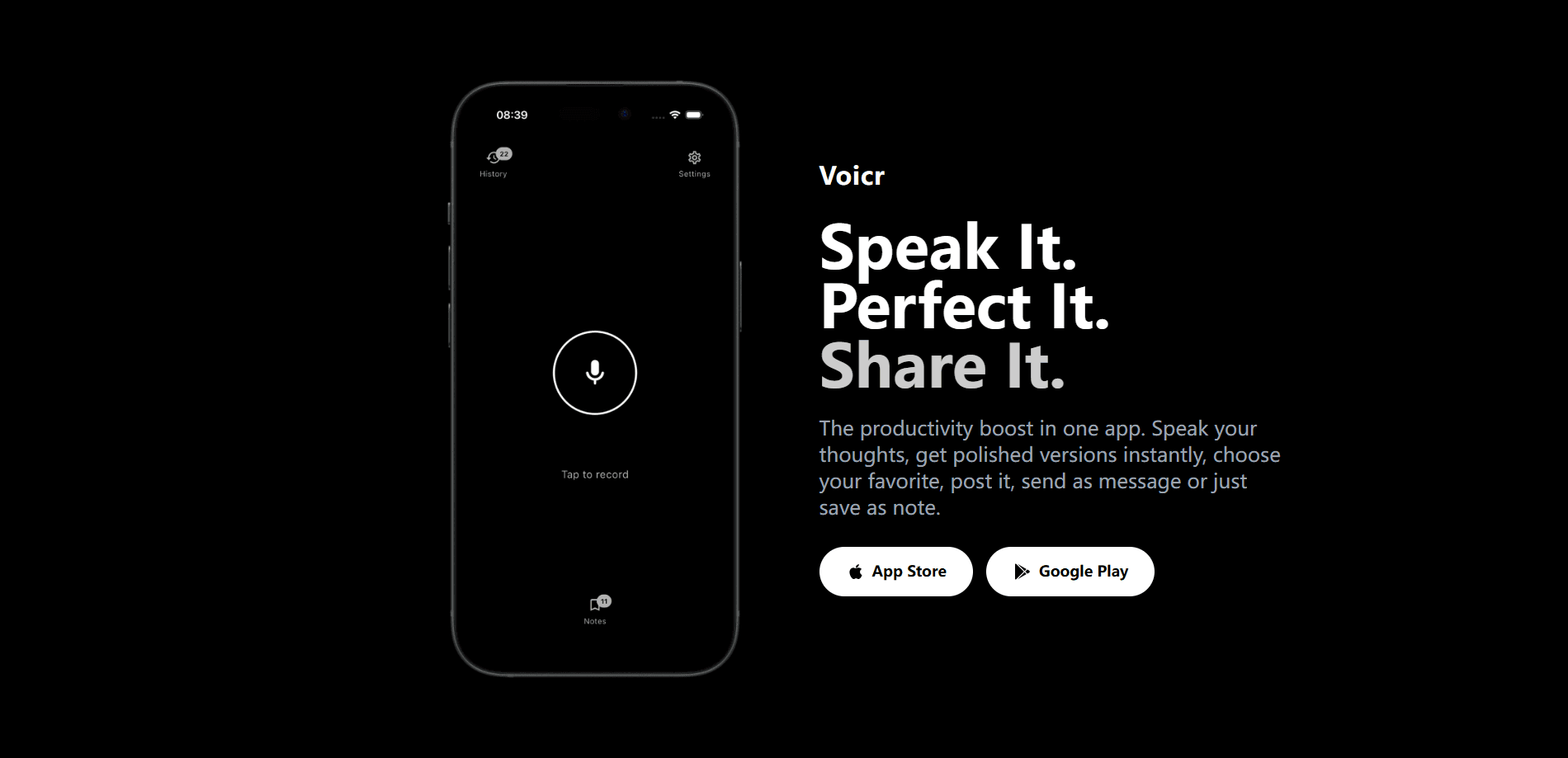
Voicr is a free dictation app for Mac that turns your spoken words into text inside any app. It runs speech recognition on your own machine, so your audio never gets uploaded, and you don't need an account to start. Looking for a speech to text Mac tool that doesn't ship your voice to a server? That's the pitch here. Beyond plain dictation, it adds a voice notes tool for catching quick ideas and an AI writing assistant that rewrites text you've already typed, so you can improve a sentence after the fact instead of starting it over. The whole thing lives behind keyboard shortcuts and stays out of the way until you call it.
About Voicr
What Is Voicr
Voicr is a small macOS app built around one idea: you can write faster by talking. Put your cursor in any text field, hold a key, speak, and release. The app transcribes what you said and drops the text exactly where you were typing, whether that's a chat window, an email draft, or a code comment you'd rather not type out by hand.
What separates it from cloud dictation tools is where the work happens. Transcription runs on your Mac, so your voice doesn't travel to a server. You don't create an account, and there's no monthly fee sitting behind a paywall. If you care about privacy or you just don't want another subscription, that combination is the main draw.
The catch is the hardware. Voicr needs macOS 14 or newer and an Apple Silicon Mac, so Intel-based machines are out, and since it's Mac-only with no Windows, iOS, or Android version, the audience it can serve narrows fast.
Getting Started
- Download the app from the official Voicr site and drag it into your Applications folder.
- Open it for the first time and grant the microphone plus accessibility permissions that macOS asks for.
- Place your cursor in any text field, hold the fn key, and speak. Release when you're done.
- Add a polishing instruction for an app if you want cleaner output, or leave the default for raw transcription.
- Press Control + fn to save a quick voice note, or select text and hit Option + Space for the writing assistant.
Product Information
A quick look at Voicr's pricing, supported platforms, and performance.
Best for
The users, tasks, and scenarios where this tool fits best.
Users
- Writers who draft long text and want to speak it instead of typing
- People with privacy concerns about cloud transcription
- Mac owners who type slowly or deal with wrist strain
Tasks
- Drafting emails and messages
- Capturing quick ideas
- Polishing existing text
Scenarios
- Fast replies during a busy workday when typing feels like a bottleneck.
- Note-taking during a walk or while your hands are occupied.
- Reworking a paragraph you already wrote but don't like the wording of.
Key features
Dictation Anywhere You Type
The core of Voicr is dictation that works in any text field on your Mac. You place the cursor, hold fn, speak, and release. The app transcribes on device and inserts the words right where you left off. No separate window to copy from. That last part is what makes it feel quick, because the text simply appears under your cursor instead of landing in some scratchpad you have to manage, and the whole loop takes only as long as it takes you to finish the sentence.
Per-App Polishing Instructions
You can attach a short instruction to a specific app so its dictated text gets cleaned up automatically. Maybe you want casual phrasing in chat but tighter sentences in email. Set it once, and Voicr applies it to that app only, or to everything if you prefer one rule everywhere. It's a small thing that saves editing later.
Voice Notes
Hold Control + fn, speak, and release to save a note inside Voicr. The note stays on your Mac and shows up in the Notes section whenever you open it. It's meant for catching a thought before it vanishes, not for long recordings. Think of it as a spoken sticky note. Quick, local, done.
Writing Assistant
Select text in any Mac app and press Option + Space to open the writing assistant. From there you pick how you want the text changed: more concise, friendlier, clearer, or something custom. You can build as many custom instructions as you need for tone, grammar, translation, or a workflow specific to your job. It works on text you already wrote, which is a different job from dictation.
On-Device Transcription
Transcription happens locally rather than on a remote server. That means your speech doesn't leave the machine, and the app keeps working without sending audio anywhere. For anyone who's uneasy about cloud voice tools, this is the feature that matters most. It's also why there's no login screen in your way.
Shortcut-Driven, Low-Interruption Design
Voicr appears when you press a shortcut and disappears when you're done. There's no always-on window taking up screen space, and no dashboard to manage. The design assumes you'd rather finish the sentence than learn the app. That's the right assumption for a tool like this.
Pros and cons
Pros
- Free to use with no account and no subscription tier.
- On-device transcription keeps your audio off remote servers.
- Works in any text field, so it fits the apps you already use.
- Three tools in one: dictation, voice notes, and a writing assistant.
Cons
- Requires macOS 14 or newer on an Apple Silicon Mac, so Intel users can't run it.
- Mac-only with no Windows, iOS, or Android version.
- No public API, so you can't wire it into your own scripts or workflows.
Frequently asked questions
Yes. The app is free to download and use, and there's no paid tier hiding behind a word limit. You don't need an account, and the site lists the price as $0.
Related content
Explore related tools, skills, and articles for Voicr.
Voicr Alternatives

Foley
Hanamori Labs, LLC · Voice & Language · Productivity · AI AssistantFoley is a voice to-do list that turns a spoken sentence into a filed task, complete with project, date and time, then helps you plan the day around what is already there.

HireKey
HireKey · Voice & Language · Productivity · LeaningHireKey is an AI job search copilot built by a former tech recruiter. It checks role fit, tailors resumes, runs interview practice and tracks every application.

Fluence
Yay Software (Yannick Huchard) · Writing · Voice & Language · ProductivityFluence is an Android app that reads PDFs, EPUBs, Word files and web articles aloud, follows each sentence as it speaks, and answers questions about the text on the phone itself.