
Wispro
Wispro · Voice & Language
Wispro is a voice-to-text tool for Windows that turns your spoken words into clean, formatted text inside whatever app you're already using. It ships three dictation modes, a personal dictionary, voice snippets, and context-aware formatting, and it runs as a native app without a subscription. It's free. If you type all day and want to talk instead, this is built for that. Think of it as dictation software that cleans up after you. That's the whole pitch. Why does that matter? Because most voice typing tools leave the cleanup to you.
About Wispro
What Is Wispro
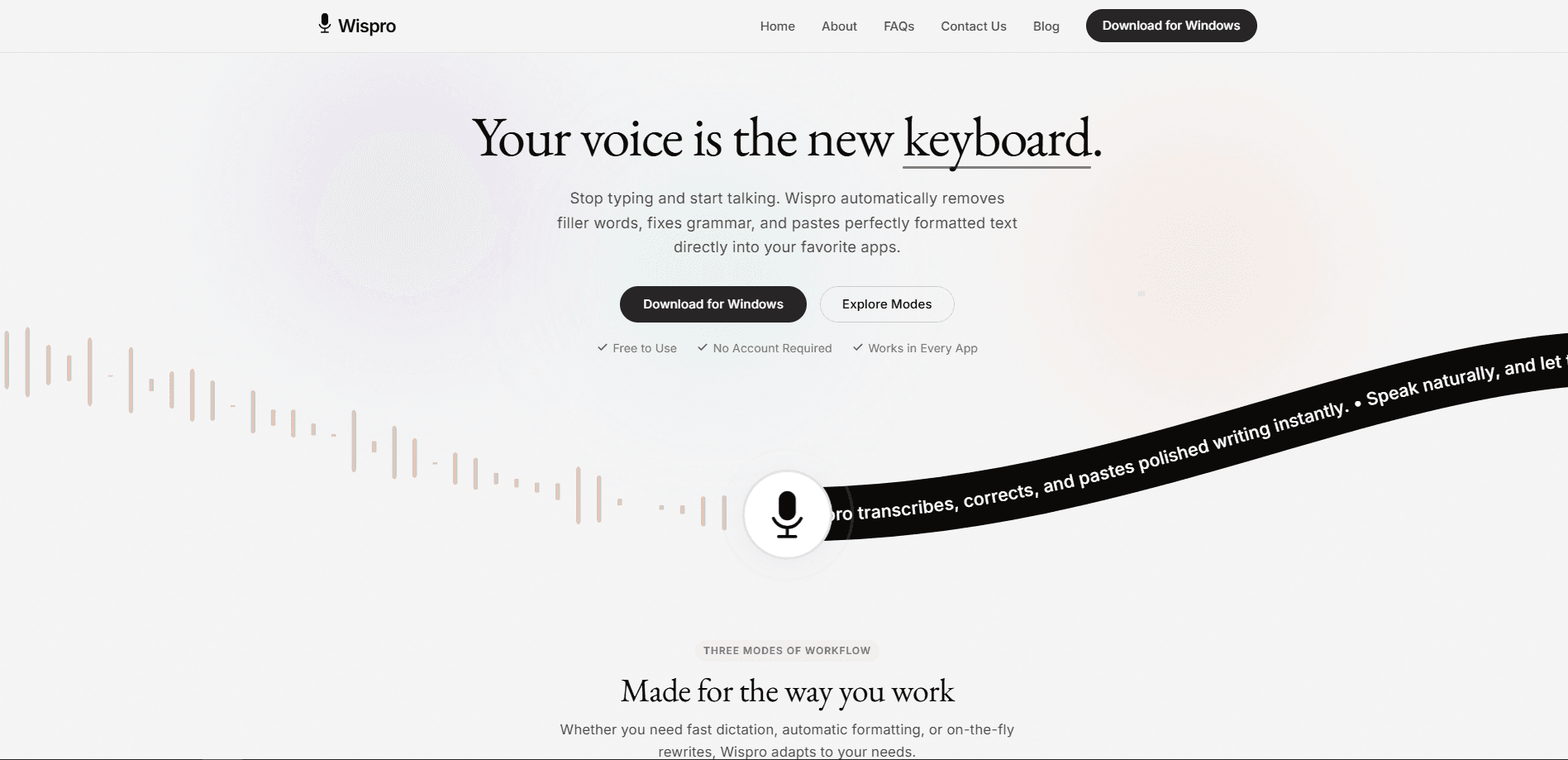
Wispro is a native Windows dictation app that replaces your keyboard with your voice. You hold a hotkey, talk, and release it. The tool handles the messy parts for you: it strips filler words, fixes grammar, and pastes the result straight into the active window, whether that's an email client, a chat app, or a code editor.
Speech to text usually means fixing the cleanup afterwards. Not here. The whole point is output you can send straight away.
The biggest limitation is platform. This is a Windows-only tool right now, so Mac, Linux, and mobile users are out of luck. It also leans on cloud speech endpoints like Groq to handle voice transcription, which means that if you're dictating on a flaky hotel Wi-Fi connection in the middle of nowhere, the tool simply won't work until the signal comes back. No connection, no voice typing.
Getting Started
- Download the installer from the official Wispro site and run it on a Windows machine.
- Launch the app and pick a global hotkey for dictation; it sits quietly in your system tray.
- Choose a mode: Basic for fast raw text, Smart for auto-formatted prose, or Command for AI-assisted instructions.
- Set up your personal dictionary and any custom formatting rules so names and jargon come out right.
- Open any Windows app, hold the hotkey, speak, and release to paste the finished text.
Product Information
A quick look at Wispro's pricing, supported platforms, and performance.
Best for
The users, tasks, and scenarios where this tool fits best.
Users
- Writers and bloggers
- Developers
- Students
- Professionals
Tasks
- Drafting emails
- Writing code comments
- Note-taking
- Multilingual writing
Scenarios
- Repetitive daily typing
- Hands-busy moments
- Early project brainstorming
Key features
Three Dictation Modes
Wispro splits dictation into Basic, Smart, and Command modes. Basic gives you fast, raw speech-to-text with no filtering. No cleanup, no delay. Smart Mode is the one most people want: it removes filler words, fixes typos, and formats your rambling into readable prose. Command Mode acts like a voice assistant, so you can say something like "draft an email to John" and get generated text back. Those voice commands cover more than plain dictation.
Personal Dictionary
Names, acronyms, and industry jargon are where generic dictation tools fall apart. It gets them wrong every time. Wispro lets you teach it your own vocabulary so it stops mangling the terms you use every day. Set it up once and it keeps recognizing them. Big difference on niche terms.
Voice Snippets
If you type the same blocks of text over and over, voice snippets save you the repetition. Store templates and insert them anywhere with a short spoken command. It's a small feature that adds up fast for support replies or routine messages. Worth setting up early.
Context Awareness and Custom Formatting
Wispro notices the app you're typing into and adjusts its formatting and tone to fit. It also lets you define formatting rules, so the output matches your style, whether that means writing code or drafting a legal document. This is what keeps dictated text from looking obviously machine-made.
Local Privacy Controls
Your API keys are encrypted and stored locally on your machine. Audio goes through encrypted connections to endpoints like Groq for processing, and Wispro says it doesn't store or monitor your recordings. For people worried about what happens to their voice data, that's the reassurance that matters.
100+ Languages
Speak in your native language and Wispro detects it automatically, supporting over 100 languages as you dictate. It's useful for multilingual writers who swap between languages during the day without changing any settings.
Works in Any Windows App
Because it's a native Windows app, Wispro functions inside essentially any software. Email clients, IDEs, and chat apps all work after you assign a global hotkey and start speaking into whichever window holds focus at that exact moment. It runs in the system tray and types into whatever window is active, so there's no switching tools mid-task.
Pros and cons
Pros
- Free with no subscription and no account required, which is rare for a free dictation app.
- Smart Mode removes filler words and formats text automatically, so output is usable right away.
- Works system-wide in any Windows app through a global hotkey.
- Local key encryption and a clear no-storage stance on recordings give privacy-minded users peace of mind.
- Custom dictionary, snippets, and formatting rules cover specialized vocabularies well.
Cons
- Windows only. Mac, Linux, and mobile users can't use it.
- Relies on cloud endpoints for audio processing, meaning dictation needs an internet connection.
- Command Mode still generates text you'll want to review, so it's not fully hands-off for anything important.
Frequently asked questions
Wispro turns your speech into polished text inside any Windows app. It's built for writing faster by talking instead of typing, with automatic cleanup so the result reads cleanly.
Related content
Explore related tools, skills, and articles for Wispro.
Wispro Alternatives

Foley
Hanamori Labs, LLC · Voice & Language · Productivity · AI AssistantFoley is a voice to-do list that turns a spoken sentence into a filed task, complete with project, date and time, then helps you plan the day around what is already there.

HireKey
HireKey · Voice & Language · Productivity · LeaningHireKey is an AI job search copilot built by a former tech recruiter. It checks role fit, tailors resumes, runs interview practice and tracks every application.

Fluence
Yay Software (Yannick Huchard) · Writing · Voice & Language · ProductivityFluence is an Android app that reads PDFs, EPUBs, Word files and web articles aloud, follows each sentence as it speaks, and answers questions about the text on the phone itself.