

Adobe Lightroom
Adobe · Image
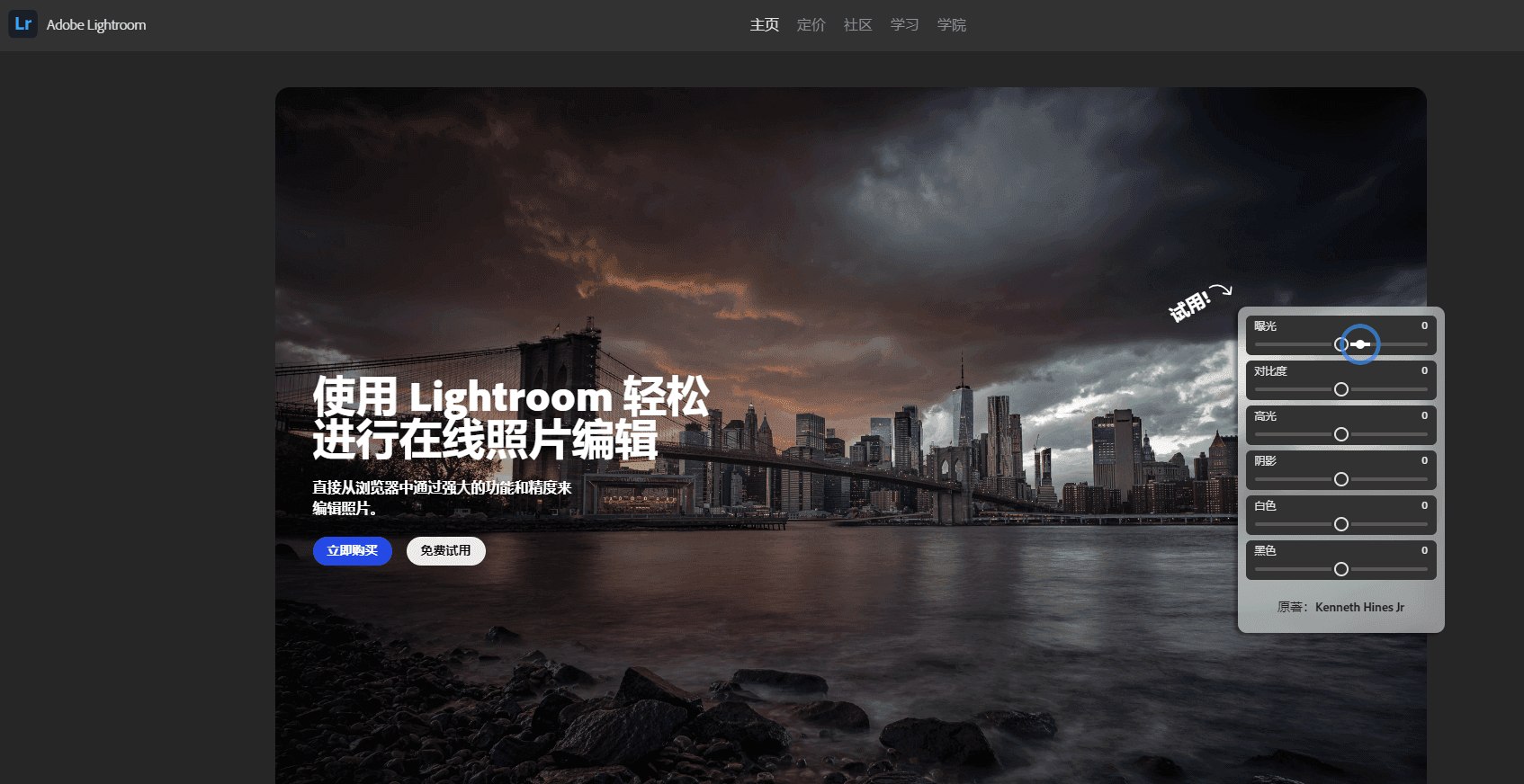
Adobe Lightroom is a cloud photo editor for RAW and JPEG files. It handles color, cropping, AI masking, and object removal, and keeps every edit synced across desktop, mobile, and web.
About Adobe Lightroom
What Is Adobe Lightroom
Adobe Lightroom is the cloud version of Adobe's photo workflow, and the name causes more confusion than it should. Lightroom Classic is the folder-based desktop app photographers have used since 2007. Lightroom, the one this page covers, stores originals in the cloud and runs the same library on a laptop, a phone, and a browser tab.
The job is the same on every screen: import, cull, correct, and share. You fix exposure and white balance, straighten a horizon, mask a sky, pull a distraction out of the frame, and export. Edits are non-destructive, so the original RAW file stays untouched and every version lives as a set of instructions. That's the photo editing software part; the AI photo editor part sits on top of it.
The limits appear once the library grows. Cloud storage counts against your plan, and a 1TB library fills faster than most people expect when they shoot RAW. AI tools such as Denoise, Lens Blur, and Super Resolution want a decent GPU. Lightroom also stops short of pixel-level compositing, so layered work still belongs in Photoshop.
Getting Started
- Install Lightroom from Creative Cloud, or download the iOS or Android app and sign in with an Adobe ID.
- Import photos from a camera card, a folder, or your phone roll. Originals upload to Adobe's cloud and appear on every signed-in device.
- Open a photo, apply Auto settings as a starting point, then refine with masks, presets, and the Remove tool.
- Export as JPEG, TIFF, or DNG, or share an album as a web gallery with a link.
Product Information
A quick look at Adobe Lightroom's pricing, supported platforms, and performance.
Best for
The users, tasks, and scenarios where this tool fits best.
Users
- Hobbyist photographers with a mixed library of phone shots and RAW files
- Travel and event shooters who edit on the road
- Small content teams that need a shared look
Tasks
- RAW color grading
- Cleaning up a frame
- Portrait retouching
- Batch delivery
Scenarios
- A wedding shoot needs 600 keepers by Monday
- You shoot on a phone all week and want the same color treatment as your camera files
- A client wants to pick favorites
Key features
Non-Destructive Editing With Cloud Sync
Every adjustment is stored as a recipe, not baked into the file, so you can revisit a crop or a grade months later. Originals sit in Adobe's cloud photo storage and edits travel with them. Open the same photo on a phone in the morning and on a desktop at night, and you see the same version. Smart previews let you keep working on a laptop when the connection drops, and changes merge when it returns.
AI Masking for Subject, Sky, and People
Masking used to mean brushing around a hairline by hand. Lightroom now detects a subject, a sky, or individual people and builds the mask for you. Portrait masks split out facial skin, body skin, eyebrows, eyes, lips, teeth, and hair as separate selectable areas. Adobe says the detection runs on-device where possible, which keeps masking fast during a long cull.
Generative Remove and Reflection Removal
The Remove tool pairs a brush with Firefly generative fill. You paint over a distraction, and the model rebuilds what should be behind it. Reflection Removal targets windows, glass, and water, and the September 2026 update cut down the smearing that made tricky surfaces look painted over. People Removal handles bystanders in the background. Every generative pass takes a few seconds and needs a connection.
Prompt to Edit
Added in the version 9.6 update, Prompt to Edit turns a written request into an edit. You describe the result, or pick one of the built-in example prompts, and Lightroom applies the adjustment. Adobe credits the Nano Banana model for the feature. It's aimed at restorations and quick retouching rather than precise local work, and results still need a check at full resolution.
Adaptive Presets, Lens Blur, and Denoise
Adaptive presets read the photo and adjust their own settings, so a portrait preset changes exposure and white balance for each frame instead of applying one fixed recipe. Lens Blur fakes shallow depth of field with an adjustable focus range, and it ships with background blur presets. Denoise cleans up high-ISO RAW files, and Super Resolution doubles the pixel dimensions of a crop. All three are GPU-heavy.
Lightroom Web and Shared Albums
The web app runs the full editing panel in a browser, which is useful on a borrowed machine or a Chromebook. Albums can be shared as public galleries with download, favorites, and proofing options. Photographers use this instead of sending a folder of JPEGs, and clients comment on individual frames without an account.
Pros and cons
Pros
- Edits sync across desktop, mobile, and web, so you can start on one device and finish on another.
- AI masking and Generative Remove cut the time spent on routine cleanup.
- The free mobile plan is genuinely usable for light editing and culling.
- Presets and adaptive presets keep a large shoot consistent.
- RAW support covers most current camera bodies, including phone RAW formats.
Cons
- Cloud storage is capped by your plan, and 1TB disappears quickly with RAW files.
- AI features such as Denoise and Lens Blur need a recent GPU and run slowly on older laptops.
- There's no layered compositing, so anything beyond global and local adjustments means a trip to Photoshop.
- The Lightroom versus Lightroom Classic split confuses buyers, and the two apps handle catalogs differently.
Frequently asked questions
There's a free tier on iOS and Android with basic editing, presets, and limited cloud storage. Desktop and web editing require a paid plan, and the free mobile version won't sync a full RAW library.
Related content
Explore related tools, skills, and articles for Adobe Lightroom.
Adobe Lightroom Alternatives

Google EmbeddingGemma 2
Google DeepMind · Writing · Image · CodingGoogle EmbeddingGemma 2 is a 740M-parameter open model that turns text, code, images, audio, and video frames into vectors in one 768-dimension space, running on phones and laptops.

Tractionwave
TractionWave · Image · MarketingTractionWave is an AI attention heatmap tool for static ads. Upload a PNG or JPG and it returns predicted attention, ranked hotspots, and fixes before you spend budget.

Imejis.io
Imejis.io · Image · MarketingImejis.io is an AI design studio for agents and marketing teams. Describe an image in plain words, and it writes the copy, builds the layout, reflows it to every size, then exports a finished file.