

Bookshelf for NotebookLM
south0120 · Productivity
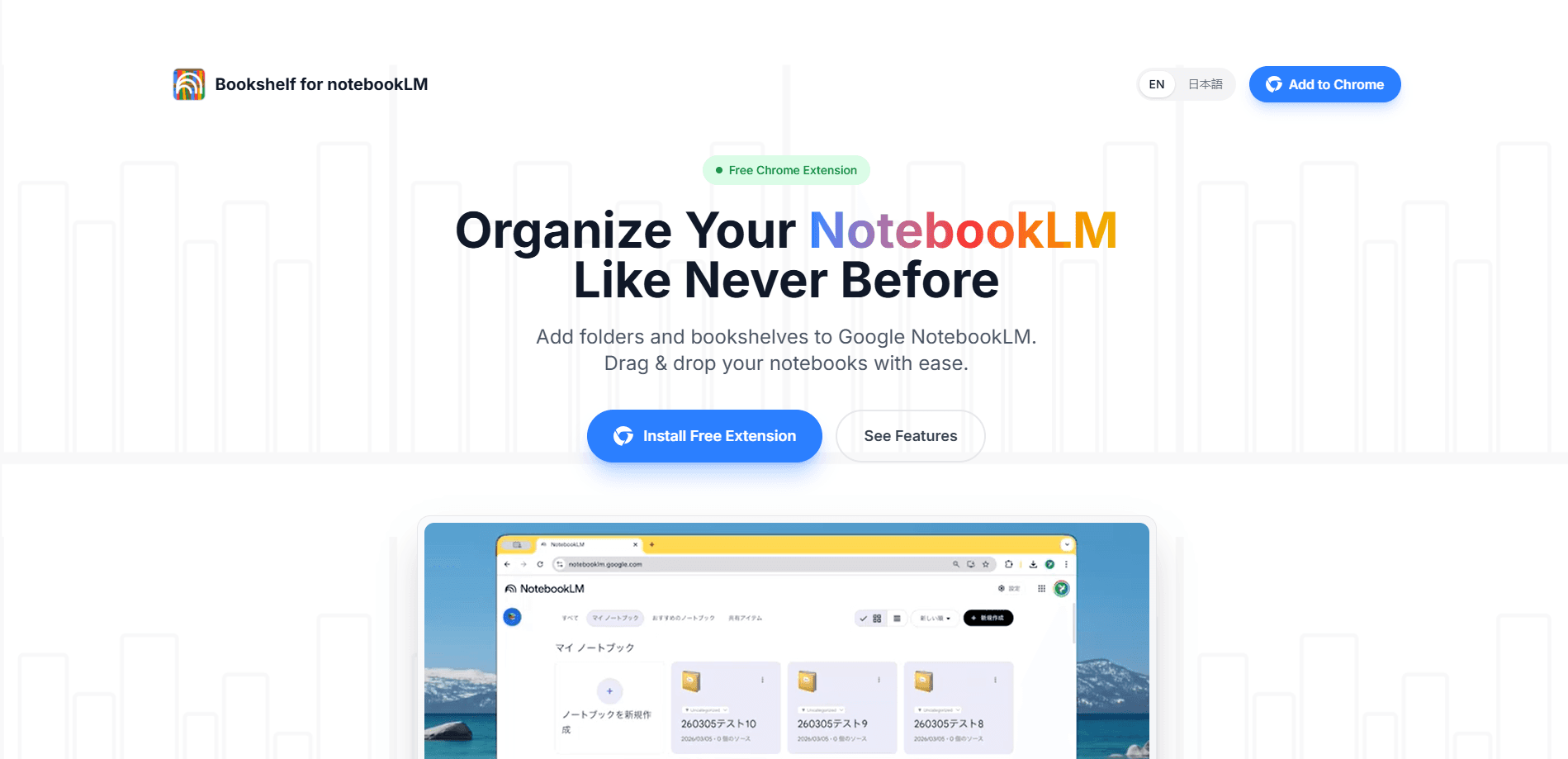
Bookshelf for NotebookLM is a free Chrome extension that gives Google NotebookLM the folder system it never shipped with. It adds bookshelves and folders to the notebook list, and it lets you drag and drop notebooks between them. Every setting stays stored locally in your browser. If your NotebookLM sidebar has turned into a long, unsearchable wall of notebooks, this NotebookLM folder organizer is built for that problem.
About Bookshelf for NotebookLM
What Is Bookshelf for NotebookLM
Bookshelf for NotebookLM fills a gap Google left open. NotebookLM is strong at reading your sources. Its notebook list is flat, and that's the whole problem. Every project sits in one undifferentiated column, and once you pass a dozen or so notebooks, finding the right one means scrolling and squinting. The extension adds a folder layer on top of that list, so "Work," "Study," and "Personal" notebooks stop mixing together in a single column you have to read line by line.
It's a Chrome extension, not a standalone app. You install it, open NotebookLM as usual, and a bookshelf sidebar appears next to your notebooks. No accounts to create. No dashboards to log into. The tradeoff is scope: it only organizes what's already in NotebookLM. It won't move notebooks across Google accounts, and it won't sync folders between two different computers that each run their own browser, so a laptop and a desktop end up with separate folder setups you have to maintain by hand.
The bigger point is privacy. The developer states that all folder settings live in your Chrome browser, and nothing about your notebooks is collected, stored, or sent anywhere. That's the right call for a tool sitting beside documents you might not want indexed. Would you hand a random extension access to research you'd rather keep between you and Google? Probably not.
Getting Started
- Open the Chrome Web Store listing and click "Add to Chrome," then confirm the install.
- Go to notebooklm.google.com and sign in with the Google account that holds your notebooks.
- Find the new bookshelf sidebar and create your first folder, naming it after a project or topic.
- Drag notebooks from the main list into that folder, and reorder folders to match how you actually work.
- Collapse the sidebar when you want a clean view, and open it again whenever you need to move something.
Product Information
A quick look at Bookshelf for NotebookLM's pricing, supported platforms, and performance.
Best for
The users, tasks, and scenarios where this tool fits best.
Users
- Students juggling lecture notes, readings, and revision sources across separate notebooks, as long as they use NotebookLM in desktop Chrome.
- Researchers running several literature projects at once and needing to keep each one's sources from bleeding into another.
- Writers and content creators who keep a separate notebook per article or client and lose real time every day hunting for the right one in a list that never stops growing.
- Anyone who treats NotebookLM as a daily tool and has watched their notebook list grow past the point where scanning the sidebar still works.
Tasks
- Organize NotebookLM notebooks by project, course, or client. Notebook folder management beats a flat list.
- Reordering shelves so the projects you touch most sit at the top.
- Filing newly created notebooks into the right shelf. No more pile-up.
- Collapsing the sidebar during deep work and reopening it when you need to reorganize.
Scenarios
- A semester's worth of course notebooks that needs sorting by subject before exam season, when the last thing you want is to hunt for a lecture note while revising.
- Client work where each account has its own notebook and a shared folder keeps them straight at a glance.
- Personal research that mixes hobby reading with work material. It needs a clean split.
- A long-running project where the notebook list has grown to dozens and browsing no longer works.
Key features
Custom Bookshelves
You create named shelves like "Work," "Study," or "Personal" and group notebooks under them, which is the structure NotebookLM has always lacked out of the box. Setup takes seconds. Folders become the top level of your notebook list, and the sidebar then reads like a filing cabinet rather than an endless feed.
Drag and Drop Notebooks
Moving a notebook means dragging it into the shelf you want, with no menus, renaming, or copy-paste standing in the way of a two-second action. When a project ends or shifts focus, you drag it somewhere else in one motion and keep going. This is the feature that makes daily use feel quick rather than like admin work.
Auto-Sync of New Notebooks
Every new notebook you create in NotebookLM gets detected automatically and dropped into an "Uncategorized" list, so it never silently disappears into a pile you've stopped checking. You never lose a notebook just because you forgot to file it. From there you drag it to the right shelf when you get a moment. Nothing falls through the cracks between sessions.
Collapsible Sidebar
The bookshelf sidebar toggles open and closed. Open, it gives you the full folder tree. Closed, it gets out of the way so the notebook view stays clean, which matters when you're reading or writing in NotebookLM and don't want an extra panel competing for the space your actual work needs.
Local-Only Storage
Folder settings are saved inside your Chrome browser, and the developer says personal data is never collected or transmitted. For a tool that sits beside your documents, keeping the entire organization layer offline is a real advantage. There's no cloud account standing between you and your folder structure.
Pros and cons
Pros
- Free Chrome extension with no account or signup required.
- Adds real folder organization to a NotebookLM list that's otherwise flat.
- Drag-and-drop filing is fast and needs no learning curve.
- Settings stay local in your browser, which suits privacy-conscious users.
- Collapsible sidebar keeps the workspace clean when you don't need it.
Cons
- Works only in desktop Chrome, so mobile and other browsers are out.
- Limited to one browser profile, since folders don't sync across devices.
- The extension is maintained by a single independent developer, so updates depend on one person.
Frequently asked questions
It adds folders and shelves to your NotebookLM notebook list. You create named shelves, drag notebooks into them, and reorder them to keep large collections manageable. Think of it as a folder layer that Google hasn't built in yet.
Related content
Explore related tools, skills, and articles for Bookshelf for NotebookLM.
Bookshelf for NotebookLM Alternatives

Base Code
Base44 (Wix) · Coding · ProductivityBase Code is a shared cloud development environment from Base44. Teammates describe changes to an existing GitHub codebase in chat, preview them live and send them back as pull requests.

Knocket
Knocket (Tencent RTC team) · Productivity · Business · ChatbotKnocket is a free live chat and contact page tool that lets visitors message you from your website, app, or a shareable link, with every reply handled from Telegram or one inbox.

FloorGen
Vinit Kumar (FloorGen) · Productivity · China AIFloorGen is a browser-based floor plan maker that turns a sentence or a sketch into an editable 2D plan and a 3D walkthrough. Export to PDF, DXF or video, and draw without an account.