

Buddy
Buddy · Image
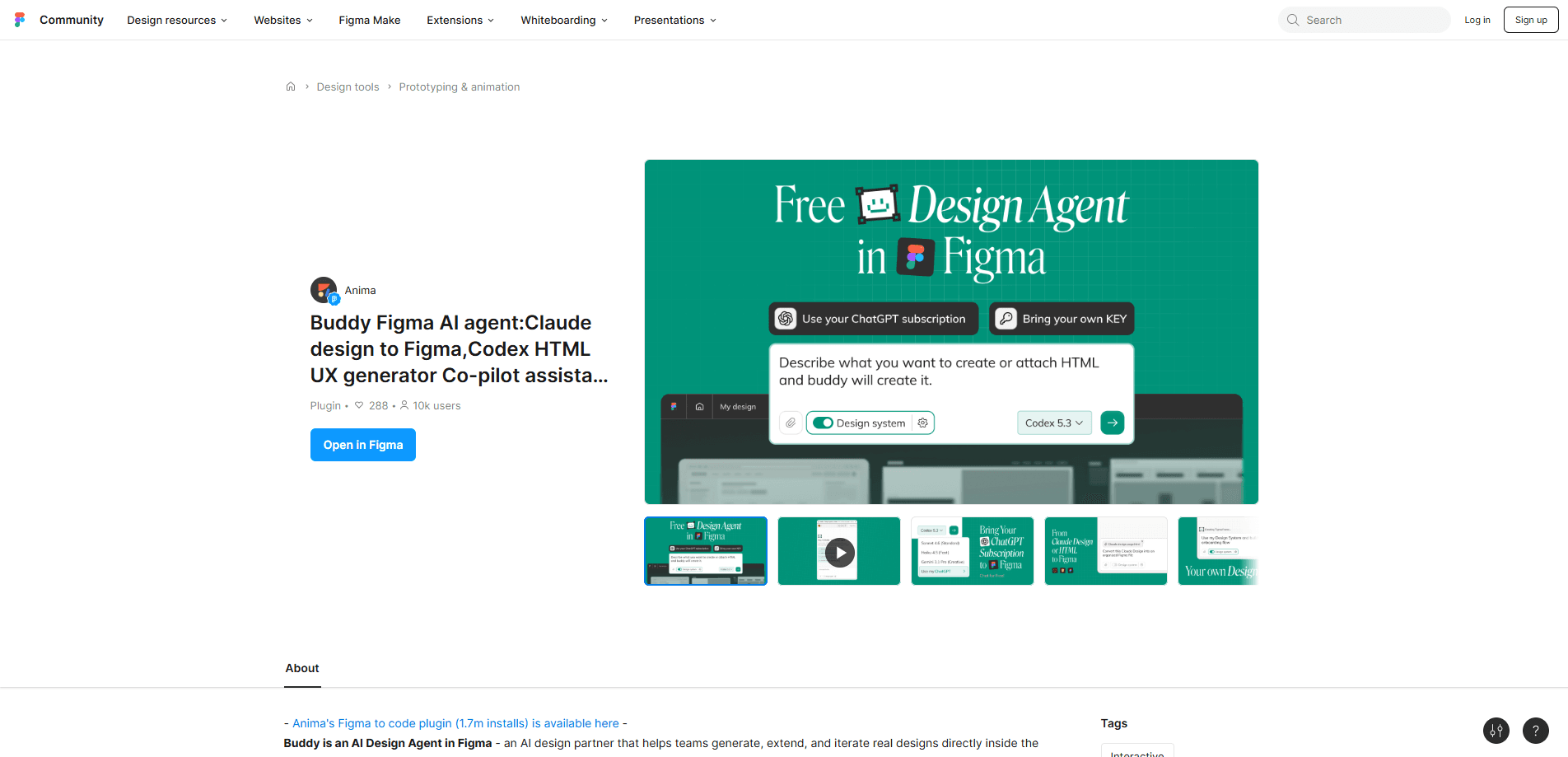
Buddy is an AI design agent that runs inside Figma as a plugin. You describe the UI you want in plain language and it draws real, editable layers straight onto the canvas instead of dropping in a flat image. It also handles HTML-to-Figma conversion and clones a live website URL into editable design frames. Parallel AI chats let you run several prompts at once, so you can explore directions side by side without waiting on a single thread. No more queuing one idea behind another.
About Buddy
What Is Buddy
Buddy is a Figma plugin that turns prompts and existing web pages into editable UI. The core idea is simple. AI output should still be a Figma file you can move, restyle, and hand to engineering, not a static mockup you have to rebuild by hand. It reads as a design co-pilot: you drive, it does the repetitive layer work.
The most useful part for teams is the import side. Paste an HTML snippet or a live URL and Buddy rebuilds it as Figma layers with real structure, so a reference page becomes a starting point you can edit. That's the whole point. If you've ever rebuilt a competitor's landing page layer by layer, you know why it matters.
One thing to set expectations on: Buddy is a Figma plugin, not a standalone app. It can't design on its own. It needs your direction, a prompt, or a source page. So how good are the results? That mostly comes down to your brief. Output quality tracks how specific you're able to be, and complex pages may still need manual cleanup after import.
Getting Started
- Open Figma and go to the Community plugin page for Buddy, then click Run (or Install) to add it to your file.
- Launch the plugin from the Figma toolbar and grant it access to the current file.
- Start a chat and describe the screen you want, or paste HTML, or drop in a website URL to clone.
- Review the generated layers on the canvas and refine them with follow-up prompts or manual edits.
- Open extra chat threads if you want to test parallel versions of the same layout.
Product Information
A quick look at Buddy's pricing, supported platforms, and performance.
Best for
The users, tasks, and scenarios where this tool fits best.
Users
- Product designers who want a first draft on the canvas instead of a blank file, and are comfortable iterating on prompted output.
- Front-end developers who need to turn a live page or HTML mockup into editable Figma layers for handoff.
- Solo founders and small teams without a dedicated designer who need decent UI fast, provided they can write a clear prompt.
Tasks
- Wireframing a multi-screen flow from a short brief, then editing the result by hand.
- Converting an HTML component or landing page into editable Figma frames.
- Cloning a reference website's layout as a starting point for a redesign.
- Running several layout variations in parallel chats to pick a direction quickly.
Scenarios
- Early project exploration when you need options before committing to a direction.
- Redesign work where matching an existing page's structure matters more than starting from scratch.
- Quick internal demos where a rough but editable screen beats a polished static mock.
Key features
Prompt-to-UI on the canvas
You type what you want and this UI generator builds the screen as real Figma layers, not a screenshot. Every element stays editable, so you can restyle colors, swap text, or restructure with normal Figma tools. That's the difference between a starting point and a picture.
HTML to Figma
Paste HTML and Buddy converts it into structured design frames. This is the feature that saves the most time for teams moving between code and design. Instead of rebuilding a component by hand, you get a base you can adjust. Big time-saver.
Website URL cloning
Give Buddy a live URL and it reconstructs the page as editable layers. It's handy when you want to study or adapt a layout you've seen online. Treat the result as a starting point, since complex, script-driven pages can lose fidelity on import.
Parallel AI chats
Buddy lets you run more than one chat thread at a time. You can kick off a layout in one thread and a variation in another, then compare them without waiting for each prompt to finish in sequence. That matters when you're still guessing.
Wireframe generation
For early-stage work, Buddy doubles as a wireframe generator and lays out structure fast. Rough wireframes in minutes mean you spend your time on the decisions that actually matter, not on drawing gray boxes.
UX co-pilot guidance
Beyond drawing, Buddy acts as a UX AI co-pilot you can ask for input on a flow or layout. It's a sounding board, not an authority, so filter its suggestions against what you know about your users. Trust your users over the tool.
Pros and cons
Pros
- Output stays as editable Figma layers, so you're not locked into a static image that you'd have to reconstruct from scratch whenever a stakeholder asks for a small change late in the process. That's a real workflow win.
- HTML-to-Figma and URL cloning save hours of manual rebuilding.
- Parallel chats cut the back-and-forth of testing one idea at a time.
- Lives inside Figma, so there's no new tool to learn or file to sync.
Cons
- It's a Figma plugin only, so you can't use it outside Figma, which rules it out if your team works in another design tool.
- Complex or heavily script-driven pages often need manual cleanup after import, so budget cleanup time on ambitious pages.
- Quality depends on your prompts; vague briefs return vague layouts, and there's no way around that.
Frequently asked questions
Buddy is an AI design agent plugin for Figma. You use it to generate and edit UI directly on the Figma canvas, import HTML into editable frames, and clone live website URLs into design layers.
Related content
Explore related tools, skills, and articles for Buddy.
Buddy Alternatives

Google EmbeddingGemma 2
Google DeepMind · Writing · Image · CodingGoogle EmbeddingGemma 2 is a 740M-parameter open model that turns text, code, images, audio, and video frames into vectors in one 768-dimension space, running on phones and laptops.

Tractionwave
TractionWave · Image · MarketingTractionWave is an AI attention heatmap tool for static ads. Upload a PNG or JPG and it returns predicted attention, ranked hotspots, and fixes before you spend budget.

Imejis.io
Imejis.io · Image · MarketingImejis.io is an AI design studio for agents and marketing teams. Describe an image in plain words, and it writes the copy, builds the layout, reflows it to every size, then exports a finished file.