

CapCut Video and Image Editor
ByteDance · Image · Video
CapCut Video and Image Editor is a browser and mobile video editor built by ByteDance that pairs familiar timeline editing with AI tools. You can cut clips, add auto captions, remove backgrounds, generate images and drop in trending templates, then export in 4K without touching a manual. It fits short-form creators, social media teams and anyone who wants decent-looking video fast, and most of the core editing stays free. If you need a video editing app that keeps up with how fast you post, this one is hard to beat.
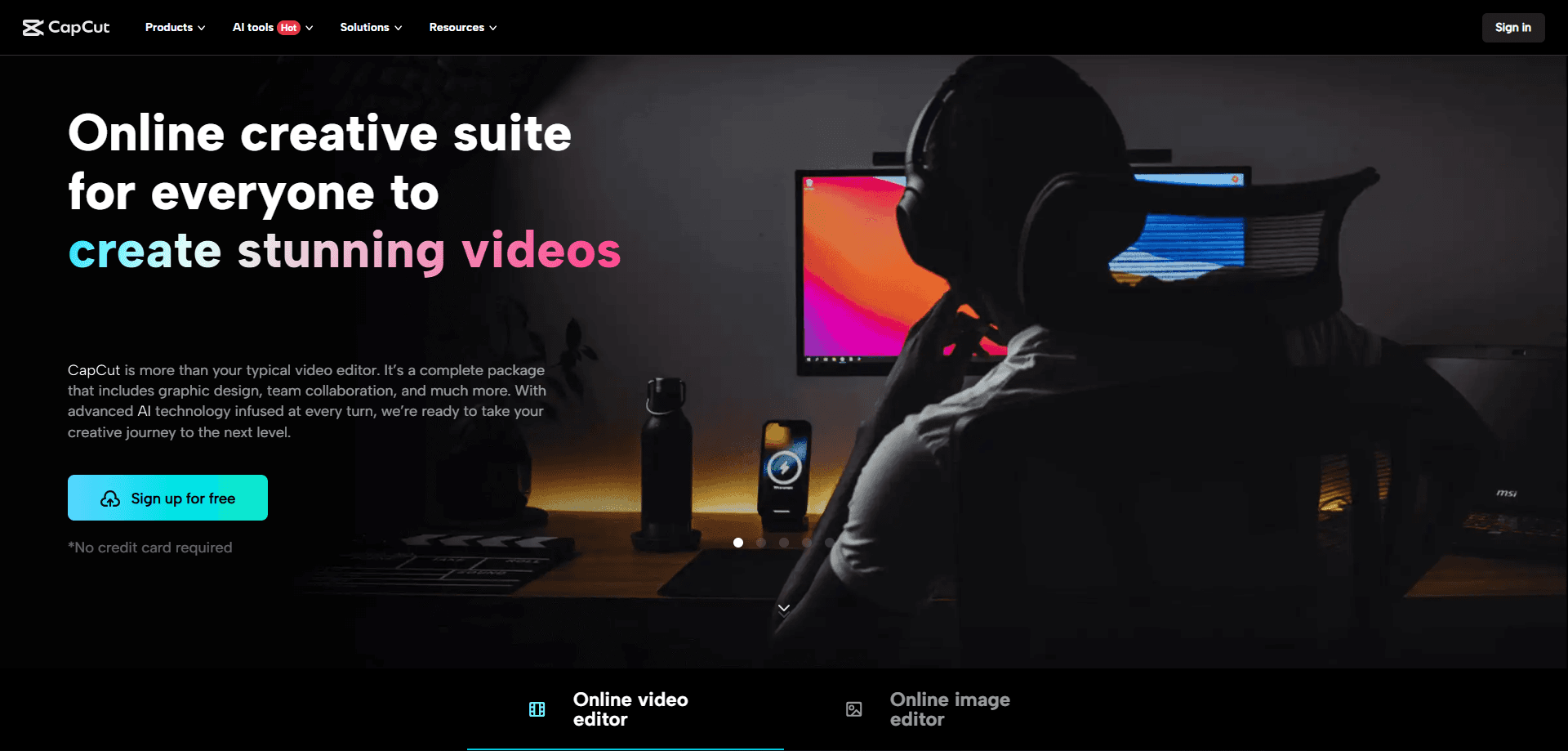
About CapCut Video and Image Editor
What Is CapCut Video and Image Editor
CapCut Video and Image Editor is a creative suite that covers video editing, photo editing and AI generation in one place. It grew out of the mobile editing habit of TikTok creators, so the whole product assumes you want a finished clip in minutes, not a week.
The main problem it solves is the gap between a rough phone recording and something worth posting. Instead of exporting to three apps, then re-importing footage and hunting for the same music track across each one, you get trimming, captions, color, music and effects in a single timeline that keeps every change in one place.
The catch is that the best assets sit behind Pro. Templates, stock effects and AI tools get you moving, but high-end features, some exports and the deeper library need a subscription, and that line between free and paid shifts as the product grows.
Not ideal for tight budgets.
Getting Started
- Open capcut.com in a browser or install the app, then sign in with an email, Google or TikTok account.
- Create a new project and drag your video, images or audio onto the timeline.
- Trim and arrange clips, then add auto captions, music and a template if you want a faster start.
- Make the final tweaks in the preview, adjust resolution and frame rate, and hit Export.
Product Information
A quick look at CapCut Video and Image Editor's pricing, supported platforms, and performance.
Best for
The users, tasks, and scenarios where this tool fits best.
Users
- Short-form creators
- Social media teams
- Beginners switching from phone editors
- Small businesses
Tasks
- Auto captioning
- Background removal
- Image editing
- Template remixing
Scenarios
- Posting a daily vlog before the trend fades.
- Cutting a product ad from a single phone shoot.
- Turning a long webinar into short highlight clips.
- Cleaning up a podcast with noise reduction and level matching.
Key features
AI-Powered Editing Tools
CapCut leans on AI for the fiddly jobs that eat time. Auto captions transcribe speech into editable subtitles, background removal pulls a person out of a clip without a green screen, and older footage can be sharpened with the upscaler. Sound good? It gets better. For creators who post often, these shortcuts matter more than any manual effect. Time saved is time you can spend on the next post.
Templates and Effects Library
The template library is where most people start. You pick a trending layout, drop in your clips, and CapCut handles the transitions, timing and music. It's the fastest route to a polished post. It also keeps you in step with whatever format is popular that week.
Cross-Platform Editing
Projects sync between the web editor, the mobile app and the desktop versions for Windows and macOS. Start a cut on your phone during a commute, finish it on a laptop at home. Simple. The interface shifts a little between platforms, so expect a short adjustment period when you switch.
Text, Captions and Subtitles
Beyond auto captions, you get text animations, fonts and subtitle styles that match current trends. Caption timing is adjustable, and you can restyle a whole subtitle track at once instead of fixing each line. For accessibility and silent-scroll viewers, this alone earns its place. Want proof? Turn on any big creator's video.
Audio Tools
CapCut bundles music, sound effects and voice tools into the timeline. You can separate vocals from a track, reduce background noise on a recording, and set levels without a separate audio app. Not bad for a free tool. The bundled music library is decent, but the biggest tracks push you toward Pro.
Image Editing
The image side handles retouching, background cleanup and resizing for product shots and thumbnails. It's lighter than a dedicated photo editor, but keeping images in the same project as your video saves the round trip to another app. One project, one export.
Export Quality and Format Options
Exports go up to 4K with control over resolution, frame rate and file size. Higher resolutions and some format options are tied to Pro, so free users sometimes export at a lower setting to stay within the limit, which is fine for social platforms but a problem when a client wants a master file they can archive and re-cut down the line.
Pros and cons
Pros
- Free tier covers real editing, not just a demo
- Auto captions and background removal save serious time
- Templates keep output on-trend without design skills
- Works across web, mobile and desktop with project sync
- Exports up to 4K and handles most common formats
Cons
- Best assets, some exports and many AI tools are locked behind Pro
- Watermark and export limits push free users toward paying
- Full feature parity between web and mobile isn't there yet
- Heavy projects can lag on older phones and laptops
Frequently asked questions
Yes, the core editor is free, and you can cut, caption and export without paying. Pro removes restrictions and unlocks the premium asset library, higher-end AI tools and some export options. That's the deal.
Related content
Explore related tools, skills, and articles for CapCut Video and Image Editor.
CapCut Video and Image Editor Alternatives

Google EmbeddingGemma 2
Google DeepMind · Writing · Image · CodingGoogle EmbeddingGemma 2 is a 740M-parameter open model that turns text, code, images, audio, and video frames into vectors in one 768-dimension space, running on phones and laptops.

Tractionwave
TractionWave · Image · MarketingTractionWave is an AI attention heatmap tool for static ads. Upload a PNG or JPG and it returns predicted attention, ranked hotspots, and fixes before you spend budget.

Imejis.io
Imejis.io · Image · MarketingImejis.io is an AI design studio for agents and marketing teams. Describe an image in plain words, and it writes the copy, builds the layout, reflows it to every size, then exports a finished file.