

ChatGPT for Google Sheets
OpenAI · Productivity
ChatGPT for Google Sheets is OpenAI's official add-on that puts a ChatGPT sidebar inside Google Sheets. You type a request in plain language and it creates, updates, or explains your spreadsheet, including formulas, references, and multi-tab workbooks. That's the pitch. It runs on your existing ChatGPT plan, so most users don't pay anything extra to try it.
About ChatGPT for Google Sheets
What Is ChatGPT for Google Sheets
ChatGPT for Google Sheets is an AI spreadsheet assistant built by OpenAI. It lives in a sidebar on the right side of the sheet rather than in a separate browser tab, so you don't have to copy data out, paste it back, and fix the formatting afterward.
The add-on handles three broad jobs. You can build a sheet from scratch, ask questions about a sheet you already have, and make updates in natural language. It's aimed at heavy spreadsheet work: multi-tab models, formulas with references, and files where assumptions are buried across several sheets.
There's a real limit worth knowing. OpenAI states that ChatGPT isn't a financial, legal, or tax advisor, and that AI can make mistakes. Treat every output as a draft to check, not a finished answer. Pricing and feature availability also shift, so the plan you're on determines what you actually get.
Getting Started
- Open the official ChatGPT for Google Sheets listing in the Google Workspace Marketplace and install the add-on with the Google account that holds your sheet.
- If your organization uses role-based access control, an admin may need to enable the add-on under Workspace settings, then Permissions and roles.
- Open a spreadsheet, then launch the ChatGPT sidebar from the Extensions menu.
- Select a range or name a tab, then type your request in plain language, for example ask it to fill a column, write a formula, or explain what a sheet is doing.
- Review the result, check any figures it produced, and apply or adjust the change before you rely on it.
Product Information
A quick look at ChatGPT for Google Sheets's pricing, supported platforms, and performance.
Best for
The users, tasks, and scenarios where this tool fits best.
Users
- Analysts who build multi-tab models
- Small business owners who watch their costs
- Students and researchers working with tabular data
Tasks
- Writing formulas
- Updating existing sheets
- Explaining a workbook
- Building a sheet from scratch
Scenarios
- Monthly reporting
- Cleaning messy exports
- Handoff documentation
Key features
In-Sheet Sidebar
The add-on lives in a sidebar inside Google Sheets, not in a separate window. You keep your file open and work on it directly, which matters most on large workbooks where jumping between tabs breaks your flow. It's simple. Chat history stays with the sheet session, so you can refine a request instead of starting over.
Create Spreadsheets From Prompts
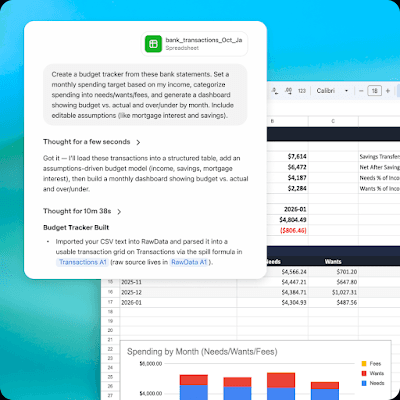
You can start from nothing and describe the sheet you want. Ask for a budget tracker, a content calendar, or a simple project log, and it lays out the structure and fills the first pass. It's a faster starting point than a blank grid. You'll still want to adjust headers and ranges to fit how you actually work.
Update and Extend Existing Sheets
The add-on edits sheets you already have, which is where most real work happens. Point it at a range or a tab and describe the change. It handles value edits, new columns, and reformatting, and it keeps your existing references intact so a small change doesn't quietly break the rest of the model.
Formula Generation and Explanation
Formula work is the core draw. Describe the calculation you want and get a working formula, or ask it to explain a formula someone else wrote. This is the feature that saves the most time for people who understand their data but not the spreadsheet syntax.
Cross-Tab Insights
It reads across multiple tabs, not just the one you're looking at. For a model split across input, calculation, and output sheets, you can ask a question about the whole thing and get an answer that accounts for the references between them. That's the difference between a chatbot bolted onto a grid and an assistant that understands the workbook.
Runs on Your ChatGPT Plan
Access flows from your ChatGPT subscription. OpenAI says the feature is available to Business, Enterprise, Edu, and K-12 users, along with Free, Go, Pro, and Plus users, worldwide. So if you already pay for ChatGPT, there's no second bill to start using it in Sheets. Not bad.
Excel Companion Experience
OpenAI built ChatGPT for Excel as a separate but similar experience, so the same workflow carries over if your team also works in Microsoft Excel. The add-ons aren't identical, but the create, ask, and update model stays consistent across both. One catch: two installs.
Pros and cons
Pros
- Works inside the sheet you already have, so no copy-and-paste round trips between tools.
- Reads across multiple tabs, which makes it useful on real models rather than single grids.
- Available on the Free tier, so you can test it before paying for anything.
- Handles both building new sheets and updating existing ones, covering the common cases in one place.
- Formula help works even when you don't know the correct syntax.
- Natural language prompts mean you type requests the way you'd say them out loud.
Cons
- It isn't a financial, legal, or tax advisor, so any advice-style output needs your own review before you act on it.
- AI can produce wrong figures, which means checking results is part of the workflow, not optional.
- Availability and limits track your ChatGPT plan and can change, so what you get on Free isn't guaranteed to stay the same.
- The Excel version is a separate add-on, so switching between Excel and Sheets means two installs.
Frequently asked questions
It's an AI assistant for spreadsheets. You use it to build new sheets, update existing ones, and understand what a workbook is doing, all through a sidebar inside Google Sheets. It handles formulas, references, and multi-tab files.
Related content
Explore related tools, skills, and articles for ChatGPT for Google Sheets.
ChatGPT for Google Sheets Alternatives

Base Code
Base44 (Wix) · Coding · ProductivityBase Code is a shared cloud development environment from Base44. Teammates describe changes to an existing GitHub codebase in chat, preview them live and send them back as pull requests.

Knocket
Knocket (Tencent RTC team) · Productivity · Business · ChatbotKnocket is a free live chat and contact page tool that lets visitors message you from your website, app, or a shareable link, with every reply handled from Telegram or one inbox.

FloorGen
Vinit Kumar (FloorGen) · Productivity · China AIFloorGen is a browser-based floor plan maker that turns a sentence or a sketch into an editable 2D plan and a 3D walkthrough. Export to PDF, DXF or video, and draw without an account.