
Clide
A8E Group Ltd. · Productivity
Clide is a macOS terminal app that pairs a normal shell with the visual conveniences you'd expect from a modern editor. Instead of a bare window and a blinking cursor, you get an integrated file explorer, grid layouts that hold several panes at once, drag-and-drop paths, voice input, and AI-written summaries of what a session actually did. Think of it as a command line tool that finally respects the way you work. It's built by A8E Group Ltd. for the people shipping their own PaeanAI product line, which tells you plenty about the audience it was made for.
About Clide
What Is Clide
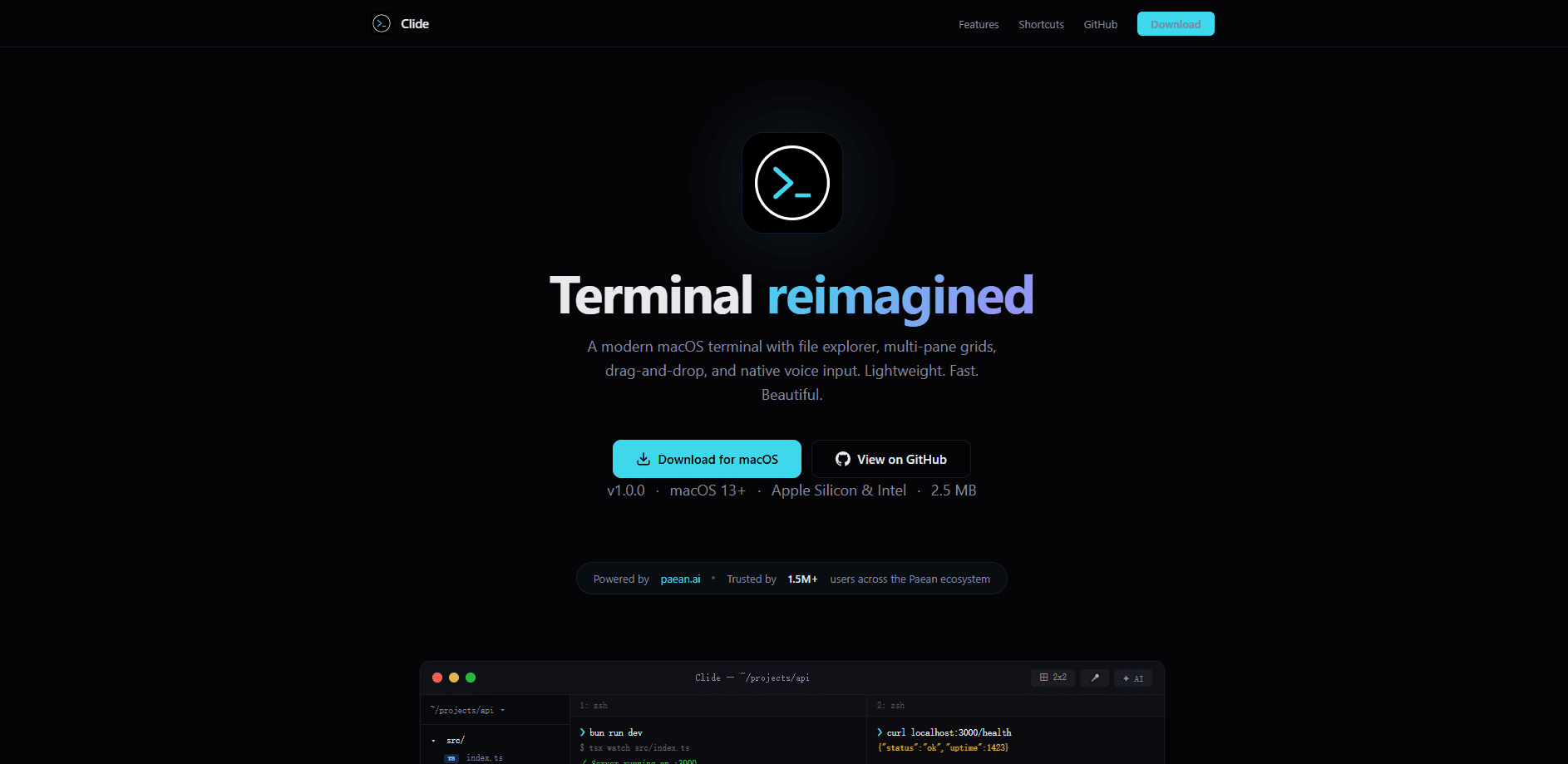
Clide is a native terminal for macOS that treats the command line as a workspace rather than a text box. A file explorer sits next to your shell, so you move between directories by clicking, not by typing long paths from memory. Panes can be arranged in a grid, which means you can watch a build, tail a log and edit a file without stacking windows on top of each other.
The bigger idea is memory. Long commands and messy sessions are hard to reconstruct later, and Clide attacks that with AI session summaries. When you come back to a session, you can read what ran instead of scrolling through hundreds of lines of output.
It's Apple-silicon only, so if you're on an older Intel Mac you'll want to check before committing. Voice input and the AI features also assume you're comfortable with a tool that watches your terminal, which is a real consideration for anyone working with sensitive code or credentials.
Getting Started
- Download Clide from the official site and drag it into your Applications folder.
- Launch it and grant the permissions it asks for, including microphone access if you plan to use voice input.
- Open a pane and start a shell session like you would in Terminal or iTerm2.
- Pull the file explorer next to your shell and drop files onto a pane to insert their paths.
- Run your work, then open the AI summary to review what the session did.
Product Information
A quick look at Clide's pricing, supported platforms, and performance.
Best for
The users, tasks, and scenarios where this tool fits best.
Users
- macOS developers who live in the shell but want a less punishing interface
- Product designers and operators on Mac who edit files and run scripts occasionally
- Teams already using AI coding agents
- Anyone on an older Intel Mac is probably out of luck, since Clide targets Apple silicon.
Tasks
- Reviewing what a long-running session did
- Editing config files and scripts
- Navigating deep project folders
- Running commands hands-free
Scenarios
- Debugging a build that keeps failing
- Jumping back into a session after a meeting
- Onboarding a teammate who's new to the command line
- Working from a laptop without a second monitor
Key features
Integrated File Explorer
Clide puts a file explorer directly beside your terminal, so browsing a directory tree doesn't mean leaving the shell. You can click into folders, spot the file you need and act on it without typing a path you half-remember. It's the single biggest break from how a traditional Mac terminal behaves. Simple, but it changes everything.
Grid Layouts for Multiple Panes
You can arrange panes in a grid instead of a single column. That matters when a task involves watching several things at once, like a test runner, a log file and an editor. On a laptop screen this replaces the window-juggling that most terminal users tolerate by default. Call it a split pane terminal and you'd be describing it well.
Drag-and-Drop Paths
Dragging a file onto a pane drops its path where your cursor sits. It's a small touch that saves real time when you're working with files buried several folders deep. If you've ever copied a path by hand and mistyped it, you'll notice the difference immediately. Not ideal to go back.
Native Voice Input
Voice input is built into the terminal rather than bolted on with a third-party script. You can dictate a command without reaching for the keyboard, which is handy when your hands are busy or you're reading instructions from a phone or second device. It won't replace typing for precise work, but it earns its place for quick commands. Hands free. Nice.
AI Session Summaries
Clide writes a summary of what happened in a session, so you don't have to reconstruct it from raw output. For long agent runs or sprawling debugging sessions, that's the difference between a clear handoff and a pile of scrollback. It's the feature that gives the app its name and its angle. Big time saver.
Built by Practitioners
Clide began as an internal tool at A8E Group Ltd., used daily by the engineers and designers shipping the PaeanAI product line. That origin shows in the feature choices: it's made by people who spend their day in the terminal rather than for a generic productivity audience. So why should you care? Mostly because the people building it hit the same annoyances you do.
Pros and cons
Pros
- The file explorer and grid panes remove a lot of friction for anyone who works in a Mac terminal all day.
- Voice input is native, so there's no separate setup to fight with.
- AI session summaries are a real time-saver for agent-heavy or long debugging sessions.
- Drag-and-drop paths make deep-folder work noticeably faster.
- macOS-native, so it fits the platform rather than feeling ported.
Cons
- Little public detail on pricing, so you'll need to check the official site before planning a budget.
- Voice input and AI summaries send session context through an AI layer, which some teams won't allow for sensitive work.
- No Windows or Linux version means it's a Mac-only bet.
- Anyone on an Intel Mac should confirm compatibility, since the app is aimed at Apple silicon.
Frequently asked questions
Clide is a terminal app for Mac users who run commands, edit files and manage projects. It adds a file explorer, split-pane grids, voice input and AI session summaries on top of a standard shell, so it suits developers and designers who spend a lot of time on the command line.
Related content
Explore related tools, skills, and articles for Clide.
Clide Alternatives

Base Code
Base44 (Wix) · Coding · ProductivityBase Code is a shared cloud development environment from Base44. Teammates describe changes to an existing GitHub codebase in chat, preview them live and send them back as pull requests.

Knocket
Knocket (Tencent RTC team) · Productivity · Business · ChatbotKnocket is a free live chat and contact page tool that lets visitors message you from your website, app, or a shareable link, with every reply handled from Telegram or one inbox.

FloorGen
Vinit Kumar (FloorGen) · Productivity · China AIFloorGen is a browser-based floor plan maker that turns a sentence or a sketch into an editable 2D plan and a 3D walkthrough. Export to PDF, DXF or video, and draw without an account.