

Cursor Convo Export extension
Edwin Klesman · Productivity · Chatbot
Cursor Convo Export is a Cursor AI extension that saves your chat history to a new window or a timestamped Markdown or HTML file, so good AI answers survive and frozen chats can start over.
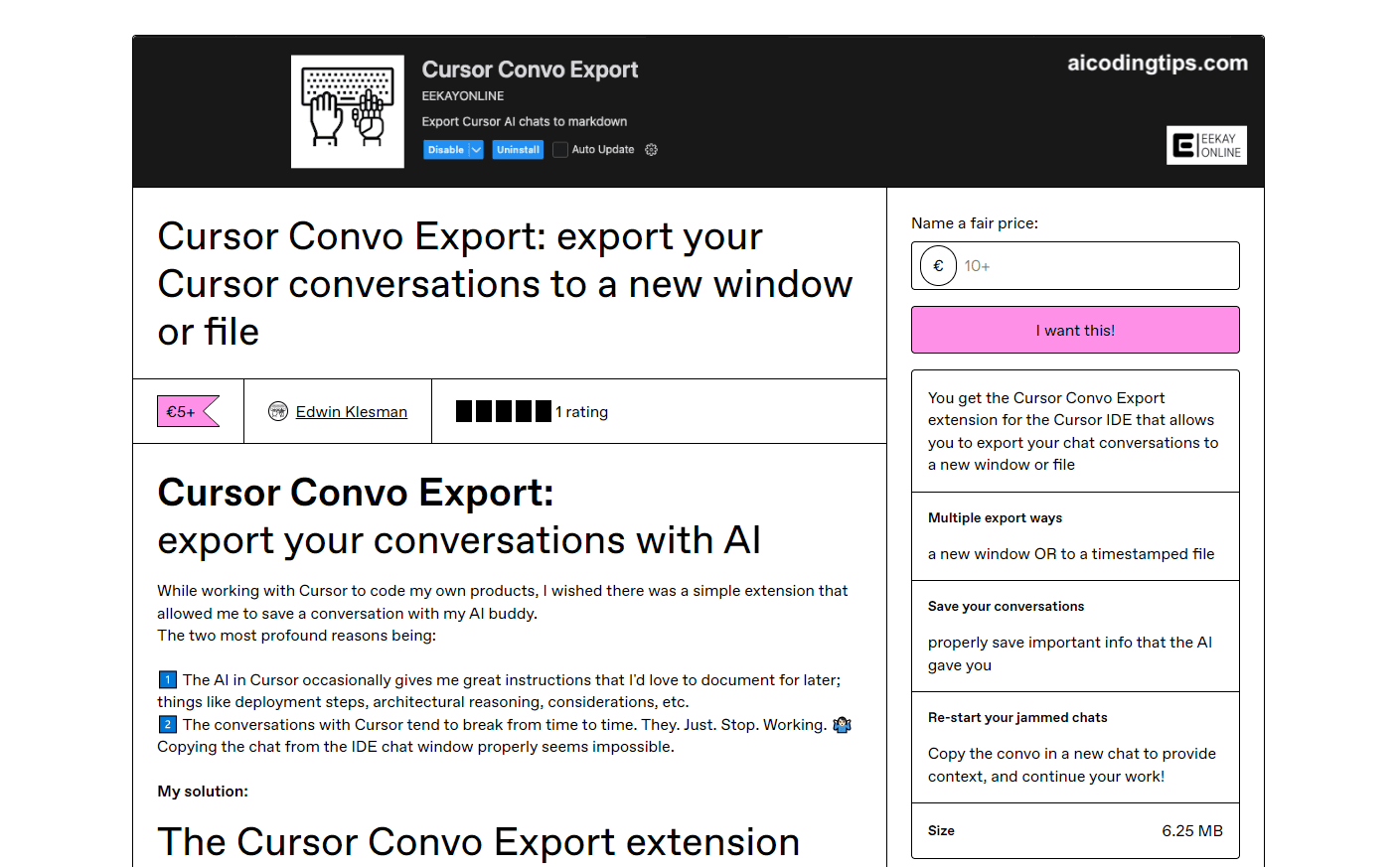
About Cursor Convo Export extension
What Is Cursor Convo Export
Cursor Convo Export is a small add-on for the Cursor AI code editor. It takes the conversation you just had with the AI and writes it out as a clean document you can keep. Two formats are on offer: Markdown for notes and repos, and HTML for something you want to read in a browser.
The problem it solves is easy to miss until it bites you. Cursor keeps chats in a local database, and the app has no built-in button to export Cursor conversations in full. Copying from the chat window by hand loses formatting, code blocks, and the order of messages. Long sessions also tend to freeze or drop out, and once a chat stops responding, the back-and-forth inside it is hard to get back. That matters because Cursor often hands you the useful part in prose: deployment steps, architectural reasoning, edge cases to watch. That text is worth keeping, and this extension makes it a file.
The extension was built and sold by Edwin Klesman, an independent developer, through his Gumroad store. It is a Cursor-specific tool, not a general VS Code extension, and that narrow focus cuts both ways. It does one job well, but it only works inside Cursor and does not touch other editors.
Getting Started
- Buy the extension from the maker's Gumroad page. You get a
.vsixfile to download. - In Cursor, open the extensions panel and drop the
cursor-convo-export.vsixfile into the list to install it. - Open a chat you want to keep, then press Ctrl+Shift+P on Windows or Cmd+Shift+P on Mac to open the command palette.
- Run
Cursor: Export Chat History, then pick a chat. It defaults to the most recent one. - Choose where the output goes: a new Markdown or HTML document, or a timestamped file saved to disk.
Product Information
A quick look at Cursor Convo Export extension's pricing, supported platforms, and performance.
Best for
The users, tasks, and scenarios where this tool fits best.
Users
- Developers who code daily in Cursor
- Solo builders and indie makers
- Teams that document their process
Tasks
- Saving AI deployment instructions
- Backing up architectural reasoning
- Making a Cursor chat backup
- Restarting a frozen chat
Scenarios
- A long session that hangs mid-task
- Handing context to a teammate
- Building a personal knowledge base
Key features
Export to a new window or file
The core move is simple. Pick a chat, and the extension writes it into a new document or a timestamped file. You choose Markdown for plain text you can edit anywhere, or HTML for a version that keeps its look in a browser. Either way you end up with the whole conversation as one piece, not a pile of copied fragments.
Timestamped, well structured output
Exports keep the original timestamps and the order of the messages. That matters when you come back weeks later and need to know which answer came before a change. Code blocks stay intact, and the structure reads like the chat did, so a saved export is still usable as a reference rather than a wall of text.
One-click through the command palette
You do not need to hunt through menus. The command palette entry Cursor: Export Chat History does the work, and a status bar shortcut labeled Export Chat sits in the bottom right for a faster trigger. Pick the chat, pick the format, done. Setup is a single .vsix drop into the extensions list.
HTML output for sharing
An update added HTML as a second format. Markdown is the better pick for editing and storing, while HTML is the better pick when you want to send someone a readable page that keeps its formatting. Having both means the export fits the moment instead of forcing one shape.
Cursor-specific by design
The extension only works inside Cursor and is not built for VS Code. That is a limitation and a feature at the same time. Because it targets one editor, there are no cross-editor settings to reconcile, and the command lives where Cursor users already work. If your team lives in Cursor, that narrow scope keeps things simple.
Pros and cons
Pros
- Keeps the exact text: exports preserve messages, timestamps, and code blocks instead of losing them to a manual copy.
- Two formats in one tool: Markdown for notes and repos, HTML for a shareable page.
- Cheap and one-time: a €7 purchase with no recurring fee, which suits occasional use.
- Fast trigger: the command palette and the status bar shortcut both start an export in seconds.
- Rescues stuck chats: a frozen conversation can be exported and carried into a fresh one with its context intact.
Cons
- Cursor only: it will not run in VS Code or other editors, so mixed teams cannot share one setup.
- Manual install: you drop a `.vsix` file by hand rather than installing from an extension marketplace.
- Solo product: it comes from one independent maker, so support and update pace depend on that one person.
- Basic scope: it exports chats, and it does not add search, tagging, or a built-in history browser.
Frequently asked questions
It saves your Cursor AI chat history to a new window or a timestamped file. You can save a conversation as Markdown or HTML, and the export keeps the messages, their order, and their timestamps.
Related content
Explore related tools, skills, and articles for Cursor Convo Export extension.
Cursor Convo Export extension Alternatives

Base Code
Base44 (Wix) · Coding · ProductivityBase Code is a shared cloud development environment from Base44. Teammates describe changes to an existing GitHub codebase in chat, preview them live and send them back as pull requests.

Knocket
Knocket (Tencent RTC team) · Productivity · Business · ChatbotKnocket is a free live chat and contact page tool that lets visitors message you from your website, app, or a shareable link, with every reply handled from Telegram or one inbox.

FloorGen
Vinit Kumar (FloorGen) · Productivity · China AIFloorGen is a browser-based floor plan maker that turns a sentence or a sketch into an editable 2D plan and a 3D walkthrough. Export to PDF, DXF or video, and draw without an account.