

Dayflow
Jerry Z. Liu · Productivity
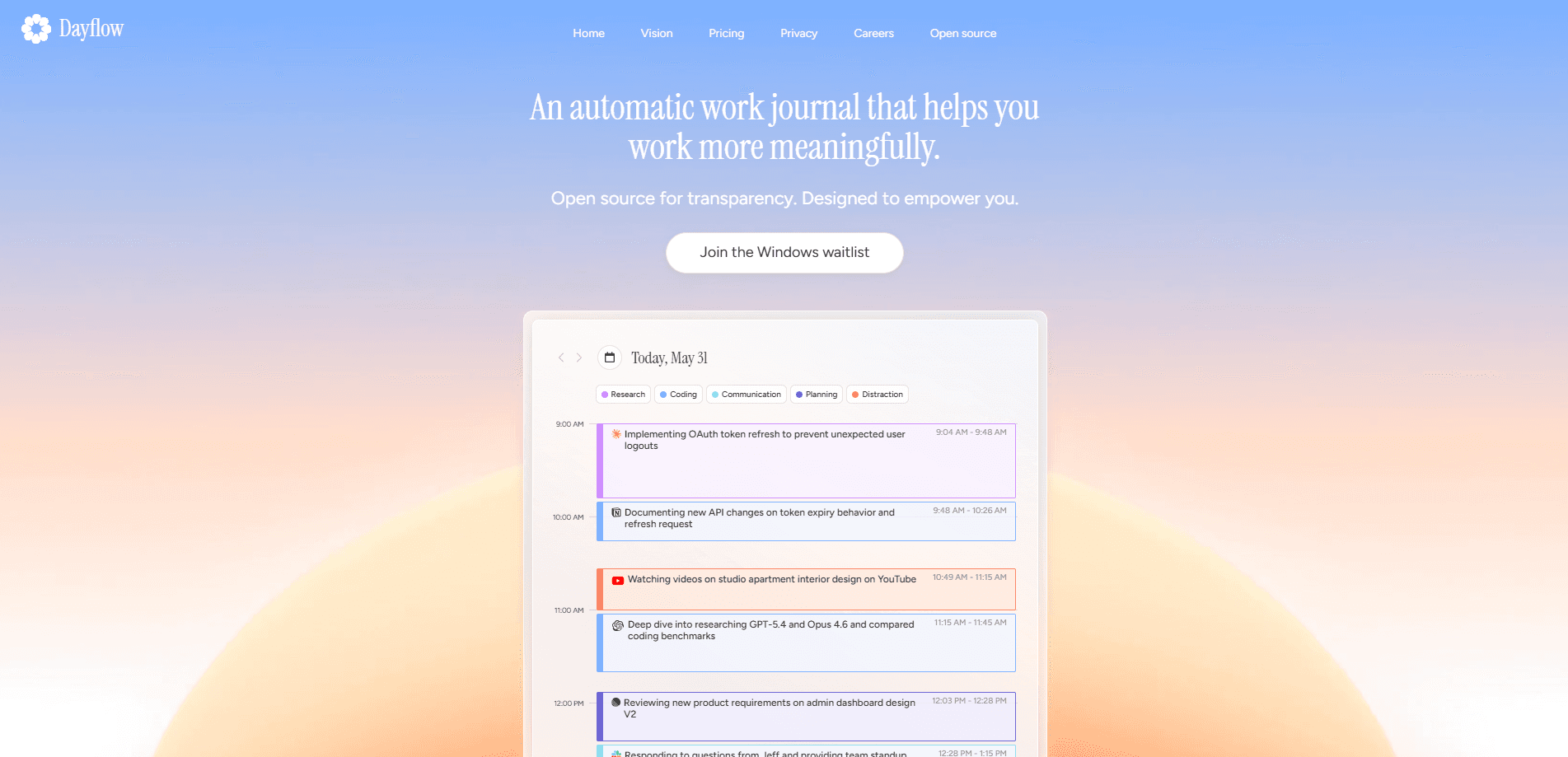
Dayflow is an open-source automatic time tracker for Mac that records lightweight screen snapshots and uses AI to turn your day into a readable timeline. Instead of charts of app usage, it writes a work journal you can search, so you never start a timer or tag anything by hand. It's a local-first productivity app at heart. Recordings and databases stay on your Mac, and you can run the analysis with a local model or your own AI provider.
About Dayflow
What Is Dayflow
Dayflow is a automatic time tracker for Mac that solves a stubborn problem: you finish a busy day and have no honest record of where the hours went. Most trackers log app names and hand you a chart. Dayflow looks at what was actually on your screen, then writes it into a timeline with summaries. It can tell the difference between "researching on YouTube" and "watching cat videos," which is the part app-name tracking usually gets wrong.
The app is open source under the MIT license, so you can read the code, audit the network behavior, or build it yourself. That matters because it watches your screen all day, and screen history is about as sensitive as data gets. Dayflow is local-first: full recordings and the database stay on your Mac, and you choose whether analysis runs on-device or through your own Gemini, OpenAI, or Anthropic key.
The main limit is the platform. This is a Mac app only, so there's no Windows, Android, or web version. Cloud AI means selected screenshots leave your machine, but only for the analysis and only if you pick that mode. Free users bring their own provider key. Everyone else pays $20 a month for managed analysis.
Getting Started
- Download the app from the Dayflow site and install it on your Mac.
- Grant screen recording permission when macOS asks, since capture is the whole point.
- Pick an AI mode: a local model through Ollama or LM Studio, your own Gemini, OpenAI, or Anthropic key, or the managed Dayflow Pro service.
- Set a storage limit so old recordings get cleaned up automatically.
- Let it run for a day, then open the timeline to see your activity cards and summaries.
Product Information
A quick look at Dayflow's pricing, supported platforms, and performance.
Best for
The users, tasks, and scenarios where this tool fits best.
Users
- Developers and designers
- Remote workers on standups
- Freelancers and consultants
Tasks
- Reconstructing a lost day
- Writing status updates
- Spotting distractions
Scenarios
- End-of-week reviews
- Deep-work planning
- Personal record keeping
Key features
Automatic timeline
Dayflow captures lightweight screen chunks, analyzes them with your chosen AI provider, and turns the day into activity cards. That's automatic time tracking with no timers to start. You get an accurate work journal without writing notes, and the timeline fills itself in as you work.
Context-aware summaries
The app reads what was actually on screen, not just which app was open. Cursor, Chrome, YouTube, and Slack become meaningful work context instead of vague app usage. A long YouTube stretch shows up as research when that's what it was.
Daily standup and weekly review
Dayflow pulls yesterday's highlights, today's tasks, and blockers from your timeline for standup prep. The weekly view then aggregates focus patterns, categories, and app usage so you can see where the week went and which habits helped or hurt. No manual logging. It reads like an AI time tracking report, minus the setup.
Chat with your work journal
You can ask natural-language questions about your day, week, or year and get answers grounded in your timeline. Where did Tuesday go? The chat will tell you. It's the fastest way to recover a detail or explain a gap without digging through notes.
Local-first storage
Recordings, timeline data, and the app database stay on your Mac by default. You stay in control of sensitive screen history and can delete it whenever you want. Automatic cleanup purges old recordings once you set a storage limit.
AI provider choice
Run a local model through Ollama or LM Studio, or connect your own Gemini, OpenAI, or Claude key. The managed Dayflow Pro option handles configuration for $20 a month. You trade off privacy, cost, and summary quality instead of being locked into one backend.
Screen activity tracker built for review
This is a screen activity tracker that turns raw capture into something you can revisit. Export your timeline as Markdown for any date range. Use it for status updates, client notes, personal reviews, or a searchable record you own outright.
Pros and cons
Pros
- Writes a readable day summary instead of raw app-usage charts, so the output is actually useful for reviews
- Open source under MIT, which means you can verify what the app does with your screen data
- Local-first storage keeps full recordings on your Mac by default
- Choice of local AI or your own provider key, with no forced subscription on the free plan
- Fast standup prep from yesterday's highlights, today's tasks, and blockers
Cons
- Mac only, so Windows, Android, and web users get nothing from it
- Cloud analysis modes send selected screenshots off your device, which won't suit everyone
- The free plan requires you to set up and pay for a separate AI provider key
- Screen recording permission is mandatory, and some workplaces block that outright
Frequently asked questions
Yes, with a twist. It does what people want from an automatic time tracker for Mac: a truthful record of where your time went with no manual timers or tags. Instead of charts, you get a readable story of your day. That's why the team calls it a time tracker that grew into a work journal.
Related content
Explore related tools, skills, and articles for Dayflow.
Dayflow Alternatives

Base Code
Base44 (Wix) · Coding · ProductivityBase Code is a shared cloud development environment from Base44. Teammates describe changes to an existing GitHub codebase in chat, preview them live and send them back as pull requests.

Knocket
Knocket (Tencent RTC team) · Productivity · Business · ChatbotKnocket is a free live chat and contact page tool that lets visitors message you from your website, app, or a shareable link, with every reply handled from Telegram or one inbox.

FloorGen
Vinit Kumar (FloorGen) · Productivity · China AIFloorGen is a browser-based floor plan maker that turns a sentence or a sketch into an editable 2D plan and a 3D walkthrough. Export to PDF, DXF or video, and draw without an account.