

Didon
Didon · Productivity
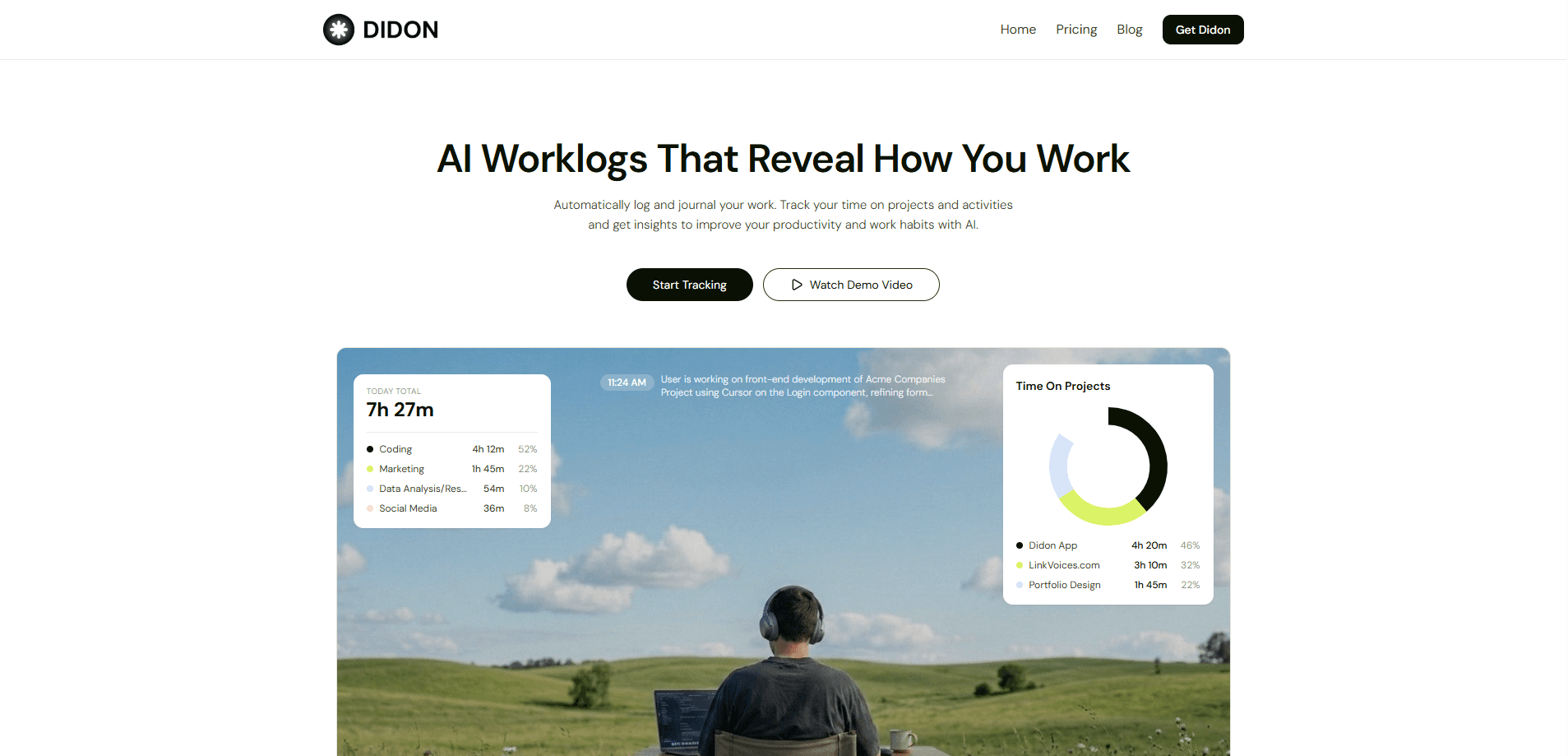
Didon is a Mac time tracker that watches your screen, labels the work with a local AI model, and turns each day into searchable work logs and CSV reports, with no timers to start.
About Didon
What Is Didon
Didon is a macOS app that keeps a record of your workday by looking at your screen instead of asking you to press start. You list your projects once, click Start in the menu bar, and the app captures a screenshot every 30 seconds. A vision model reads window titles, file names, and visible text, then assigns that slice of time to a project or category.
The model runs on your own machine through Ollama, using qwen3-vl:2b-instruct by default and an optional 4B version for Macs with 16 GB of RAM or more. Screenshots are processed locally and are not uploaded. Work logs are written to ~/Documents/Didon/ as one CSV file per day, plus a running summary file called Daily-Reports.csv.
What you get at the end of the day is closer to a journal than a timesheet. You can open the Report tab for time by project and category, or ask plain questions about your logs and read the answer. The app suits one person tracking their own hours. It is not a team monitoring product: there is no admin dashboard, no remote screen viewing, and no native link to Jira, Asana, or Linear yet.
Two limits matter before you install anything. Didon runs only on Apple Silicon Macs (M1 and later), so Intel machines are out, and Windows is still on a waitlist. The app also is not notarized by Apple yet, which means macOS Gatekeeper can block the first launch until you remove the quarantine flag in Terminal.
Getting Started
- Create an account on the Didon site and pick a plan from the dashboard. The free plan works without a card.
- Download the macOS build, unzip it, and drag Didon.app into your Applications folder.
- Install Ollama, then pull the vision model with
ollama pull qwen3-vl:2b-instruct. Skip this and the app opens but never analyzes anything. - Launch Didon and allow Screen Recording in System Settings, then reopen the app so the permission takes effect.
- Add your projects and activity categories as comma-separated names, click Start in the menu bar, and work as usual.
Product Information
A quick look at Didon's pricing, supported platforms, and performance.
Best for
The users, tasks, and scenarios where this tool fits best.
Users
- Freelancers who bill by the hour
- Remote developers and designers
- People who tried RescueTime and wanted more detail
Tasks
- Rebuilding a lost timesheet
- Checking where a project ate the week
- Writing a weekly update
Scenarios
- A client asks for a breakdown of last month
- You work in bursts across four apps
- You share a Mac with sensitive material on screen
Key features
Screen capture every 30 seconds
Didon takes a screenshot of the active display on a fixed 30-second cycle while monitoring is on. Each frame goes to the local model with the window title and app name. The result is a stream of short activity blocks rather than one number per day, so you can see a morning of email followed by two hours in an editor. That detail is what separates it from ordinary screen time tracking.
On-device AI analysis
The vision model runs through Ollama on your Mac. There is no cloud account for analysis, and the app does not send screenshots to Didon's servers. During each cycle the model loads, reads the image, and unloads again, which keeps memory stable over a long session. Expect roughly 2 GB of RAM in use while a frame is being processed.
Project and category context
You give the app a list of project names and activity categories, and it matches what it sees on screen against that list. File names, project names in visible text, and browser tab titles all count as signals. Anything that does not match lands in an "Other" bucket, which is a useful hint that your naming is too vague.
Natural-language questions about your logs
Once a few days of history exist, you can ask the journal questions in ordinary language, such as how much time went to a client last week. The answer comes from your local logs. This is the part that feels different from a dashboard: you do not have to know which chart to open.
Daily CSV logs and reports
Every day produces a detailed log at ~/Documents/Didon/WorkLogs/YYYY-MM-DD.csv, and the app keeps a summary file at ~/Documents/Didon/Daily-Reports.csv. Exports are plain CSV, so they open in Excel, Numbers, or a billing tool. Paid plans remove the export limit.
Reports, metrics, and idle handling
The Report tab shows time by project, activity breakdowns, and weekly or monthly totals. Didon starts with your Mac and pauses when the machine sleeps, and it detects inactivity so idle hours are not counted as work. That combination is what makes automatic time tracking on Mac tolerable over months rather than days.
Pros and cons
Pros
- No timers to start or stop, which removes the main reason people abandon time tracking after two weeks.
- Screenshots and analysis stay on the machine, so a private time tracker does not require trusting a vendor with screen content.
- The €49 Forever license costs less than six months of the €9 subscription and keeps working on that Mac.
- Logs are plain CSV files in a folder you can back up, so your history is not locked inside the app.
- Idle detection and auto-pause keep the numbers close to actual working time.
Cons
- Apple Silicon only. An Intel Mac cannot run it at all, and there is no Windows build yet.
- Setup assumes comfort with Terminal, Ollama, and a quarantine command before the first launch.
- The free plan stops at one week of history and blocks exports, so it works as a trial more than a long-term free tier.
- No integrations or team features. Billing, invoicing, and project management all happen outside the app.
Frequently asked questions
No. After the model is downloaded, screen analysis runs locally through Ollama and works offline. You still need a connection for signup, downloads, and app updates.
Related content
Explore related tools, skills, and articles for Didon.
Didon Alternatives

Base Code
Base44 (Wix) · Coding · ProductivityBase Code is a shared cloud development environment from Base44. Teammates describe changes to an existing GitHub codebase in chat, preview them live and send them back as pull requests.

Knocket
Knocket (Tencent RTC team) · Productivity · Business · ChatbotKnocket is a free live chat and contact page tool that lets visitors message you from your website, app, or a shareable link, with every reply handled from Telegram or one inbox.

FloorGen
Vinit Kumar (FloorGen) · Productivity · China AIFloorGen is a browser-based floor plan maker that turns a sentence or a sketch into an editable 2D plan and a 3D walkthrough. Export to PDF, DXF or video, and draw without an account.