
Gaze Guard
Gaze Guard · Image
Gaze Guard is a privacy-focused menu bar utility for Mac that hides your screen when your attention drifts or someone nearby takes a look. As a macOS privacy app, it runs face tracking through the built-in camera and blurs your content automatically, so a glance away from the desk doesn't turn into a leaked spreadsheet. There's no button to press and no hotkey to remember. This Mac menu bar app watches your gaze and the faces around you, then covers your windows the second either one raises a flag.
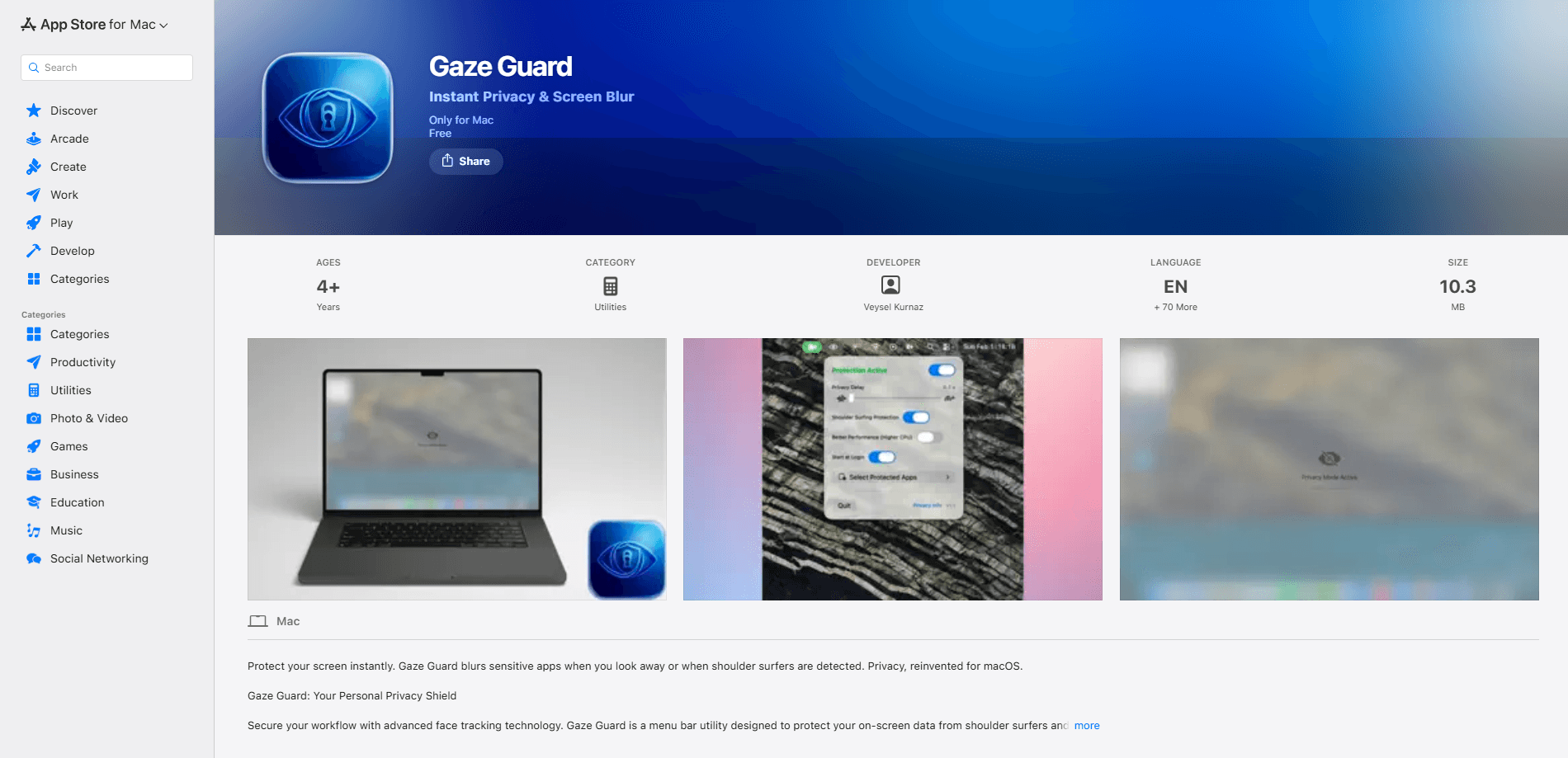
About Gaze Guard
What Is Gaze Guard
Gaze Guard is a Mac-only utility that turns your webcam into a privacy sensor. It lives in the menu bar and keeps an eye on two things at once. First, are you still looking at the screen? Second, has a new face entered the frame? Either signal is enough to trigger a blur, which hides whatever you were reading, typing, or reviewing.
The problem it solves is old and very human. You step away from your desk in an open office, a coffee shop, or a train, and your screen just sits there. Anyone walking past gets a free look at your inbox, your client list, or your half-finished contract. Gaze Guard closes that gap without you doing anything. There's a real trade-off here. The camera has to stay available while the app runs, so you're accepting continuous local camera access in exchange for hands-free protection.
Pricing is the part we couldn't fully confirm from the App Store listing at the time of writing, so treat the figures in the Info table as an estimate rather than a quote. The core privacy claim, on-device face tracking for automatic screen blurring, is the one to focus on.
Getting Started
- Download Gaze Guard from the Mac App Store using the link tied to this product.
- Open the app and grant camera access when macOS asks, since face tracking can't work without it.
- Leave Gaze Guard running in the menu bar and adjust the detection sensitivity if the default triggers too often or too rarely.
- Look away from the screen to test it: the blur should kick in within a moment, and clear again once you return.
Product Information
A quick look at Gaze Guard's pricing, supported platforms, and performance.
Best for
The users, tasks, and scenarios where this tool fits best.
Users
- Remote and hybrid workers
- Freelancers handling client data
- Privacy-minded Mac users
Tasks
- Auto-blurring sensitive windows when you leave the desk
- Blocking shoulder-surfing in public
- Reading in short bursts without manual controls
Scenarios
- Open-plan offices with desks near walkways
- Cafes and co-working spots
- Trains and flights
Key features
Automatic Screen Blurring
Gaze Guard blurs your screen content the moment it decides you've looked away. No hotkey. No menu click. No timer. The blur reverses itself once your gaze returns, so the flow is look down, screen hides, look up, screen returns. It's built for the small, constant interruptions that make manual privacy steps useless in practice. Set it once and forget it.
On-Device Face Tracking
The app uses the Mac's built-in camera to track your face and the direction of your gaze. According to the developer, the analysis runs locally rather than shipping frames to a server, which matters if you're already uneasy about camera-based tools. The practical result is a screen blur utility that reacts on its own, with no cloud round trip and no frames leaving your machine.
Shoulder-Surfing Detection
Beyond your own gaze, Gaze Guard looks for additional faces in the frame. If someone leans in behind you, that second face becomes the trigger, and the screen blurs before they can read it. This is the shoulder surfing protection that separates it from plain screen-lock timers, which only react to time, not to who's standing there.
Menu Bar Footprint
Everything runs from the menu bar. There's no window to keep open and no dashboard to babysit. For a utility you want always on, that matters: the less it asks of you, the more likely it stays running. Settings live behind the menu bar icon, so tuning sensitivity is a quick detour rather than a separate app.
Sensitivity Controls
Detection isn't one-size-fits-all. A desk with a clear camera view behaves differently from a cramped train seat. Gaze Guard lets you dial the sensitivity so the blur fires when you want it to and stays out of the way when you don't. Too aggressive and it blurs mid-sentence. Too soft and it misses the point.
Pros and cons
Pros
- Hands-free protection: the screen hides itself, so privacy doesn't depend on you remembering a hotkey.
- Works on two signals, not one: it reacts to your gaze and to a second face nearby.
- Local processing claim keeps face data on the Mac instead of sending it off.
- Minimal footprint: a menu bar utility that doesn't add another window to manage.
Cons
- The camera stays active while the app runs, which is a real commitment for privacy-focused users.
- Mac only, so it does nothing for Windows or Android devices in a mixed setup.
- Face tracking can misfire in bad lighting or with an unusual camera angle, blurring when it shouldn't.
- If you aren't sure about the pricing yet, you'll want to check the App Store listing before buying.
Frequently asked questions
It blurs your Mac screen automatically when you look away or when someone else's face appears in the camera view. You don't press anything; the app watches for both signals and hides your content on its own.
Related content
Explore related tools, skills, and articles for Gaze Guard.
Gaze Guard Alternatives

Google EmbeddingGemma 2
Google DeepMind · Writing · Image · CodingGoogle EmbeddingGemma 2 is a 740M-parameter open model that turns text, code, images, audio, and video frames into vectors in one 768-dimension space, running on phones and laptops.

Tractionwave
TractionWave · Image · MarketingTractionWave is an AI attention heatmap tool for static ads. Upload a PNG or JPG and it returns predicted attention, ranked hotspots, and fixes before you spend budget.

Imejis.io
Imejis.io · Image · MarketingImejis.io is an AI design studio for agents and marketing teams. Describe an image in plain words, and it writes the copy, builds the layout, reflows it to every size, then exports a finished file.