

GesturePresent
Hussain Zaidi · Productivity
GesturePresent is a small Windows app that lets you move through slides by rotating your hand in front of a webcam. It replaces a clicker or a keyboard tap with a single motion: rotate right to go forward, rotate left to go back. The tool runs entirely on your machine, keeps no recordings, and costs a one-time $9 on Gumroad, which makes it a practical pick for students, teachers, and anyone who presents from across the room and doesn't want to keep walking back to the laptop. It's a gesture control app in the strictest sense: one job, done quietly.
About GesturePresent
What Is GesturePresent
GesturePresent is a gesture presentation controller built for one job: advancing slides without touching anything. Point your webcam at yourself, and the app watches for hand rotation. Turn your hand one way and the next slide appears; turn it the other way and you step back. So what's the catch? There isn't much of one, as long as you're on Windows and have a webcam. There's no remote to hold, no keyboard shortcut to memorize, and no companion app on your phone.
It's a solo project by Hussain Zaidi, a student developer. He built it to solve his own problem while taking notes across a table from his laptop. The tool ships as a Windows executable (GesturePresent.exe) and works alongside PowerPoint, running only while you're in a slideshow. If you've ever wanted PowerPoint gesture control without buying a gadget, this is the shortest path to it.
The biggest constraint is scope, and the developer is upfront about it. GesturePresent supports Windows 10 and 11 only, needs a webcam, and handles two gestures. No annotation. No laser pointer. If you want slide-jumping shortcuts, this isn't that tool. It does one thing and stays out of the way.
Getting Started
- Download GesturePresent.exe from Gumroad, itch.io, or the official site and unzip it.
- In PowerPoint or your slide app, start the slideshow (press F5) and keep that window focused.
- Launch GesturePresent.exe and click Start to turn on the webcam.
- Hold your hand steady during the short calibration, then rotate right for the next slide or left for the previous one.
- Optional: toggle Enable camera feed to see what the app sees when detection feels off.
Product Information
A quick look at GesturePresent's pricing, supported platforms, and performance.
Best for
The users, tasks, and scenarios where this tool fits best.
Users
- Students who sit away from their laptop during lectures or study sessions and would rather not walk back to tap a key
- Teachers and professors presenting over video who want to stay on camera instead of reaching for a device
- Remote workers who want their virtual demos to look smooth and hands-free
- Presenters on a budget who are tired of paying $30 or more for a hardware clicker
Tasks
- Moving through a slide deck during a live talk or class without breaking your flow
- Running product demos where you're standing away from the machine
- Taking notes across the table while stepping through slides at your own pace
- Practicing a presentation at a distance, the way a real audience would see it
Scenarios
- A classroom with the laptop on a lectern and the instructor pacing the front
- A sales call where you're gesturing toward the screen and can't touch the keyboard
- A study group where the laptop sits at the end of the table
- Any low-light room where the detection is designed to keep working
Key features
Hand Rotation Slide Control
The core gesture is simple. GesturePresent locates your hand in the webcam frame, then reads whether you rotate left or right. Right advances, left goes back. That single motion replaces every click you'd normally make while standing in front of an audience. There's nothing to learn beyond the two directions.
Works in Low Light and at Distance
Many webcam-based tools fall apart when the room is dim or you're a few feet from the lens. This one is tuned to hold up in both cases, which matters in classrooms and conference rooms where lighting is often poor. Not ideal in a blacked-out auditorium, but closer than most. The developer positions it as reliable enough to trust mid-presentation, not just in ideal conditions.
Dev Cam Live Feed
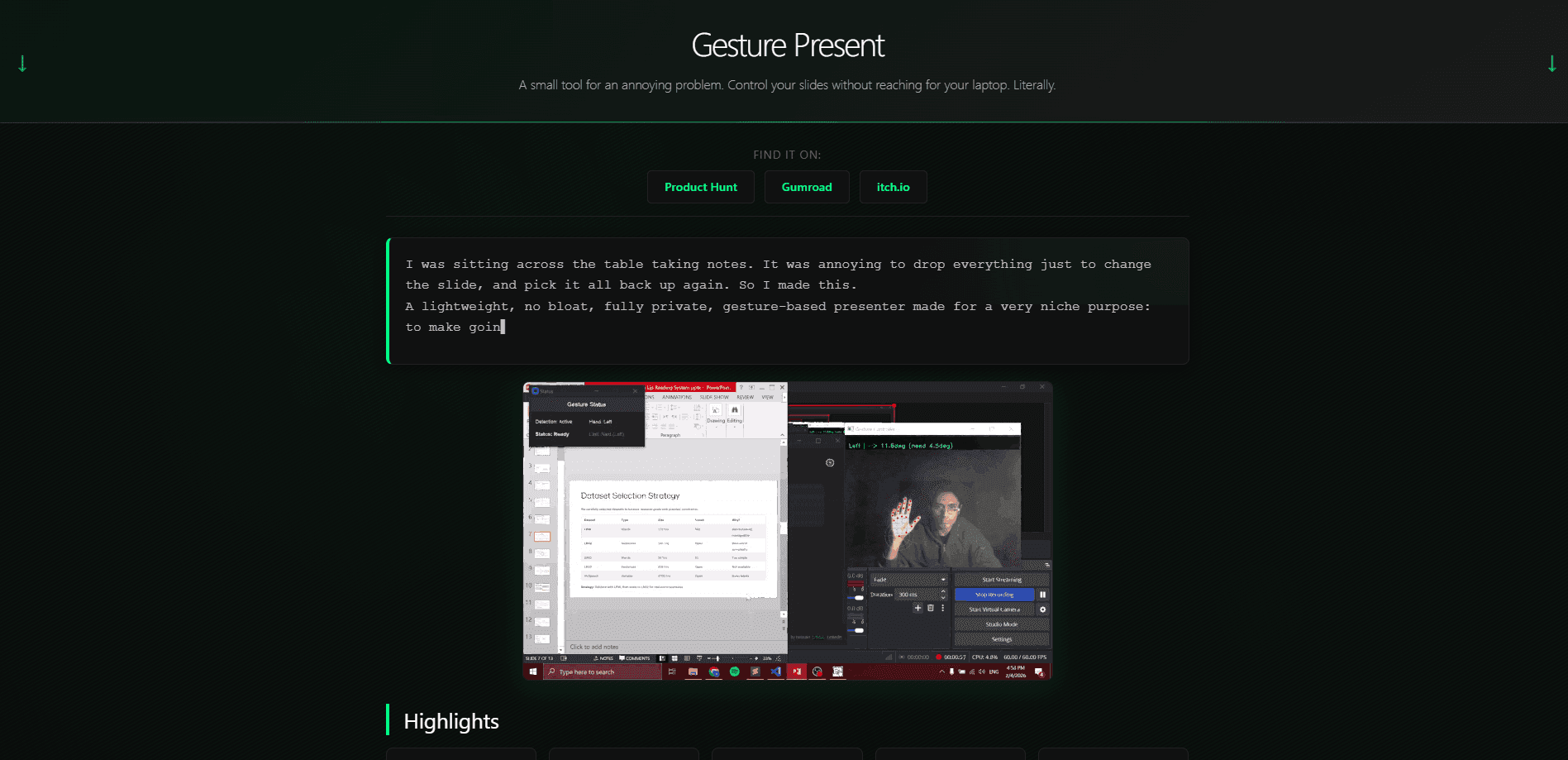
Toggle Enable camera feed and a small window shows you exactly what the app is detecting. It's the fastest way to fix a sticking gesture, check your framing, or confirm the camera has a clean view of your hand. For debugging a setup before a real talk, this is the part you'll use most. Trust me on that.
Status Overlay
A floating display keeps you informed of the current detection state without pulling you out of the slideshow. You get a quick read on whether the app is tracking your hand, so you aren't guessing why a slide didn't move. Small thing. It saves a lot of second-guessing mid-talk.
Offline, Local-Only Processing
The camera feed is processed on your machine in real time. Nothing is uploaded, transmitted, or written to disk, and the app keeps no images, video, or landmark data. There are no accounts and no cloud services, so there's no sign-up flow and no data leaving your device.
Pros and cons
Pros
- No hardware to buy, charge, or lose, since your webcam is the only sensor
- Fully offline and private, with no accounts and no footage saved to disk
- Cheap one-time price of $9 undercuts the $30-plus clickers it's competing with, and there's nothing else to pay later
- Works at a distance and in low light, which covers real classrooms and meeting rooms
- Small and focused, with no heavy machine learning install and no setup beyond launching the app
Cons
- Windows 10 and 11 only, so Mac and Linux users are out of luck
- Two gestures only, meaning no annotation or slide-jumping shortcuts
- Relies on a webcam and decent hand visibility, so keep a backup way to change slides if the camera is blocked
- Slide control depends on the presentation window staying in focus, so a stray click can knock it off track
Frequently asked questions
No. It's a paid app that costs $9 as a one-time purchase on Gumroad, with the same build listed on itch.io. There's no free tier and no subscription, so you pay once and keep it. You can watch the demo video on the official site before buying.
Related content
Explore related tools, skills, and articles for GesturePresent.
GesturePresent Alternatives

Base Code
Base44 (Wix) · Coding · ProductivityBase Code is a shared cloud development environment from Base44. Teammates describe changes to an existing GitHub codebase in chat, preview them live and send them back as pull requests.
Knocket
Knocket (Tencent RTC team) · Productivity · Business · ChatbotKnocket is a free live chat and contact page tool that lets visitors message you from your website, app, or a shareable link, with every reply handled from Telegram or one inbox.

FloorGen
Vinit Kumar (FloorGen) · Productivity · China AIFloorGen is a browser-based floor plan maker that turns a sentence or a sketch into an editable 2D plan and a 3D walkthrough. Export to PDF, DXF or video, and draw without an account.