

Google Gemini in Chrome
Google · Productivity
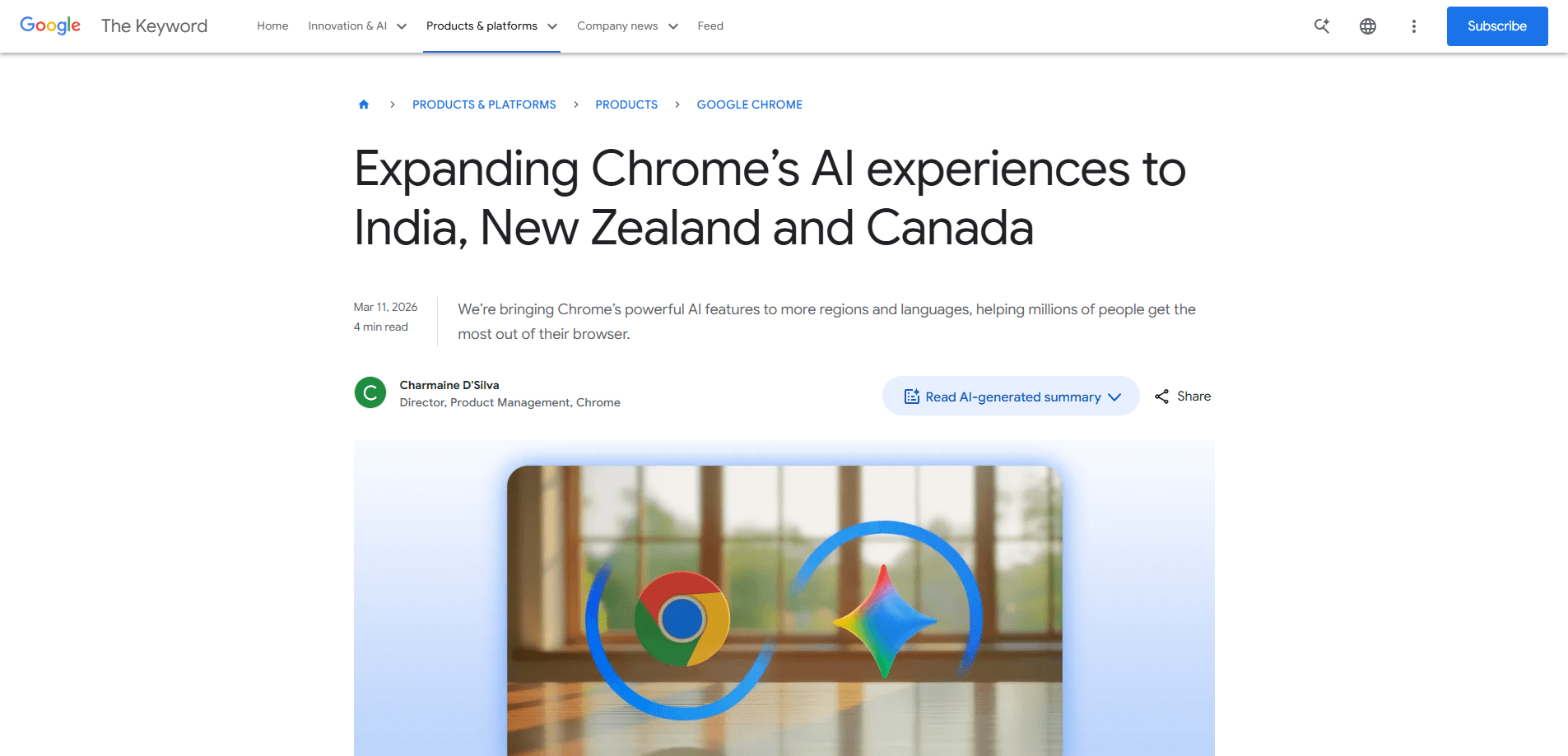
Google Gemini in Chrome is a browsing assistant built directly into the Chrome browser. It summarizes long articles, answers questions about the page you're on, and works across several open tabs to pull information into one place. It also plugs into Gmail, Maps, Calendar, and YouTube, so you can draft an email or check a meeting time without leaving the tab. The assistant runs on Gemini 3.1. It rolled out to desktop and iOS in several regions starting in early 2026.
About Google Gemini in Chrome
What Is Google Gemini in Chrome
Google Gemini in Chrome turns the browser itself into an AI assistant. Instead of opening a separate chatbot tab, you click the Gemini icon in the top right corner of the current tab and start typing. The assistant reads what you're looking at and responds in a side panel.
It solves a common annoyance: jumping between a page, a chatbot, and a note app just to understand something. Gemini in Chrome keeps the answer next to the content, so you don't lose your place and you don't have to hold the thread in your head. On top of page-level help, it can work across multiple tabs at once, which is handy when you're comparing products, weighing two options, or gathering research from a dozen sources before a deadline.
The biggest limitation is availability, since access depends on your region, your device, and the state of your Google account. It isn't everywhere yet. The feature set has grown in stages since launch across more than 50 languages, so what you get depends on when and where you signed up. I can't tell you it works the same in every country, because it doesn't.
Getting Started
- Sign in to Chrome with your Google account and update the browser to the latest version.
- Open any page and click the Gemini icon in the top right corner of the tab.
- Type a question or pick a suggested action, like summarizing the page.
- Open the side panel to use Gmail, Maps, or Calendar integrations within the same window.
- Close the tabs you no longer need once Gemini has remembered the pages you visited.
Product Information
A quick look at Google Gemini in Chrome's pricing, supported platforms, and performance.
Best for
The users, tasks, and scenarios where this tool fits best.
Users
- Students
- Researchers
- Everyday shoppers
Tasks
- Summarizing long web content
- Cross-referencing multiple tabs
- Editing images on the fly
Scenarios
- Planning a team offsite
- Drafting email while browsing
- Reopening forgotten research
Key features
Chat Without Switching Tabs
The assistant lives in a side panel inside your current tab. You click the Gemini icon and ask a question. It answers based on the page you're reading. No new tab. No copying text into a chatbot. You stay where you're reading, and the answer comes to you instead of the other way around. For quick lookups while reading, that gap matters more than it sounds.
Multi-Tab Analysis
Gemini in Chrome can read across several open tabs at once and consolidate what it finds. Planning a trip or weighing two products? It builds a single comparison table from details scattered across different sites. This is the feature that saves the most time. Research-heavy work gets faster.
Google App Integrations
The assistant connects to Gmail, Maps, Calendar, and YouTube. You can schedule a meeting, pull up location details, or ask questions about a video without opening those apps. Gmail integration lets you draft and send an email from the side panel. It asks for confirmation before anything goes out, so a rushed click won't send the wrong message.
Image Transformation with Nano Banana
Nano Banana 2 is built into Chrome, so you can transform an image by typing a prompt in the side panel. No uploading files. No opening a new tab. Just type and watch it change. A practical example: mix and match furniture images before you commit to a purchase.
Page Memory
Gemini in Chrome remembers pages you've visited previously. You can ask about something you read earlier and finally close the tabs you'd set aside. It's a small thing. It just works. That changes fast when you're staring at 40 open tabs and can't remember which one had the answer you needed.
Security by Design
Google trained the models to recognize known threats like prompt injection, and built safeguards that ask for confirmation before sensitive actions such as sending an email or adding a calendar event. Automated red-teaming and Chrome's auto-update system are used to push fixes quickly. The confirmation prompts add a step, and that's the point.
Pros and cons
Pros
- Runs inside Chrome, so there's nothing extra to install, no new account to create, and no second window competing for screen space.
- Multi-tab analysis turns scattered research from a dozen open pages into one consolidated view you can actually act on.
- Gmail, Maps, Calendar, and YouTube integrations cut back on app switching during tasks that normally send you hopping between five windows.
- Nano Banana image editing works directly on the current page.
- Confirmation prompts for sensitive actions give you a clear stop point.
Cons
- Availability depends on your region and device, so not everyone can use it yet.
- Some features and languages arrived later than the initial rollout.
- It needs a signed-in Google account, which won't suit people who avoid that.
- Region limits also apply to the mobile experience.
Frequently asked questions
Yes, Gemini in Chrome is free to use for anyone with the feature turned on, and Google opened it to desktop users in the US in September 2025 before expanding to more countries. Some higher-end Gemini features elsewhere in Google's lineup sit behind a paid subscription, but the in-browser assistant itself doesn't require one.
Related content
Explore related tools, skills, and articles for Google Gemini in Chrome.
Google Gemini in Chrome Alternatives

Base Code
Base44 (Wix) · Coding · ProductivityBase Code is a shared cloud development environment from Base44. Teammates describe changes to an existing GitHub codebase in chat, preview them live and send them back as pull requests.
Knocket
Knocket (Tencent RTC team) · Productivity · Business · ChatbotKnocket is a free live chat and contact page tool that lets visitors message you from your website, app, or a shareable link, with every reply handled from Telegram or one inbox.

FloorGen
Vinit Kumar (FloorGen) · Productivity · China AIFloorGen is a browser-based floor plan maker that turns a sentence or a sketch into an editable 2D plan and a 3D walkthrough. Export to PDF, DXF or video, and draw without an account.