

Remove Handwriting
RemoveHandwriting · Image
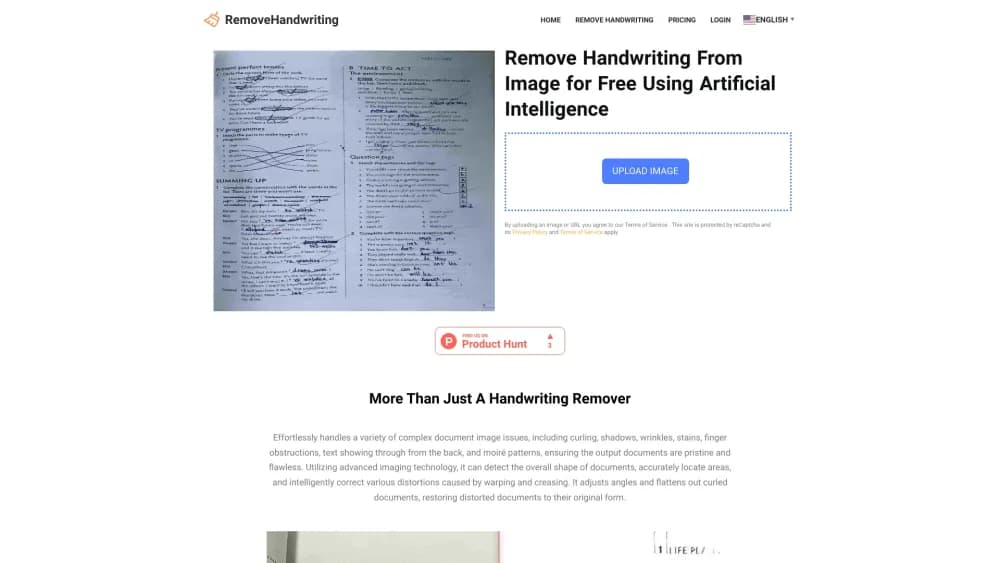
Remove Handwriting is an AI handwriting remover for images, PDFs, and scanned pages. It erases pen marks, notes, and annotations while keeping printed text, tables, and layout intact.
About Remove Handwriting
What Is Remove Handwriting
Remove Handwriting is a browser based document cleanup service with companion iOS and Android apps. You upload a photo, a scan, or a PDF, and the service strips handwritten answers, signatures, underlines, and margin notes while leaving the printed content in place. In practice it works as a handwriting eraser for paperwork, not a photo retouching toy. One account covers the website and the mobile apps, and credits work the same on both.
The product targets a narrow but common problem. Teachers want a blank copy of a worksheet they already filled in. Offices want a contract without the pen edits from the last round. Archives want a readable scan without a century of pencil marks. A photo editor can hide a signature, but it also blurs the form lines underneath, so the page stops looking like a document. Teams that need to erase handwriting from documents before a reprint use this instead because the page structure survives.
The limits are worth knowing before you pay. Credits are consumed per page, so a long PDF adds up, and the free allowance is meant for testing rather than weekly use. Handwriting that sits directly on top of printed text is the hardest case, and results there depend on ink contrast and scan quality. The tool also outputs an image or PDF, not an editable text document, so it's not a replacement for OCR software.
Getting Started
- Open removehandwriting.com or install the app, then sign in with an email address or a Google account.
- Upload a JPG, PNG, or PDF, or scan pages with your phone camera. Multiple images are routed to bulk processing.
- Pick a model: Standard for fast scan style output, Color to keep the paper tone, or Ultra for pages with heavy marks and poor lighting.
- Check the preview and adjust cropping or rotation if the page edges were detected badly.
- Download the cleaned file, or keep working in the app to add text, sign, or merge PDFs.
Product Information
A quick look at Remove Handwriting's pricing, supported platforms, and performance.
Best for
The users, tasks, and scenarios where this tool fits best.
Users
- Teachers and tutors
- Students
- Office and admin staff
- Archivists and researchers
Tasks
- Resetting a worksheet
- Cleaning a contract
- Prepping archive scans
- Clearing a shared PDF
- Batch cleanup
Scenarios
- Sunday night lesson prep, when a teacher needs thirty clean worksheets and the originals are covered in last year's answers.
- A lease or contract that came back with pen edits and has to be reissued the same afternoon.
- A semester of scanned notes that a student wants to reuse as practice material without retyping every page.
- A digitization backlog where boxes of printed records carry pencil annotations from decades of manual filing.
Key features
Handwriting Removal That Spares the Print
The core engine separates ink handwriting from printed content, then reconstructs the background where the marks used to be. Printed paragraphs, table cells, diagrams, and page numbers stay in place, which is the difference between a usable document and a smudged image. If you need to remove pen marks from images without wiping out the form underneath, this separation is the whole point. It's also why people reach for a dedicated handwriting removal tool instead of a clone brush.
Three Cleanup Models for Different Pages
Standard produces a fast, high contrast scan style page. Color keeps the original paper tone, highlighters, and ink colors, which matters when a document has to look untouched. Ultra spends more time on difficult pages with dense scribbles, shadows, or low light. Picking the wrong model is the usual cause of a disappointing first result, so try Standard first and move up only when the page needs it.
Page Geometry and Background Cleanup
Before the ink comes off, the service detects the paper edge, crops away the desk or scanner border, corrects tilt, and flattens curled corners. Shadows and gray background noise are pushed toward white. Those steps make a phone photo look like a proper scan, they clean scanned documents in one pass, and they save you from fixing perspective in another editor.
PDF and Bulk Processing
You can send a single image, a batch of photos, or a whole PDF. Bulk processing is the practical option for teachers with a class set or an office with a stack of forms, since it avoids uploading pages one at a time. PDF output keeps the page order, so the cleaned file drops back into the same workflow.
Web and Mobile With Shared Credits
The website handles drag and drop uploads and larger files, while the iOS and Android apps add camera scanning, perspective correction, typed text overlays, a pen tool for signing, and PDF merging. Credits and account history follow you between devices, so a page scanned on a phone can be finished on a laptop.
API Access and Expert Cleanup
The service offers API access for teams that need to clean documents inside their own workflow, plus an Expert Cleanup option for files that the automatic models handle poorly. That combination covers high volume batches and one off problem pages without forcing you into a different product.
Pros and cons
Pros
- Printed text, tables, and form lines survive the cleanup, so the result still reads as the original document rather than a retouched photo.
- Standard, Color, and Ultra models cover quick drafts, color sensitive pages, and badly lit scans without a separate tool for each.
- Automatic cropping, deskewing, and shadow removal turn phone photos into presentable scans in one step.
- The same account and credit balance work on the web, iOS, and Android, which suits people who scan on a phone and finish on a laptop.
- Three free credits with no card required let you test the output on your own documents before committing to a plan.
Cons
- Credits run out quickly on long PDFs, and the monthly plan only includes 60, so a department with steady volume will need the yearly tier or API pricing.
- Handwriting that overlaps printed letters can leave faint smears or eat into the text, and no preview can promise a clean result on every scan.
- Output is a flattened image or PDF with no text layer, so you can't search or edit the words afterward without running OCR separately.
- The mobile apps and the website don't expose the same editing tools, and app subscriptions are billed through the app store rather than the web account.
Frequently asked questions
It removes handwritten marks from images, PDFs, and scanned documents while keeping the printed content. Typical jobs include blanking a filled in worksheet, cleaning pen edits from a contract, and stripping pencil notes from an archived page. You upload a file, choose a model, and download a cleaned copy.
Related content
Explore related tools, skills, and articles for Remove Handwriting.
Remove Handwriting Alternatives

Google EmbeddingGemma 2
Google DeepMind · Writing · Image · CodingGoogle EmbeddingGemma 2 is a 740M-parameter open model that turns text, code, images, audio, and video frames into vectors in one 768-dimension space, running on phones and laptops.

Tractionwave
TractionWave · Image · MarketingTractionWave is an AI attention heatmap tool for static ads. Upload a PNG or JPG and it returns predicted attention, ranked hotspots, and fixes before you spend budget.

Imejis.io
Imejis.io · Image · MarketingImejis.io is an AI design studio for agents and marketing teams. Describe an image in plain words, and it writes the copy, builds the layout, reflows it to every size, then exports a finished file.