

Hestus
Hestus · Productivity
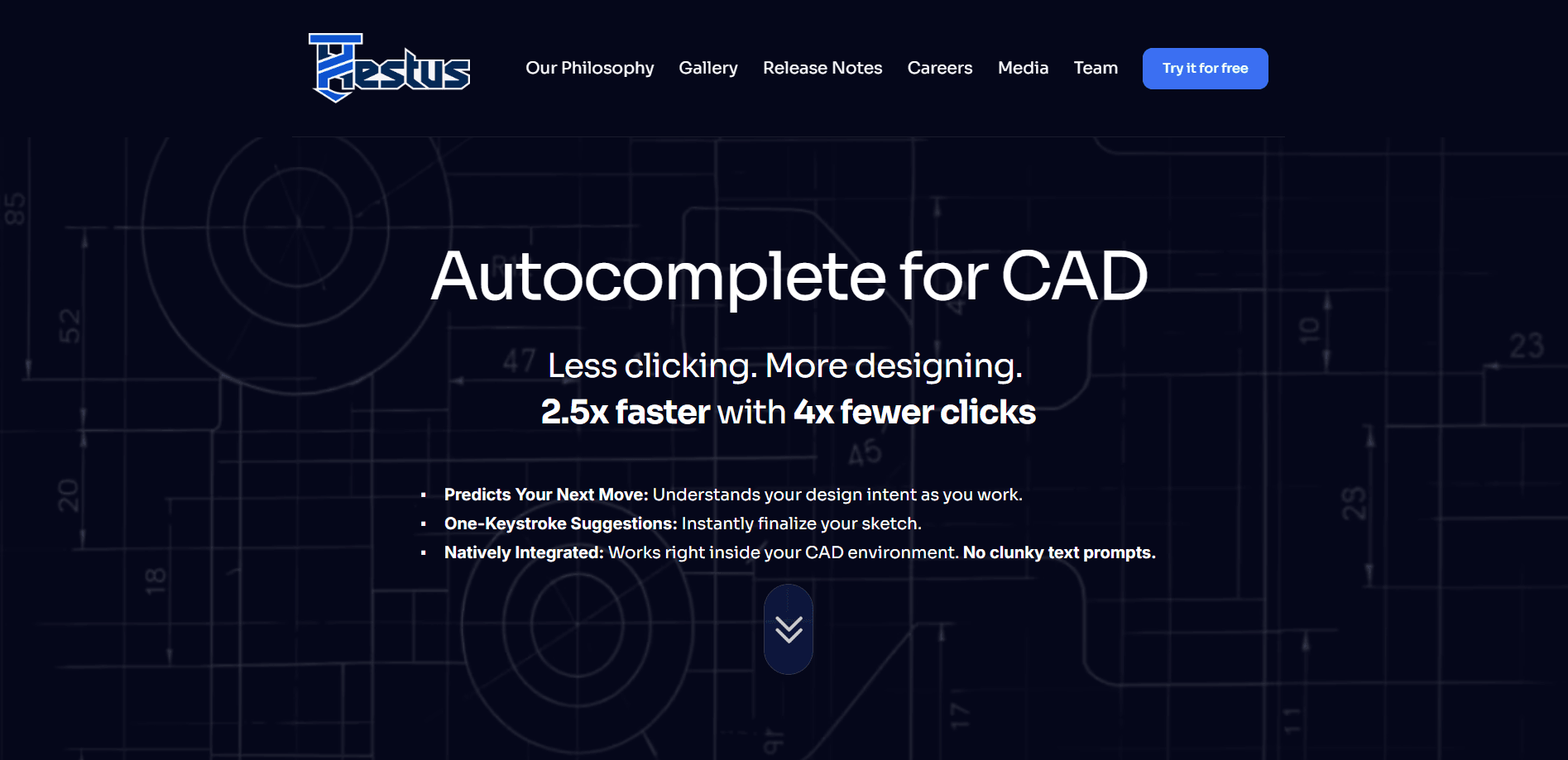
Hestus is an AI CAD autocomplete that runs inside Autodesk Fusion and predicts your next sketch move. Instead of assigning constraints and dimensions by hand, you preview a suggested change in a red overlay and accept it with one keystroke. Think of it as a CAD sketch helper that reads your design intent. It's built for mechanical engineers and hardware design teams who lose hours to repetitive click-work, and the company says users finish sketches about 2.5x faster with 4x fewer clicks.
About Hestus
What Is Hestus
Hestus is a software add-in for CAD that watches how you sketch and proposes the constraints, dimensions, and relations you were probably about to add anyway. The core product, Sketch Helper, handles 2D drawing work inside Autodesk Fusion. You install it once, and it shows up as a panel in your normal modeling session. No separate app to open. That Autodesk Fusion add-in approach is the whole appeal for Fusion 360 plugin shoppers who don't want a second tool in the loop.
The problem it targets is real for anyone doing mechanical design. Concepts come fast, but getting a sketch fully defined for manufacturing means hundreds of small clicks to pin down constraints and dimensions, and that pile of click-work is exactly where an afternoon goes to die. One Hestus user put it bluntly: only about a third of their time goes into actual design work, and the rest disappears into clicking. Hestus tries to give that time back by reading design intent the way a code editor reads text, suggesting the next move rather than waiting for you to type it out. It's a small shift with a big payoff.
The main limitation is scope. Hestus only works with Autodesk Fusion right now, and it only touches 2D sketching, not assemblies or full 3D modeling. The team has said 3D support is where they're heading next, but it isn't there yet. It's a focused CAD software add-on for one part of one program, not a general-purpose design assistant.
Getting Started
- Sign in at hestus.co and download the Sketch Helper installer for Mac (.pkg) or Windows (.msi).
- Run the installer and let it register the add-in with your existing Autodesk Fusion installation.
- Open Fusion and start or load a sketch; the Hestus panel appears alongside your normal tools.
- Sketch as usual and watch for the red overlay suggestions; review each one and accept it with a single keystroke.
- Skip anything you don't want and keep drawing. Hestus learns from what you accept.
Product Information
A quick look at Hestus's pricing, supported platforms, and performance.
Best for
The users, tasks, and scenarios where this tool fits best.
Users
- Mechanical engineers
- Hardware startup teams
- CAD-heavy product designers
Tasks
- Fully defining 2D sketches
- Mirroring and symmetry work
- Aligning circular features
Scenarios
- Turning a rough concept into a manufacturing-ready sketch
- Cleaning up crowded designs
- Prepping a model for review
Key features
Predicts Your Next Move
Hestus reads the geometry you've drawn and infers what constraint, dimension, or relation you're likely to add next. Suggestions show up on their own as you work, so you don't have to stop and ask for help. The aim is simple: keep your hands on the keyboard instead of the mouse.
One-Keystroke Suggestions
Every recommendation is previewed in a red overlay before it touches your model. You look at it, decide, and accept with a single key. Nothing changes silently, which matters when you're the one accountable for the final geometry.
Native Fusion Integration
Sketch Helper runs inside Autodesk Fusion as an add-in, not as a separate web tool. There's no copying geometry out and back, and no text prompts to phrase carefully. That's the whole point: it lives where you already work.
Symmetry Recommendations
For designs that repeat around an axis, Hestus can propose creating a new symmetry axis or reuse an existing one, then symmetrize candidate geometry around it. It's a way to express design intent cleanly instead of rebuilding the same relationship by hand. Fewer clicks. Same result.
Chain Mirror
The original Mirror feature handled one curve at a time, which got old fast on multi-curve profiles. Chain Mirror detects an existing line of symmetry and mirrors a whole chain of curves in one click, skipping the repetitive steps.
HV Circles
When circular features need to line up, patterning tools don't help if the circles differ in size or spacing. HV Circles aligns them horizontally and vertically and connects them with construction lines, so dimensioning the group relative to each other takes far less effort. It sounds minor. It saves a surprising amount of time.
Dangling Point Detection
An unconnected curve endpoint means an open profile, and an open profile means you can't extrude or revolve. So why does it keep happening? Because connecting curves in a crowded design is tedious. Hestus proposes connecting dangling points to nearby curves or chain points, which catches the problem before it derails your next feature.
Pros and cons
Pros
- Runs inside Autodesk Fusion natively, so there's no new tool to learn or export step.
- Previews every change in a red overlay before you accept, keeping you in control of the geometry.
- Handles real mechanical sketching chores like symmetry, chain mirroring, and aligning circles.
- Free to try, which makes it easy to test on your own models before committing.
Cons
- Limited to Autodesk Fusion; SolidWorks, Onshape, and other CAD users can't use it at all.
- Only covers 2D sketching for now. Assemblies and full 3D modeling aren't supported yet, so the time savings stop before later design stages.
- Some of the most impressive features, like Chain Mirror, arrived in specific releases, so anyone on an older Fusion setup may not see them.
Frequently asked questions
It's an autocomplete for CAD. It watches you sketch in Autodesk Fusion, predicts the constraint or dimension you're about to add, shows the suggestion as a red overlay, and applies it when you hit one key. The company's own Sketch Helper product focuses on 2D sketching.
Related content
Explore related tools, skills, and articles for Hestus.
Hestus Alternatives

Base Code
Base44 (Wix) · Coding · ProductivityBase Code is a shared cloud development environment from Base44. Teammates describe changes to an existing GitHub codebase in chat, preview them live and send them back as pull requests.

Knocket
Knocket (Tencent RTC team) · Productivity · Business · ChatbotKnocket is a free live chat and contact page tool that lets visitors message you from your website, app, or a shareable link, with every reply handled from Telegram or one inbox.

FloorGen
Vinit Kumar (FloorGen) · Productivity · China AIFloorGen is a browser-based floor plan maker that turns a sentence or a sketch into an editable 2D plan and a 3D walkthrough. Export to PDF, DXF or video, and draw without an account.