
HitPaw Photo AI
HitPaw · Image
HitPaw Photo AI enhances blurry, noisy and low-resolution photos in one click. It runs on Windows and macOS, sharpens faces, and upscales images up to 4K, 8K or 32K.
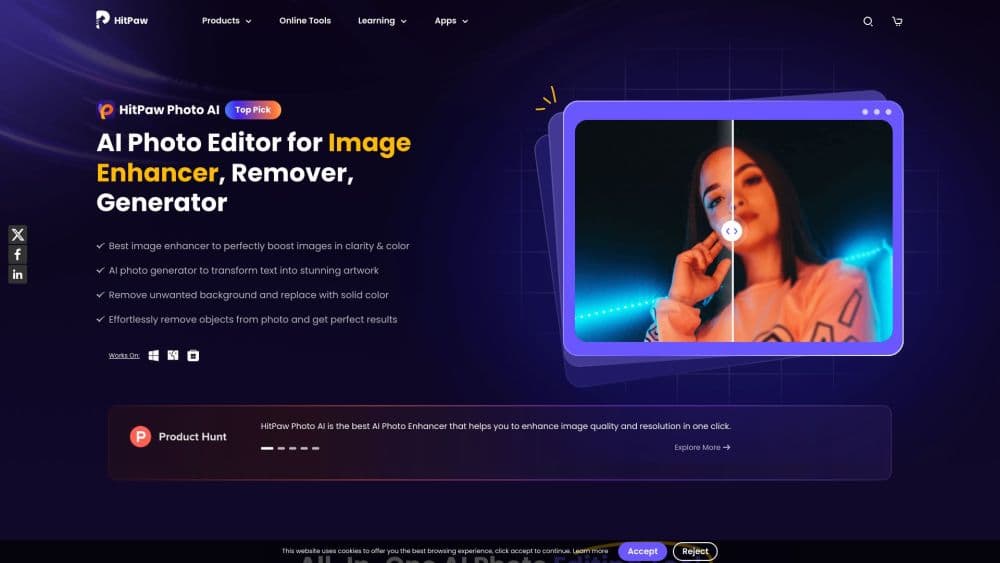
About HitPaw Photo AI
What Is HitPaw Photo AI
HitPaw Photo AI is a desktop photo enhancer from HitPaw, the same company behind a family of AI editing tools. It ships under the FotorPea name and was known for years as HitPaw Photo Enhancer. You drop in a picture, pick one of several trained AI models, and the app rebuilds sharp edges, clean textures and natural detail that the original file lost.
The draw is the range of fixes in a single app. A faded family portrait, a grainy concert shot and a soft smartphone selfie all get their own model, so you don't need to know which settings to change. Everything runs on your own Windows or macOS machine, which matters if you'd rather not upload personal photos to a web service.
The limits are worth knowing before you buy. It's desktop-only, so there's no browser version and no phone app inside this product, and the heaviest upscales lean on your GPU, which means an older laptop can crawl. The free trial is capped too, so you'll hit the paywall once you process a few files.
Getting Started
- Download the installer from the HitPaw site and install it on Windows 11/10 (64-bit) or macOS 10.15 and later. The setup needs about 2GB of free disk space.
- Open the app and drag in one or more photos. Common formats like JPG, PNG, WebP, TIFF and RAW are all accepted.
- Pick the AI model that matches the problem, such as Face for portraits, Denoise for grain, or Upscale for a resolution boost.
- Preview the result side by side with the original, then adjust the output resolution and format if you want.
- Export the finished file to your computer. Batch jobs run in the background so you can queue several photos at once.
Product Information
A quick look at HitPaw Photo AI's pricing, supported platforms, and performance.
Best for
The users, tasks, and scenarios where this tool fits best.
Users
- Family historians
- Photographers
- Online sellers
Tasks
- Upscaling a low-resolution image
- Unblurring a shaky shot
- Repairing and colorizing old photos
Scenarios
- Reviving a family archive
- Preparing print or gallery output
- Cleaning up a product listing
Key features
Nine Trained AI Models
HitPaw Photo AI splits its work across nine separate models rather than one catch-all filter. There's a Face model for portraits, a Denoise model for grain and compression noise, a Sharpen model for blur, an Upscale model for resolution, plus Colorize, Scratch Repair, Color Calibration and low-light options. Matching the model to the problem is what separates a clean result from an over-smoothed one.
Upscaling to 4K, 8K and 32K
The upscaler enlarges a photo while rebuilding detail instead of stretching pixels. HitPaw advertises output up to 8K and 32K and ties some clarity work to the Nano Banana Pro models. That range is what makes it useful for large prints, where a stretched low-resolution file would fall apart.
Face Restoration
The Face model targets skin, eyes and hair on portraits, which is where most enhancements go wrong. It sharpens facial contours without wiping out grain or flattening skin into a plastic look, so the person still reads as a real photograph rather than a painted rendering.
Denoise and Low-Light Cleanup
This pair handles noise, JPEG artifacts and film grain that creep into night shots and indoor photos. The low-light model balances shadows and highlights as it scrubs away digital speckle, which keeps candlelit scenes and dim venues from turning into mush.
Old Photo Colorization and Repair
For vintage scans, the Colorize model reads muted monochrome tones and restores skin, sky and fabric colors, while Scratch Repair removes wear without erasing texture. Together they revive faded prints that would otherwise stay locked in sepia.
Batch Processing and Format Control
You can queue multiple photos and let them run while you do something else, then export to PNG, JPG, WebP, TIFF or BMP. Choosing the output format and resolution per job keeps a mixed workload, say print files and quick web images, easy to manage in one session.
Pros and cons
Pros
- One-click enhancement across nine models, so beginners get a clean result without learning settings
- Upscaling reaches 4K, 8K and even 32K for print-grade output
- Dedicated Face, Denoise and Colorize models each target a specific photo problem
- Runs fully offline on Windows and macOS, so personal photos stay on your machine
- Batch mode processes a whole folder without babysitting each file
Cons
- Desktop only, with no browser version or mobile app inside this product
- Heavy upscaling leans on the GPU, so older computers process slowly
- The free trial is capped, and a large workload quickly needs a paid plan
- No public API is offered, so you can't automate it from your own software
Frequently asked questions
It boosts the quality of photos you already have. You can sharpen blurry shots, remove noise and grain, restore and colorize old prints, or upscale a low-resolution image to 4K, 8K or 32K. It's aimed at anyone fixing everyday photos rather than editing from scratch.
Related content
Explore related tools, skills, and articles for HitPaw Photo AI.
HitPaw Photo AI Alternatives

Google EmbeddingGemma 2
Google DeepMind · Writing · Image · CodingGoogle EmbeddingGemma 2 is a 740M-parameter open model that turns text, code, images, audio, and video frames into vectors in one 768-dimension space, running on phones and laptops.

Tractionwave
TractionWave · Image · MarketingTractionWave is an AI attention heatmap tool for static ads. Upload a PNG or JPG and it returns predicted attention, ranked hotspots, and fixes before you spend budget.

Imejis.io
Imejis.io · Image · MarketingImejis.io is an AI design studio for agents and marketing teams. Describe an image in plain words, and it writes the copy, builds the layout, reflows it to every size, then exports a finished file.