

Inker AI
Dark Reader Ltd · Image
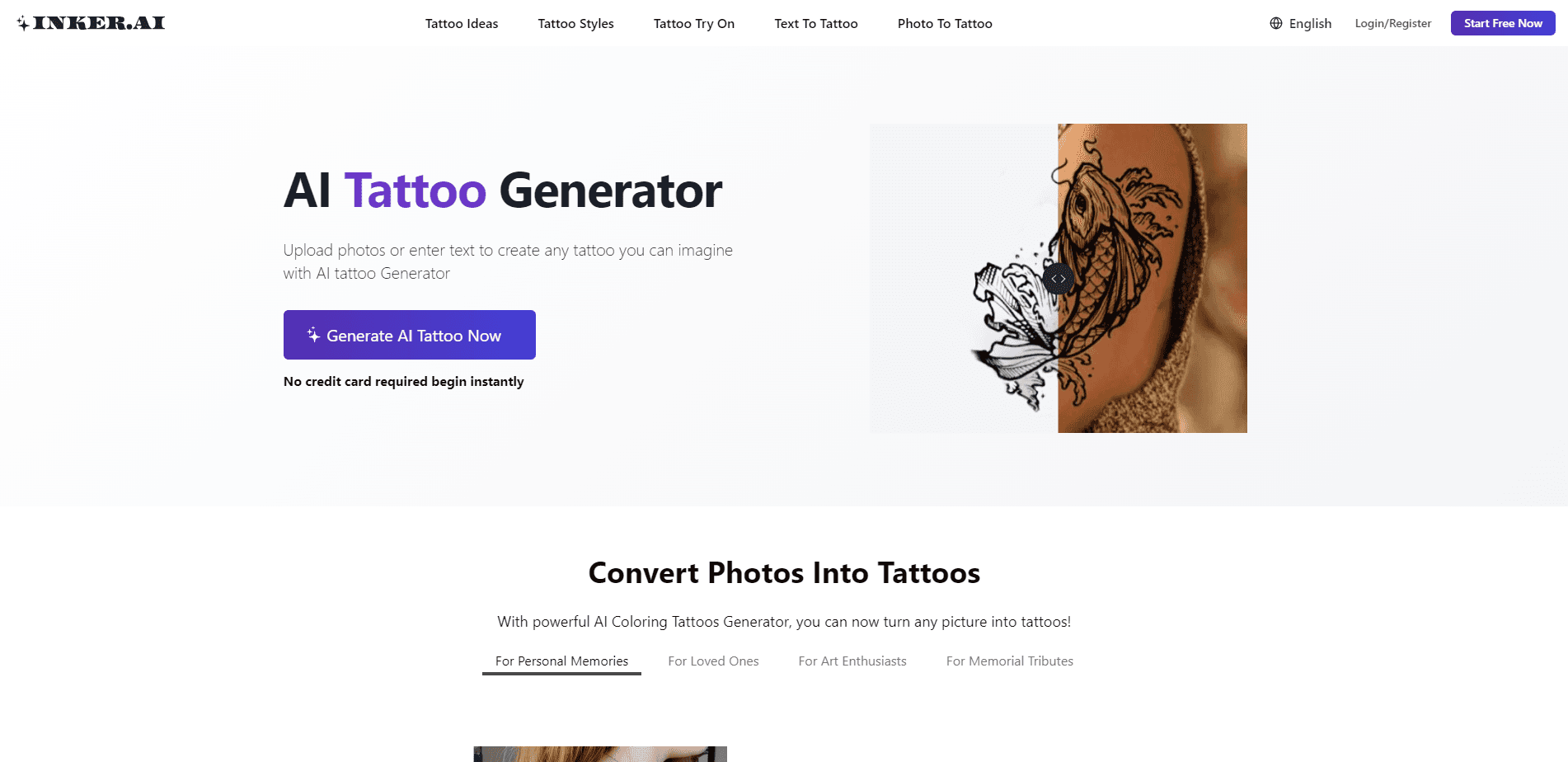
Inker is a lightweight vector graphics editor for sketch inking, logos, and icons. This vector drawing tool runs on web, desktop, macOS, and Android, and exports clean SVG, PNG, and EPS.
About Inker AI
What Is Inker
Inker is a vector graphics editor made by Dark Reader Ltd. The pitch is narrow on purpose: this sketch inking app helps you turn rough sketches into clean vector shapes instead of trying to replace a full design suite. Logos, icon sets, lettering, comics, and tribal-style linework are the jobs it handles best. Think of it as vector art software you pick up for line work, not a studio.
As a logo design tool and tablet drawing app, Inker sits in the same space as heavier vector suites but trades breadth for speed.
The tool centers on two drawing modes, Path and Draw, that smooth out hand movement so lines come out tidy without endless node tweaking. You get a color palette, groups, and layers for organizing a project, plus boolean path operations when you need to cut or merge shapes. Finished work exports to SVG, EPS, or PNG, which means you can drop it into web pages or open it in desktop editors to build AI or CDR files.
The trade-offs are worth knowing upfront. There's no auto-save, so you save often or risk losing progress. SVG import only supports simple files made of shapes, and heavy files slow the editor down. Boolean operations and text-to-curve conversion can crash on shapes with many self-intersections. It's a focused sketching tool, not a studio replacement.
Getting Started
- Open the online app in Google Chrome, or install Inker for desktop, macOS, or Android.
- Draw your outline using the Path and Draw tools, then smooth and adjust the curves.
- Set up the palette, then arrange shapes with groups and layers.
- Use boolean operations to combine or cut paths if your artwork needs it.
- Export as SVG, EPS, or PNG and move the file to your web project or desktop editor.
Product Information
A quick look at Inker AI's pricing, supported platforms, and performance.
Best for
The users, tasks, and scenarios where this tool fits best.
Users
- Illustrators who ink sketches and want clean vector lines without a heavy suite
- Logo and icon designers working on simple marks
- Hobbyists picking up vector drawing for the first time
Tasks
- Inking pencil or scanned sketches into smooth vector line art
- Building a small icon or glyph set
- Cutting and merging shapes for lettering or tribal patterns
- Preparing editable assets for web use
Scenarios
- Sketching on a tablet during a commute
- Cleaning up a rough logo draft before quoting a client
- Producing print-ready logo files
Key features
Path and Draw Tools
Two drawing modes do the heavy lifting. Path builds and edits curves through control points, while Draw traces your hand movement and smooths it into flowing lines. Together they cut the time you spend wrestling with node handles, which is the part that makes vector drawing feel slow in other editors.
Smooth Line Smoothing for Tablets
Inker is tuned as a tablet drawing app, built for stylus input on a screen large enough to draw on comfortably. The software leans on that pressure and stroke data to keep lines even, so a shaky hand still ends up with usable curves.
Color Palette and Adjustments
A dedicated palette panel holds your working colors and lets you adjust them without leaving the canvas. It matters most when you're matching a brand set as a logo design tool or keeping a comic consistent across pages, since you're not hunting for hex codes in a separate window.
Groups and Layers
You can arrange everything you create into groups and layers. On a logo with a mark and wordmark, or an icon set with dozens of pieces, that structure is what keeps the file editable instead of turning into a flat mess you have to redraw.
Boolean Path Operations
The editor supports boolean operations that let you add, subtract, or intersect shapes, the same way a full SVG editor does. It's the fastest way to build cut-out lettering or geometric tribal patterns, but you should know the limit: complex shapes with many self-intersections can crash the app, so keep the geometry simple.
Multi-Format Export
Work leaves Inker as SVG, EPS, or PNG. SVG is the one that carries vectors forward to the web, EPS feeds print workflows, and PNG handles quick raster needs. You can also open the exported vector in a desktop graphics editor to produce AI or CDR files.
Runs Across Web, Desktop, macOS, and Android
The same project format works on the browser app, the desktop build, macOS, and Android. Drawing on a tablet and finishing on a laptop is realistic, but you handle the file transfer yourself since there's no cloud sync.
Pros and cons
Pros
- Focused toolset that gets you to clean vector lines fast, with little to learn before you start.
- Strong tablet support, so the Draw tool feels natural when you work with a stylus.
- SVG, EPS, and PNG export covers web, print, and quick image needs in one place.
- Available on web, desktop, macOS, and Android for the price of one tool.
- Low cost next to full vector art software, with a free option to try first.
Cons
- No auto-save means a crash or misclick can wipe unsaved work, so you have to save constantly.
- SVG import only handles simple shape-based files, so you can't open complex drawings you built elsewhere.
- Boolean operations and text-to-curve conversion can crash on shapes with many self-intersections, forcing you to simplify or redraw.
- Large files slow the editor down, so heavy projects get painful to work with.
Frequently asked questions
Yes, there's a free way to start. You can launch the online app in Chrome and try the drawing tools, while the macOS app is a one-time paid download. The free option lets you test whether the workflow fits before you pay.
Related content
Explore related tools, skills, and articles for Inker AI.
Inker AI Alternatives

Google EmbeddingGemma 2
Google DeepMind · Writing · Image · CodingGoogle EmbeddingGemma 2 is a 740M-parameter open model that turns text, code, images, audio, and video frames into vectors in one 768-dimension space, running on phones and laptops.

Tractionwave
TractionWave · Image · MarketingTractionWave is an AI attention heatmap tool for static ads. Upload a PNG or JPG and it returns predicted attention, ranked hotspots, and fixes before you spend budget.
Imejis.io
Imejis.io · Image · MarketingImejis.io is an AI design studio for agents and marketing teams. Describe an image in plain words, and it writes the copy, builds the layout, reflows it to every size, then exports a finished file.