

Liminal
Justin Lam · Productivity · Leaning
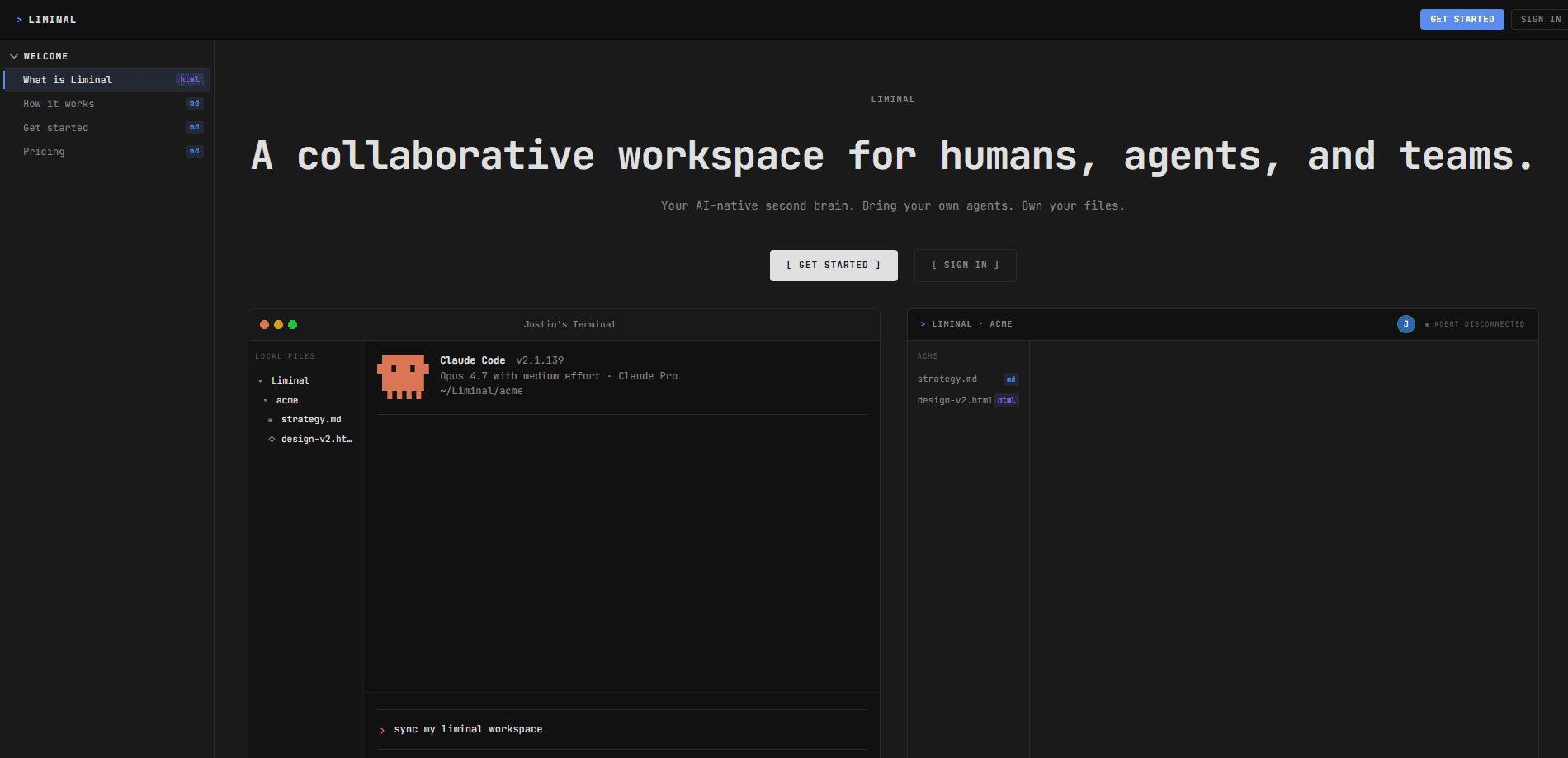
Liminal is a collaborative workspace built for teams that work with AI agents. It's a local-first workspace: your files stay as plain Markdown and HTML on your own machine, then sync through a small CLI to a shared browser UI. Your agent writes a file, your teammates see it rendered in seconds, and their edits land back on your disk. Your workspace stays a folder. Every agent you use reads it directly.
About Liminal
What Is Liminal
Liminal is a shared workspace for humans, agents, and teams that treats your local file system as the source of record. It's an AI agent workspace in the sense that the agent, not a person, does most of the writing. Instead of asking an agent to push its work through a chat window or a proprietary database, Liminal lets it keep writing files the way it already does, then handles the messy part afterward: rendering those files as clean, readable UI for everyone else on the team.
The problem it targets is real. AI agents now produce a steady stream of briefs, plans, and specs, but each one writes into its own context. Traditional collaboration tools like Notion and Google Docs assume a person is sitting inside the app doing the typing. Liminal flips that assumption. Files live in a folder on your machine, a CLI watches that folder, and anyone you share with opens a browser tab to see the same content. No export step, no copy-paste, no round-trip through an API.
The limitation worth knowing up front is that Liminal is still in open alpha. Team collaboration features are planned but not finished, and pricing for teams hasn't been set. For individuals working solo with an agent, the core loop already works.
Getting Started
- Install the CLI with
npm install -g @justinonthelam/liminal. This is the piece that keeps your local folder and the browser in sync. - Run
liminal loginto connect the CLI to your account, thenliminal syncto start watching your workspace folder at~/Liminal/<workspace>/. - Point your agent at the folder. Tell it something like "My Liminal workspace is at ~/Liminal/acme/," and it reads context and writes files there directly.
- Leave the sync running in a terminal tab. Every file the agent saves appears in the browser as soon as it hits disk.
Product Information
A quick look at Liminal's pricing, supported platforms, and performance.
Best for
The users, tasks, and scenarios where this tool fits best.
Users
- Solo developers working with Claude Code or Codex
- Small product teams that already run AI agents
- Writers and strategists who prefer plain text
Tasks
- Drafting briefs and specs with an agent
- Keeping a shared decision record
- Light collaborative editing
Scenarios
- Coordinating a team around one agent-written knowledge base
- Working offline in a text editor
- Reviewing agent output without leaving the browser
Key features
Local Files as the Source of Record
Your workspace is a folder on your machine, nothing more. Files stay in plain formats, Markdown and HTML, which your agent already knows how to produce and read. That means there's no proprietary format to learn and no import step before an agent can use your content. If you ever walk away from Liminal, the files stay readable.
Real-Time CLI Sync
A lightweight command-line tool watches your workspace folder and pushes every change to the cloud as it happens. There are no manual uploads and no copy-paste between tools. The moment your agent saves a file, it's live for anyone with access. For most people this runs quietly in a background terminal tab.
Browser Rendering of Markdown and HTML
Liminal turns Markdown into clean documents with headings, tables, and task lists, and it renders HTML as-is. Anything else shows up as a plain text file. Folders become sidebar sections and files become documents, so the structure you give your workspace is the structure your team navigates. You get readable output without changing how your agent works.
Shared Second Brain for Agents
Every decision and brief written into the workspace becomes ground truth for the next agent conversation. Because each agent on a team reads from the same folder, context doesn't get lost between sessions or siloed inside one person's chat history. The longer a team uses it, the more useful the shared context becomes.
No MCP Round-Trips
Liminal deliberately avoids asking an agent to go through an API or an MCP server to reach your data. Files are local and in formats the agent understands, so there's no translation layer and no extra tokens spent relaying context back and forth. That keeps things fast and cheap, and it means the workspace works with any tool that can read files.
Pros and cons
Pros
- Files stay in plain Markdown and HTML on your own machine, so there's no lock-in.
- Agent output becomes visible to a team in seconds, without export or copy-paste steps.
- Works with whatever agent you already use, including Claude Code and Codex, since it just reads files.
- Shared folder gives every agent on a team the same context, which reduces repeated explaining.
Cons
- Still in open alpha, so team collaboration features and team pricing aren't final.
- Setup requires comfort with a terminal: you install an npm package and run login and sync commands.
- You pay your model provider separately for the AI itself; Liminal only covers sync and rendering.
Frequently asked questions
It keeps a folder of Markdown and HTML files on your machine in sync with a shared browser workspace. Your agent writes files locally, a CLI pushes those changes to the cloud, and anyone you share with sees the files rendered as readable UI. Edits made in the browser sync back to your disk.
Related content
Explore related tools, skills, and articles for Liminal.
Liminal Alternatives

Base Code
Base44 (Wix) · Coding · ProductivityBase Code is a shared cloud development environment from Base44. Teammates describe changes to an existing GitHub codebase in chat, preview them live and send them back as pull requests.

Knocket
Knocket (Tencent RTC team) · Productivity · Business · ChatbotKnocket is a free live chat and contact page tool that lets visitors message you from your website, app, or a shareable link, with every reply handled from Telegram or one inbox.

FloorGen
Vinit Kumar (FloorGen) · Productivity · China AIFloorGen is a browser-based floor plan maker that turns a sentence or a sketch into an editable 2D plan and a 3D walkthrough. Export to PDF, DXF or video, and draw without an account.