

Ludr AI — Understand Any Screen
Ludr · Productivity
Ludr AI - Understand Any Screen is a desktop assistant for macOS and Windows that reads whatever you point it at. Press a hotkey, drag a box around a chart, an error message, or a block of code, and it streams back an explanation on the side of your screen. It works across every app on your machine instead of living inside one tab. Think of it as an AI screen explanation tool with a hotkey, and it adds follow-up threads, inline edits, text extraction, voice input, and visual grounding on top of the basic ask.
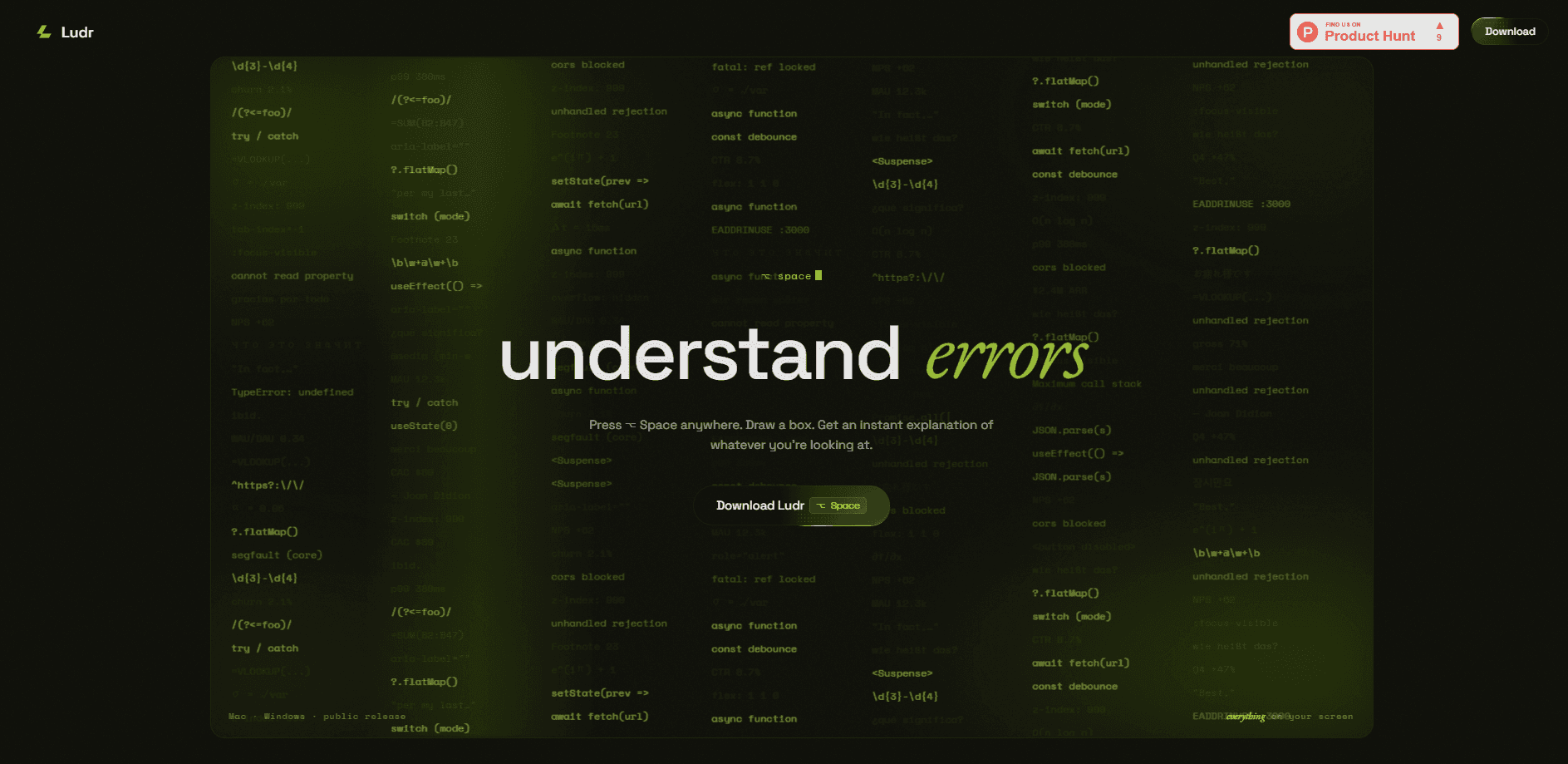
About Ludr AI — Understand Any Screen
What Is Ludr AI - Understand Any Screen
Ludr AI is a screen assistant, not a chatbot you visit. It sits on your desktop and turns any region of your display into an input for an AI model. You press a hotkey, the screen freezes, you draw a selection, and an answer streams in beside your work. Call it a cross-app AI helper. The point is that you never have to copy text into another window or describe what you're looking at.
It covers the small, constant interruptions of desktop work. A stack trace you can't read. A spreadsheet number that looks wrong. A paragraph in a language you don't speak. A regex you inherited from someone else. Those are the moments Ludr targets, and the value is speed: no app switching, no retyping context.
The main limit is scope. Ludr is a desktop-only tool, so it doesn't help on phones or tablets, and it's built for reading and rewriting what's already on screen rather than generating long documents from scratch. As a macOS screen tool it leans on system screen access, and it keeps its data local to your machine. That's good for privacy, but it means you're relying on the AI model itself for accuracy, not on any cloud storage of your history.
Getting Started
- Download the app for macOS or Windows from the official site and install it.
- Launch Ludr and grant the permissions it asks for, such as screen access, so it can read your selections.
- Press the hotkey (⌥ Space on Mac) to freeze the screen, then click and drag a box around anything you want explained.
- Read the streamed answer, then type a follow-up in the same thread to dig deeper.
- Optionally set up quick hotkeys, voice input, or the selection hotkey to skip the drag step for common tasks.
Product Information
A quick look at Ludr AI — Understand Any Screen's pricing, supported platforms, and performance.
Best for
The users, tasks, and scenarios where this tool fits best.
Users
- Developers
- Students
- Writers and editors
Tasks
- Explaining code and errors
- Reading charts and screenshots
- Translating or summarizing on-screen text
Scenarios
- Debugging a stack trace during a work session
- Reviewing a report with a chart that needs interpretation
- Pulling numbers out of a receipt or invoice image
Key features
Hotkey selection from any app
The core move is a single hotkey. Press it and Ludr freezes your screen, then you drag a box around whatever you need explained. Because it works at the system level, it runs over code editors, browsers, spreadsheets, and chat apps alike. No copy-paste. You aren't stuck moving content into a dedicated assistant window.
Follow-up threads
Every question becomes a thread rather than a one-off answer. You can reopen a thread later and keep asking in context, which matters when you're chasing a problem over several steps. The model remembers the earlier turns, so a follow-up doesn't need you to re-explain the original selection.
Inline edit
Inline edit rewrites a selection where it sits. Grammar, tone, and small code fixes happen without a round trip through a separate tool. That's the whole point. It's the feature that makes Ludr useful for editing inside messaging apps, browsers, and editors, since the corrected text lands back in the same field you were already typing in.
Voice input
Hit the mic, speak your question, and Ludr transcribes it into the input box, stopping when you go quiet. Voice is handy when you want to ask about something you can't easily type. Hard to spell it out? Just say it. It keeps your hands off the keyboard.
Visual grounding
Visual grounding means Ludr points at the specific elements it's discussing instead of describing them vaguely. On a UI review it can flag that a contrast ratio fails, that an element is misaligned, or that a focus state is missing, and it marks each item on the screen so you can see exactly what it means.
Text extraction
Select an image like a receipt and Ludr pulls the text and figures out of it. That turns screenshots and photos into usable data without retyping, which is the quiet workhorse feature for anyone who deals with scanned documents or pasted-in screenshots all day.
Quick hotkeys
You can bind up to ten custom shortcuts to fixed prompts, so pressing one combo and dragging a region returns the same answer every time. It's aimed at repeated tasks like translating a page or summarizing an article. Set it once. Skip the retyping.
Local-first data handling
Your history, screenshots, settings, and prompts stay on your machine, and the site states that no analytics, tracking, or telemetry runs in the app. For anyone handling sensitive material, that's a meaningful difference from cloud-first assistants. It also means your threads live only on that one computer.
Pros and cons
Pros
- Works across every app on macOS and Windows, so there's no new window to live in.
- Follow-up threads keep context, which makes multi-step problems easier to work through.
- Inline edit and text extraction go beyond explanation and actually change or capture the content.
- Visual grounding ties answers to specific on-screen elements instead of vague descriptions.
Cons
- Desktop only, with no mobile or web version, so it won't help when you're away from your computer.
- Pricing is in flux: the launch promo gives three days of full access, after which Pro becomes paid and the free tier adds a weekly cap, which can leave you unsure of the long-term cost.
- There's no public API, so you can't wire Ludr into your own tools or automation.
Frequently asked questions
It explains whatever you select on your screen. You press a hotkey, drag a box around any content, and it streams back an answer, then lets you ask follow-ups in the same thread.
Related content
Explore related tools, skills, and articles for Ludr AI — Understand Any Screen.
Ludr AI — Understand Any Screen Alternatives

Base Code
Base44 (Wix) · Coding · ProductivityBase Code is a shared cloud development environment from Base44. Teammates describe changes to an existing GitHub codebase in chat, preview them live and send them back as pull requests.

Knocket
Knocket (Tencent RTC team) · Productivity · Business · ChatbotKnocket is a free live chat and contact page tool that lets visitors message you from your website, app, or a shareable link, with every reply handled from Telegram or one inbox.

FloorGen
Vinit Kumar (FloorGen) · Productivity · China AIFloorGen is a browser-based floor plan maker that turns a sentence or a sketch into an editable 2D plan and a 3D walkthrough. Export to PDF, DXF or video, and draw without an account.