

Macuse
Macuse · Productivity
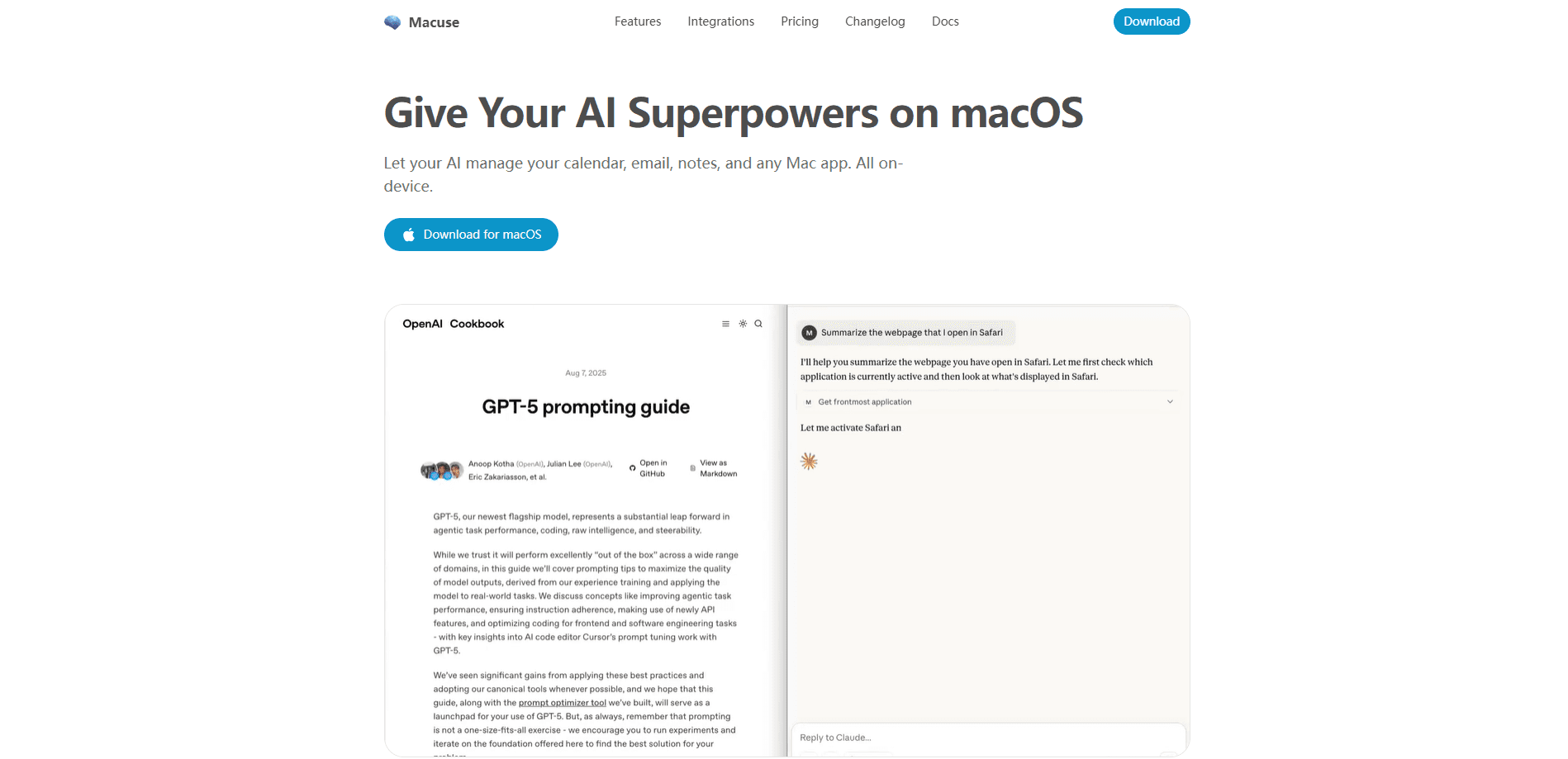
Macuse is a native macOS app that runs a local MCP server so AI assistants can work with your Mac. It's an MCP server for Mac that connects clients like Claude Desktop, Cursor, and Raycast to Calendar, Mail, Notes, Reminders, Messages, Contacts, Maps, and Shortcuts through structured tools, and falls back to Computer Use for apps with no API. Everything runs on your machine. Every client connection needs your approval.
About Macuse
What Is Macuse
Macuse is a local bridge between AI agents and your Mac. Modern assistants can reason about a task, but most can't reach your calendar, inbox, or notes on their own. Macuse fills that gap by exposing structured tools for supported Apple apps and a Computer Use mode for everything else. Think of it as a local AI agent that finally has hands. You pick the AI client, then decide which capabilities it may touch.
The app runs entirely on macOS and serves the Model Context Protocol over local stdio or Streamable HTTP. It follows the open MCP standard, so it isn't tied to one model vendor. That's what makes the Claude Desktop integration work the same way a Cursor setup does. Point Claude Desktop, Codex, Cursor, or a dozen other compatible clients at it and the same local server responds.
The main limit is scope. Macuse is Mac-only, it needs macOS 13 Ventura or later, and protected apps require Accessibility and Full Disk Access approvals before they work. So who is it really for? Anyone already running an MCP client who wants it to reach native apps. The free tier caps you at 100 tool calls per day and one connected client. That's fine for trying things out. It's tight for daily use.
Getting Started
- Download the
.dmgfrom macuse.app and drag Macuse into your Applications folder. - Launch it from the menu bar and grant the permissions it asks for. Accessibility powers Computer Use, Full Disk Access lets it read Mail, Notes, and Messages.
- Open the Server card and pick your AI tool under Quick Setup. Macuse configures Claude Desktop, Cursor, Raycast, and the rest for you.
- Ask your assistant to do a Mac task in plain language, like checking tomorrow's availability or drafting a reply.
Product Information
A quick look at Macuse's pricing, supported platforms, and performance.
Best for
The users, tasks, and scenarios where this tool fits best.
Users
- Mac power users
- Developers and coders
- Remote and hybrid workers
Tasks
- Scheduling and calendar work
- Email triage
- Note-taking and reminders
- Automating apps with no API
Scenarios
- Morning catch-up
- Meeting follow-up
- Triaging a busy inbox
- Background automation
Key features
Native app tools through MCP
Macuse exposes structured tools for Calendar, Reminders, Notes, Mail, Contacts, Messages, Stickies, Shortcuts, and Maps and Location. Your assistant calls those tools directly. Need an event created? It just does it. The tools are task-oriented, which keeps results predictable compared to raw screen control, and it means you never switch apps to finish the job.
Computer Use for everything else
For apps without an integration, including Finder, Macuse can inspect screens, click, type, scroll, and navigate menus, which opens up automation for the long tail of Mac software that was never built to expose an API in the first place. It can run in the background while you keep using the Mac.
Local-first privacy and permissions
The server runs on your Mac. Each client connection and each protected app capability needs your approval, and you can review or revoke access later. Native app content is read locally and returned only to the client you connected, which means Macuse itself never ships your mail or notes to a cloud it controls. The client you pick still applies its own provider terms to whatever it receives.
Why not just use a built-in shortcut?
Because Macuse reaches apps that have no integration at all. For APIs that already exist, a dedicated tool may be faster. For everything else, Computer Use is the only realistic way in, and that difference is exactly what separates it from a plain Apple Shortcut.
Developer and agent resources
The site publishes an OpenAPI 3.1 document, an MCP Registry manifest, and machine-readable agent guidance, so an agent can inspect release, license, and billing endpoints directly instead of scraping HTML and guessing at what the site exposes. That matters if you're wiring Macuse into a larger automated setup.
Two-minute setup
Install, grant permissions, pick a client, and start chatting. Quick Setup handles Claude Desktop, Claude Code, Cursor, Codex, VS Code, Zed, Raycast, Warp, and other clients, and you can add more using the published manifest. The whole flow is meant to take under five minutes with no config files to hand-edit, which matters because most MCP servers still expect you to edit a JSON file by hand and restart your client to see whether anything actually worked.
Pros and cons
Pros
- Runs entirely on your Mac, so app data isn't routed through a third-party cloud.
- Covers both structured app tools and Computer Use, so it reaches more apps than API-only bridges.
- No vendor lock-in because it speaks the open MCP standard.
- Free tier includes every feature, just with daily limits.
- Lifetime license is a one-time $49 for three devices, with a 7-day money-back guarantee.
Cons
- macOS only, so Windows and Linux users are out of scope.
- Protected apps need Accessibility and Full Disk Access, which some people won't want to grant.
- The free plan's 100 calls per day and single client run out fast for real daily use.
- Computer Use can be slower and less reliable than a dedicated API integration when one exists.
Frequently asked questions
It runs a local MCP server that lets AI assistants control native Mac apps like Calendar, Mail, Notes, Reminders, and Messages. It also uses Computer Use to drive apps that have no API.
Related content
Explore related tools, skills, and articles for Macuse.
Macuse Alternatives

Base Code
Base44 (Wix) · Coding · ProductivityBase Code is a shared cloud development environment from Base44. Teammates describe changes to an existing GitHub codebase in chat, preview them live and send them back as pull requests.

Knocket
Knocket (Tencent RTC team) · Productivity · Business · ChatbotKnocket is a free live chat and contact page tool that lets visitors message you from your website, app, or a shareable link, with every reply handled from Telegram or one inbox.

FloorGen
Vinit Kumar (FloorGen) · Productivity · China AIFloorGen is a browser-based floor plan maker that turns a sentence or a sketch into an editable 2D plan and a 3D walkthrough. Export to PDF, DXF or video, and draw without an account.